 BeFit Tracker Help
Beta tracker manual
Use the A1C tracker
Record A1C results, set a personal goal, and understand every part of A1C history on iPhone, iPad, and Mac.
What A1C tracking helps you see
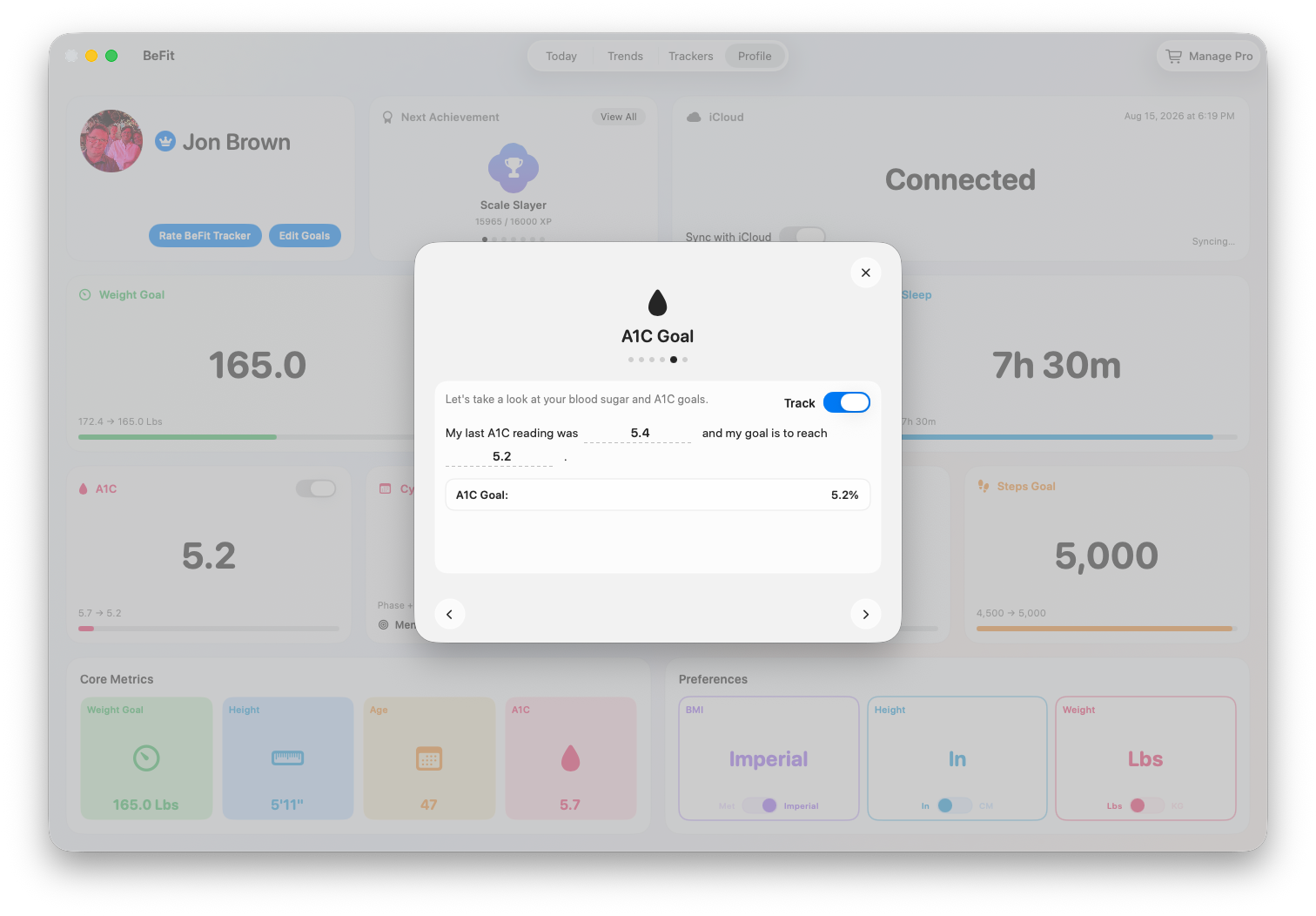
The A1C tracker keeps dated results, your personal goal, calendar history, and change over time in one workspace. It is useful when you want a consistent record to discuss with a qualified health professional; it does not diagnose a condition or tell you how to change treatment.
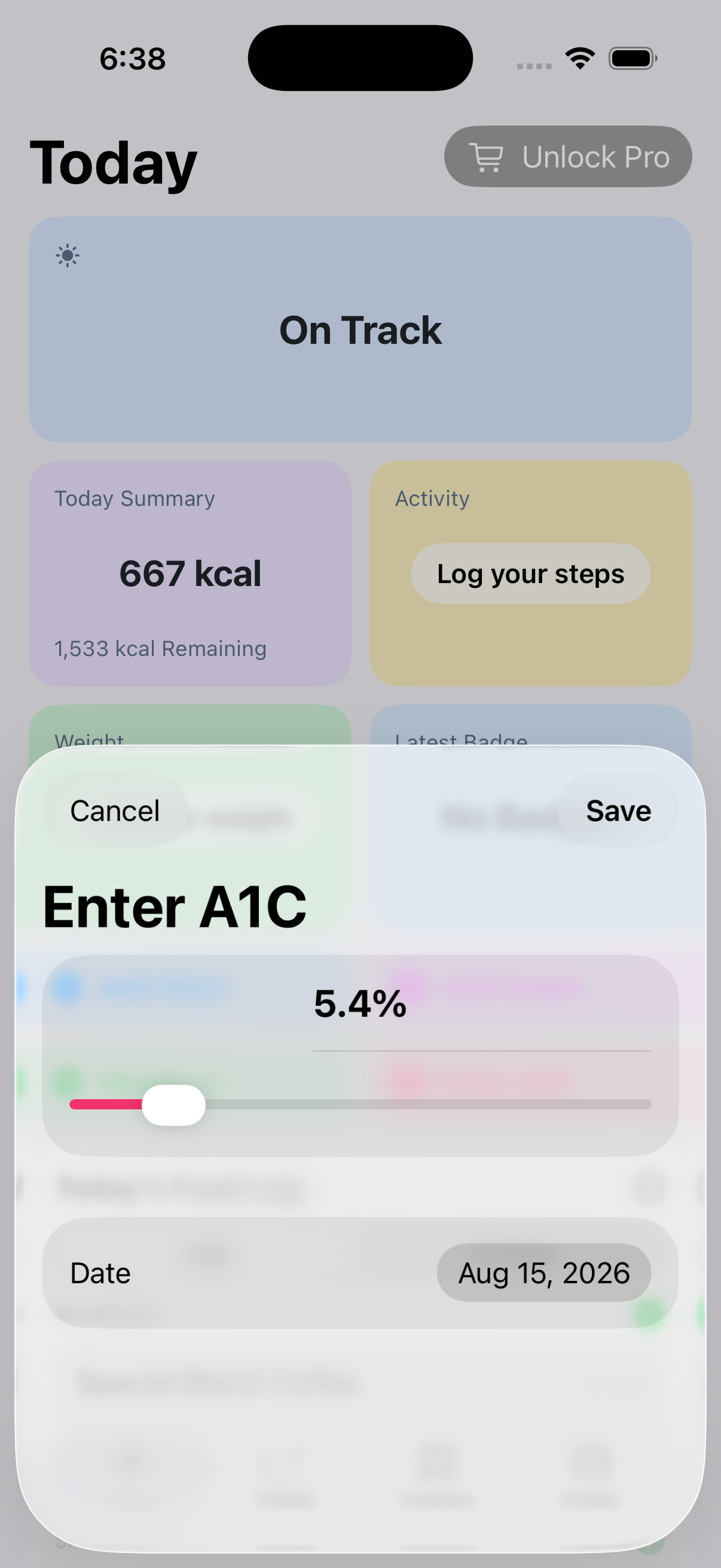
iPhone
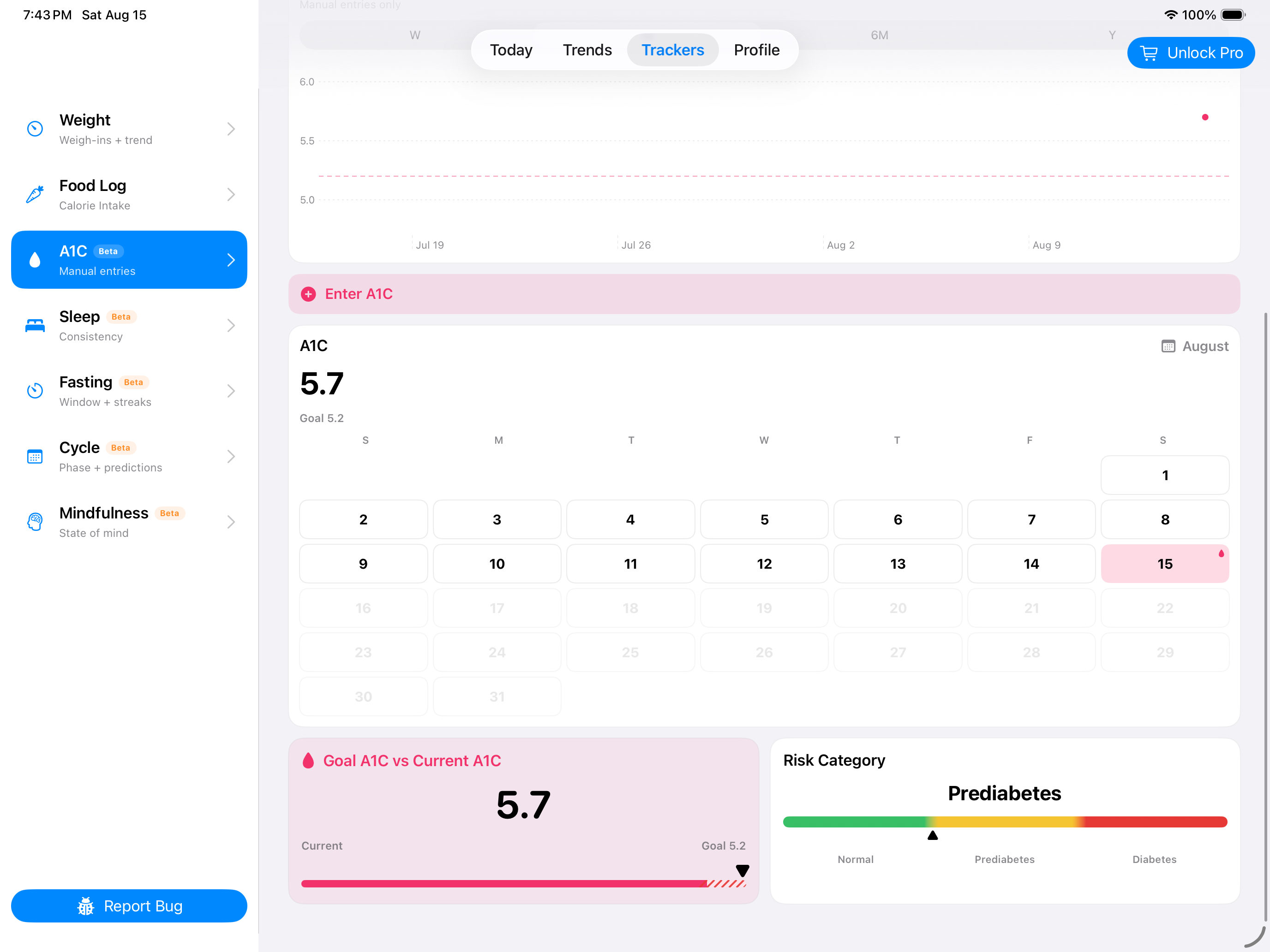
iPad
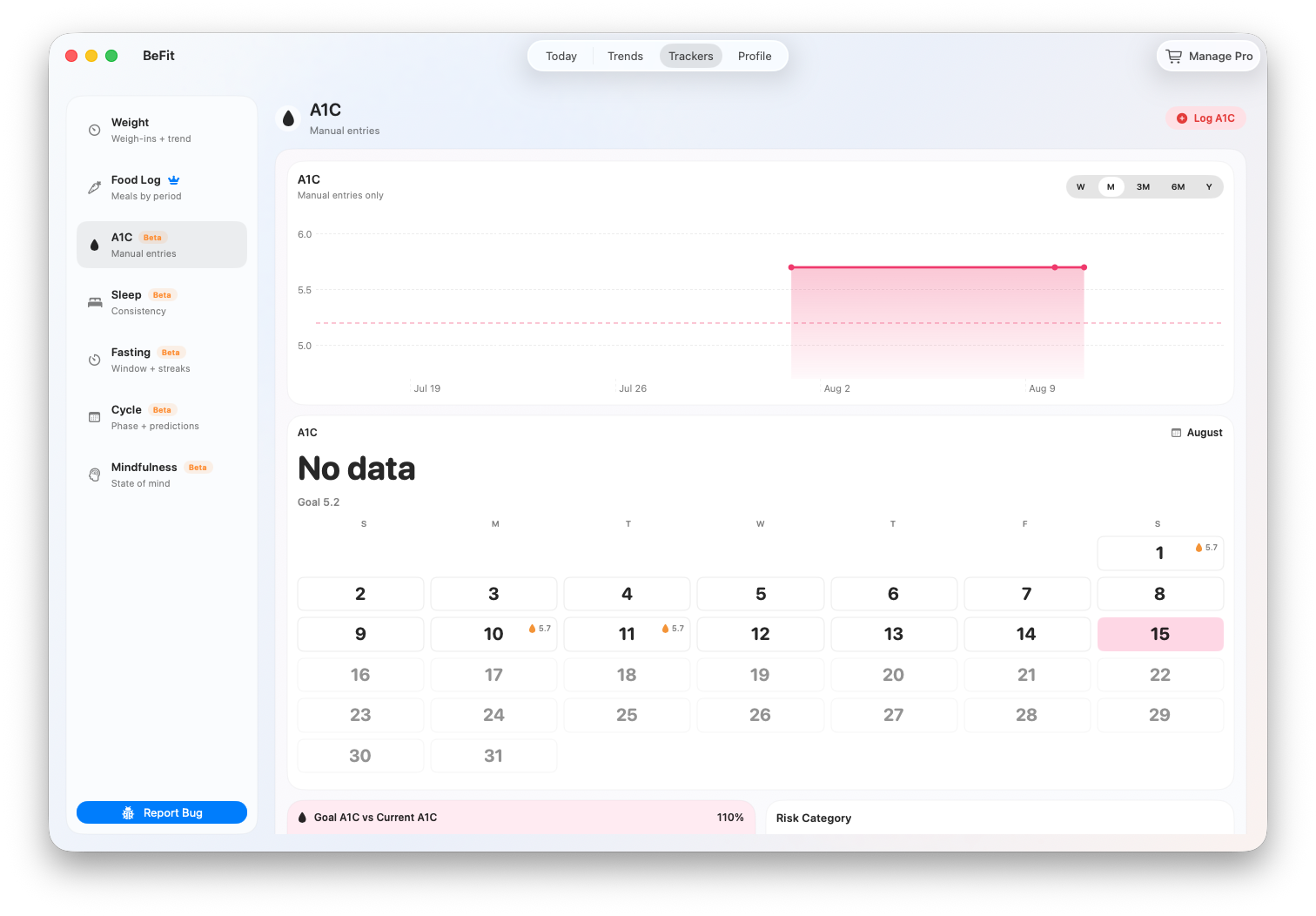
Mac
Understand the A1C workspace
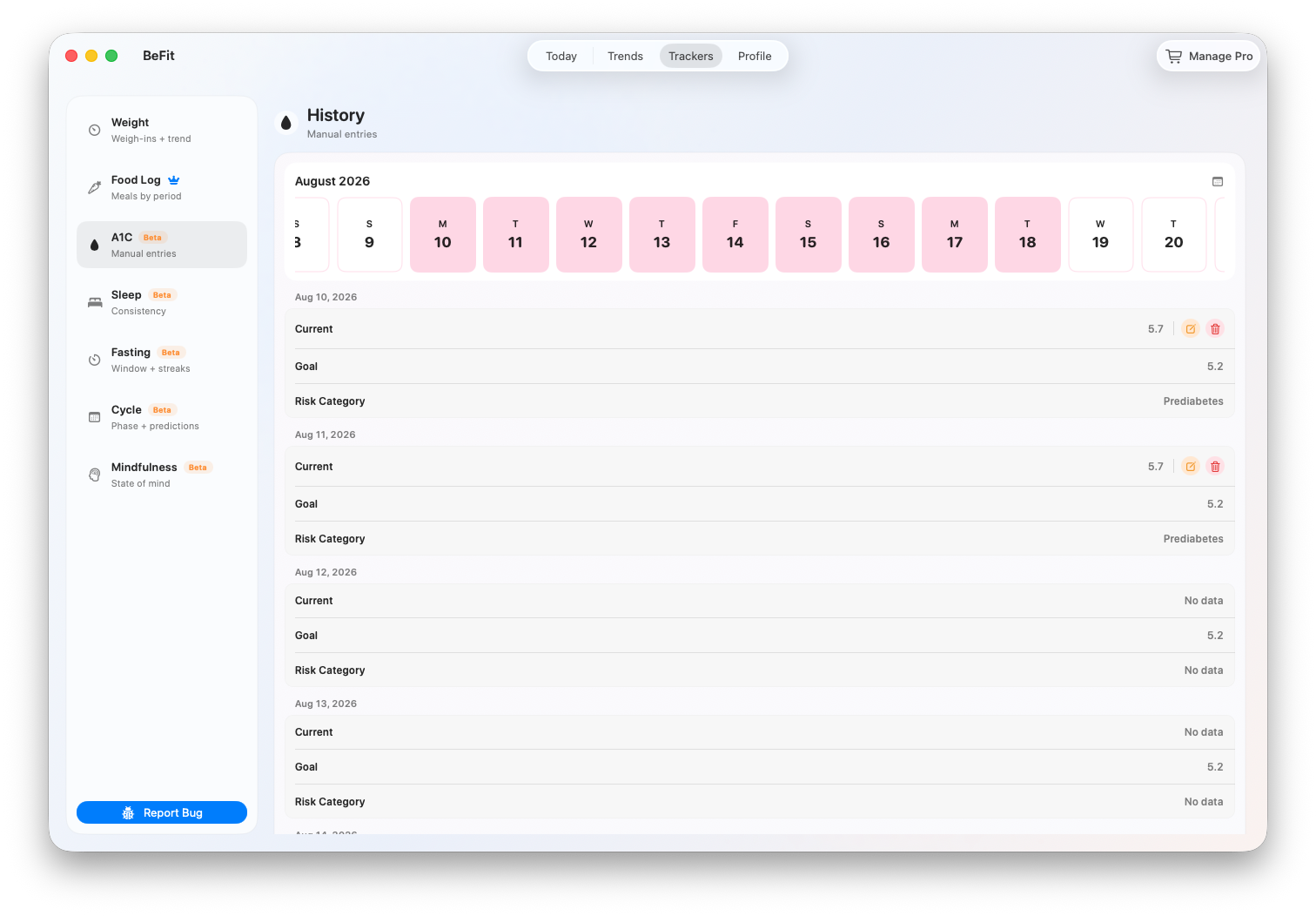
Recent history
The history controls let you move through saved A1C results without losing the surrounding context. Select a result to review its date and value. Records you entered manually can be corrected or removed when a date or value is wrong.
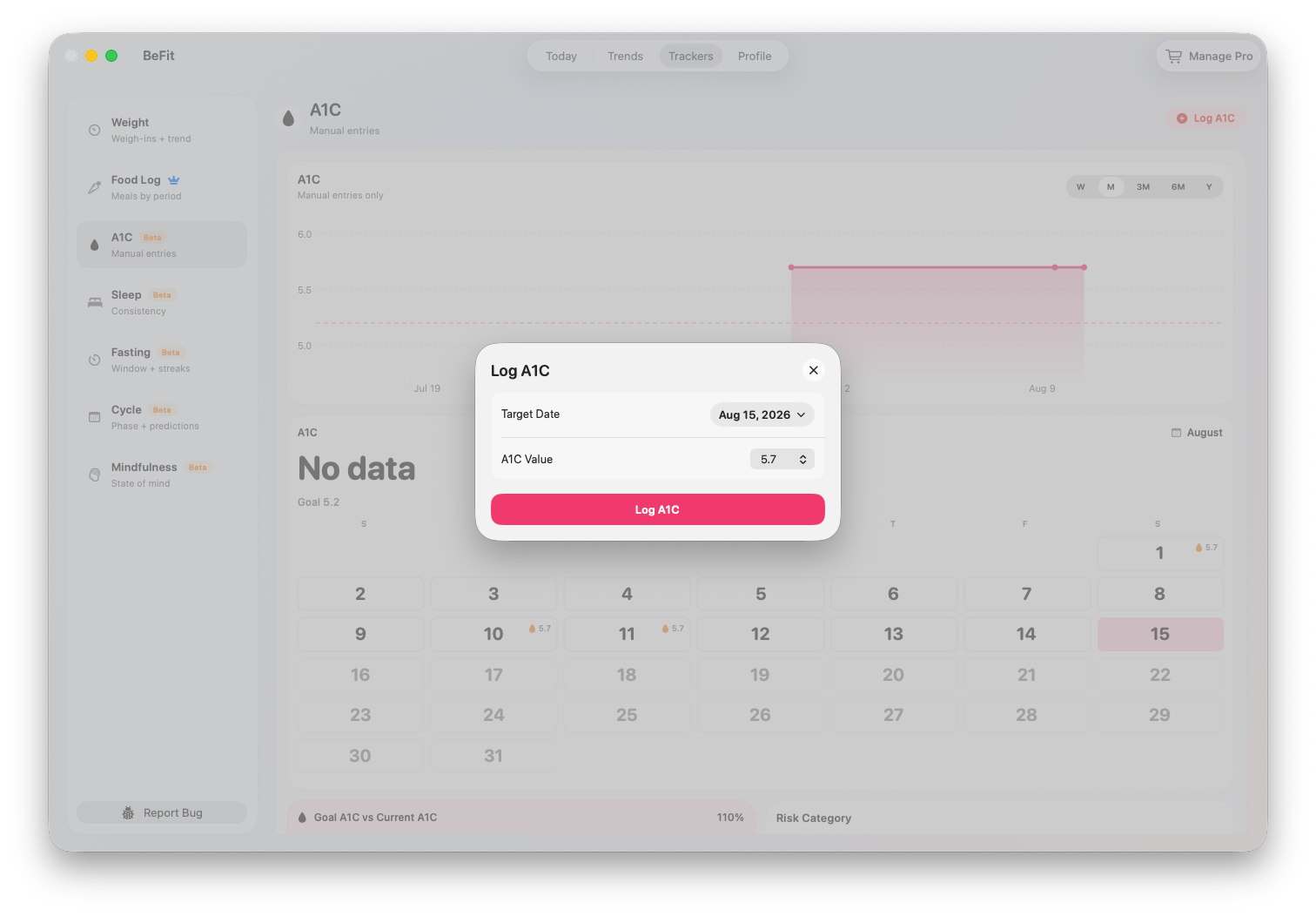
Trend chart
The trend plots saved results chronologically. Use Week, Month, 6 Months, or Year to change the amount of history shown. The goal reference helps you compare a result with the goal stored in BeFit Tracker; it is not a clinical target selected by the app.
Calendar
The calendar answers a different question from the chart: when did I record a result? Move between months to find older entries. A date without a marker means BeFit Tracker has no saved A1C record for that day.
Goal versus current
This comparison uses your latest saved result and your configured A1C goal. It is a quick orientation tool, not an interpretation of whether a result is safe or appropriate for you.
Risk category
The category is an informational app calculation based on the recorded value. It cannot account for your medical history, laboratory method, treatment, or a clinician's judgment. Use the original laboratory result and professional guidance as the authority.
Add an A1C result
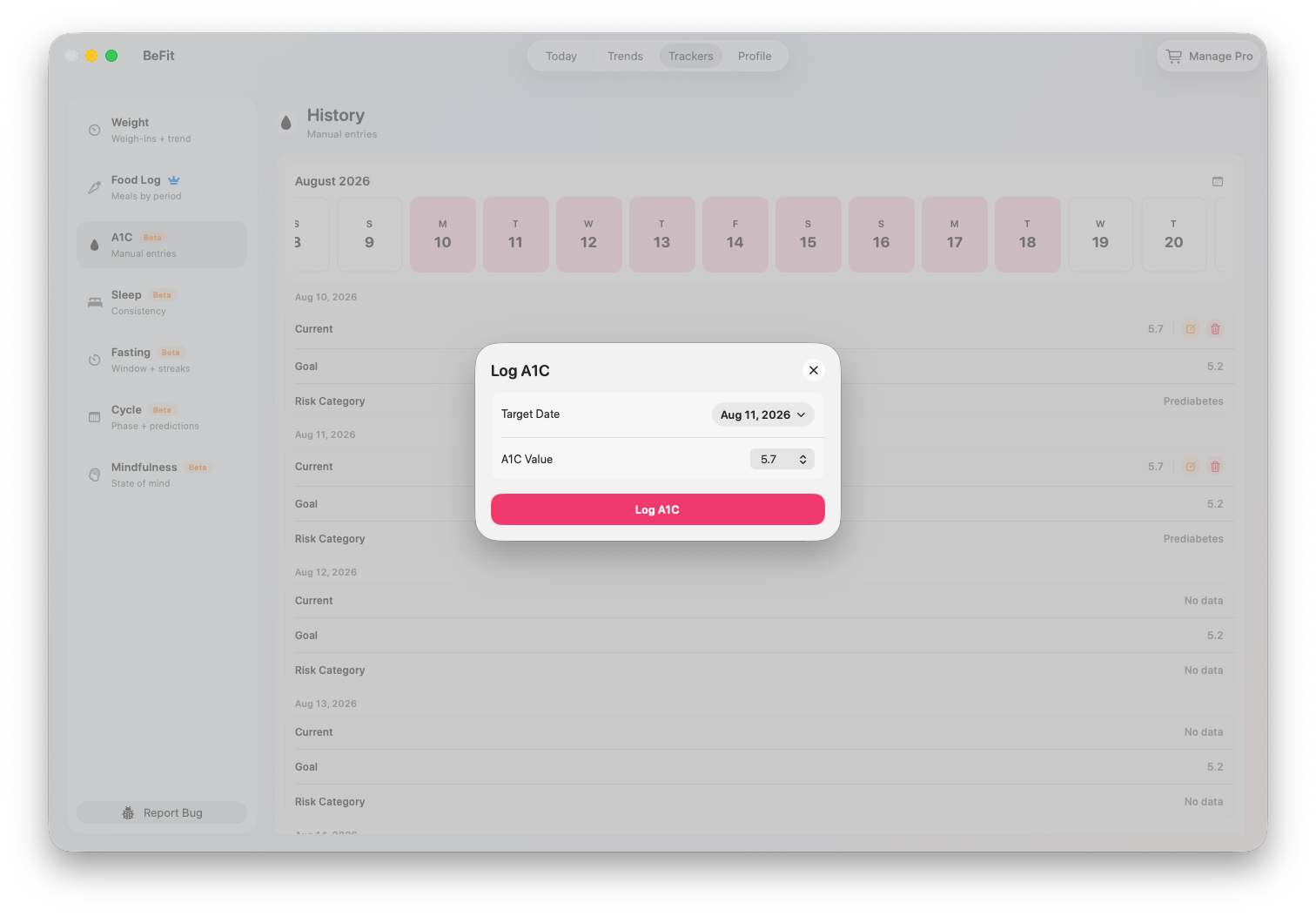
- Open Trackers, then choose A1C.
- Select Enter A1C.
- Enter the result exactly as it appears in your source record and choose the correct date.
- Review both fields before saving. The new entry should appear in History, the calendar, and the trend.
Correct or remove a result
Open the saved entry from History and use its edit or delete action. Correcting the original record is better than adding a second entry for the same result. After a change, confirm that the calendar, latest result, comparison, and trend all reflect the corrected history.
iPhone and iPad
iPhone keeps entry close to the tracker controls. Landscape iPad shows more of the chart, calendar, and supporting cards at once. Supported Health information depends on Apple Health authorization and the records available there; always review imported information against its original source.
Mac
Mac displays manual A1C records and supported records reconciled through iCloud. Mac does not connect directly to HealthKit. If a recent mobile record is missing, confirm iCloud is enabled on the participating devices and allow synchronization to finish before adding a duplicate.
BeFit Tracker stores values and presents app calculations. It does not validate a laboratory result, diagnose a condition, recommend a goal, or replace guidance from a qualified health professional.