 BeFit Tracker Help
iPhone & iPad
Look up food by barcode
Scan a package or enter its code and review Open Food Facts data before saving.
Barcode lookup uses a package code to request a matching product from Open Food Facts. The scan finds a candidate; your review decides whether it is accurate enough to keep and log.
Scan a package
- Open the Food Library or food-logging scan action.
- Allow Camera access when prompted.
- Hold the barcode inside the camera frame until the code is recognized.
- If the camera cannot read it, enter the numeric code manually and choose Look Up.
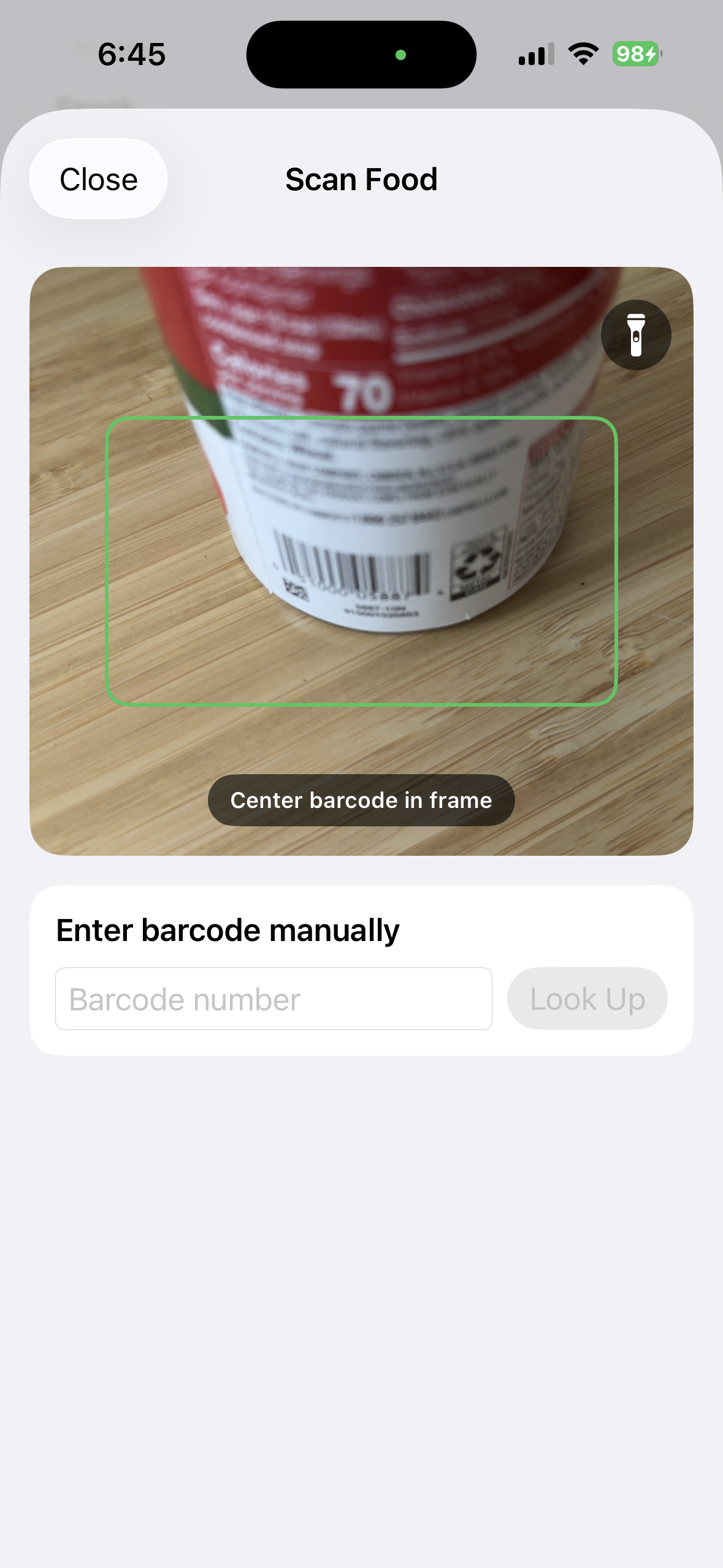
 1. Frame the package code
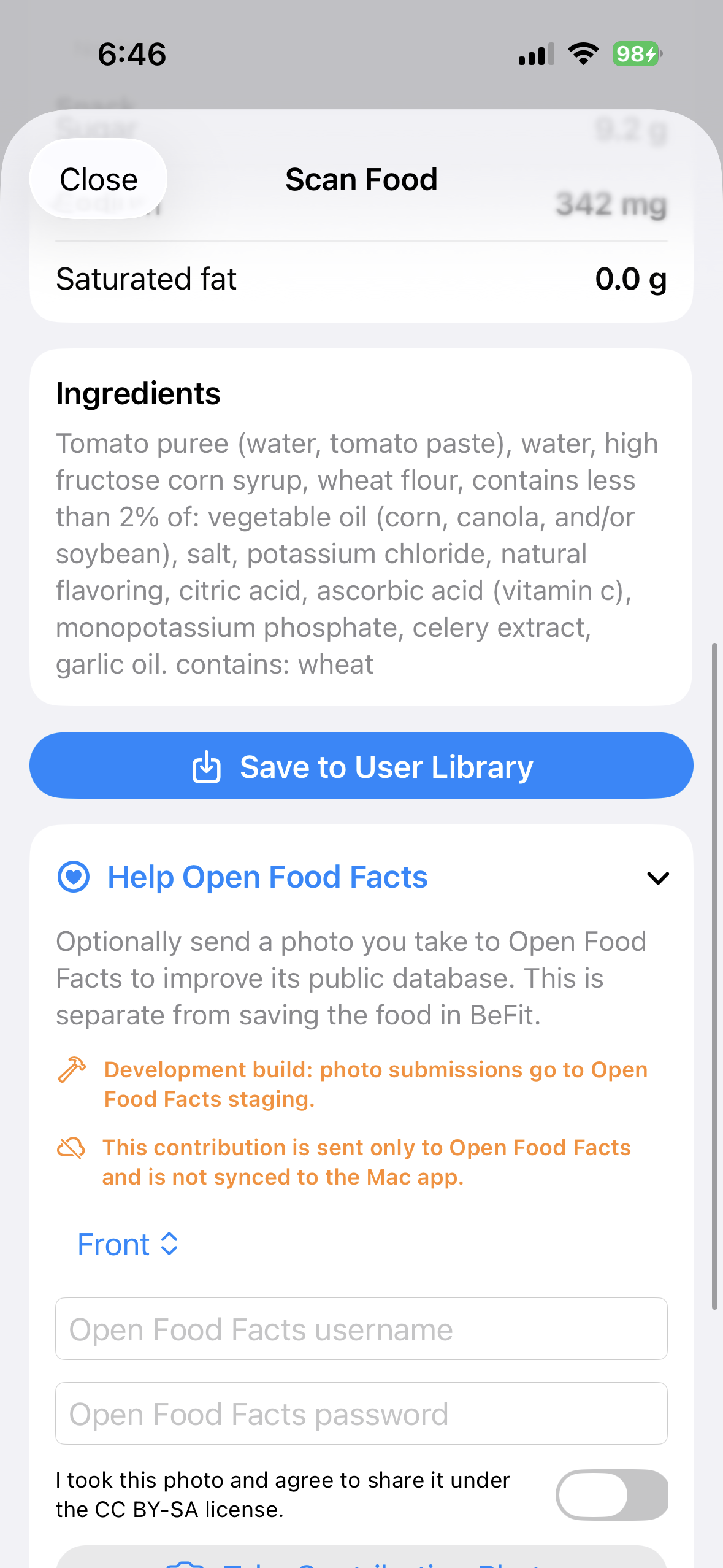
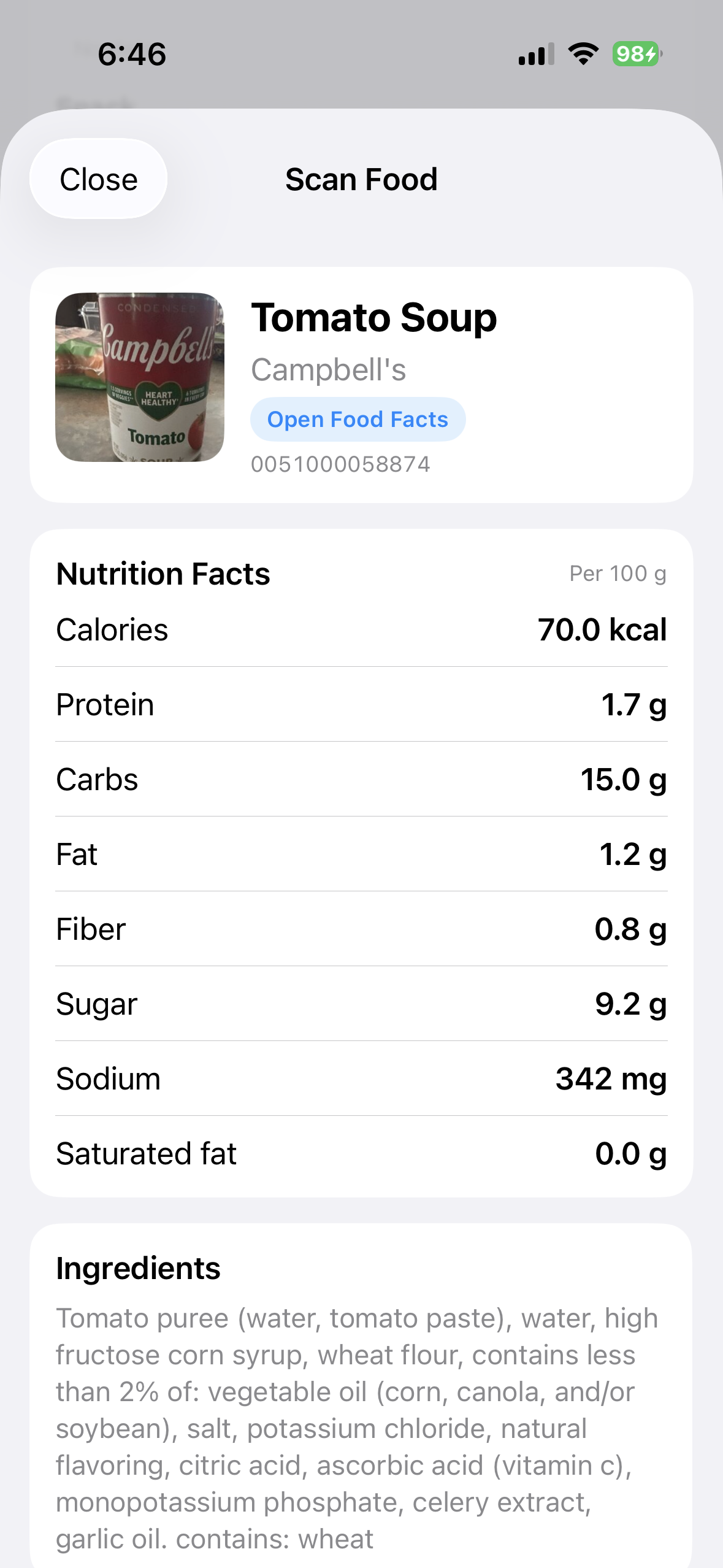 2. Confirm the returned product
Products can be missing or incomplete. Compare uncertain values with the package label.
Review the returned product
Compare the product name, brand, package image, barcode, serving basis, ingredients, calories, macronutrients, sodium, sugar, and any other supplied nutrients with the package in your hand. Open Food Facts may report nutrition per 100 g even when the package emphasizes another serving.
Compare identity and nutrition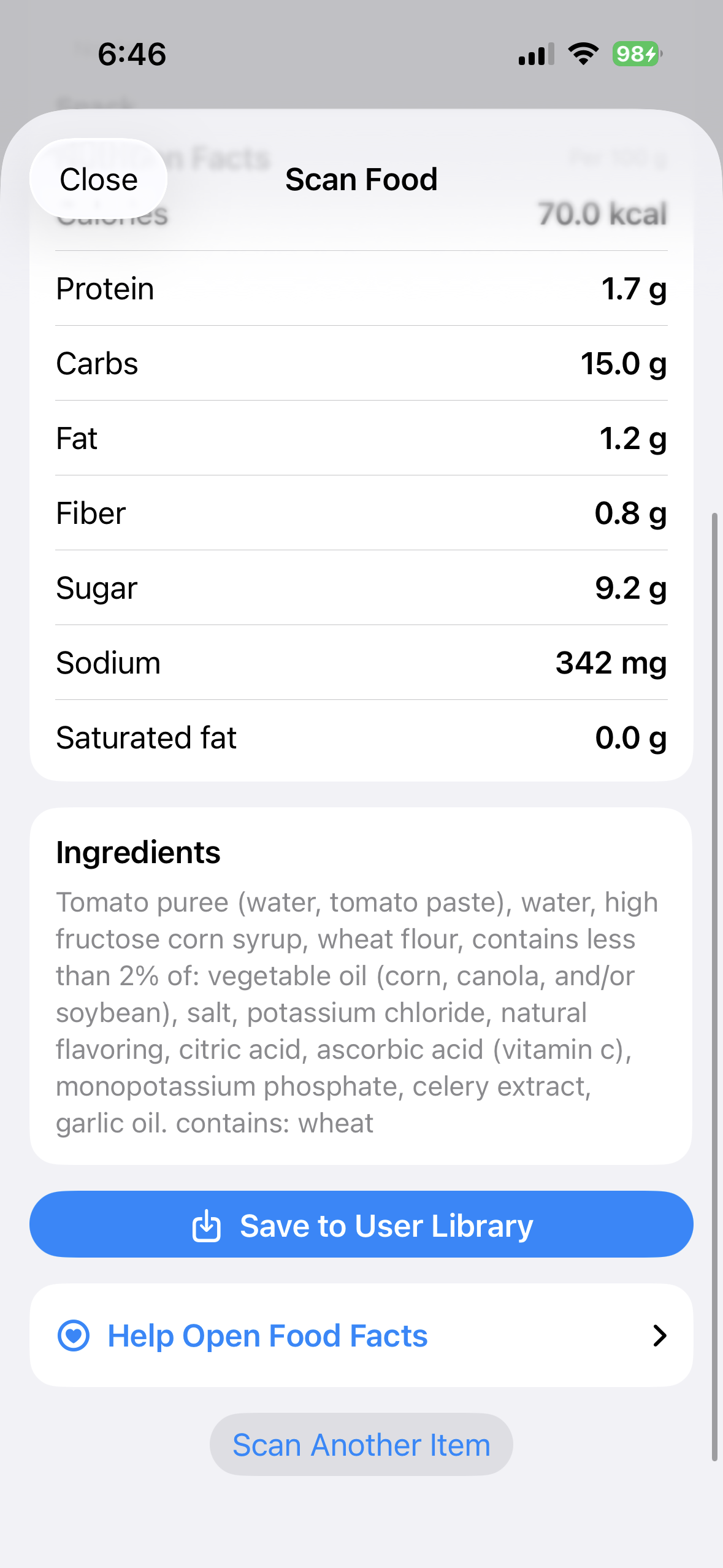 Compare the supplied ingredients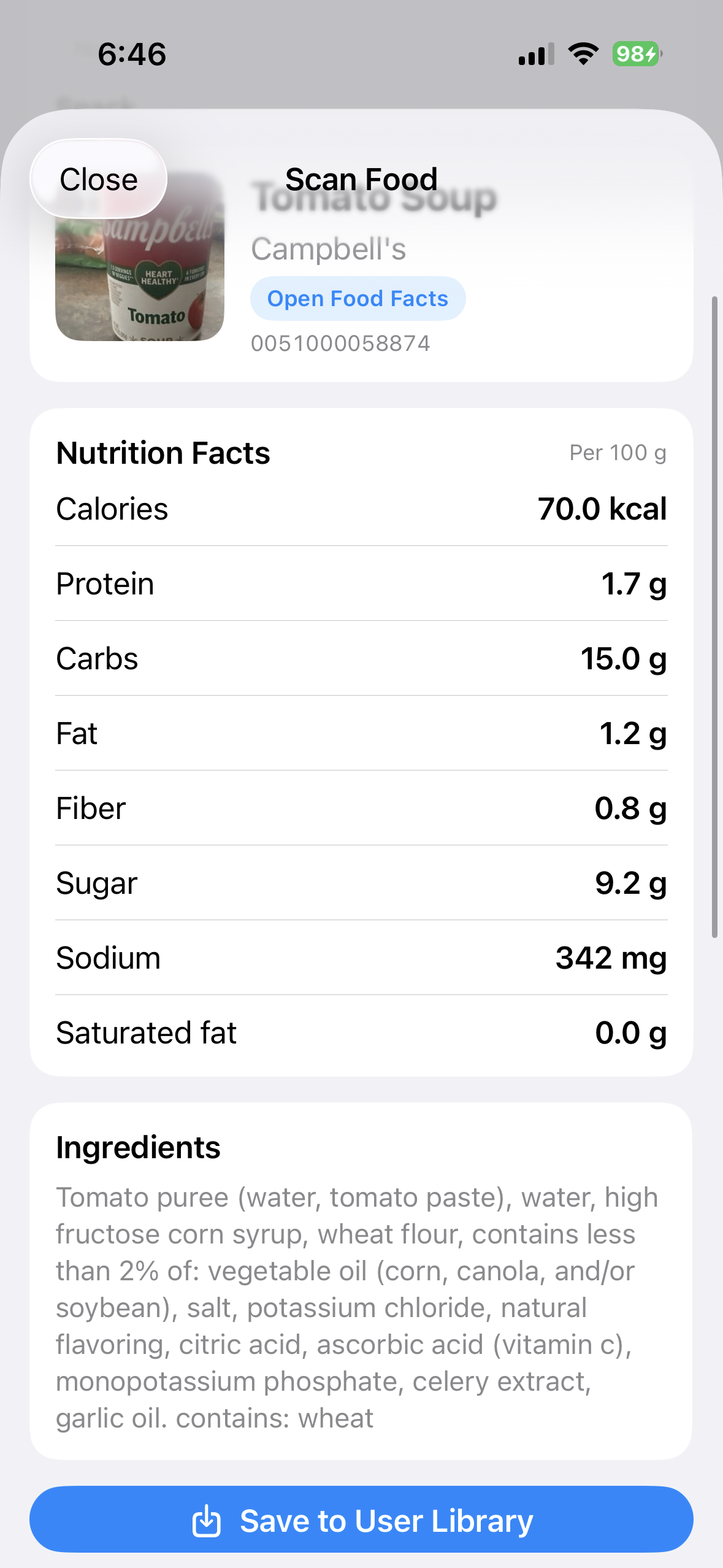
Save to the User Library
Choose Save to User Library only after review. BeFit Tracker stores a personal snapshot with Open Food Facts source attribution, then continues through the normal serving, quantity, meal, and date workflow when you choose to log it. Saving does not correct the public Open Food Facts entry.
Search Open Food Facts without scanning
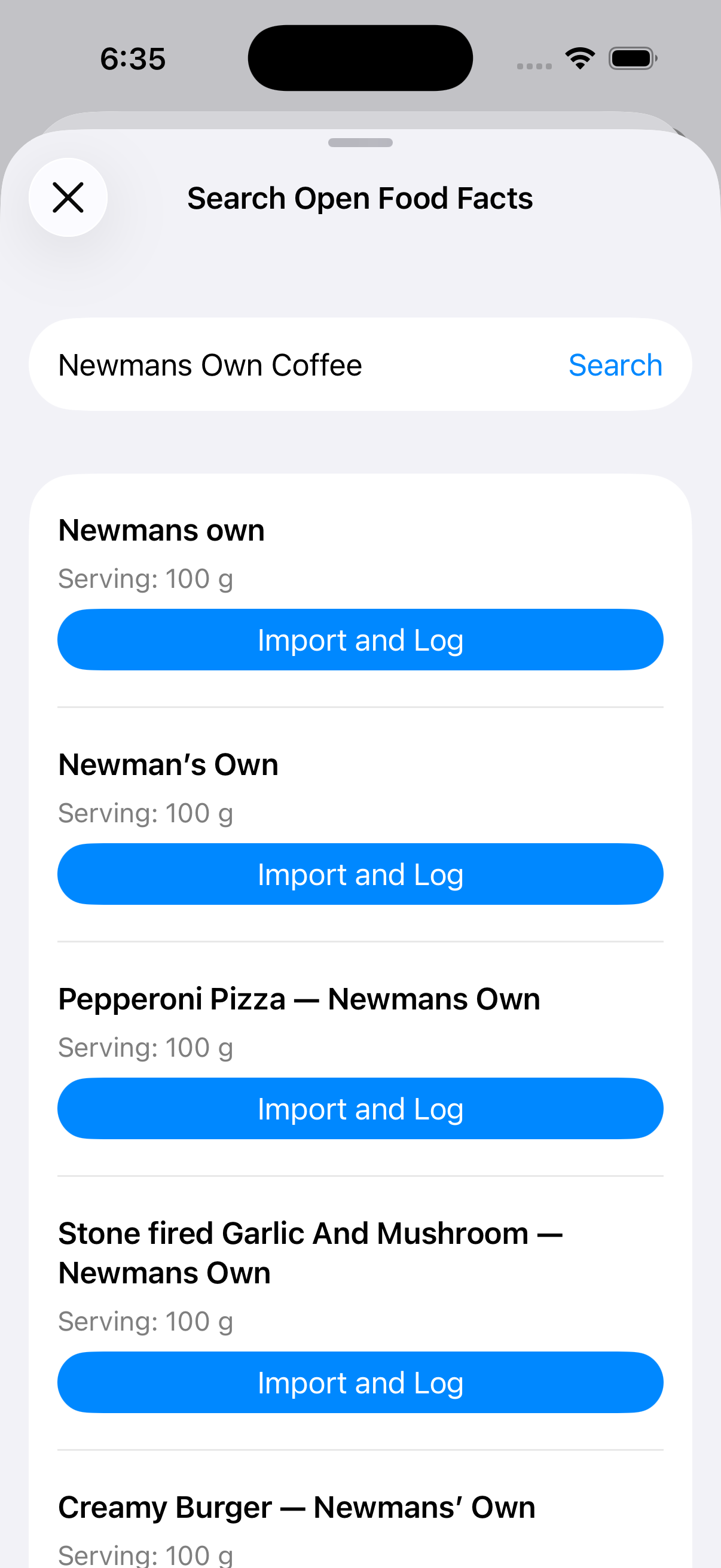
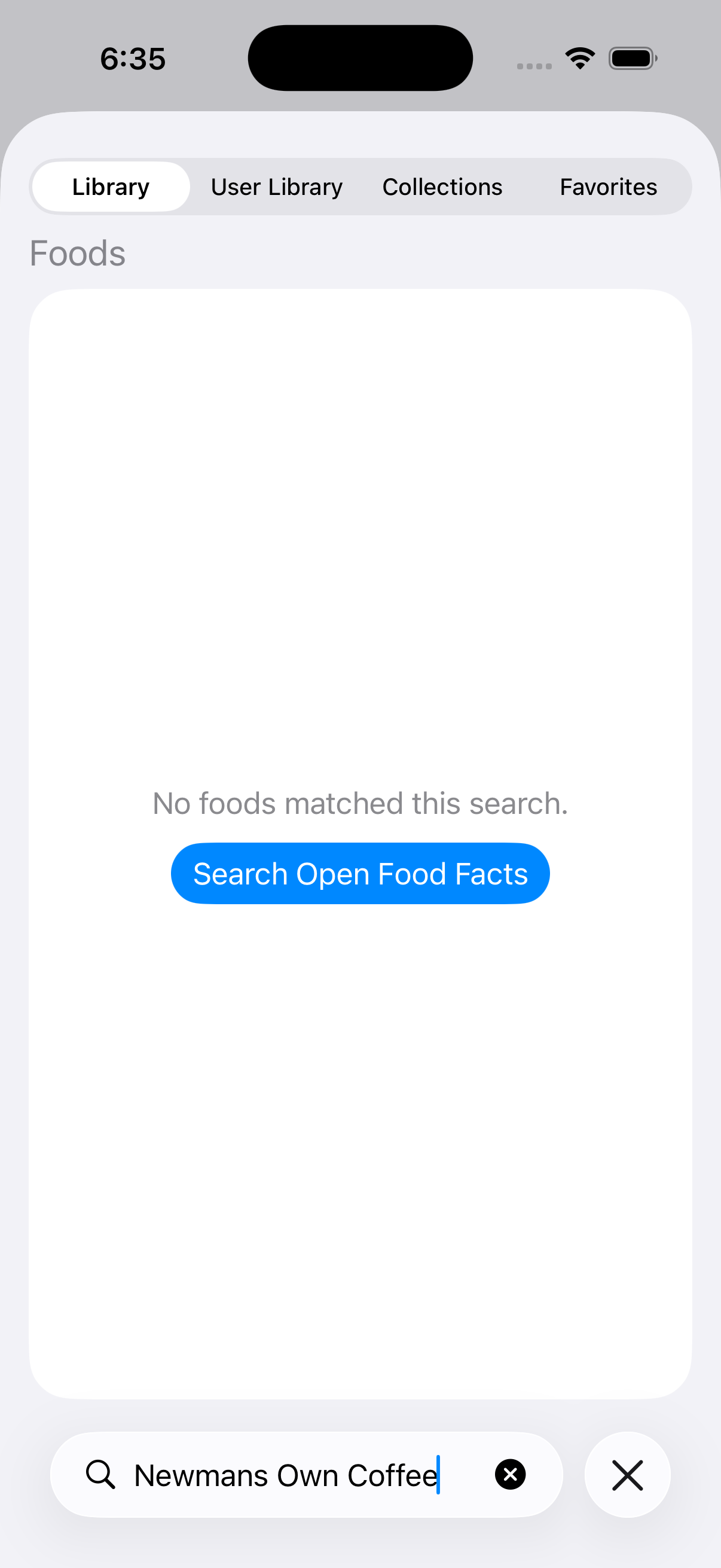
If you know the product name but do not have a readable barcode, use the Open Food Facts search path. Review the result with the same care as a scanned product; a name match alone does not prove that the package, region, or serving basis is the same.
When no useful match is returned
- Confirm every barcode digit and try manual entry.
- Check that the scanned code belongs to the sellable package rather than an outer shipping case.
- Compare similarly named products carefully; sizes and regional recipes can differ.
- If the product is missing or inaccurate, do not save it merely to complete the workflow. Search the bundled catalog or create a reviewed user-added food instead.
Camera permission
If scanning is unavailable, review Camera access for BeFit Tracker in iPhone or iPad Settings. Manual barcode entry remains available without Camera access.
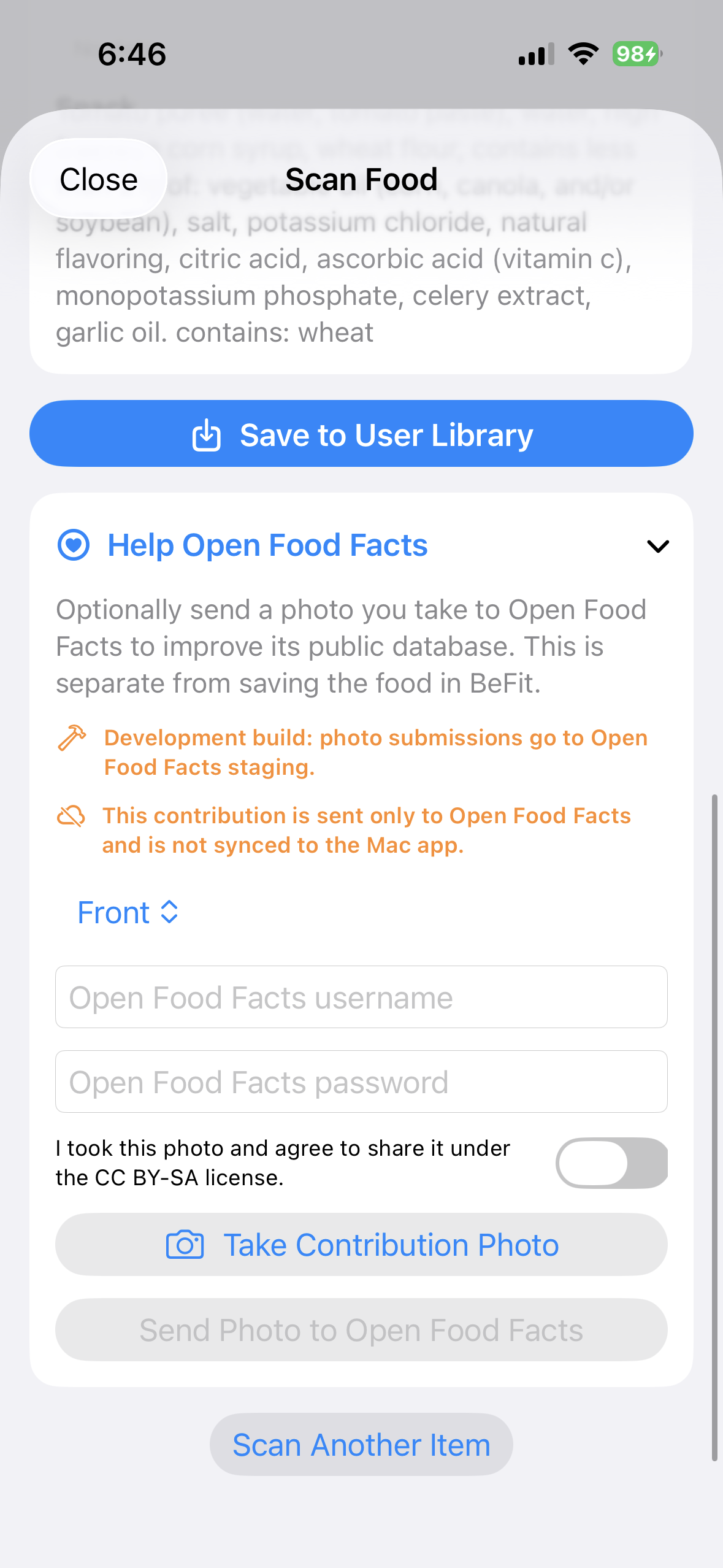 Lookup does not require contributingUse scanner guidance or enter the code manually