 BeFit Tracker Help
Mac assisted food entry
AI Integrations on Mac
Choose Apple Intelligence, OpenAI, Claude, or a vision-capable Ollama model for reviewed food assistance.
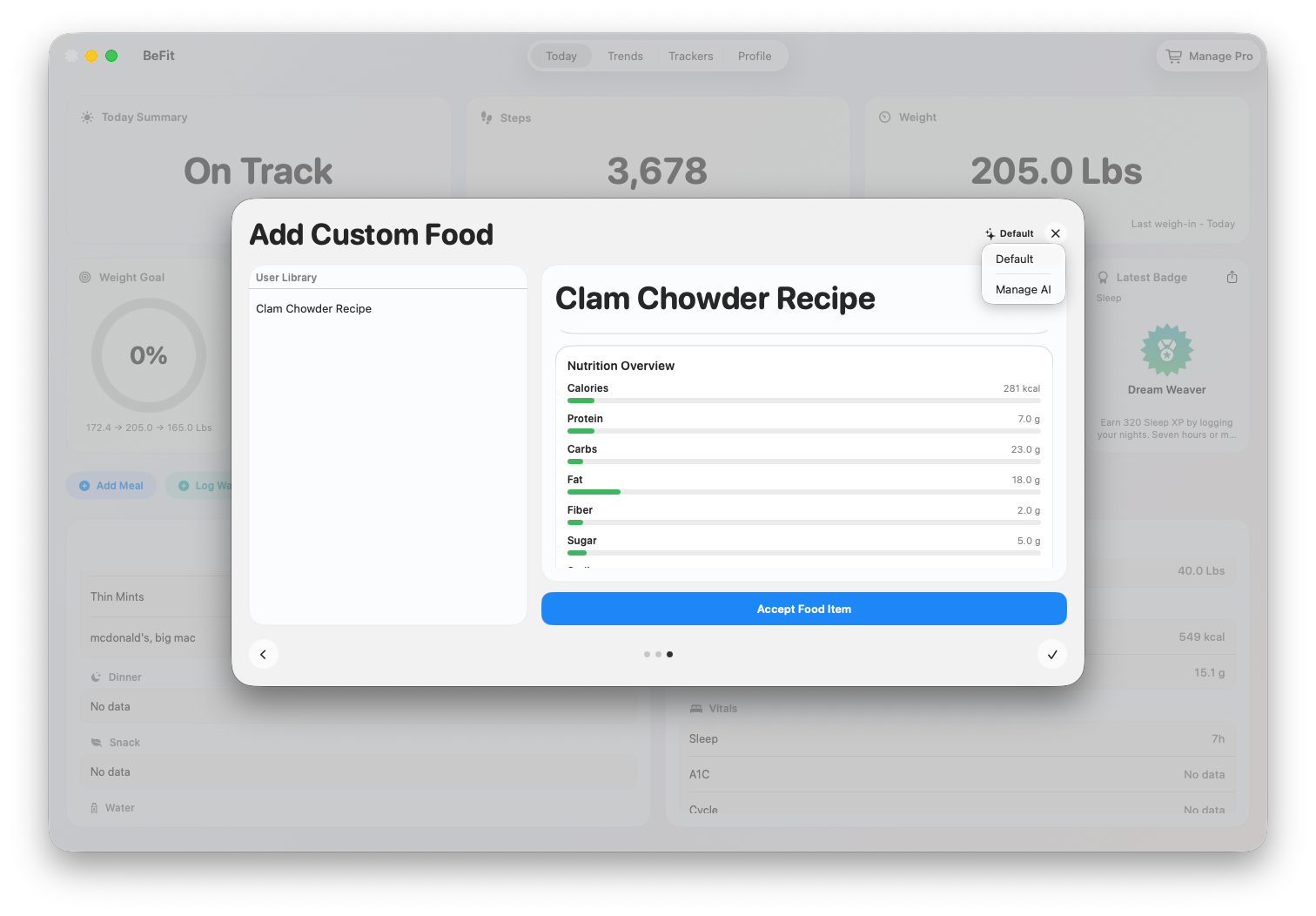
BeFit Tracker can use a configured AI connection to help match a dictated description or food photo with useful recipe candidates. The integration helps with discovery; you choose the source, inspect the nutrition, and decide what enters your User Library.
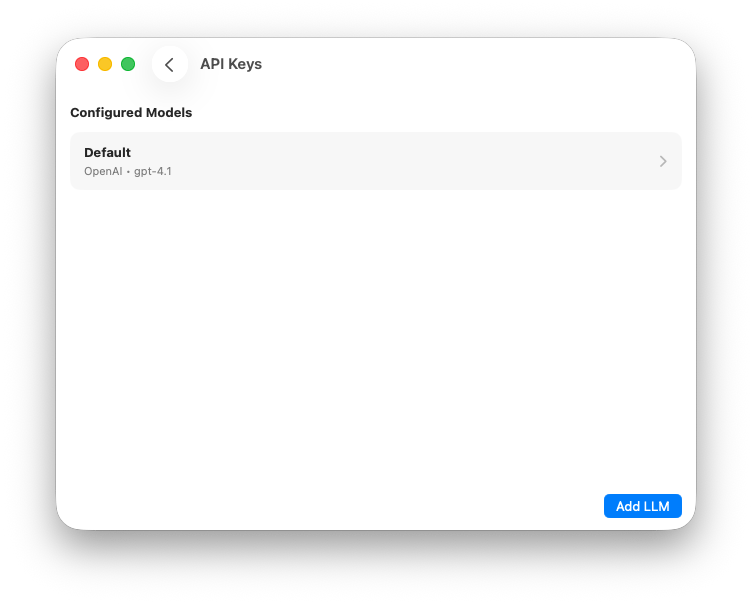
Choose an integration
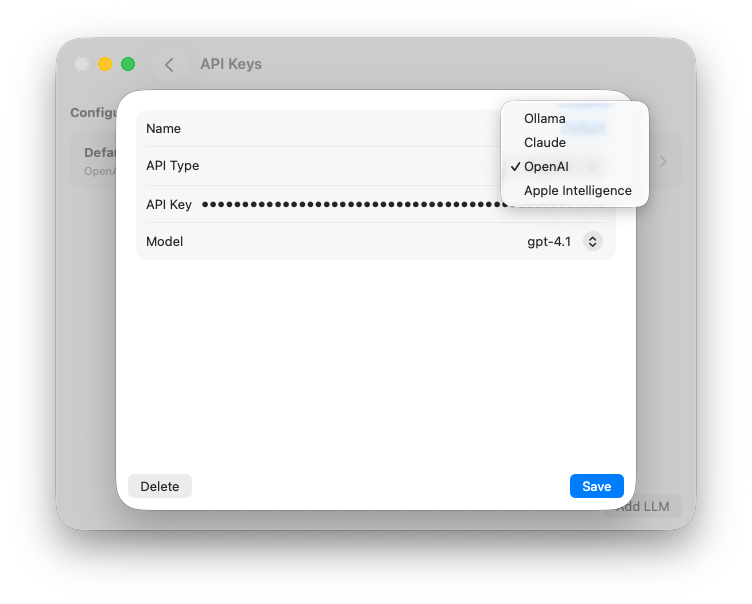
Photo support appears only after the local availability check passes.
Uses the system model on your Mac.Good starting points include current models that OpenAI documents as accepting images.
Provider account, pricing, limits, and network access apply.Use a current Claude model that Anthropic documents as supporting vision.
Provider account, pricing, limits, and network access apply.Use a customer-installed model that Ollama lists as supporting image input.
Ollama must be installed and running locally.Provider catalogs change, so verify the current documentation before relying on a specific model. For a photo, confirm that the provider says the selected model accepts image input.
OpenAI or Claude
- Open BeFit Tracker Settings and add an AI integration.
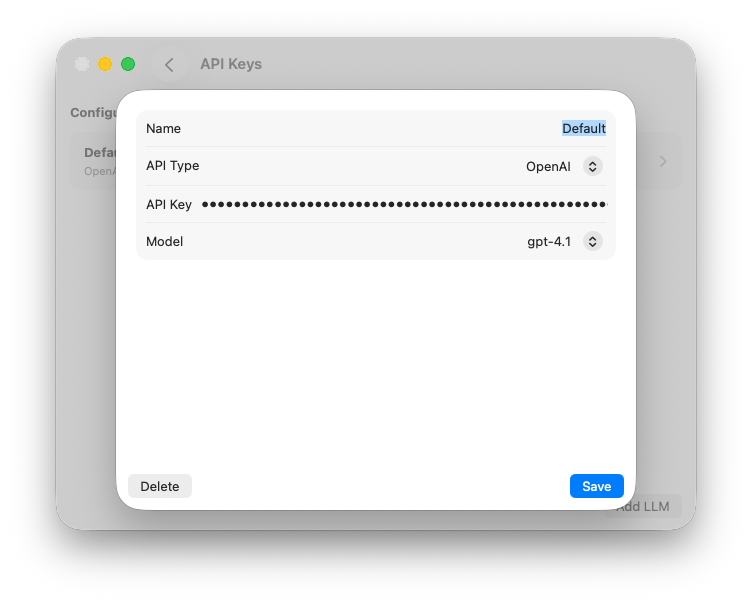
- Choose OpenAI or Claude, enter the API key from your provider account, and select a model.
- Save the connection. BeFit Tracker stores the credential in Keychain.
- From the User Library, choose a dictated or photographed food workflow and review the returned recipe candidates.
Apple Intelligence on Mac Beta
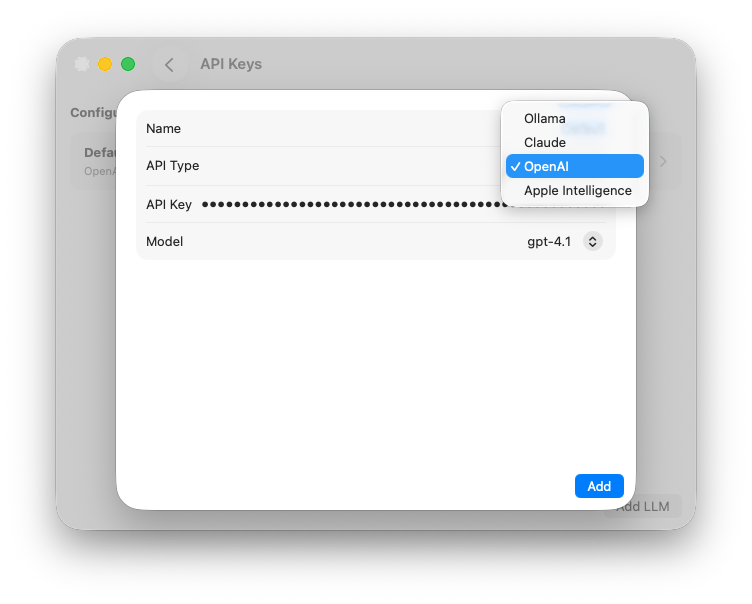
Apple Intelligence is optional and must pass an availability check before BeFit Tracker offers it as a connection. The workflow combines Apple image classification with the on-device system model to form a useful food description, then searches recipe sources for candidates.
Apple Intelligence can misidentify a dish, omit an ingredient, or return an unhelpful description. This Beta workflow is opt-in. Check the recognized food, recipe source, ingredients, serving, and nutrition before saving.
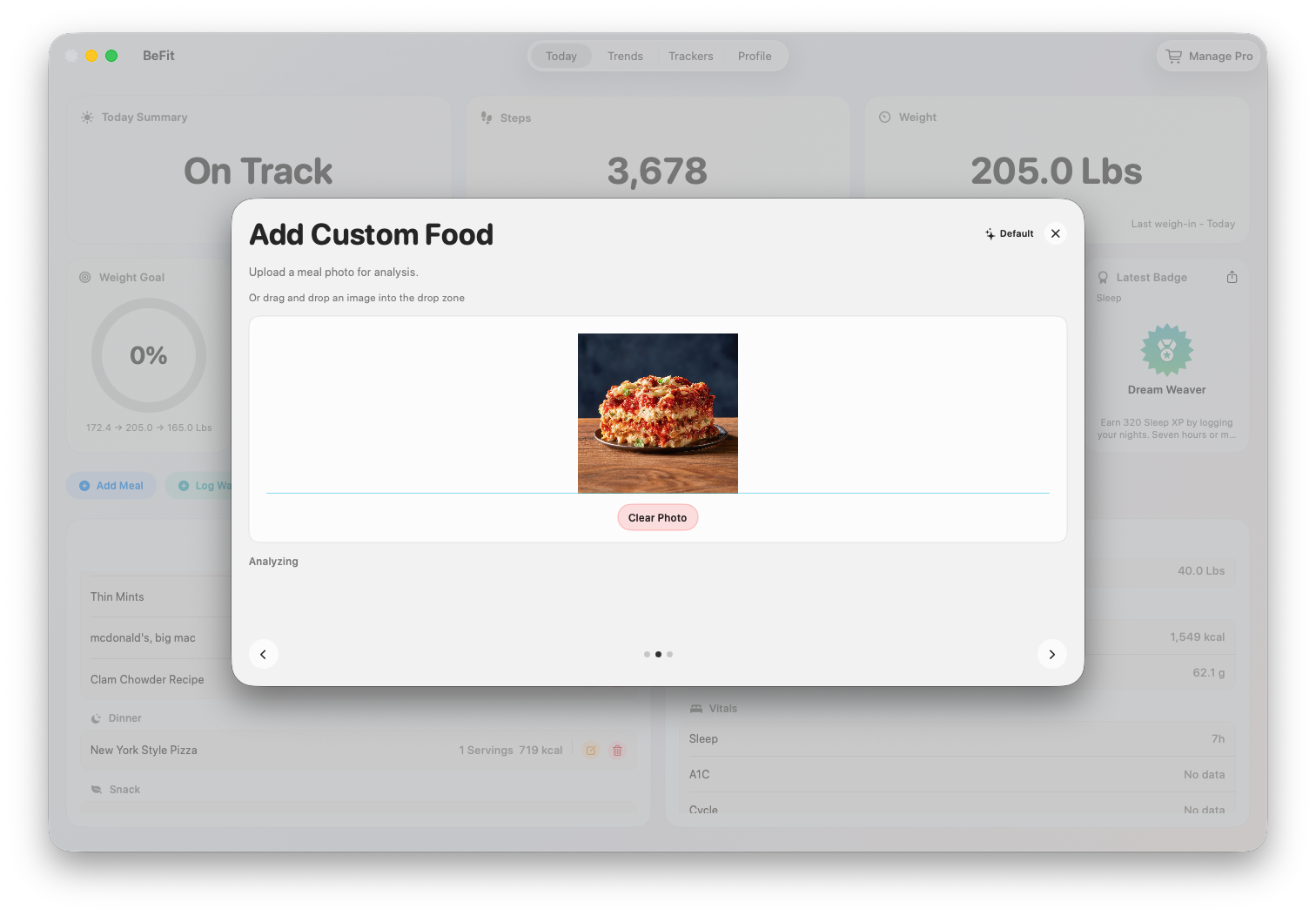
Ollama stays local for recognition
Run Ollama and install a model whose Ollama page explicitly shows Image input. The selected model analyzes the picture through the local Ollama service. Recipe-page discovery that follows can still require the internet.
Use a customer-installed vision model that Ollama documents as supporting image input. After recognition, compare real recipe candidates and keep the final decision with you.
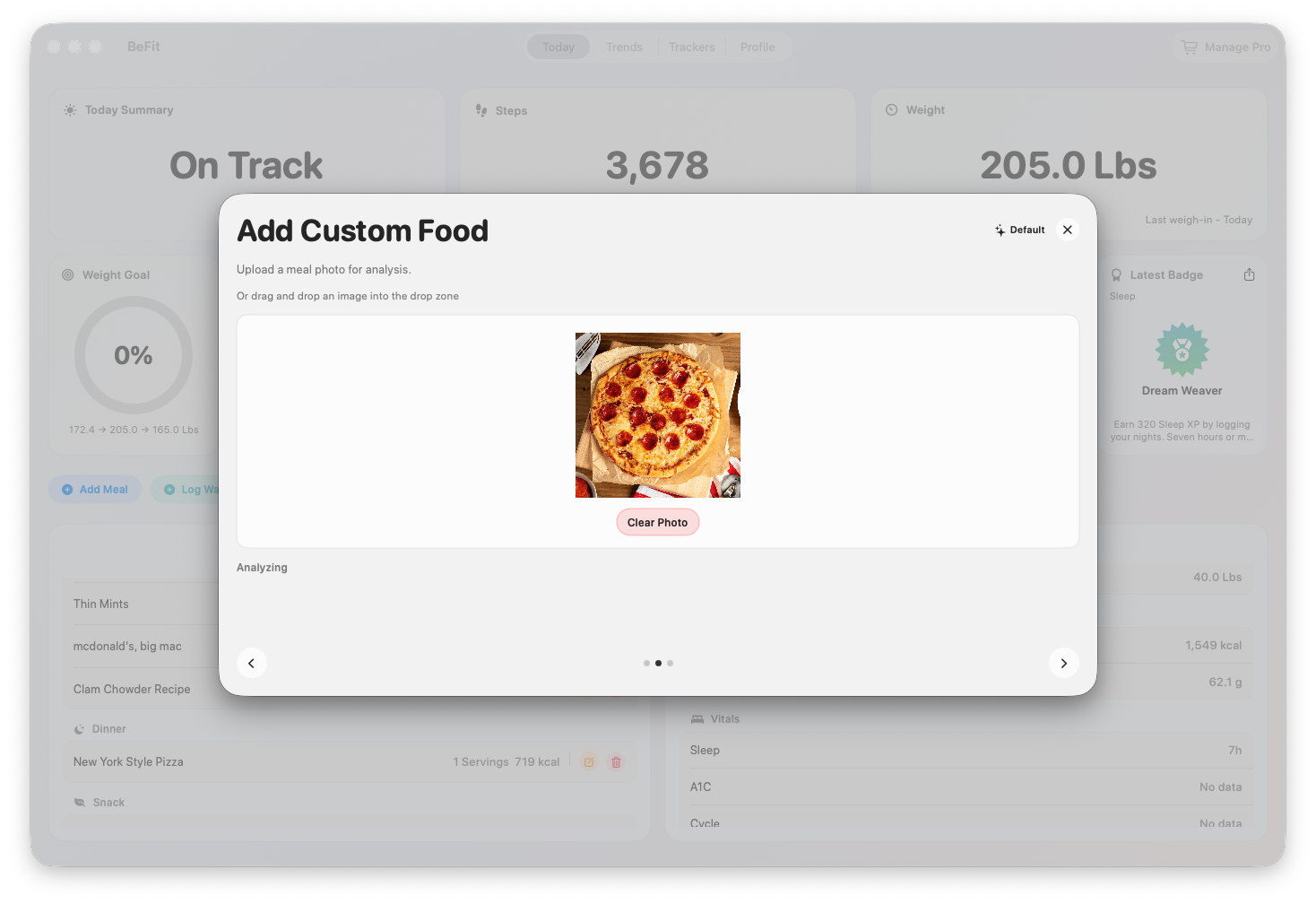
Before anything is saved
Check the dish name, recipe website, ingredients, nutrition, and serving. A model can be convincing and still be wrong. BeFit Tracker does not calculate reliable nutrition from pixels alone and does not guarantee a provider's output.
Provider references: OpenAI image input, Claude vision, and Ollama vision models.