BeFit Tracker Help
Food & nutrition
Search for and log food
Find food, review nutrition and servings, and add it to a meal or snack.
From a food match to a trustworthy log
BeFit Tracker connects food search, source and nutrition review, serving selection, meal placement, and editable history. The important step is not simply finding a similar name; it is confirming that the source, food, portion, and nutrition describe what you intend to record.
iPhone
iPad
Mac
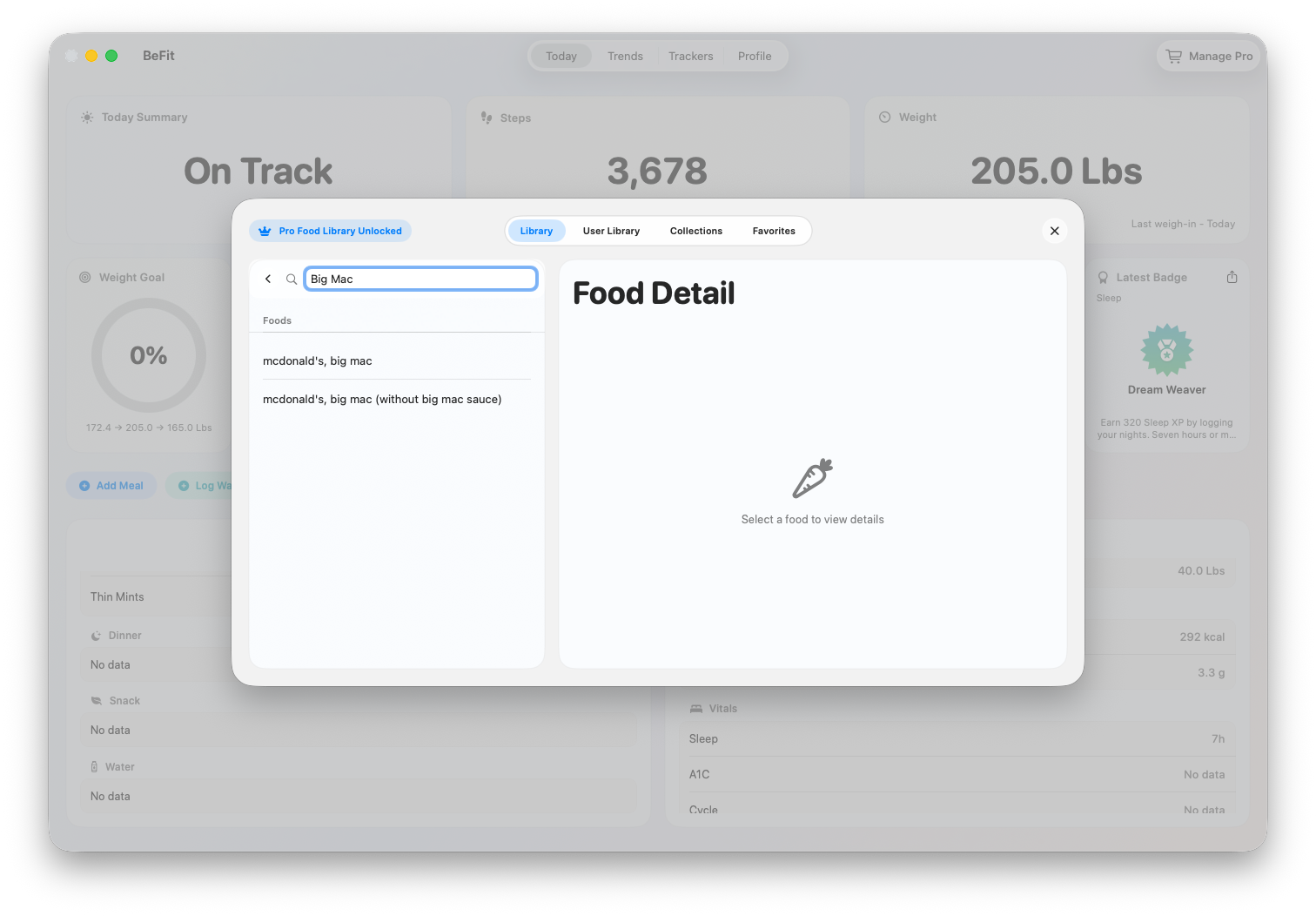
Log a bundled-catalog food
- Open a meal or snack action, or open the Food Log.
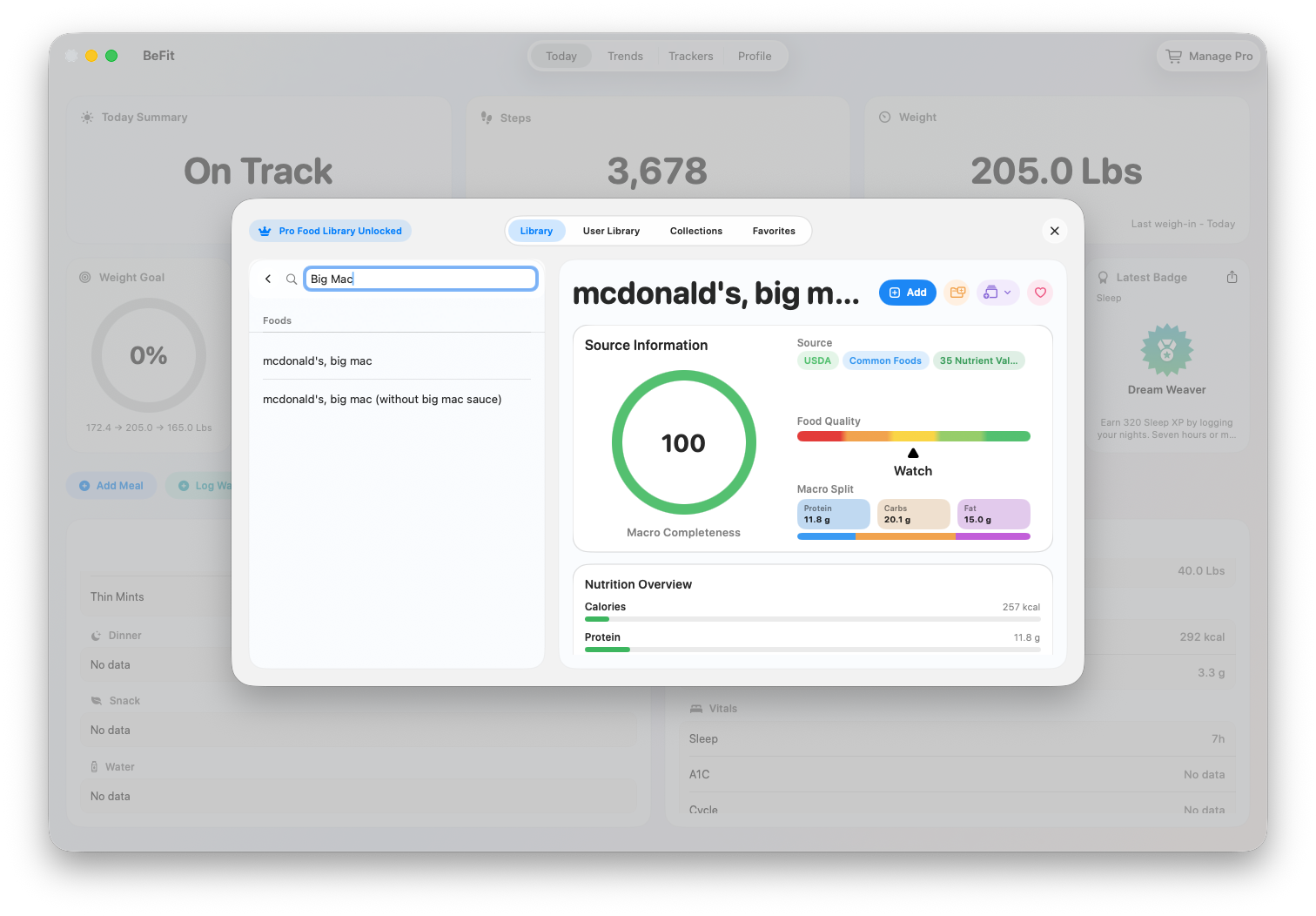
- Search or browse the food library.
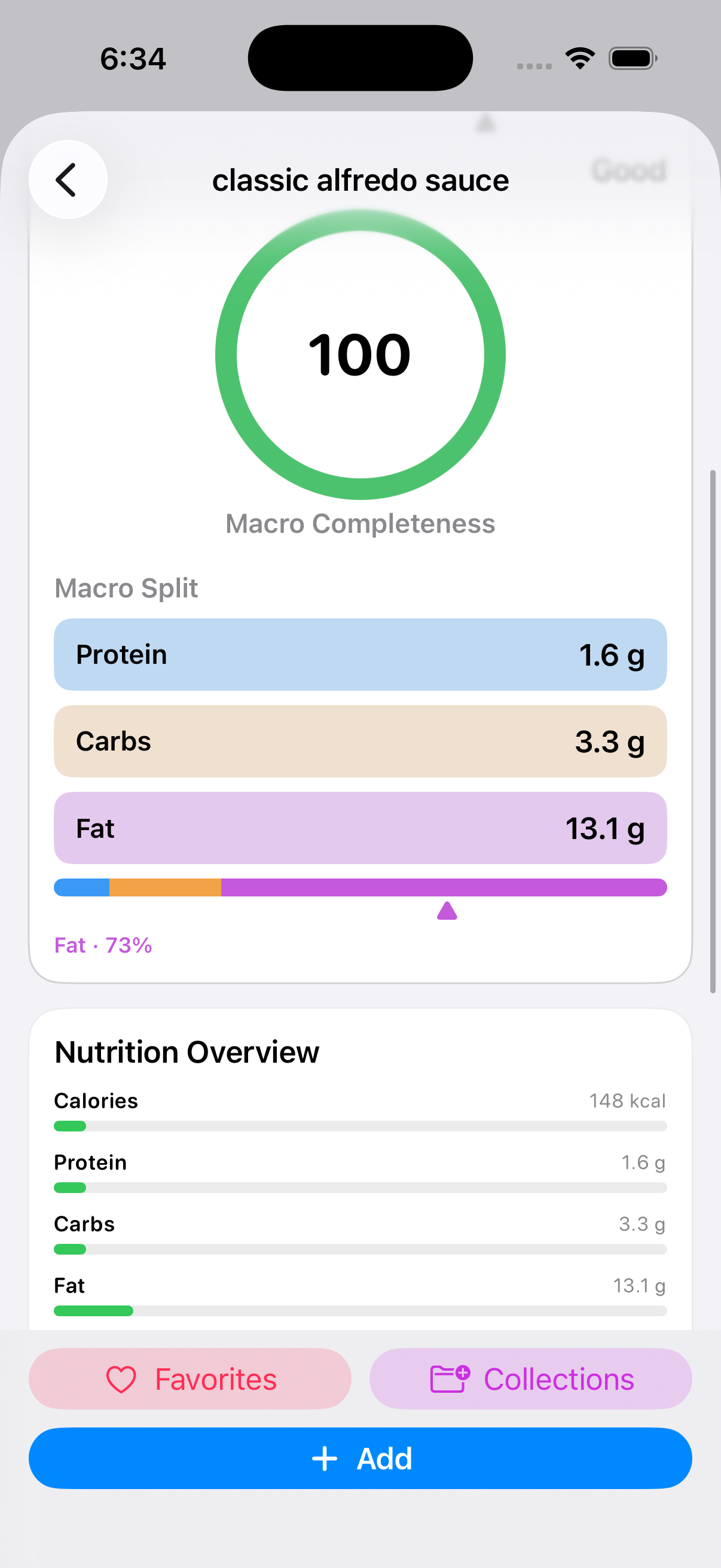
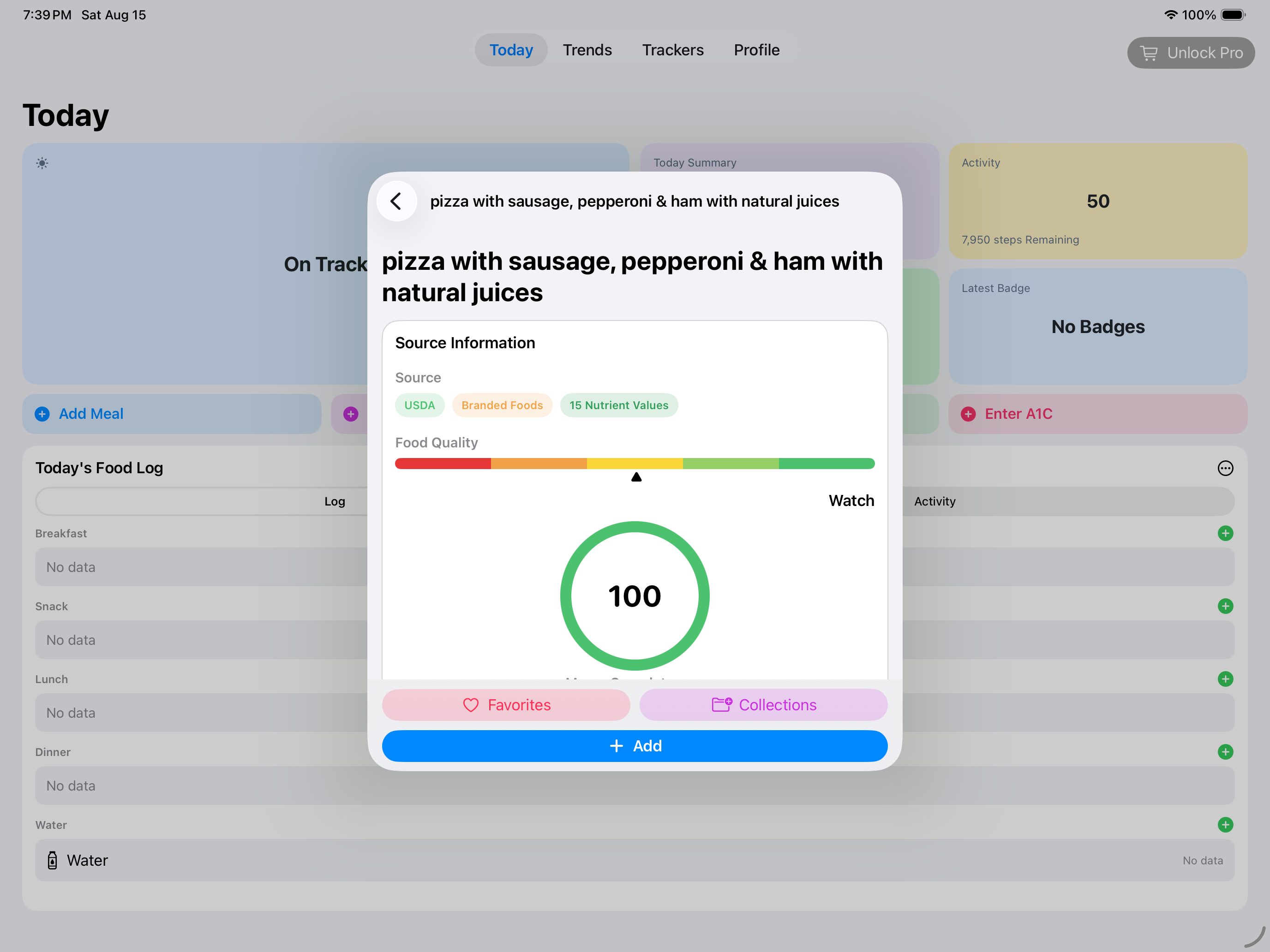
- Select a result and review its nutrition, macronutrients, serving information, and available source context.
- Adjust the serving quantity and add it to the intended meal or snack.
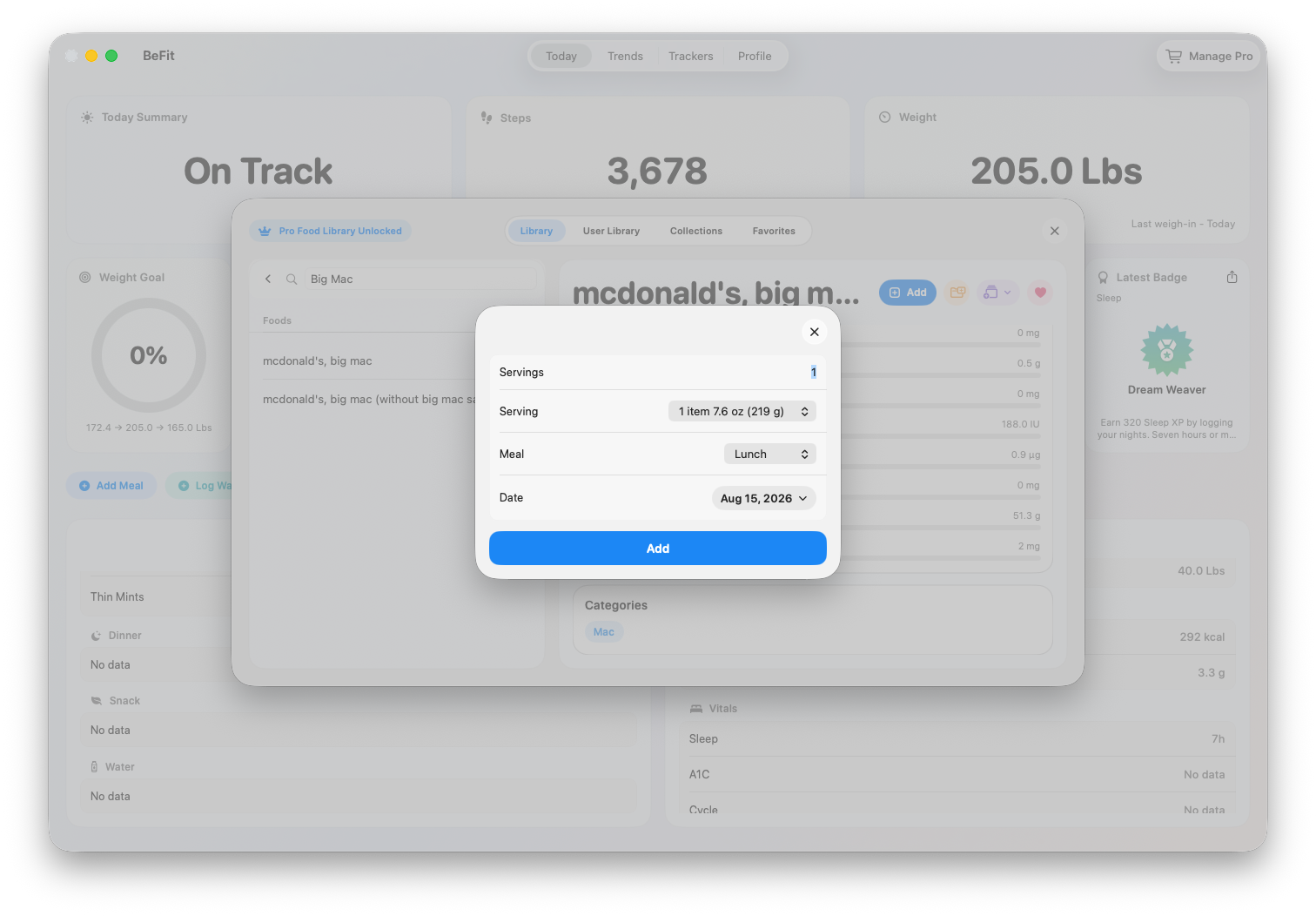
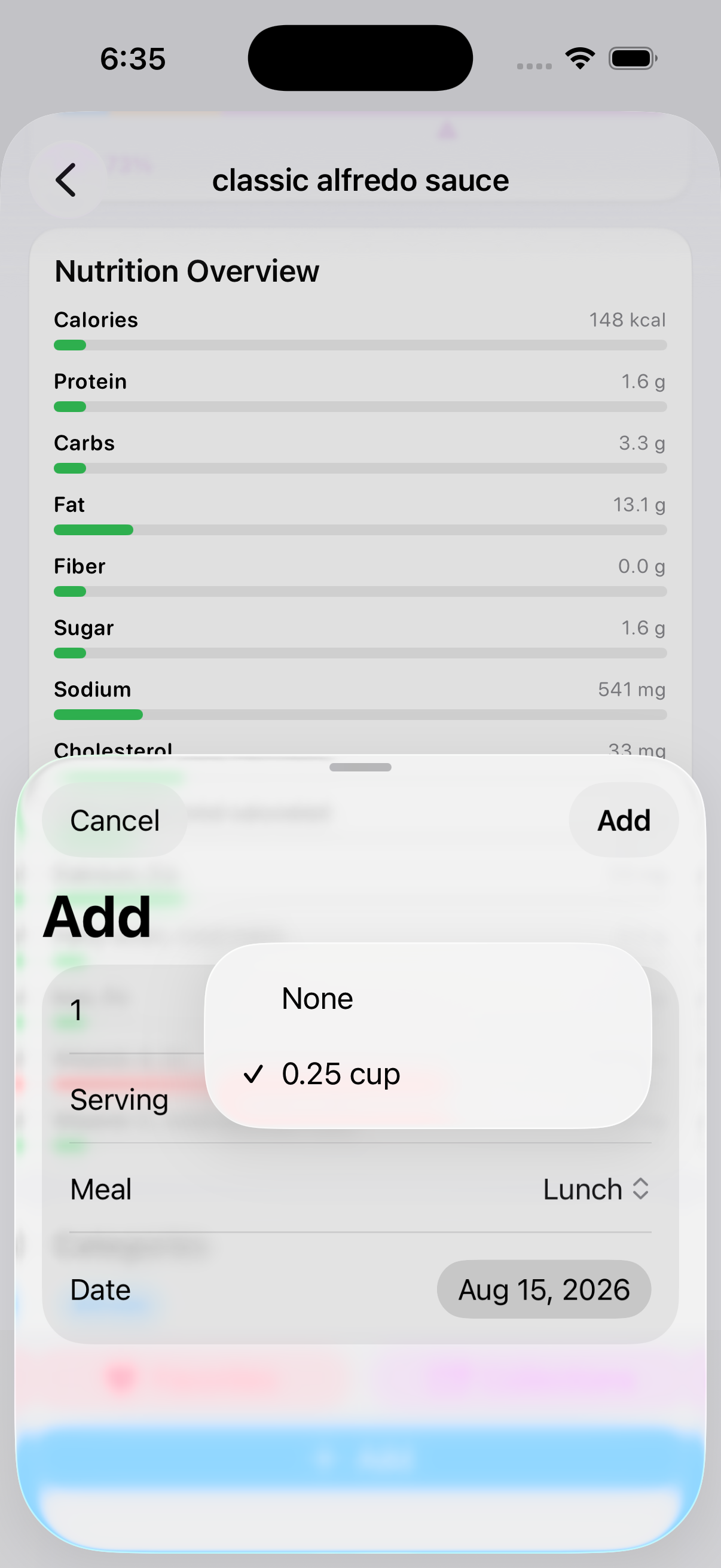 Choose a supported serving
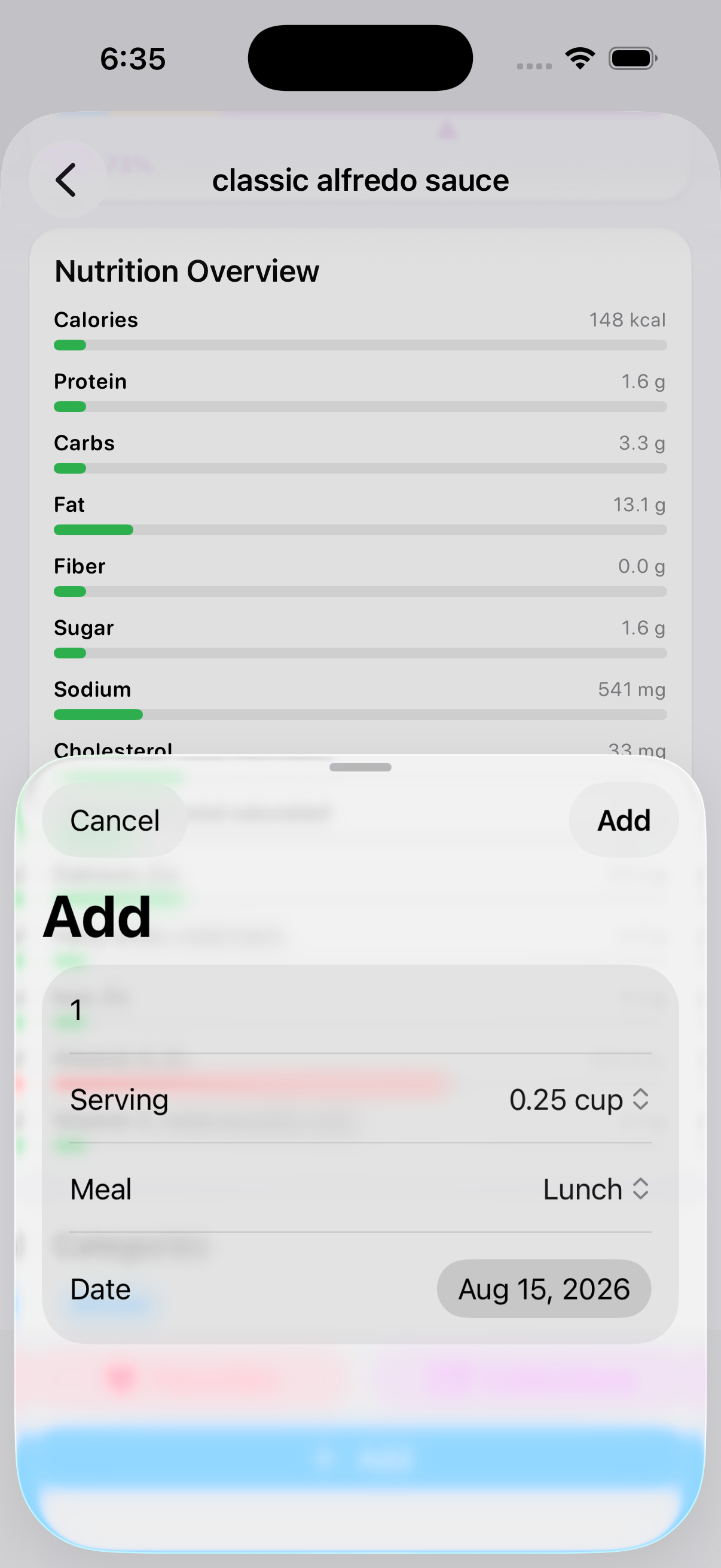 Confirm quantity, meal, and date
Choose the right result
Names alone are not enough. Compare the source, manufacturer or brand when present, serving description, calories, macronutrients, and the other nutrients available in the record. Macro Completeness reports whether the expected macro fields are present; it does not certify that the food is universally accurate. A missing nutrient remains missing.
Choose servings and quantity
When a catalog food contains validated portion choices, select the serving that matches what you ate and then set the quantity. The selected serving and quantity are saved together. Foods without a validated portion retain quantity-only entry; BeFit Tracker does not manufacture a serving conversion without a source basis.
For imported recipes, one selectable serving represents one of the recipe's declared yield when that yield is known. The original yield remains attached as source context. Quantity multiplies individual servings rather than entire recipes.
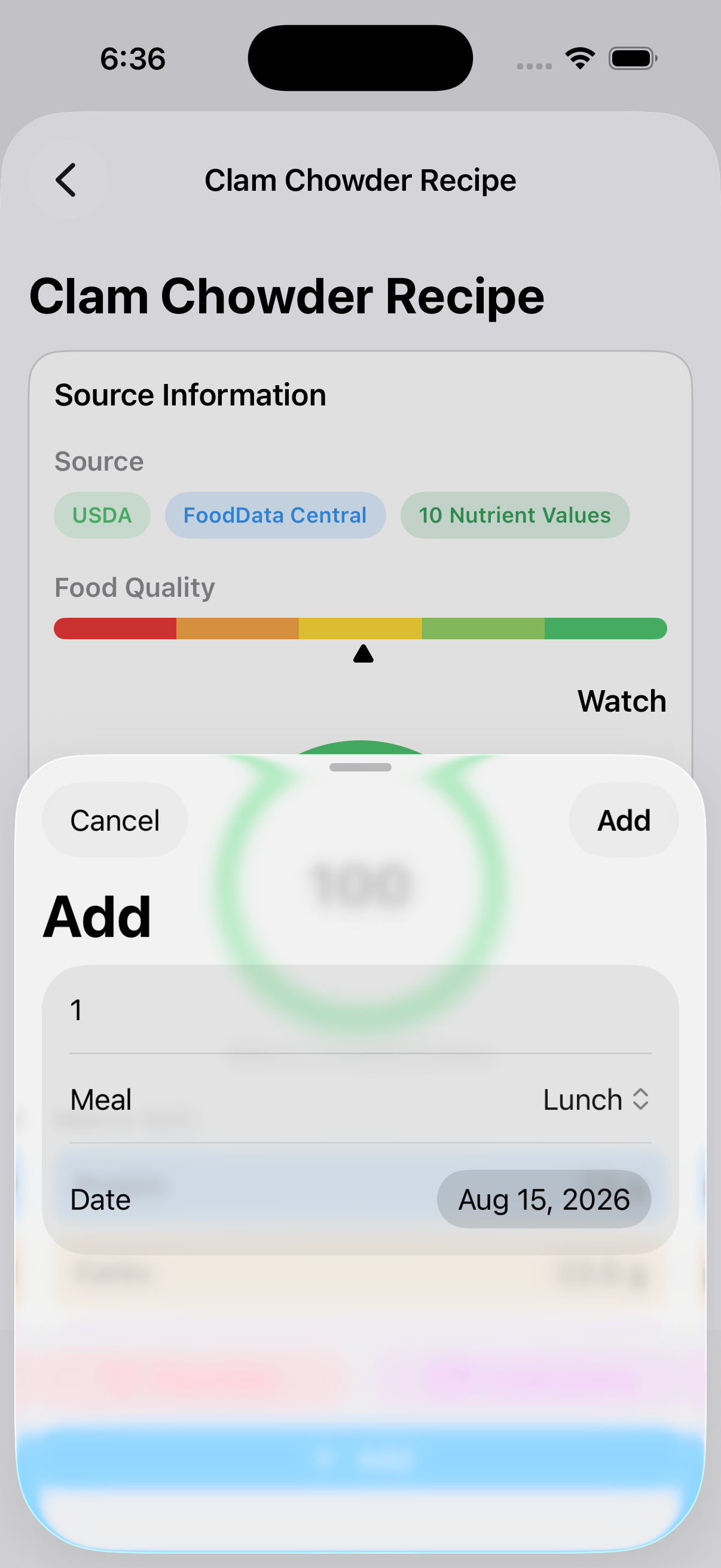
Choose the meal and date
Select Breakfast, Lunch, Dinner, or Snack and confirm the intended date before adding. The meal controls where the item appears in daily history; changing the meal does not alter its nutrition. Use the date deliberately when backfilling an older meal.
Read Food Log history
The calendar selects the day or range shown by the Food Log. History groups food by meal and displays the saved serving, quantity, and calories. Water remains a separate daily record. The chart uses persisted calorie and hydration information and shows a zero baseline for an empty period rather than a generic placeholder.
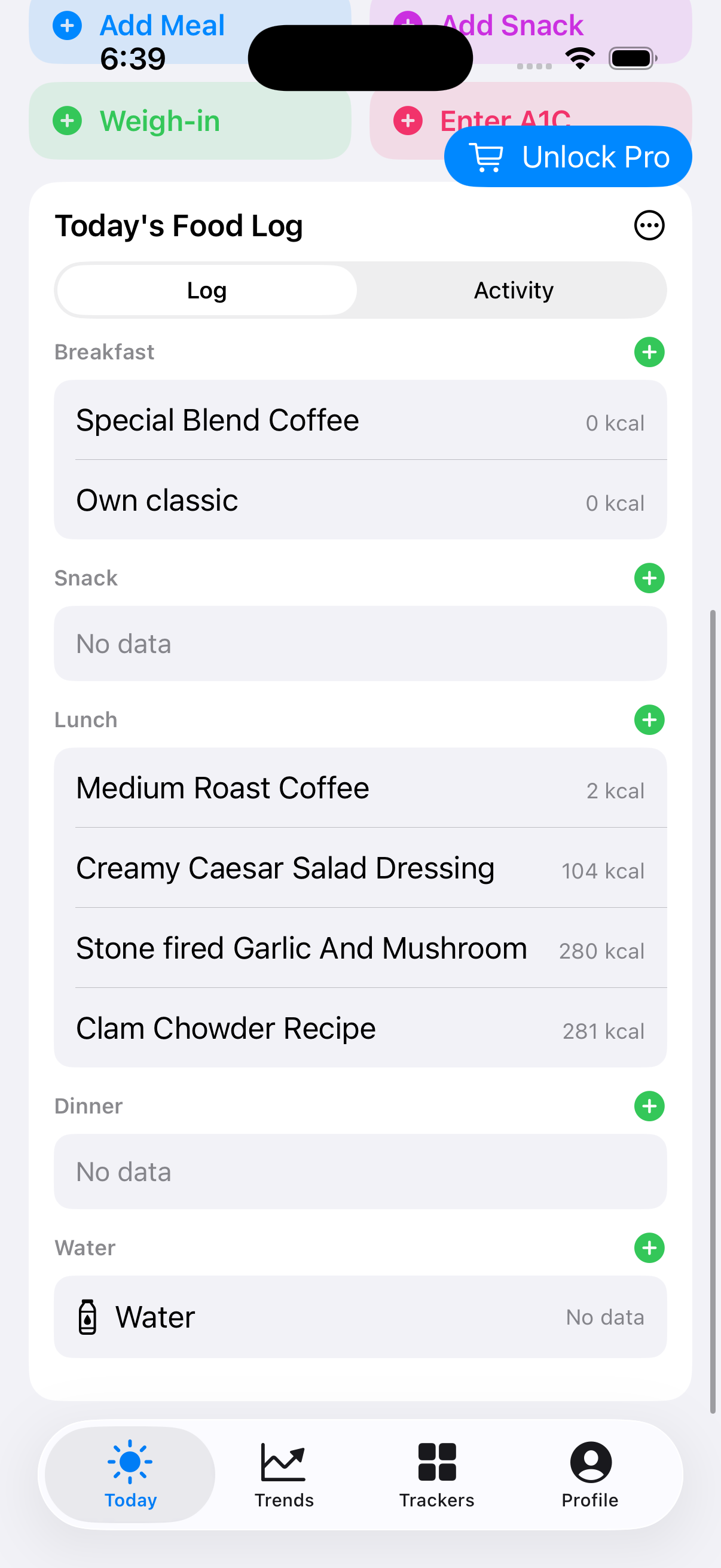 Review today by meal
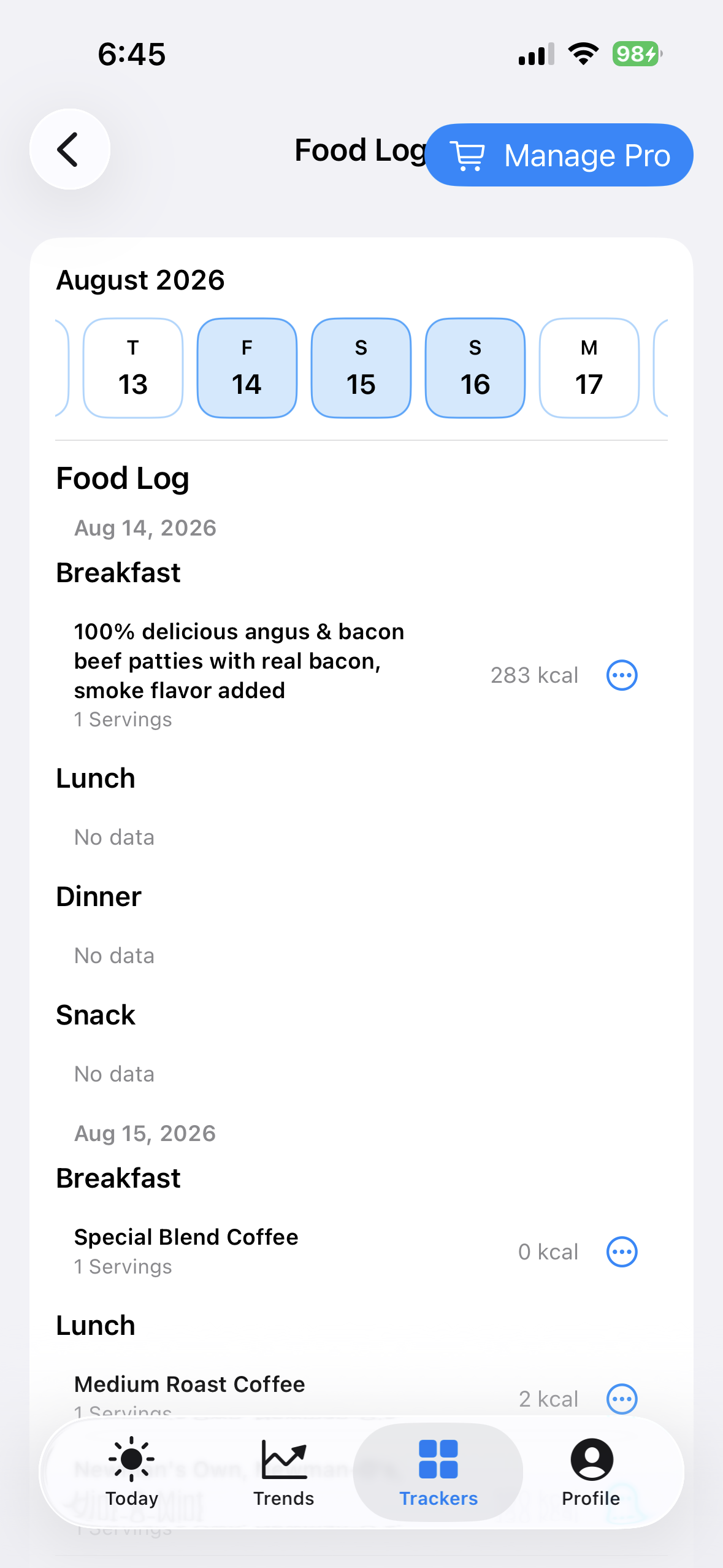 Move to an earlier date when needed
Edit or delete a logged food
- Find the food under the correct date and meal.
- Open its history action and choose Edit.
- Review the preselected serving, quantity, meal, and date. Change only the fields that were wrong.
- Save to update that same record. Choose Delete only when the complete log entry should be removed.
Editing a log entry changes the personal record, not the read-only bundled food catalog. Multiple foods on the same day retain separate stable records and actions.
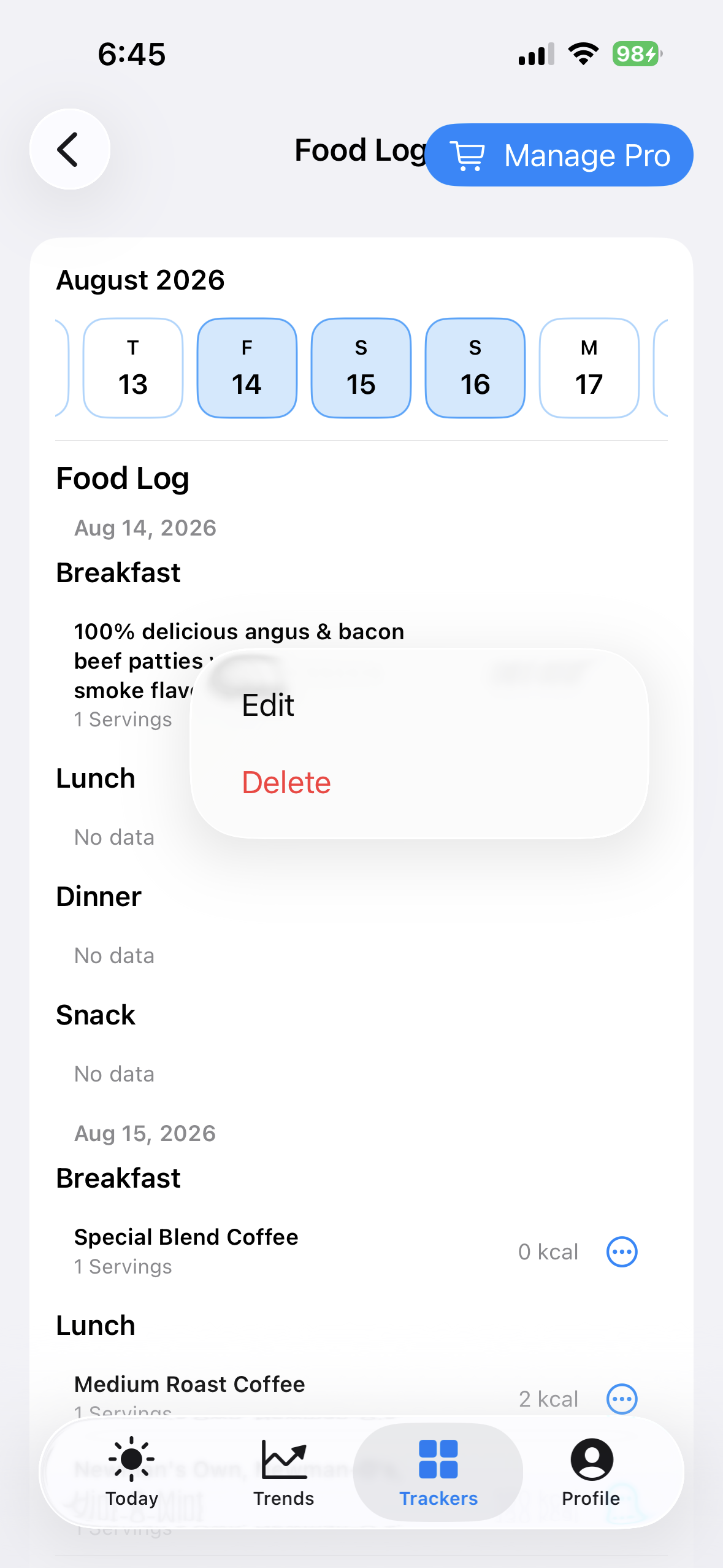 Open the saved entry
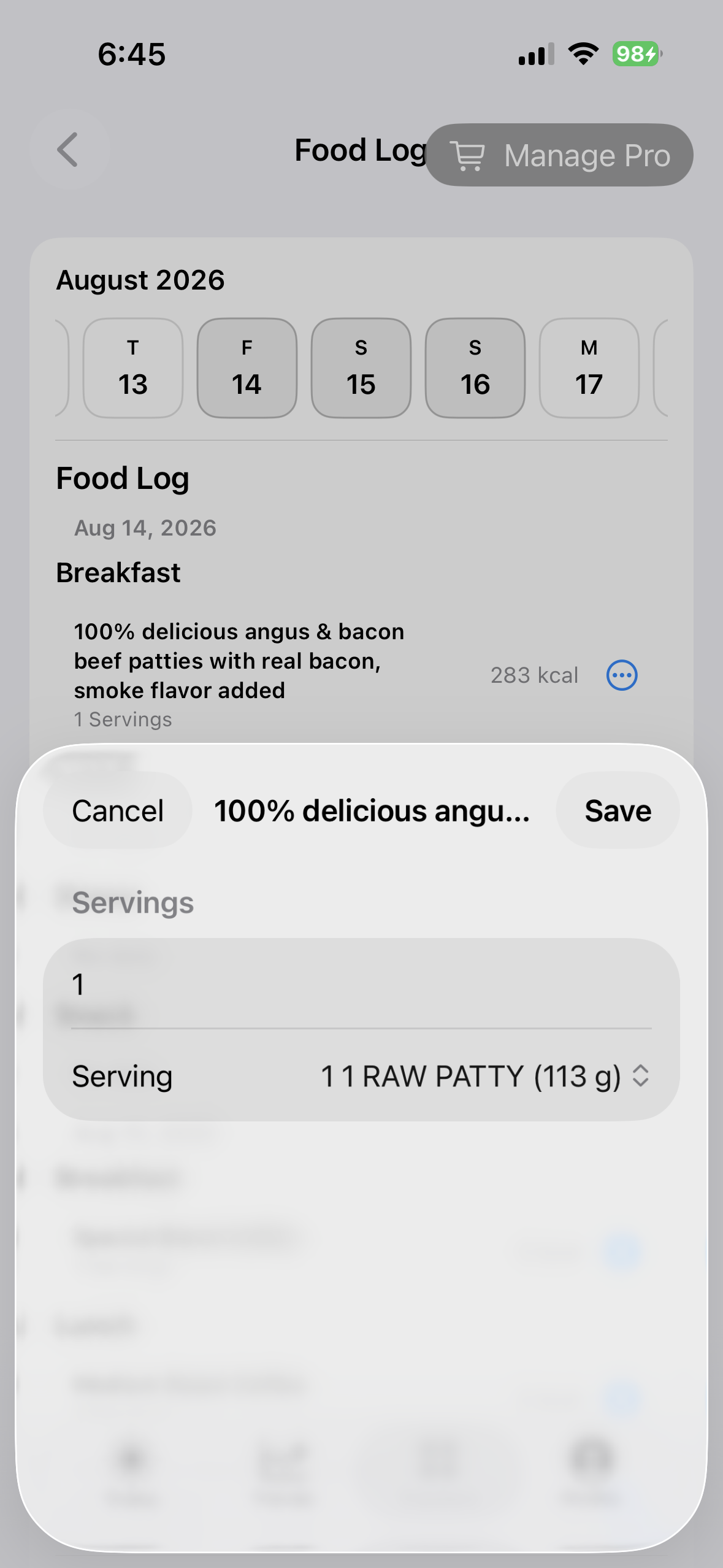 Correct the serving without changing the catalog
Log and correct water
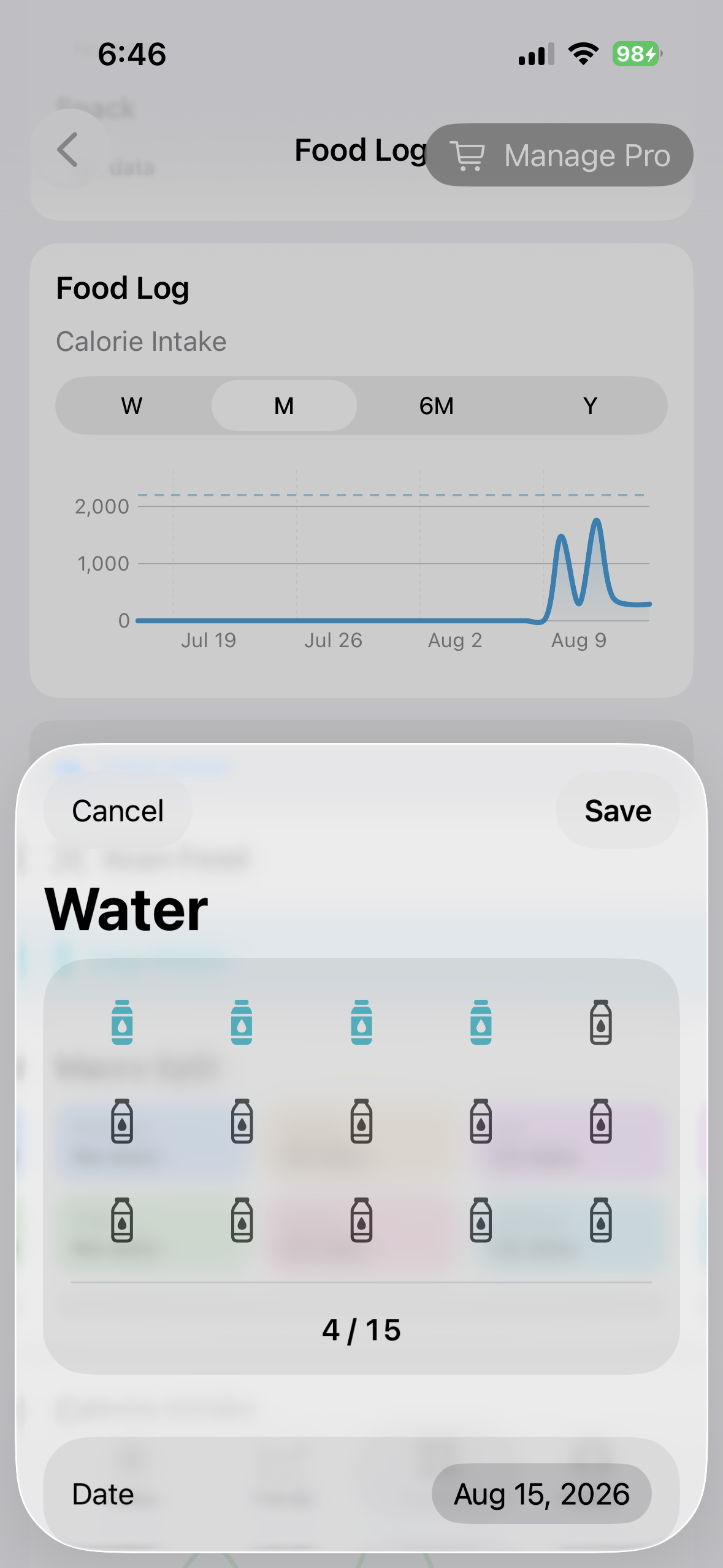
Use Log Water, enter the actual amount, and confirm the date. The daily hydration total can be edited through the same water input flow or cleared from its history action. Hydration goals affect progress presentation but do not rewrite the amount you logged.
Keep useful foods close
Use Favorites for quick retrieval, Collections for named groups, Recent Foods for repeated logging, and personally created foods when the catalog does not match what you need.
Optional AI assistance depends on a configured supported provider and its results still require your review.
iPhone and iPad
Use touch-focused serving controls, scan supported barcodes through Open Food Facts, or dictate a dish. On an eligible iPhone, Take a Picture uses Apple Vision classification inside an Apple Intelligence workflow, then searches recipe websites for candidates you review before importing. The picture option is hidden when Apple Intelligence is unavailable. Barcode and assisted discovery add a reviewed food to the User Library before continuing through the normal serving, meal, date, and logging flow.
Mac
Browse foods and review details side by side. Optional OpenAI, Claude, or Ollama connections can assist dish and recipe discovery before review. The Mac User Library also exposes Open Food Facts as its own source tile. Imported results continue through the same source attribution, serving normalization, User Library storage, and logging sheet used elsewhere.