 BeFit Tracker Help
Food Library
Search and inspect foods in Classic
Find foods in the Classic catalog and understand nutrition details, charts, and missing values.
The Food Library is Classic’s main workspace for browsing a USDA-derived catalog and reviewing the nutrition stored for each food.
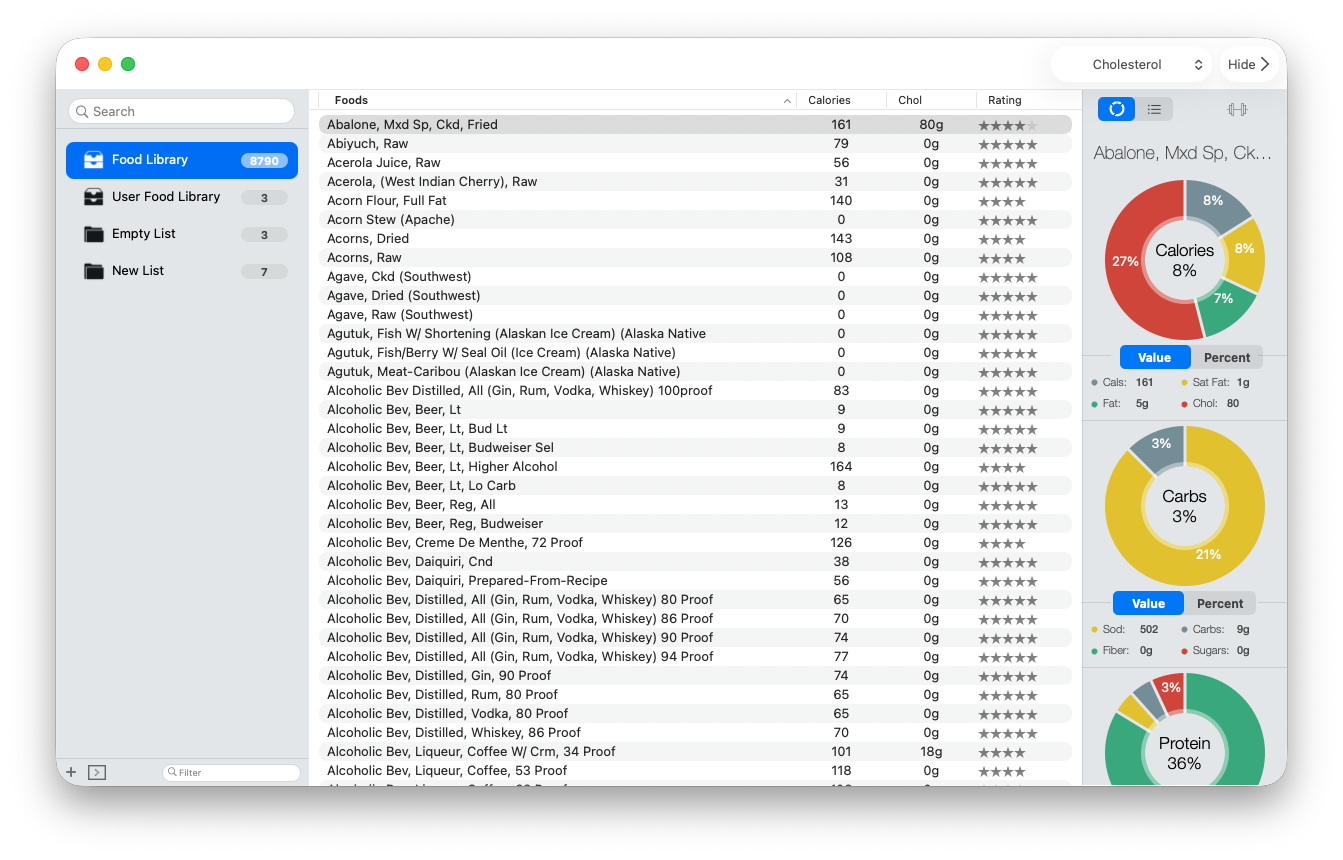
Find a food
- Select Food Library in the sidebar.
- Enter a specific food name in the search field.
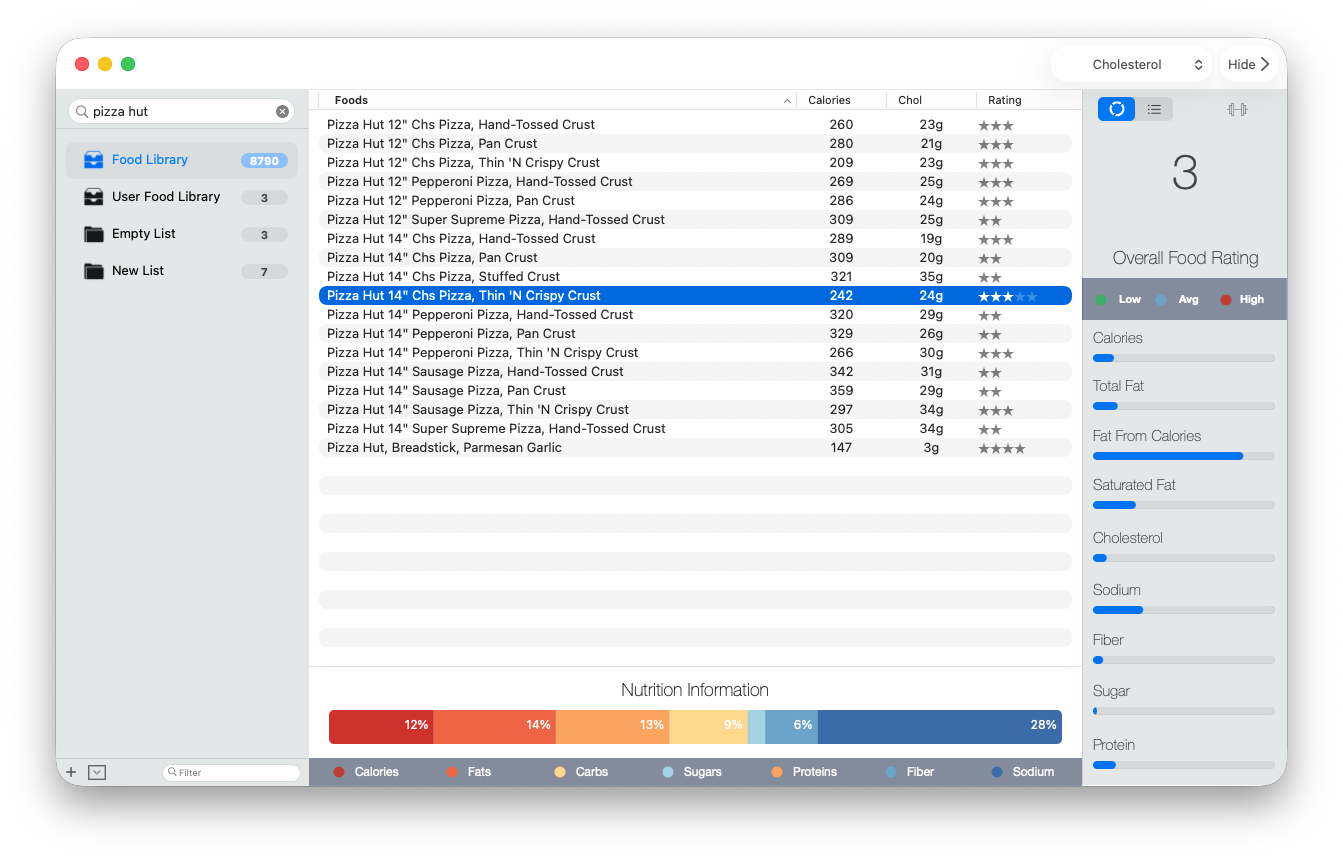
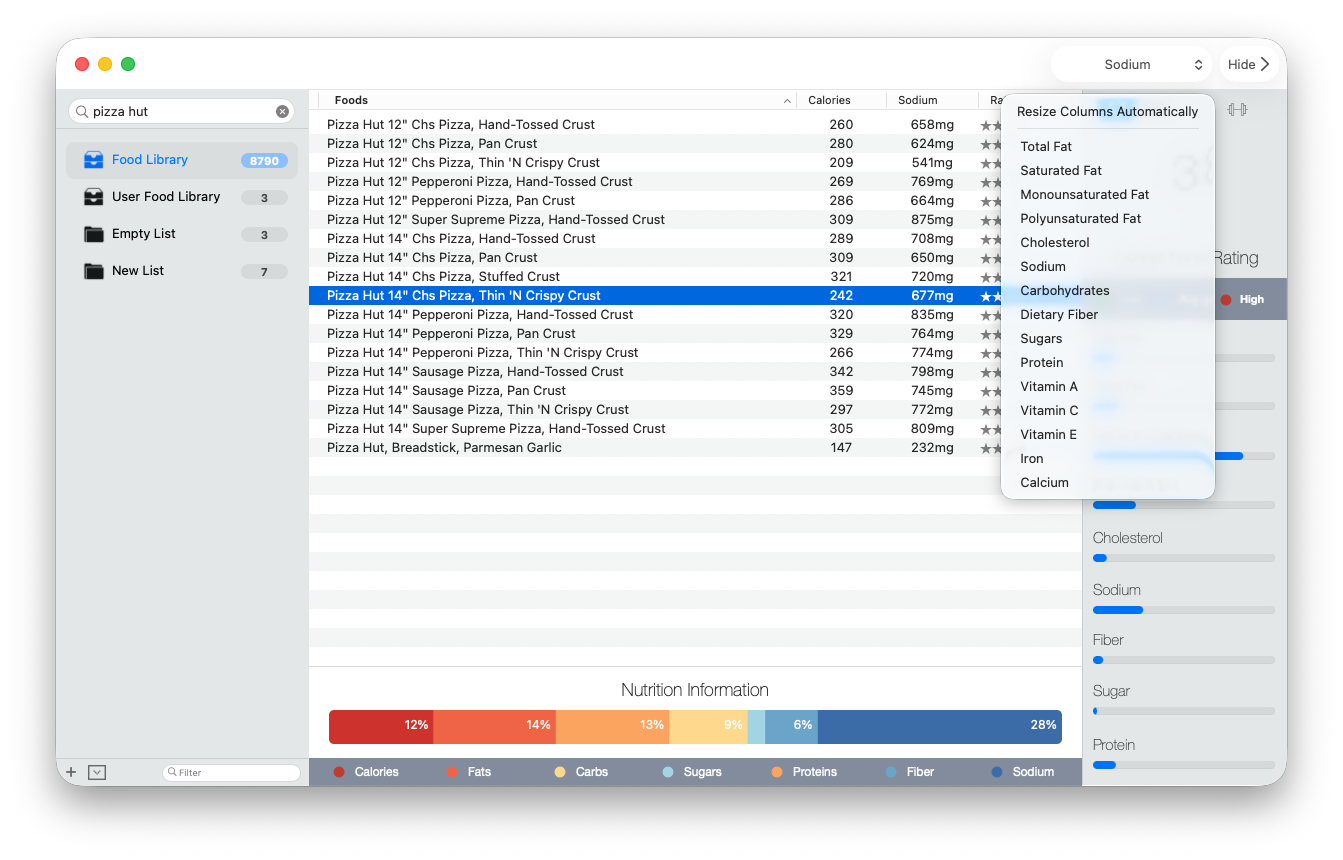
- Review the matching rows and use the available columns to compare likely choices.
- Select a row to open its nutrition information and visual summary.
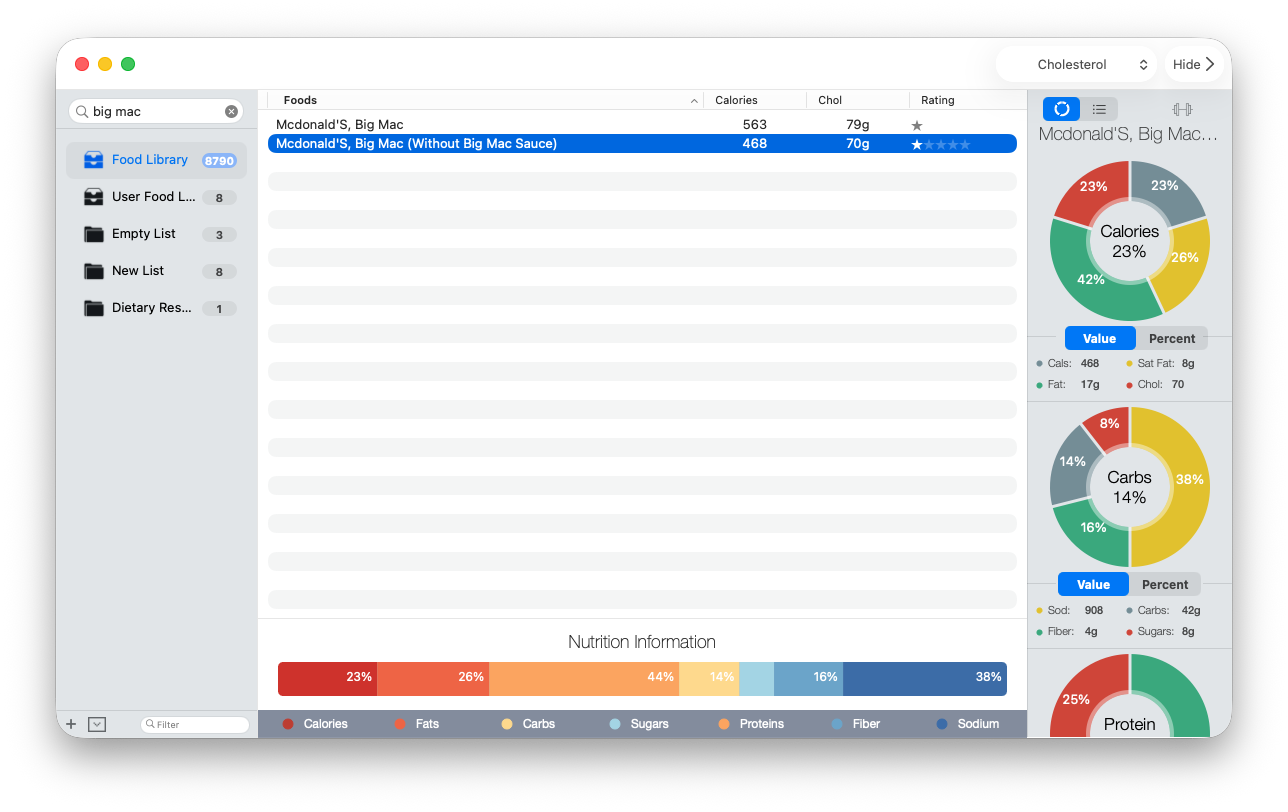
Read the nutrition details
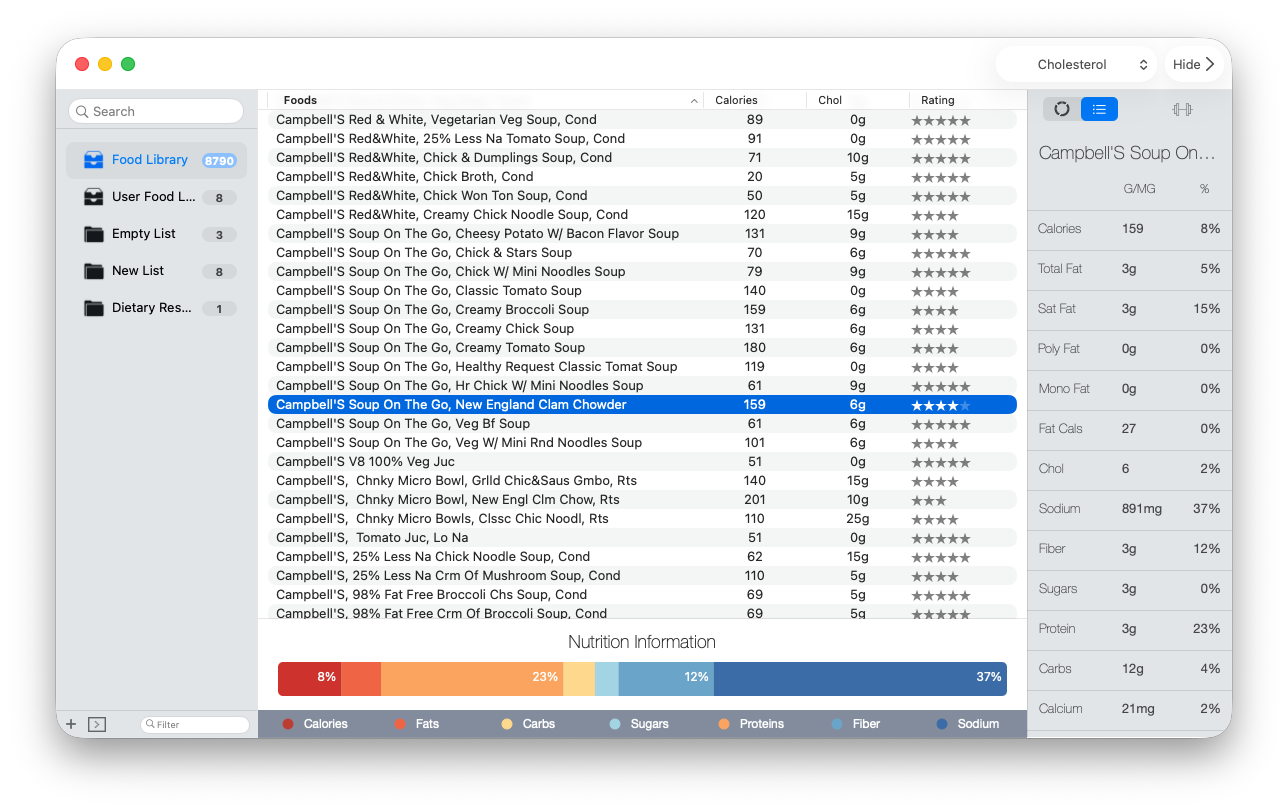
Selecting a food connects three parts of the workspace: the highlighted row, the right nutrition inspector, and the Nutrition Information bar below the list. Read them together. The row identifies the food; the inspector gives a closer look at the stored nutrients; and the lower bar makes the selected food’s visible nutrient mix easier to compare at a glance.
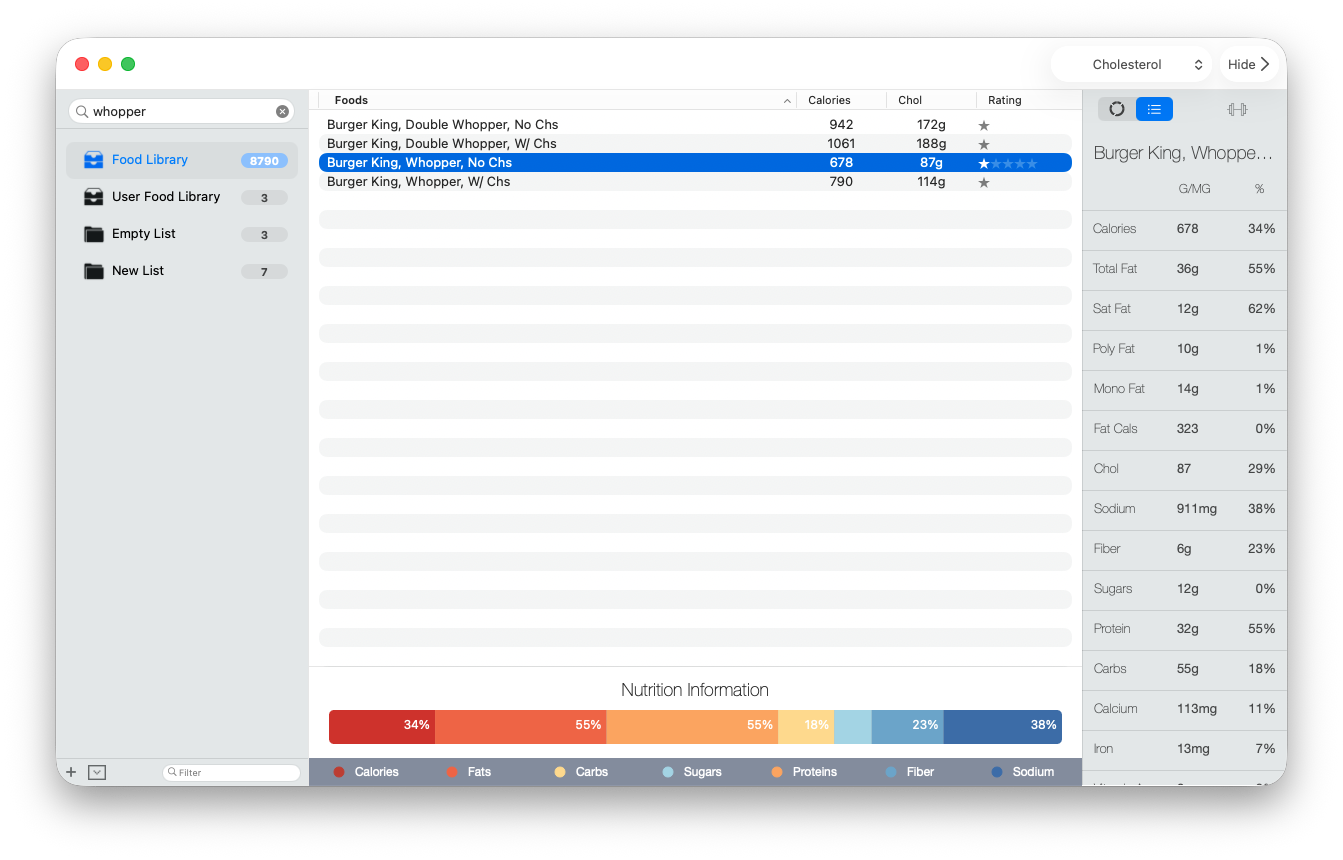
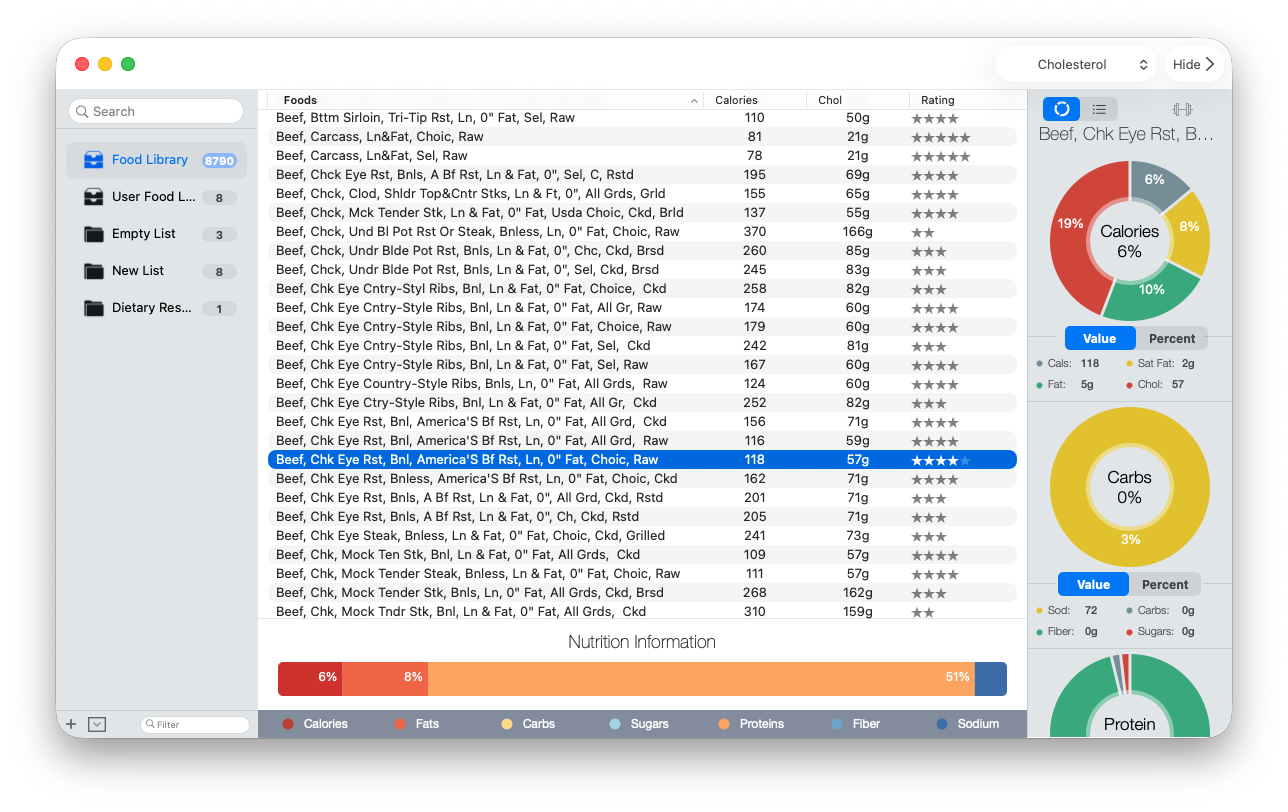
Switch from charts to the food label
Use the chart/list control at the top of the nutrition inspector to move from visual rings to a compact nutrient table. The table places stored amounts and available percentages side by side, which is useful when you need a specific value rather than an overall visual comparison.
Understand the overall food rating
The rating view breaks the stored nutrition signals into individual low, average, and high indicators and combines them into the star rating shown in the food row. Treat this as an informational comparison inside Classic, not as a medical assessment or a universal statement that a food is healthy or unhealthy.
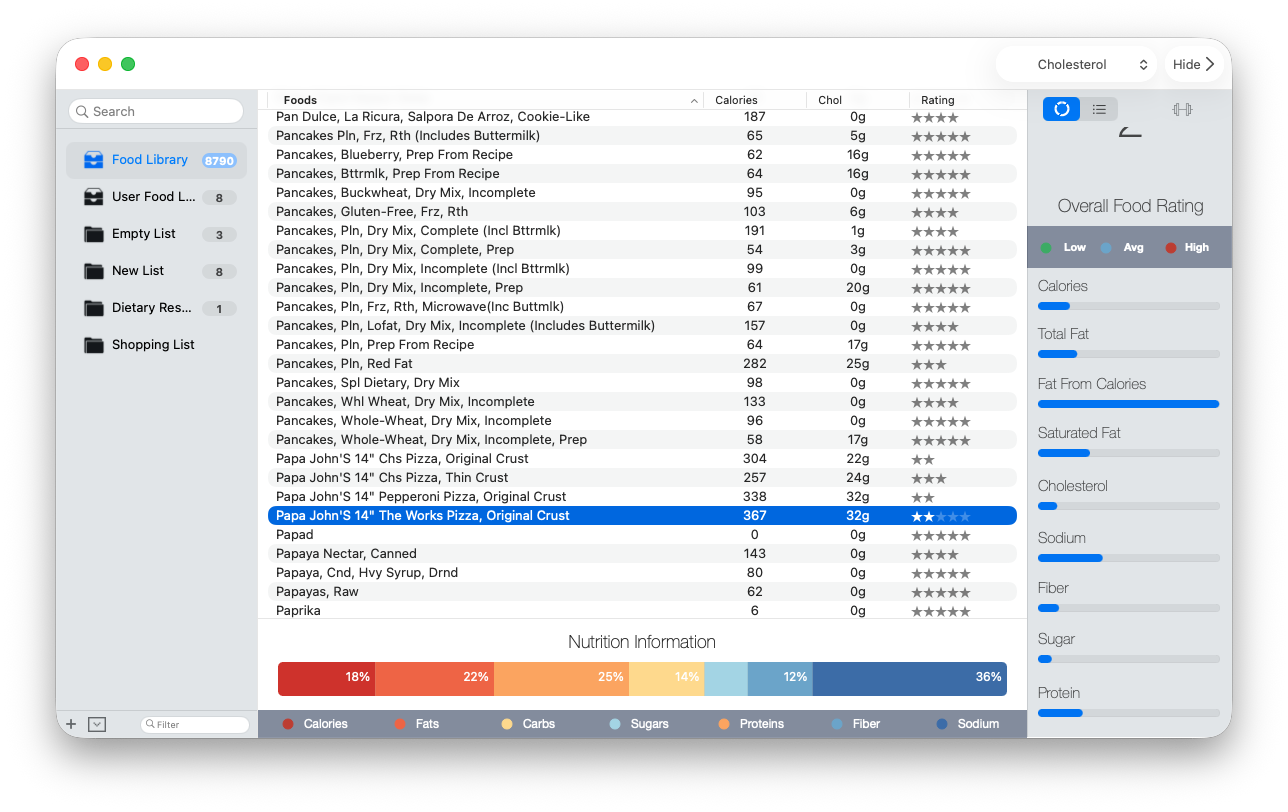
Classic displays only the values stored on the selected record. It does not fill in missing nutrients or independently verify the source food. A blank or missing value can mean that the source did not provide that information.
Change what the list compares
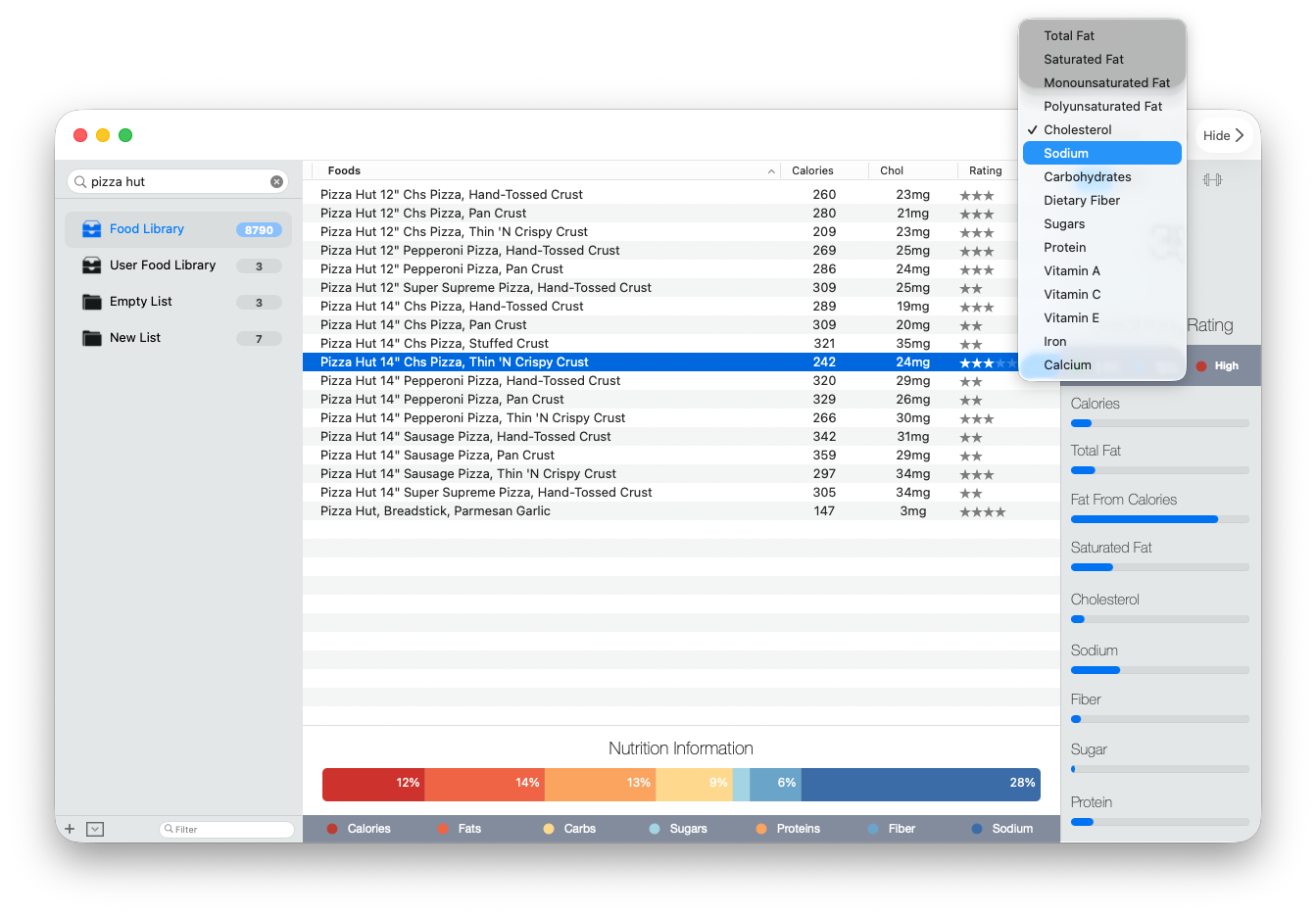
Use the nutrient menu above the food details to choose a nutrient such as calories, cholesterol, sodium, or protein. The chosen nutrient becomes a comparison column in the food list, which can make similar search results easier to scan.
Make more room for the list
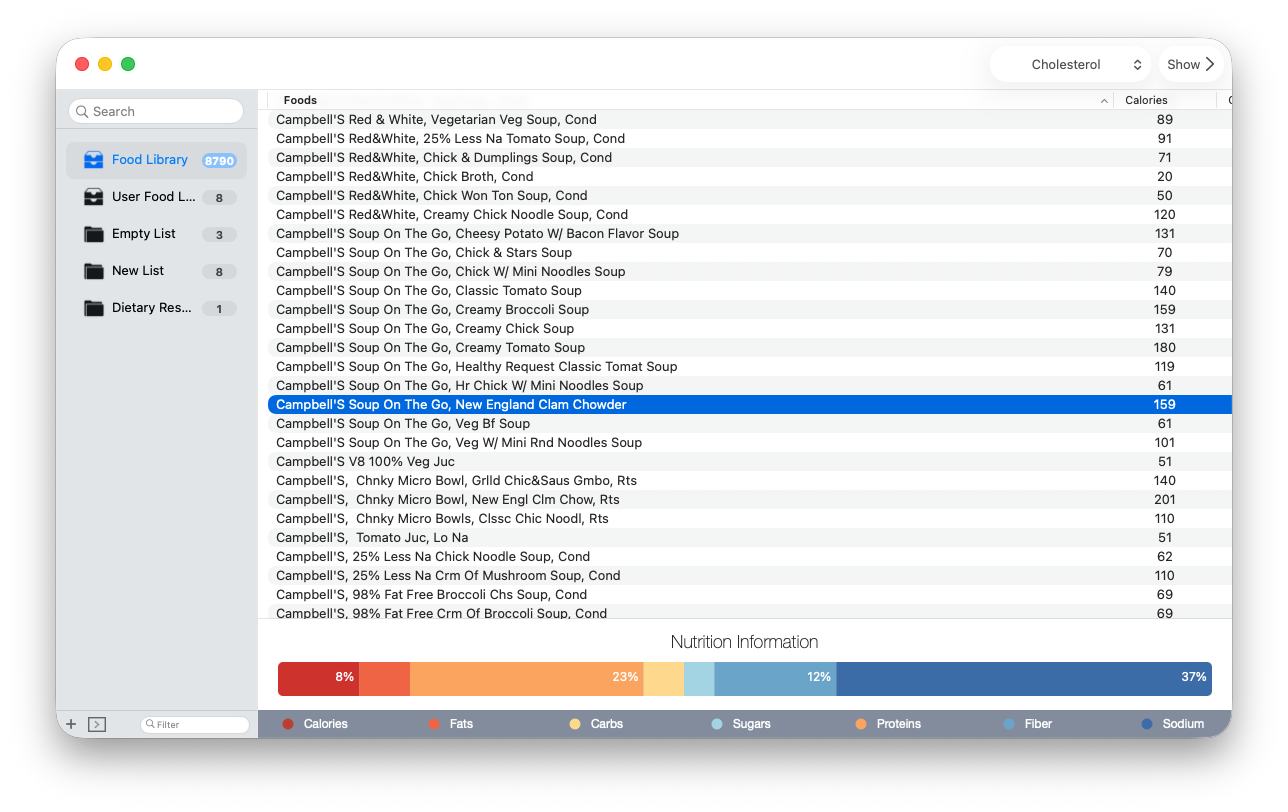
Choose Hide in the upper-right corner when you want the food table to use the space occupied by the nutrition inspector. The selected comparison column and lower Nutrition Information bar remain available. Choose Show to restore the inspector when you are ready to examine a food more closely.
Keep a personal copy
When you want a mutable copy of a catalog food, drag it to the User Food Library. Classic keeps the bundled catalog record separate from the personal copy you can maintain.
Catalog search is local. Open Food Facts is a separate network-backed search used only when you explicitly open its import workflow.