 BeFit Tracker Help
Mac printing
Print food information
Print one or more selected Classic foods or save their nutrition information as a PDF.
Classic uses the standard macOS print workflow for selected food information, including multi-page output when the selection needs more space.
Print selected foods
- Select one or more food rows in Classic.
- Choose File → Print.
- Review the native macOS print panel and preview.
- Select a printer, or use the PDF menu to save the output as a PDF.
- Confirm the page range and print settings before continuing.
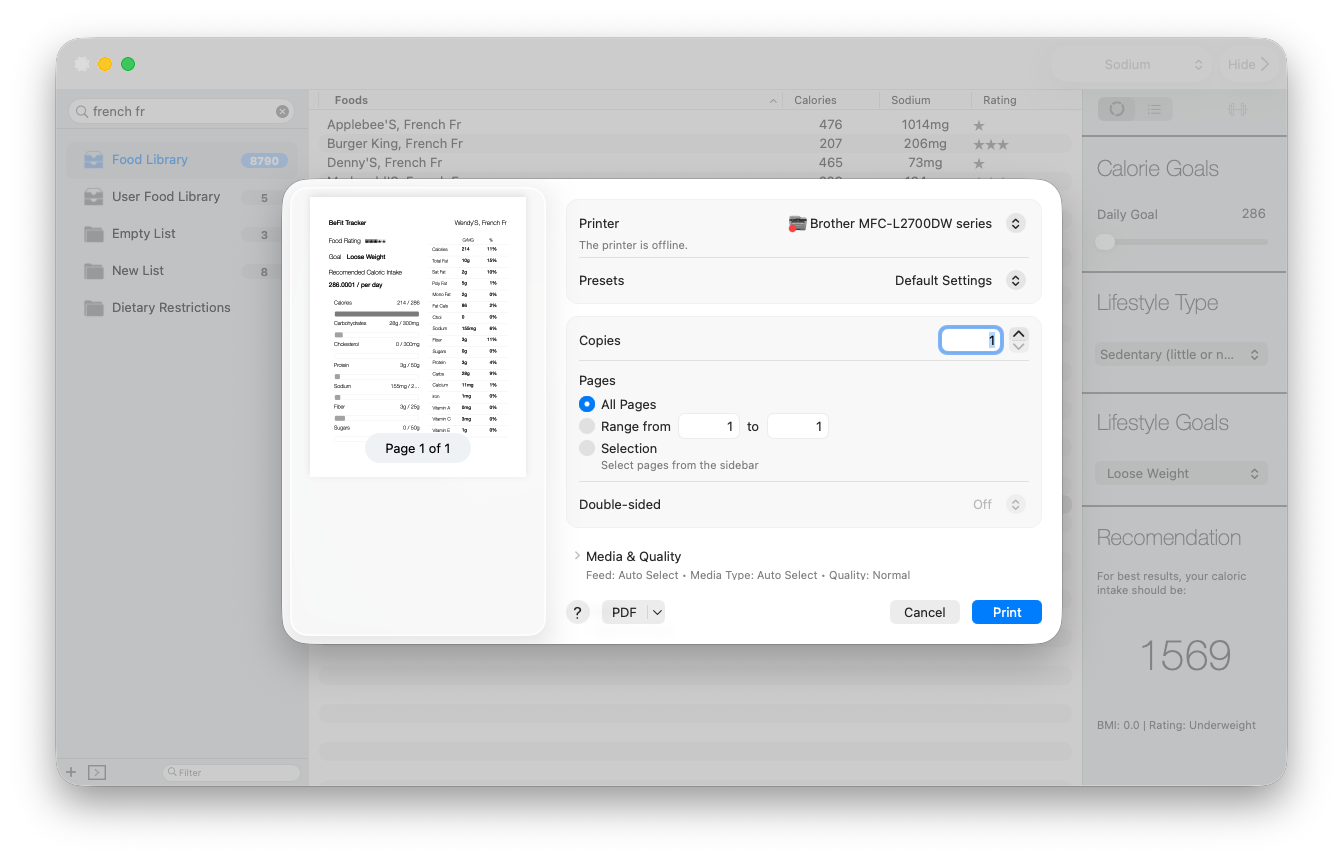
The printout reflects the current selection.
Printed nutrition comes from the values stored in Classic at that time, including the selected quantities and servings where applicable.
If the result is incomplete
Return to the app and confirm that the intended rows are selected. Missing nutrition in the source record will also remain missing in print; Classic does not manufacture values for the report.