 BeFit Tracker Help
iPhone & iPad tracker guide
Sleep tracking on iPhone and iPad
Import or log sleep, understand stage totals, and review sleep patterns over time on iPhone and iPad.
Sleep is a Beta tracker that turns individual sleep samples into a dated history. A day can contain several samples, including Awake, REM, Core, and Deep. BeFit Tracker keeps those samples separate, then totals the stages that count as time asleep so you can move from a nightly total to the records behind it.
Choose where your sleep records come from
On iPhone and iPad, sleep can come from supported Apple Health records or from entries you add in BeFit Tracker. Apple Health access is read-only and permission-controlled. If you use a watch or another sleep app, review the source records in Health before adding the same time manually; overlapping records can make the night difficult to interpret.
Import sleep from Apple Health
- Open Profile, choose the Health connection, and request access.
- Allow BeFit Tracker to read Sleep when Apple presents the Health authorization sheet.
- Return to Trackers → Sleep and let the import finish.
- Select a date and compare its stage rows with the source shown in Apple Health.
Denying Health access does not prevent manual sleep tracking. You can change the permission later in Apple’s Health privacy settings.
Log a completed sleep sample manually
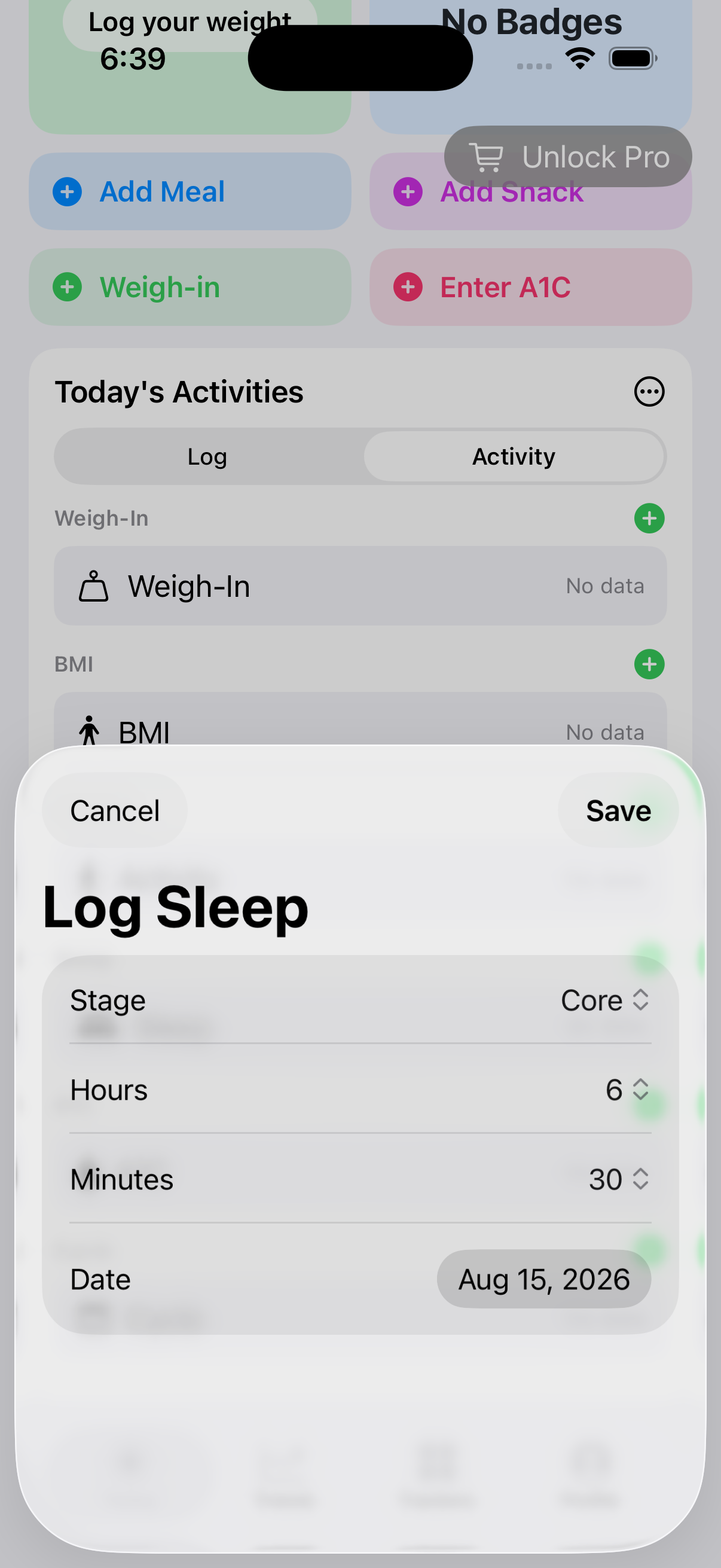
- Open Trackers, choose Sleep, then tap Log Sleep.
- Choose the stage represented by the record: Awake, REM, Core, or Deep.
- Enter the duration and select the date and time associated with the sample.
- Tap Save. Repeat only when you have another distinct stage sample to add.
Understand the totals and stages
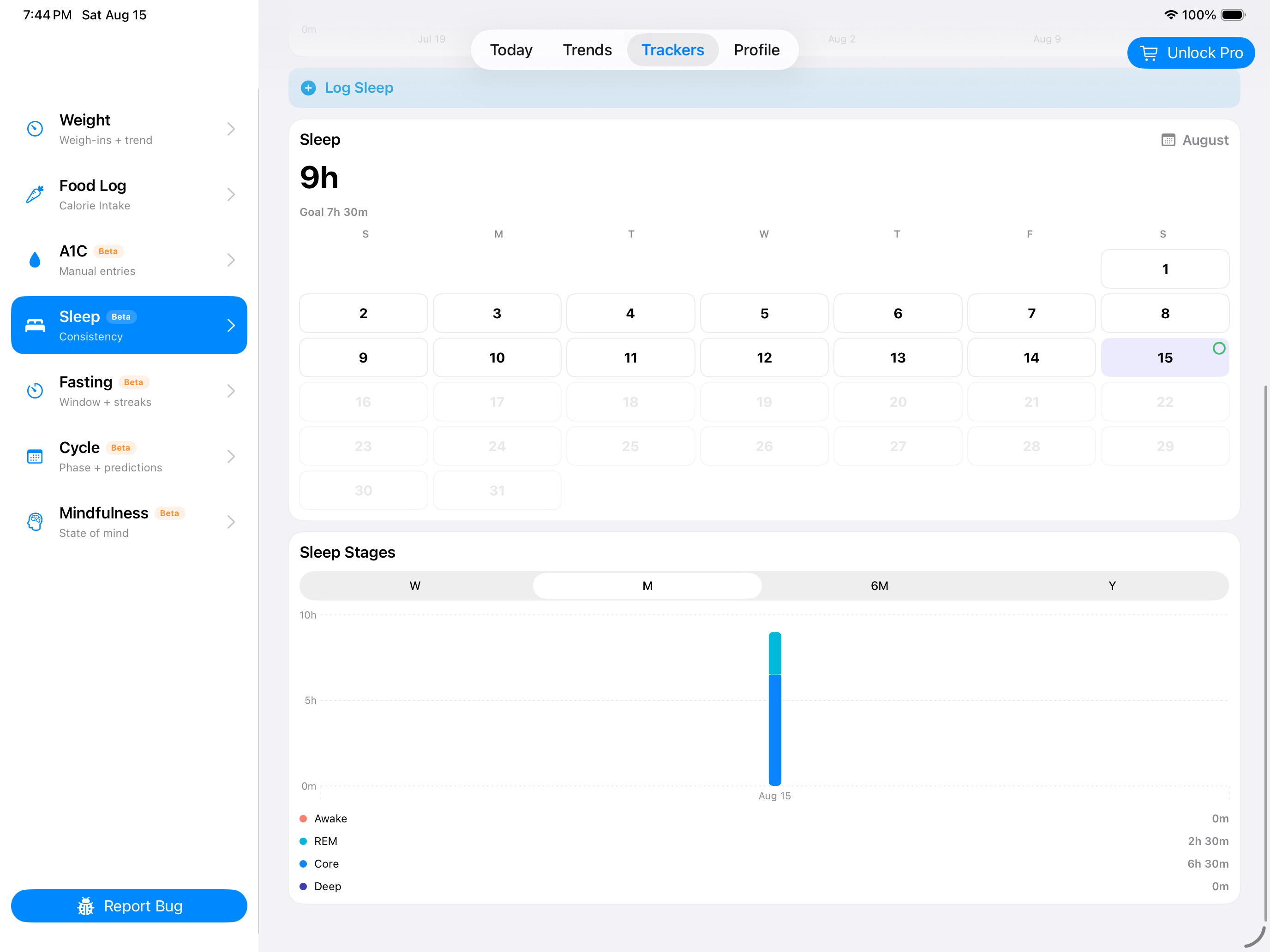
- Daily total adds the stages that count as time asleep. Awake remains visible as context but is not included in time asleep.
- Stages show how the recorded night is divided. A missing stage means no sample of that type was available; BeFit Tracker does not estimate it.
- Goal is the sleep target you set in Profile. Consistency and sleep-debt summaries compare available daily totals with that personal target.
- Trend plots daily sleep totals across Week, Month, 6 Months, or Year.
- History lists the individual samples behind each day and is the correct place to investigate an unexpected total.
Correct an incorrect night
- Select the affected date in the calendar or History.
- Expand the day and identify the specific stage sample with the wrong duration, stage, or time.
- Choose Edit, make the correction, and save. Use Delete when the sample is a duplicate or should not exist.
- Review the daily total and stage chart again; changing one sample can change both.
Learn from the pattern
Use the Week range to inspect recent consistency and longer ranges to see whether your routine is changing. Compare the pattern with your own activity, food, fasting, mindfulness, or cycle history when that context is useful. These charts can help you ask better questions, but they do not establish why sleep changed or assess sleep quality medically.
Devices and apps can classify sleep differently. BeFit Tracker preserves the samples it receives or that you enter; it does not diagnose sleep disorders or verify a source device’s classification.