BeFit Tracker Help
Universal workflow
Organize your food library
Keep favorites, collections, recent choices, recipes, and custom foods easy to find.
What the Food Library is for
The Food Library separates the bundled reference catalog from foods you intentionally keep. Search the catalog for source-backed nutrition, favorite useful results, organize them into Collections, and keep imported or user-added foods in your User Library for later review and logging.
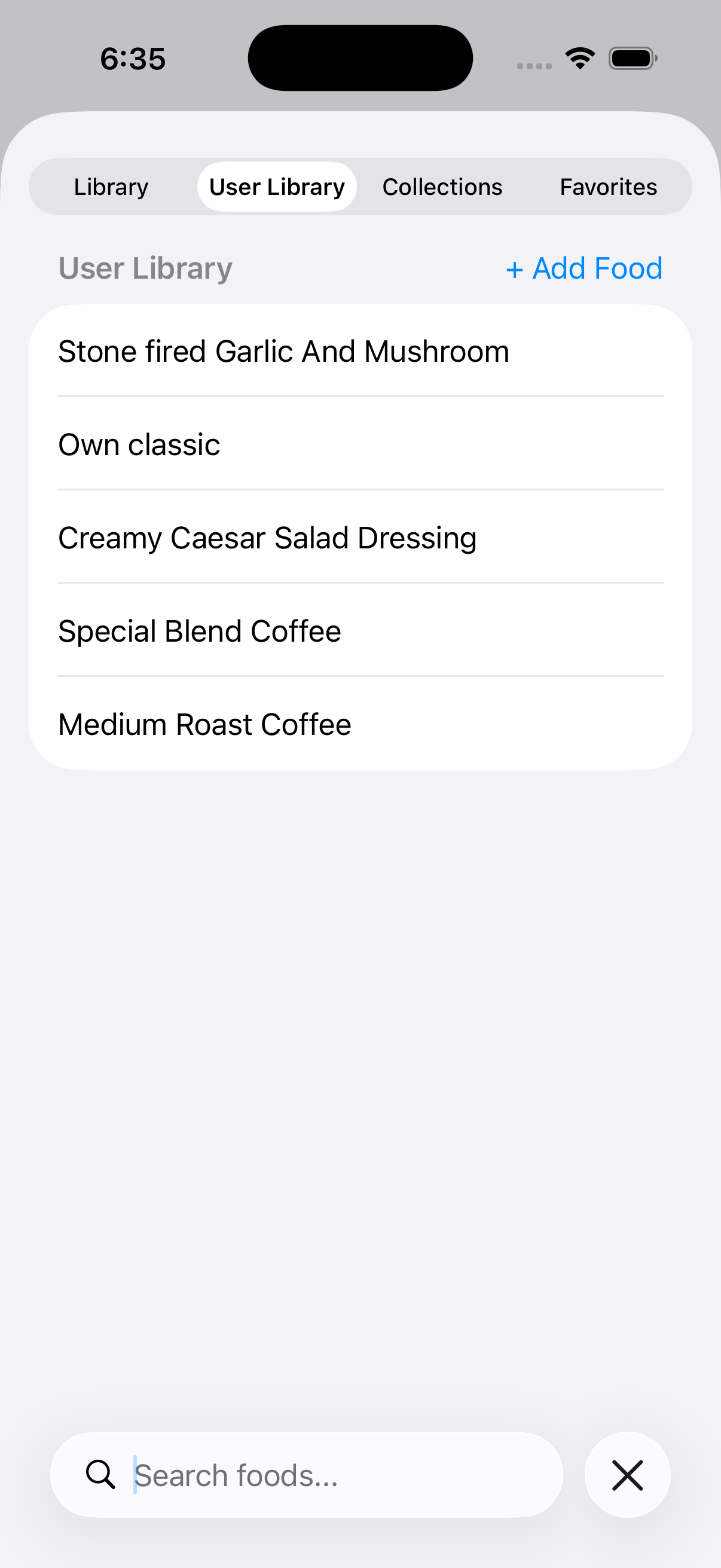
iPhone
iPad
Mac
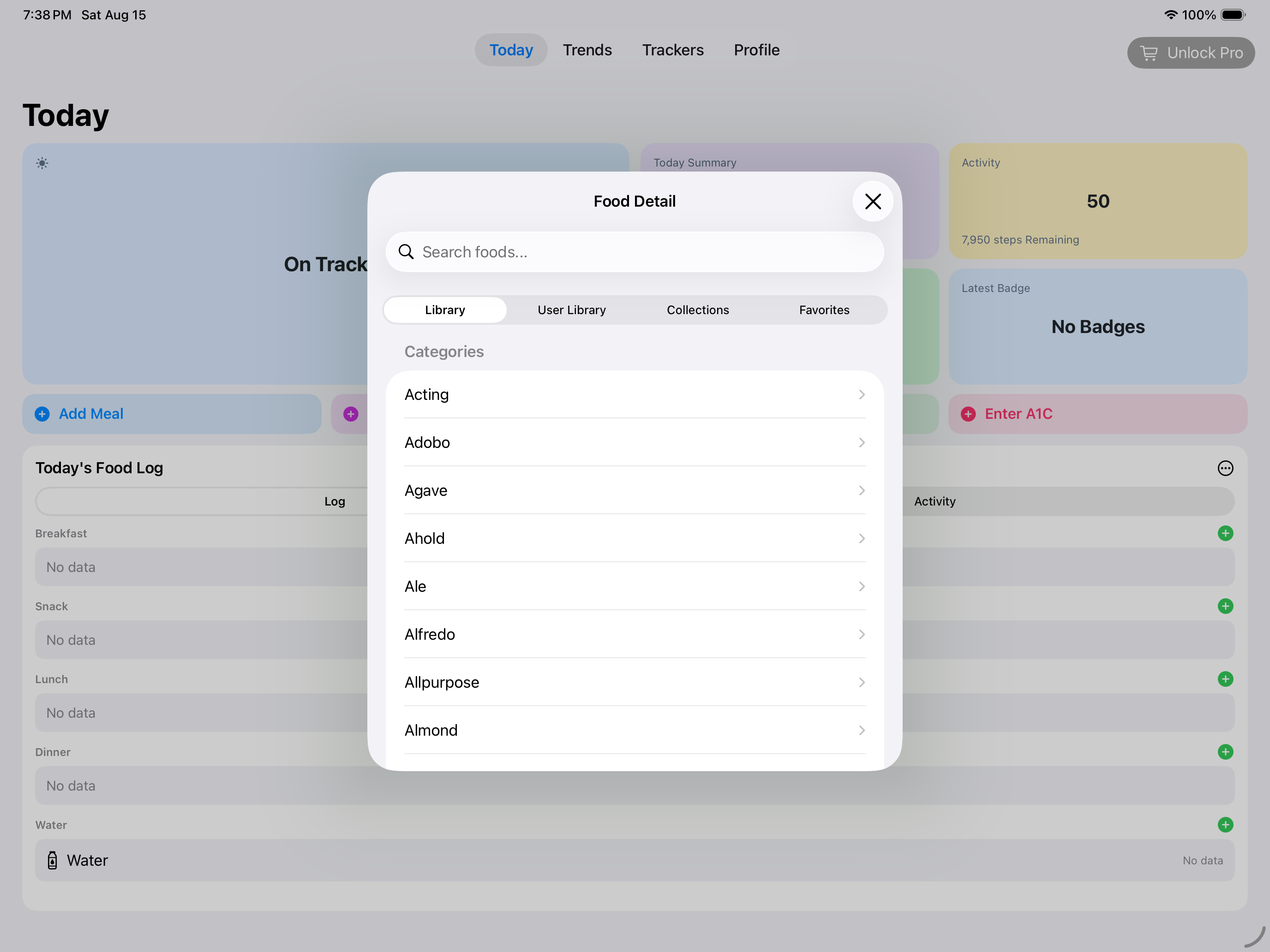
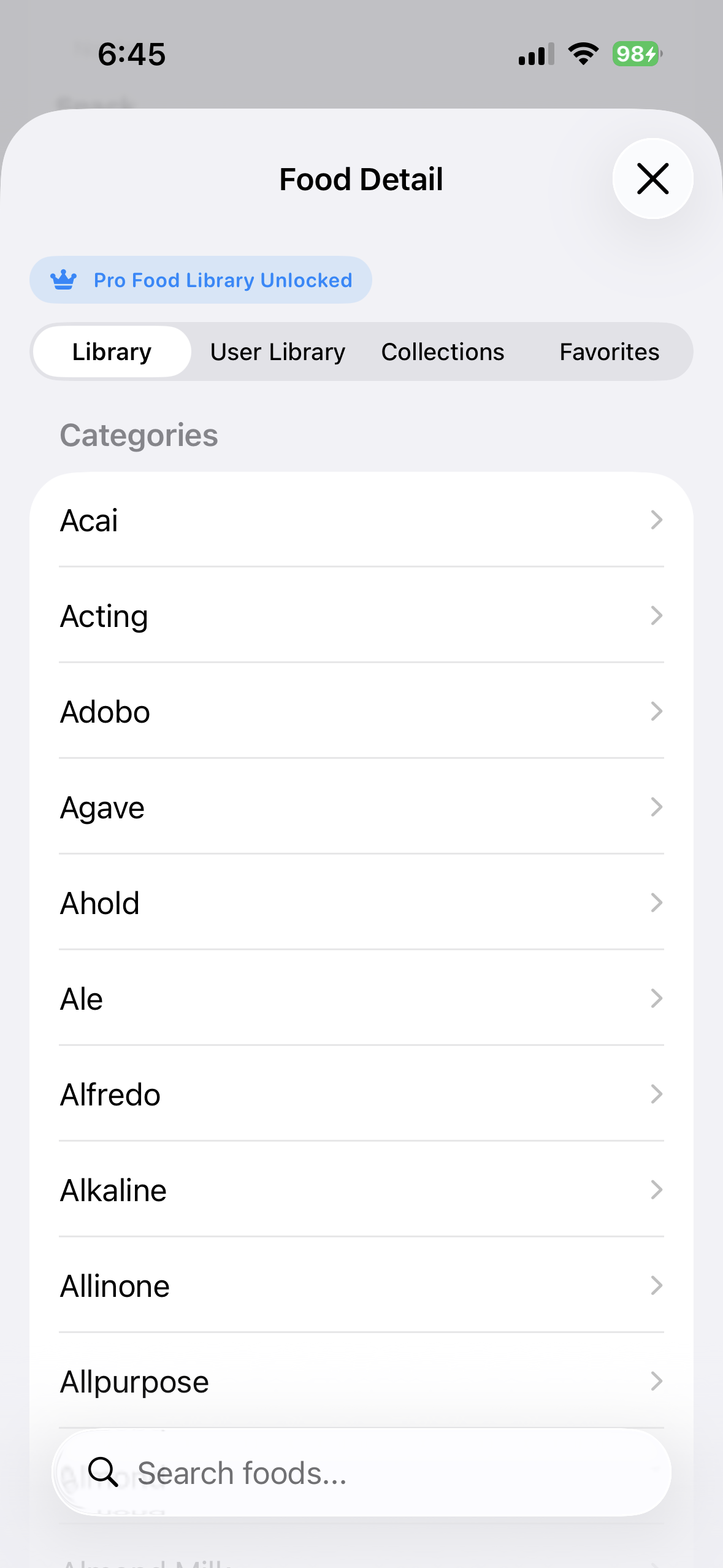
Browse categories and search
Categories provide a starting point when you do not know the exact name. Search narrows the visible library using the food name and indexed catalog information. Open a result before logging it; similar names can describe different products, portions, or sources.
Read a food detail
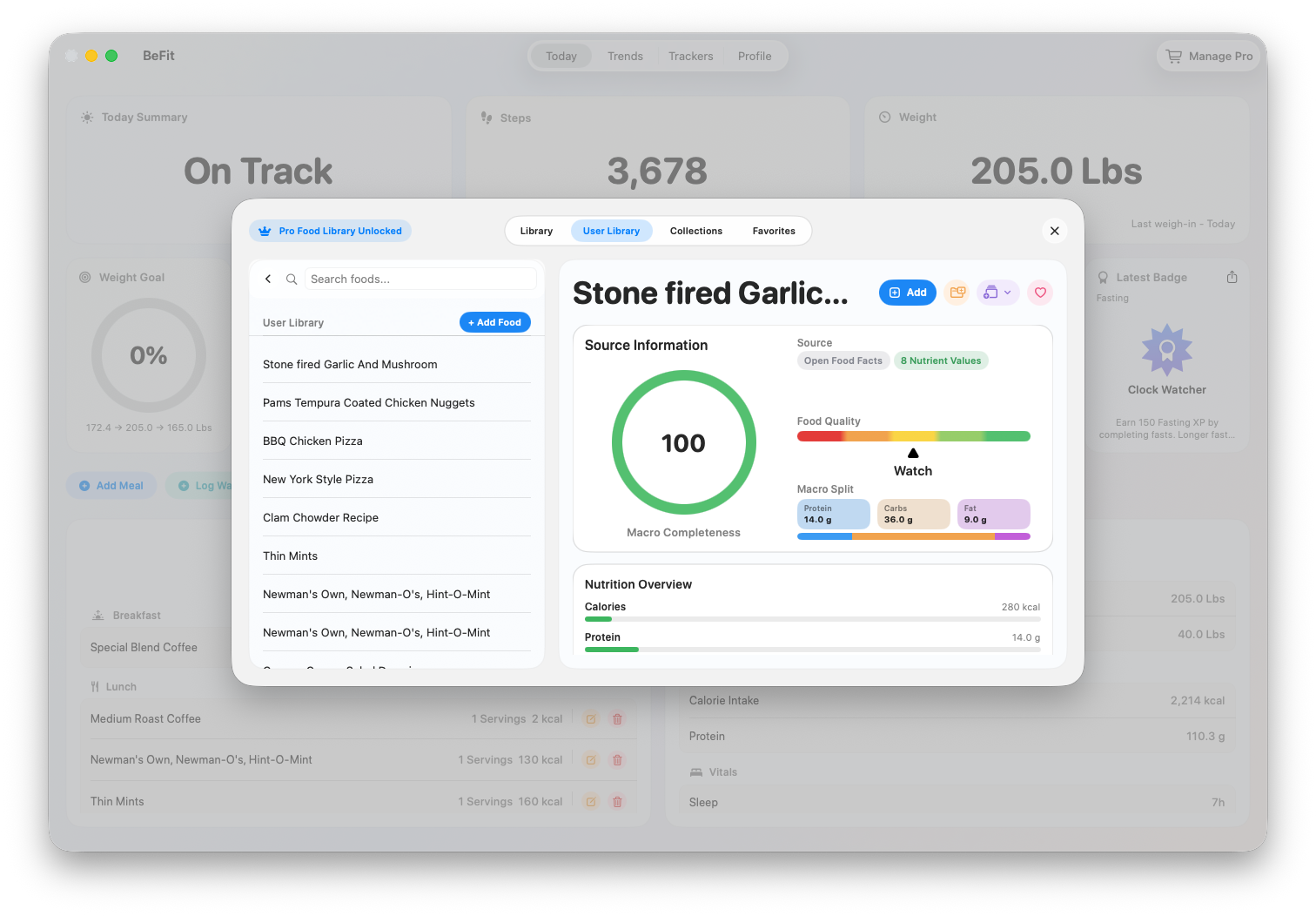
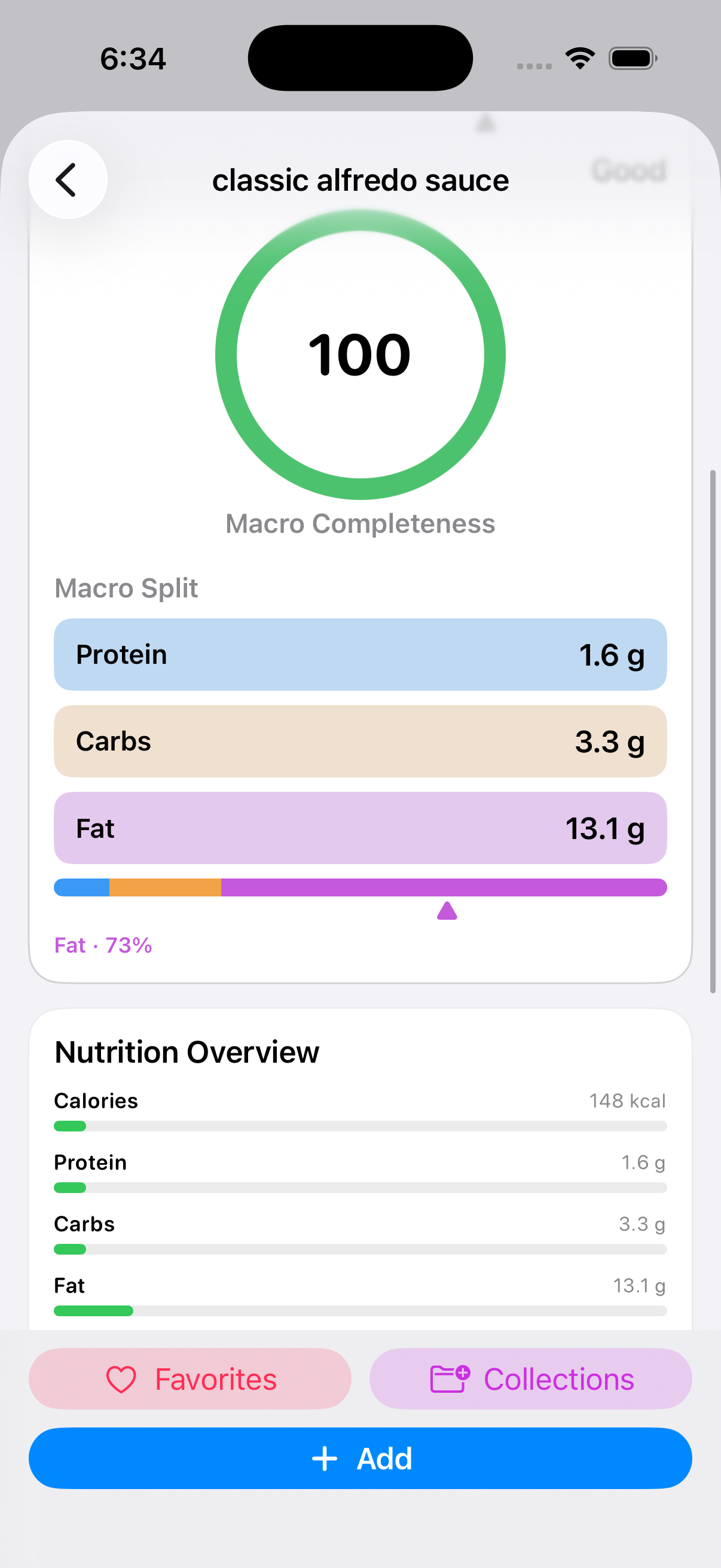
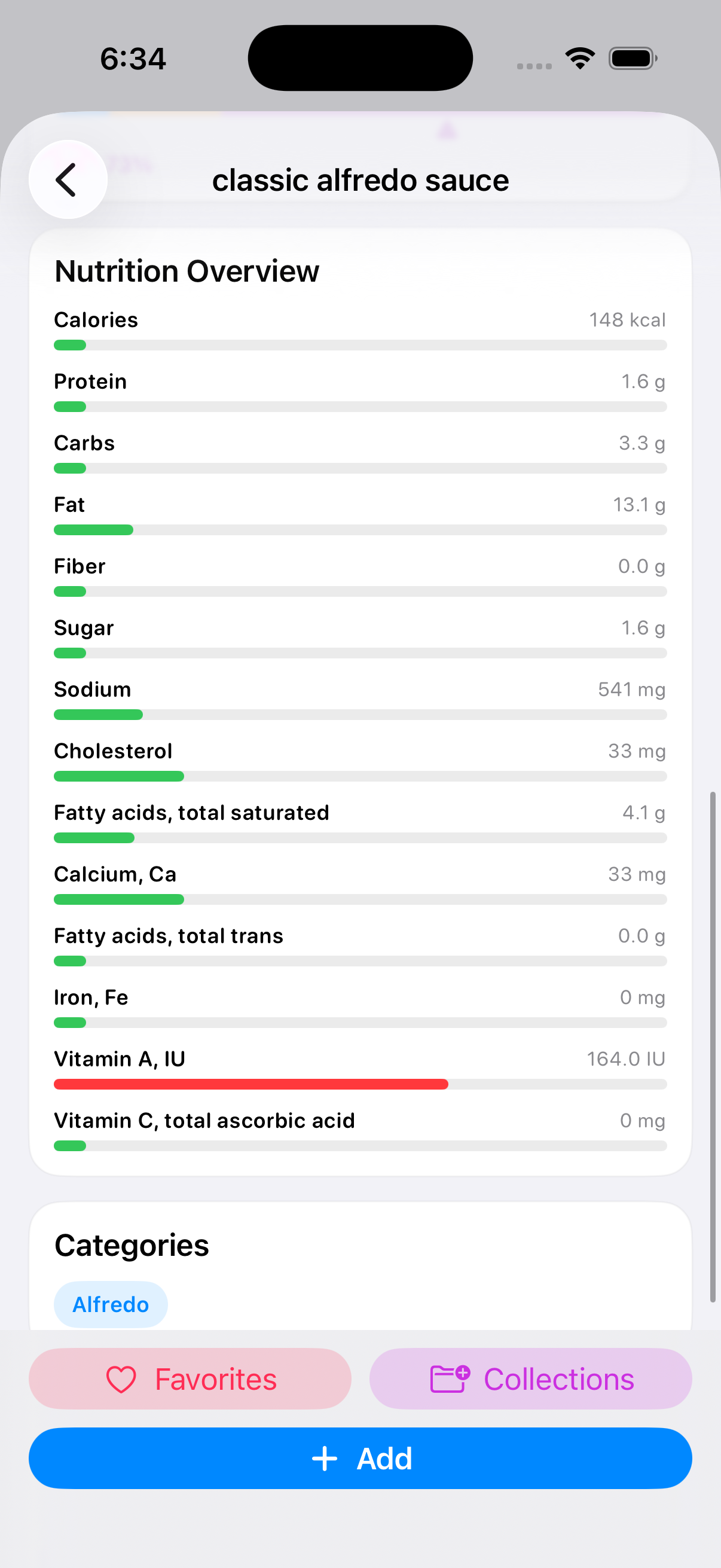
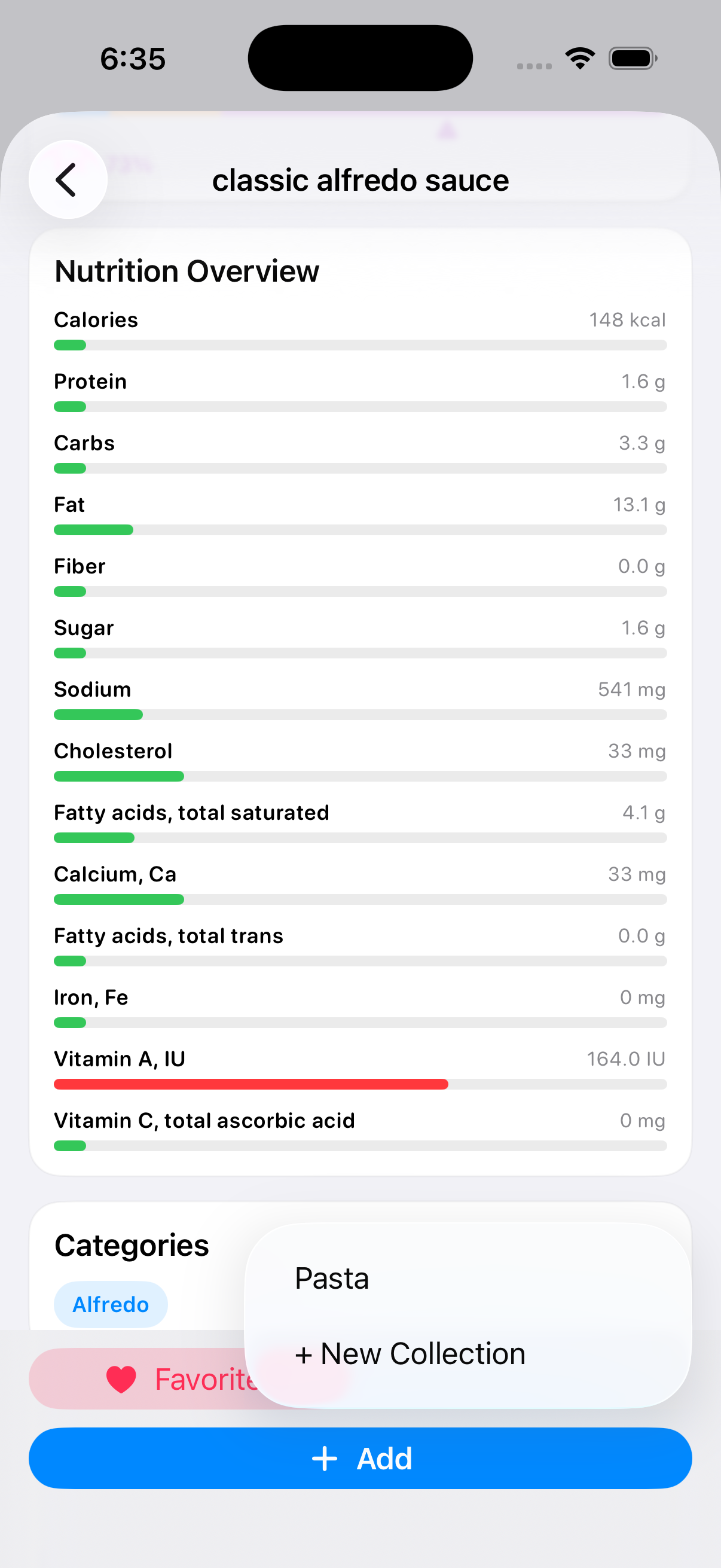
The detail screen preserves more than calories. Review Source Information, available serving choices, Macro Completeness, the macro split, the full nutrition list, and categories. Missing nutrients stay missing instead of being silently invented. Source and completeness context help you decide whether the record is the right match.
 Confirm the food and serving basis
 Review the available macros
 Use the macro split as a summary
 Inspect the full available nutrition
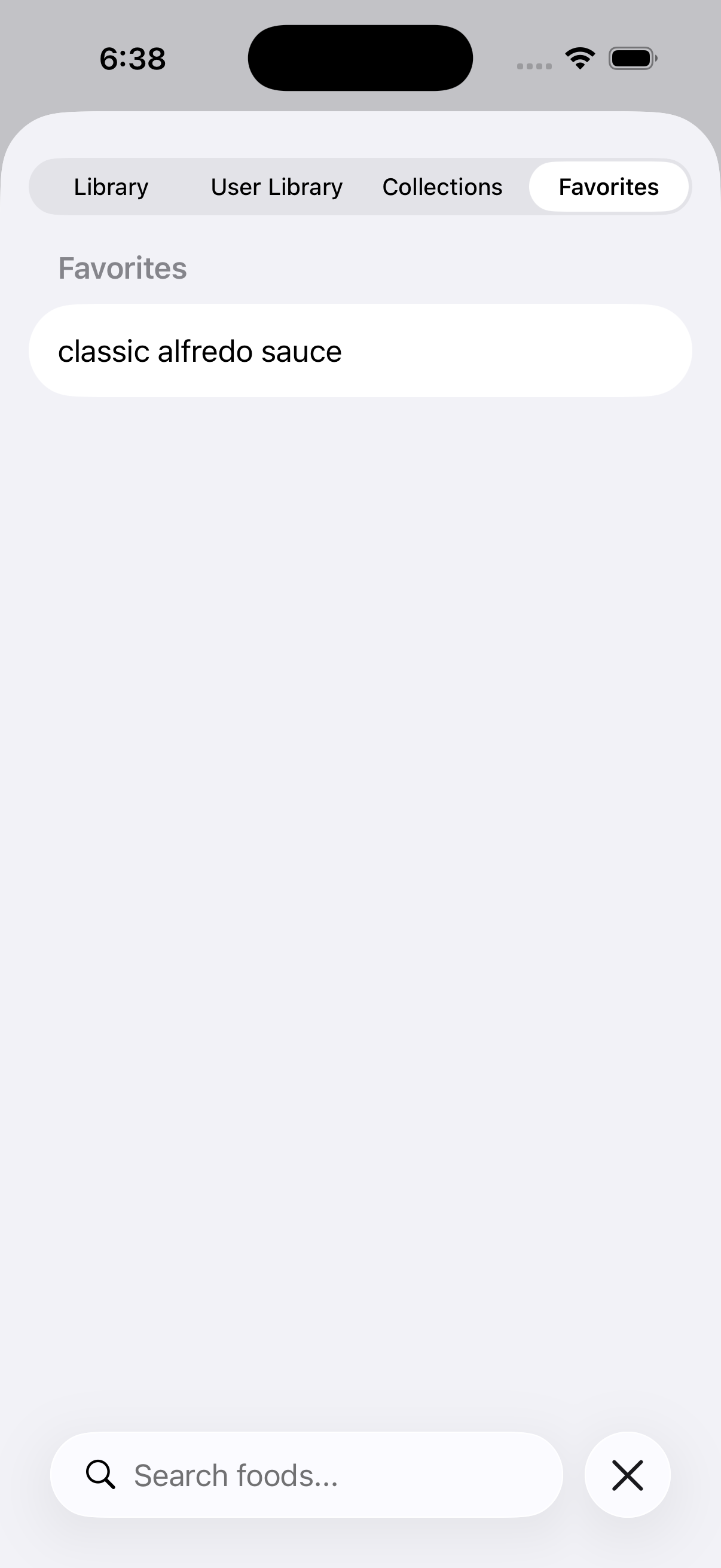
Use Favorites
Select Favorites on a food you expect to reuse. Removing it from Favorites removes the shortcut, not the underlying catalog or User Library record. Favorites are for retrieval; they do not duplicate the food.
Create and use Collections
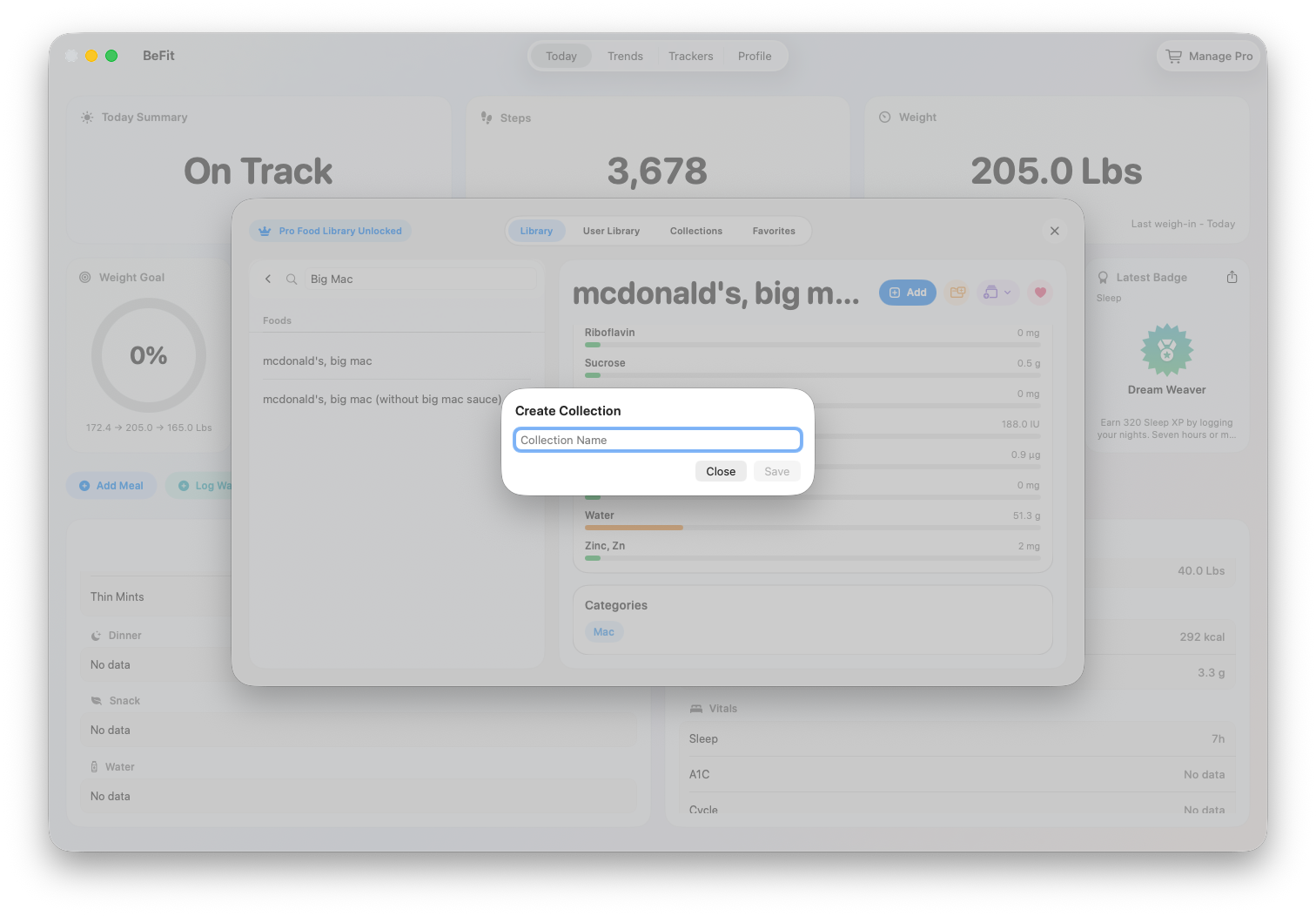
- Open a food and choose Collections.
- Select an existing Collection or choose New Collection.
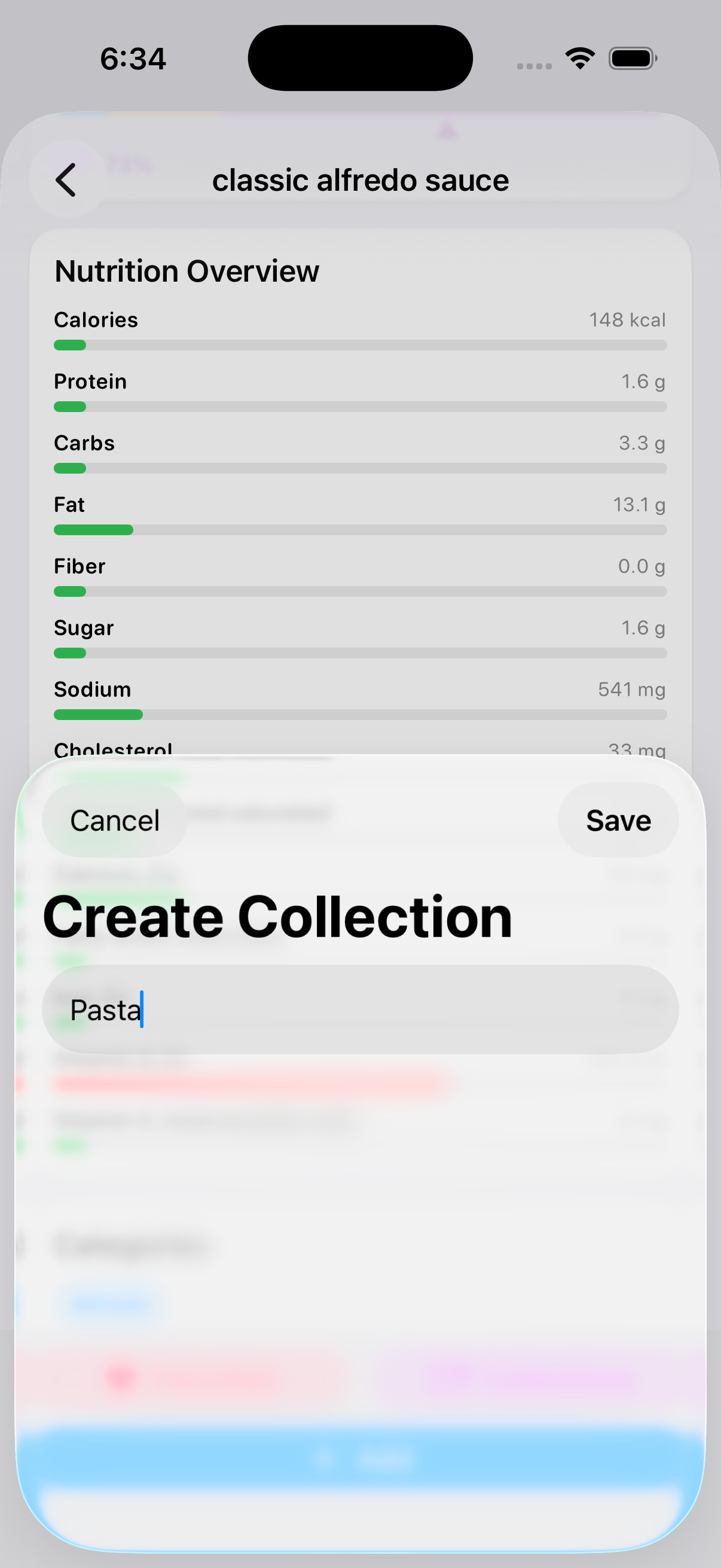
- Name the Collection for how you actually retrieve foods, such as a meal pattern or household group.
- Return to the Collections view to open the group and verify the food appears.
A food can remain a Favorite and belong to a Collection at the same time. Deleting a Collection should not be confused with deleting the food record itself.
 Name a collection you will recognize
 Add the current food
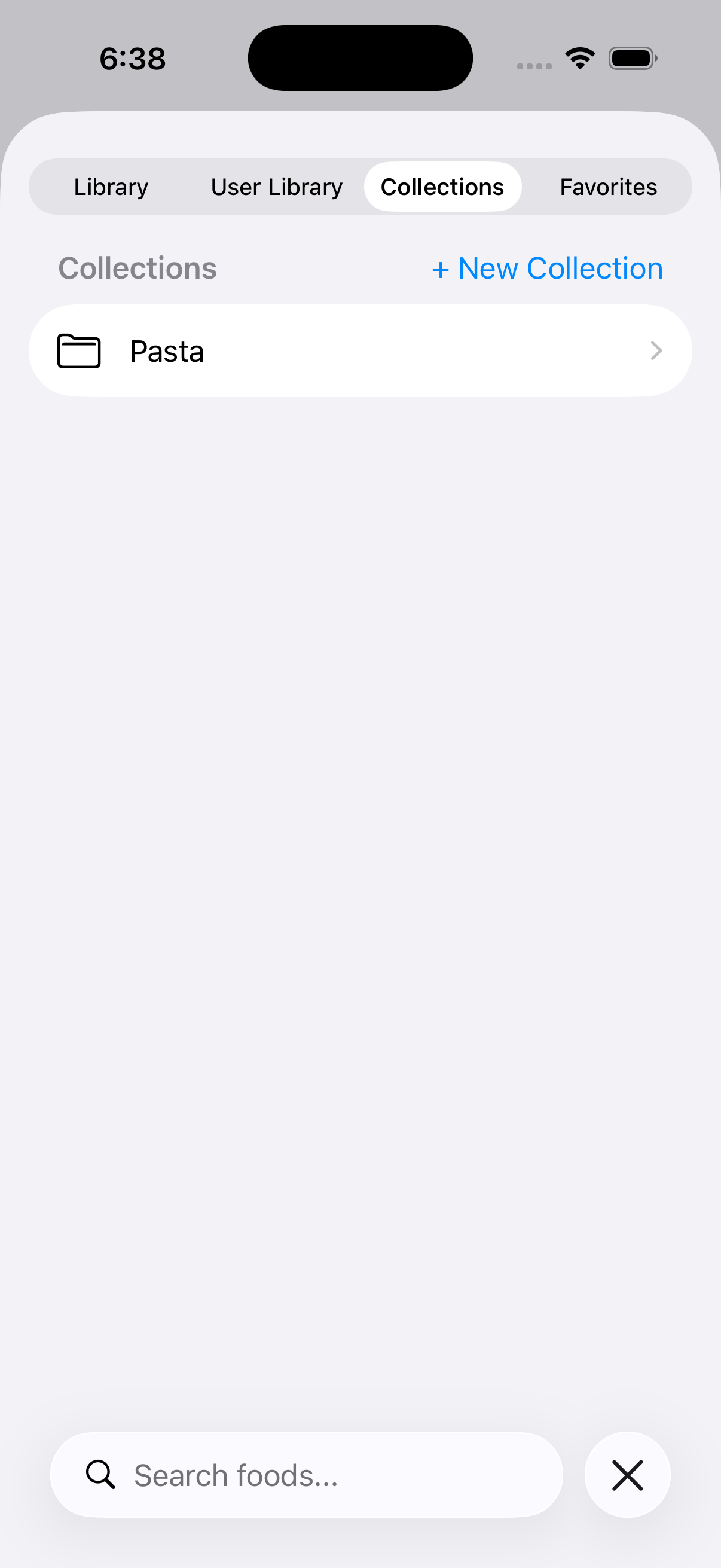 Open the collection from the library
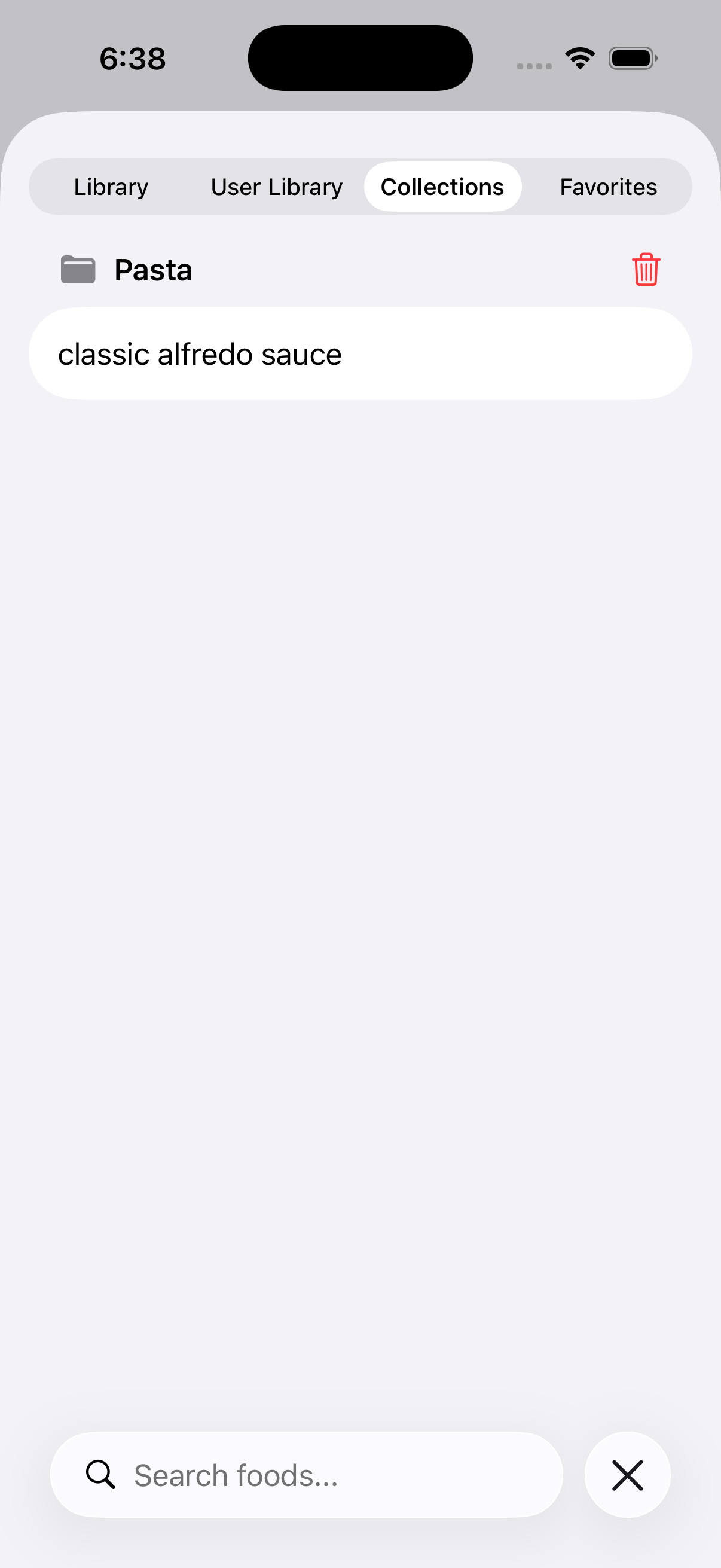 Choose a saved food to review or log
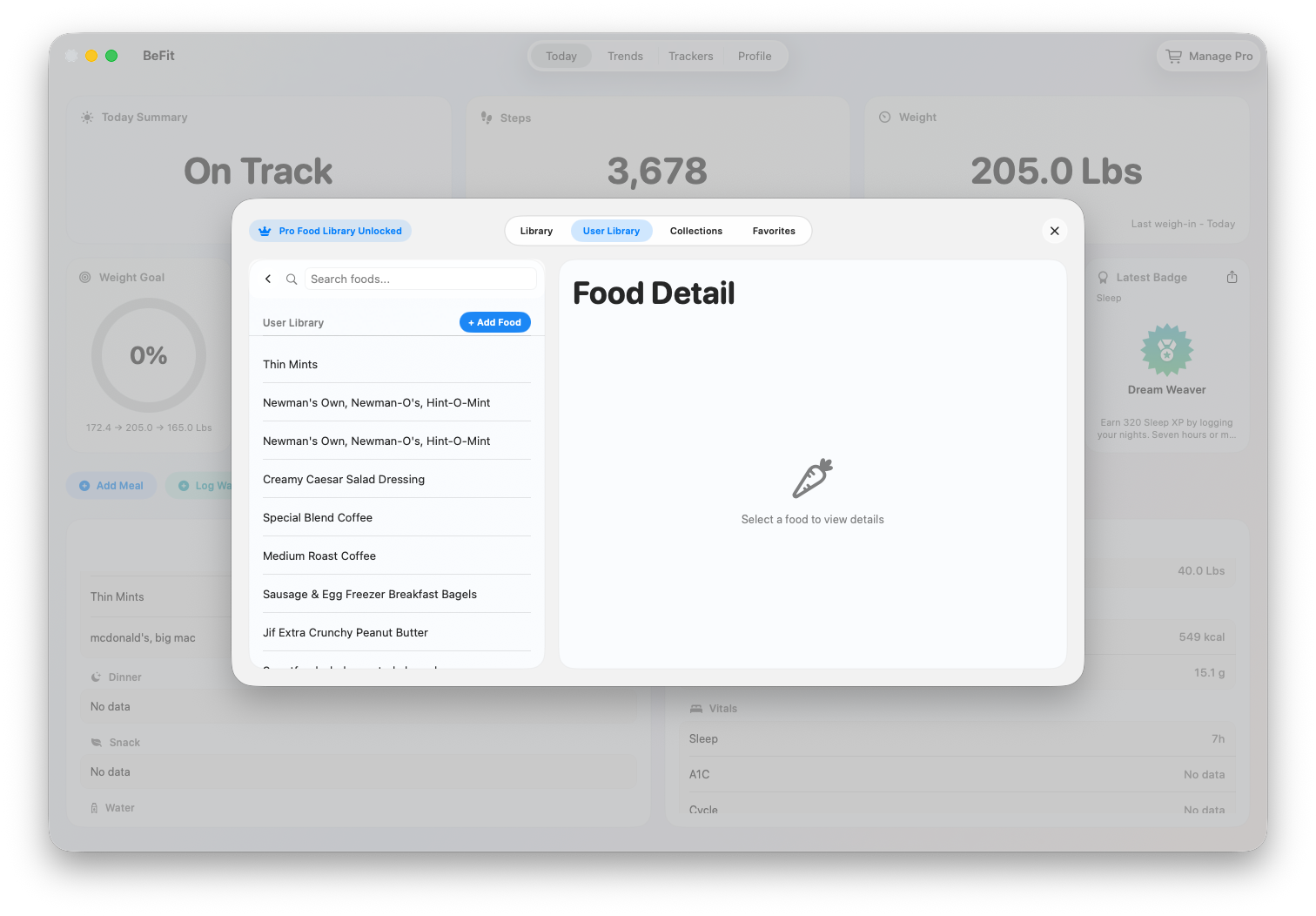
Understand the User Library
The User Library contains foods you added or imported for personal reuse. That can include manually entered foods, reviewed recipe imports, and reviewed Open Food Facts imports. Open an item to inspect its stored source snapshot, serving information, and nutrition before logging it again.
Find foods you chose to keep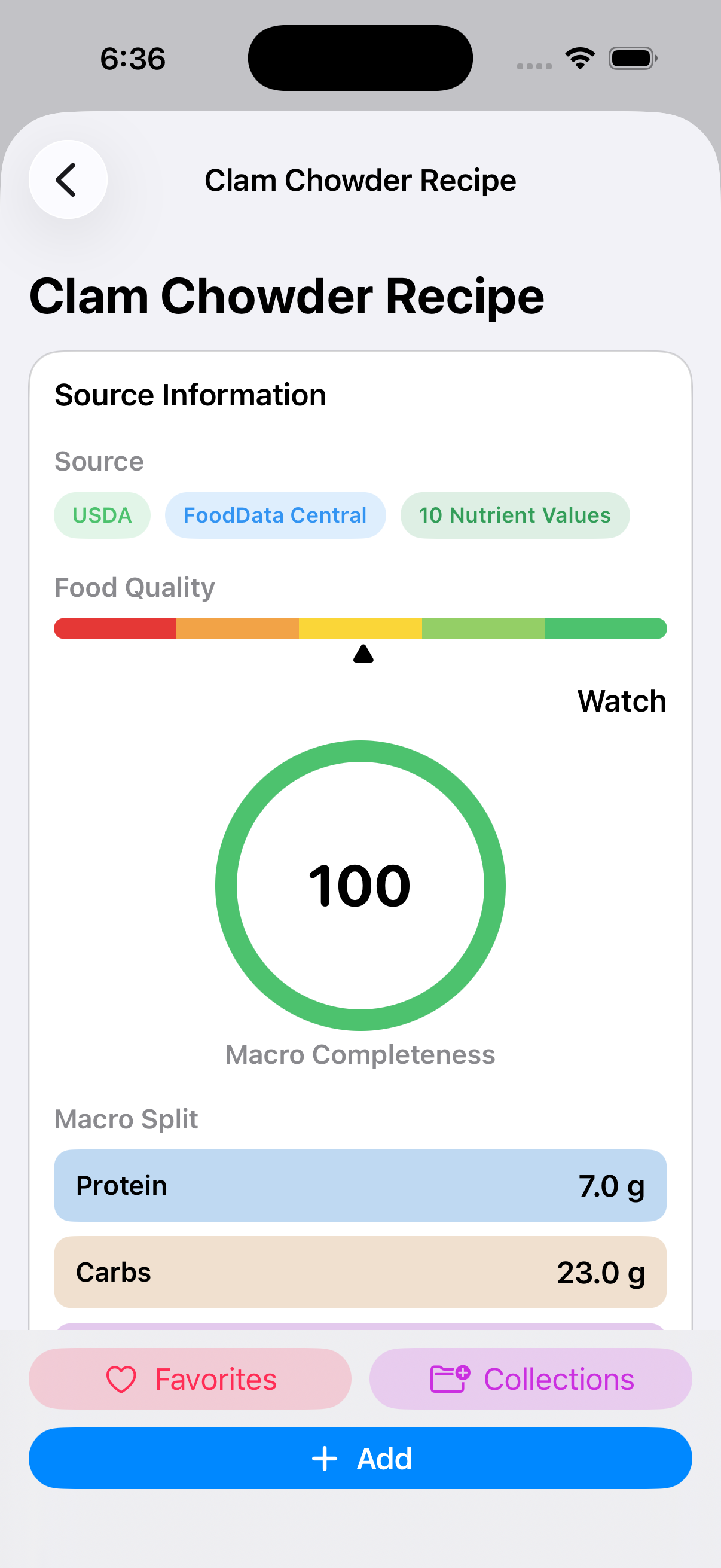 Recheck a recipe before reuse
iPhone and iPad
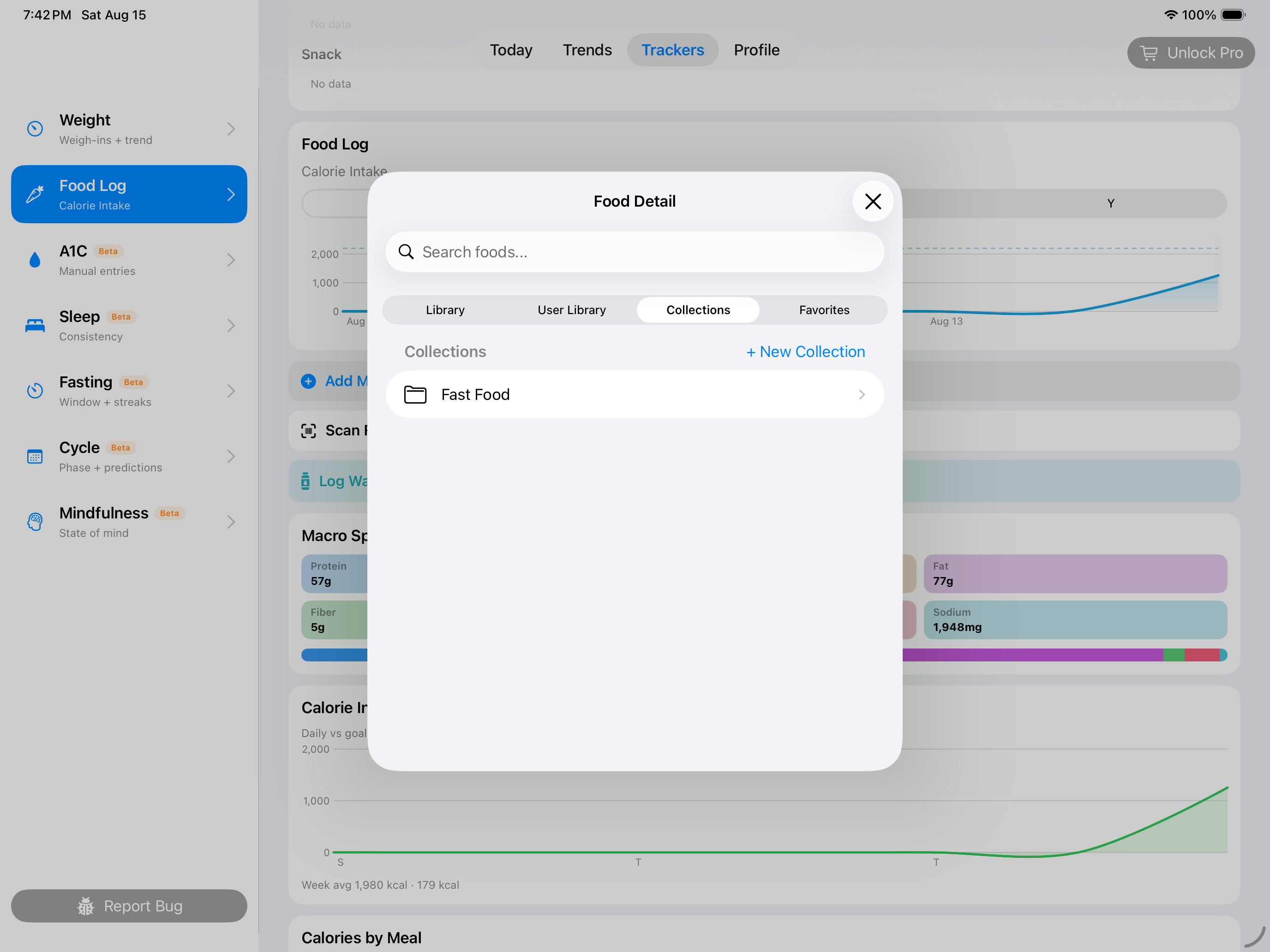
Open the Food Library from Today or Food Log, then move between the catalog, User Library, Collections, and Favorites. The iPhone flow favors one focused list or detail at a time. Landscape iPad keeps the surrounding Today workspace visible while providing more room for search results and nutrition detail.
Mac
Use the larger Food Library workspace to browse saved choices while keeping more food detail visible beside the list. The Mac source grid also provides routes into URL import, dictation, photo-assisted discovery, and Open Food Facts. Every route ends in a food you review before accepting into the User Library.