 BeFit Tracker Help
Mac
BeFit Tracker on Mac
Learn the Mac workflow path from Today to trends, food review, tracker history, and optional assisted food entry.
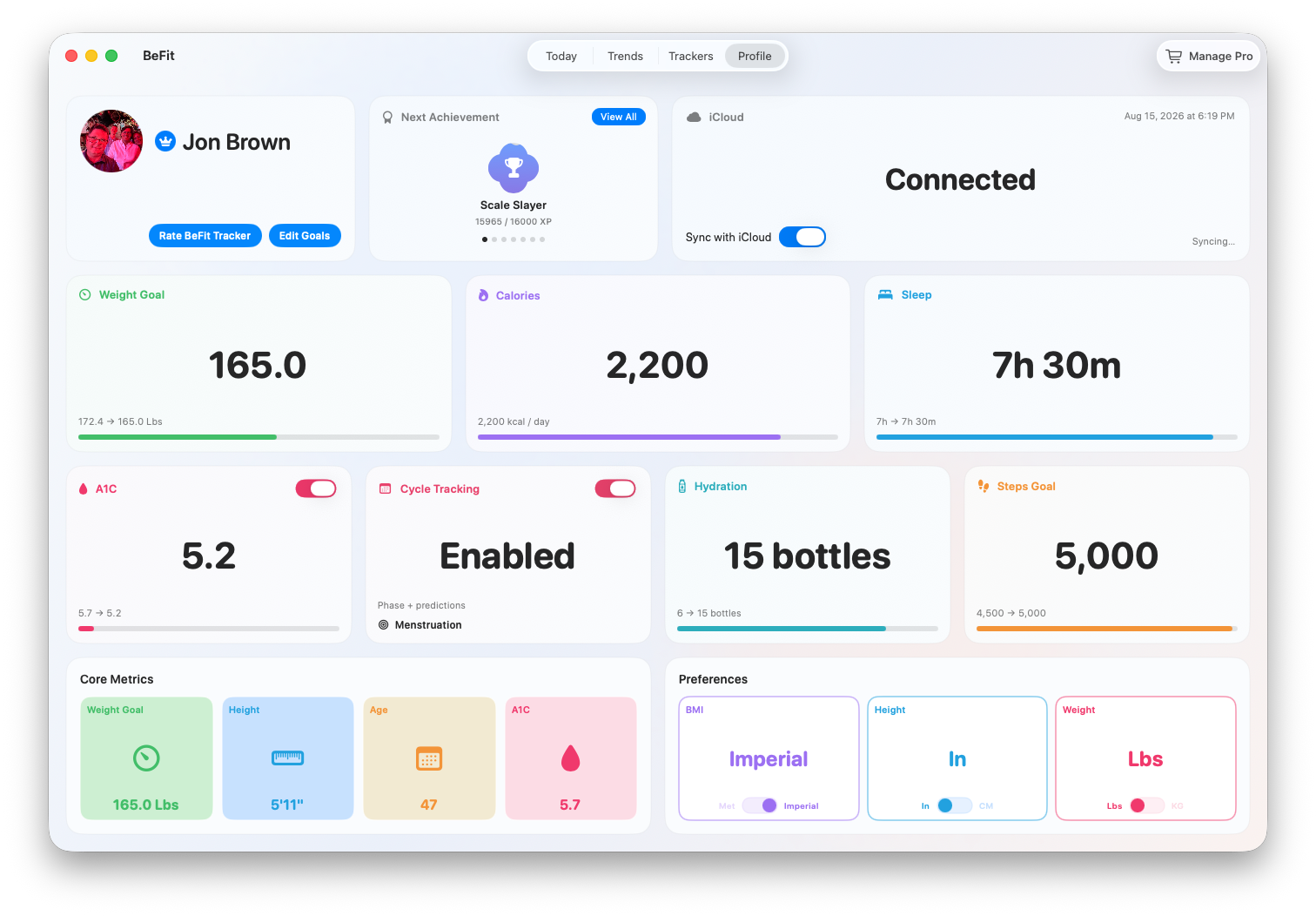
The Mac workspace keeps Today, trends, food review, and tracker detail visible at once so you can move from a quick check to a deeper review without losing context.
Start on Today
Today is the best starting point when you want to review goals, recent activity, and what still needs attention. On Mac, the same dashboard also leaves room for more surrounding context than the mobile layout.
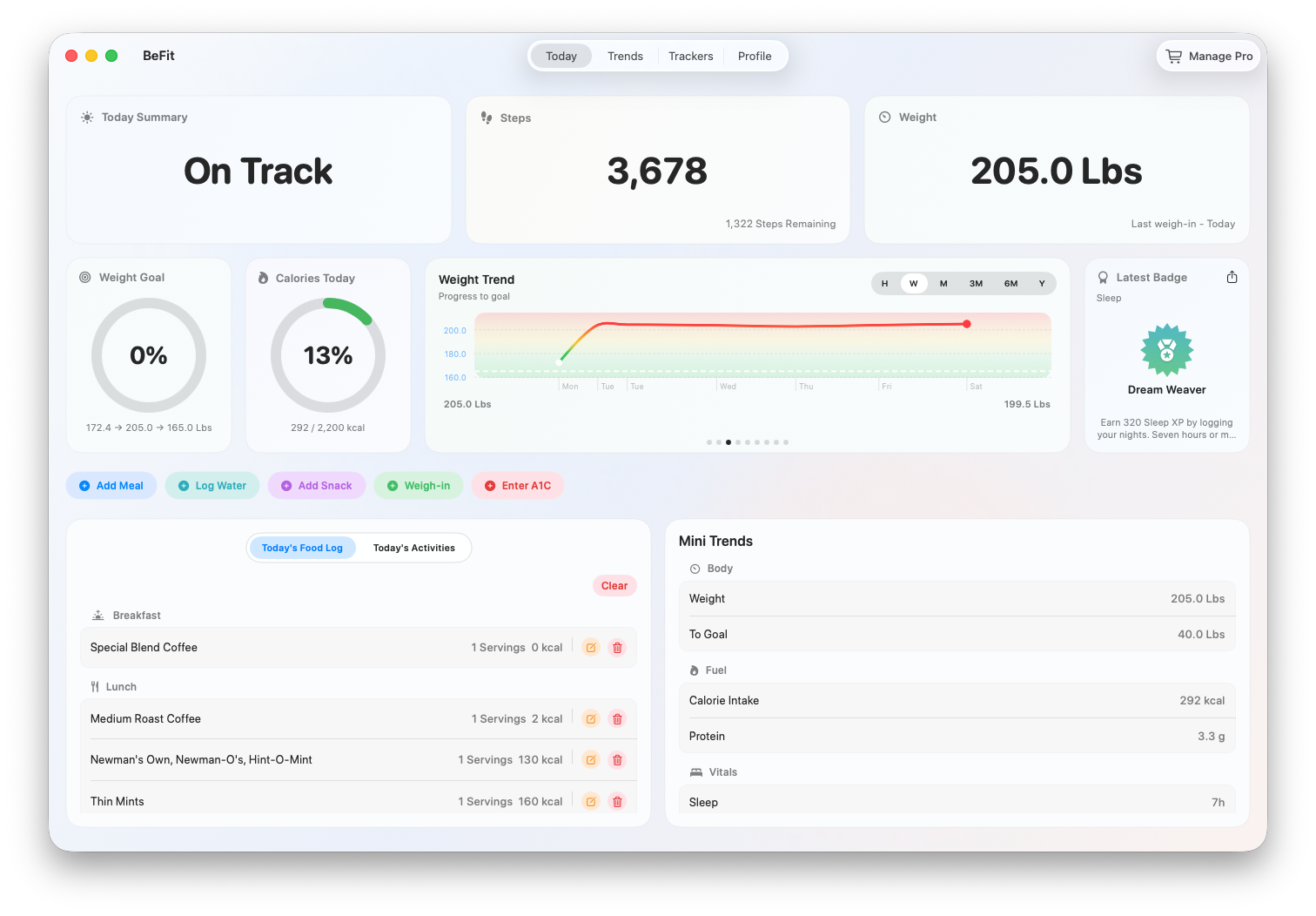
From Today you can open the same underlying flows used elsewhere in the app. Use the dashboard when you need a quick answer, then open the dedicated page when you need the full record.
Move into trends and history
When a summary card needs more detail, open Trends or the tracker history it points to. The larger window helps you compare recent entries, totals, and chart context without bouncing between screens.
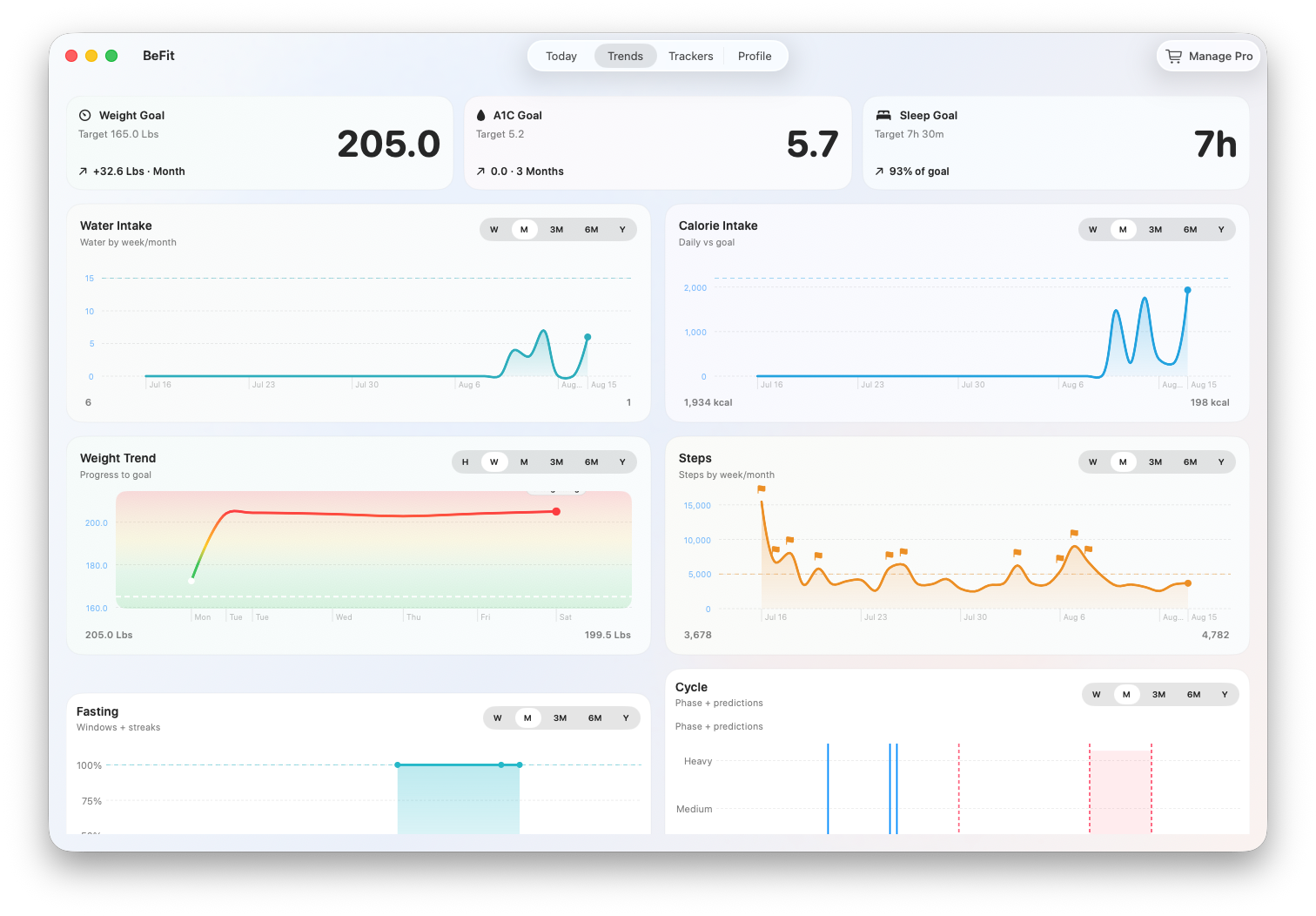
For a deeper walkthrough, see tracker history at scale. That guide shows how to read the chart, open the underlying records, and correct an entry instead of changing the graph itself.
Search and inspect foods
Mac food workflows are built for side-by-side review. Search the catalog, inspect food detail, and compare source context before you save anything to the User Library or a tracker.
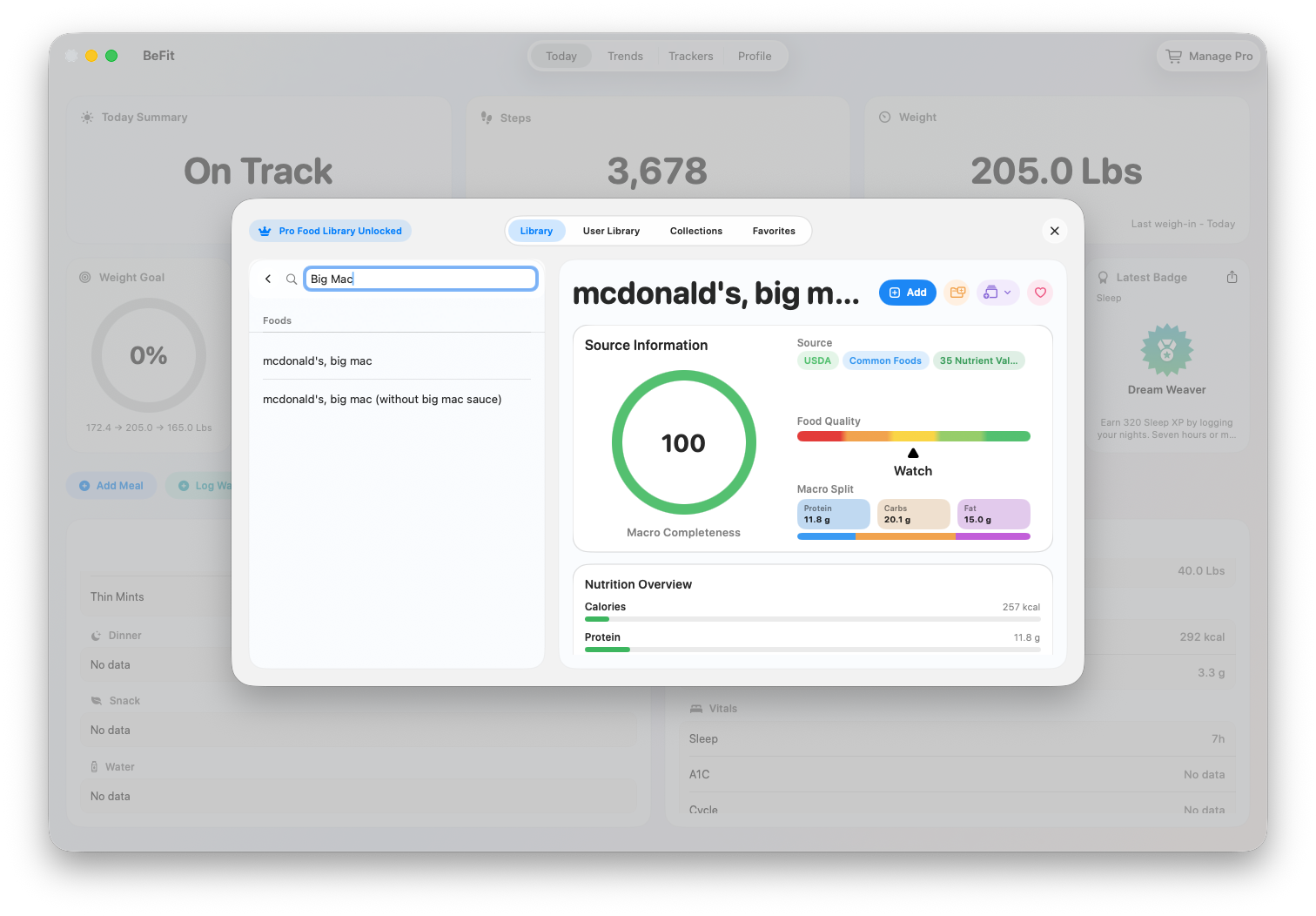
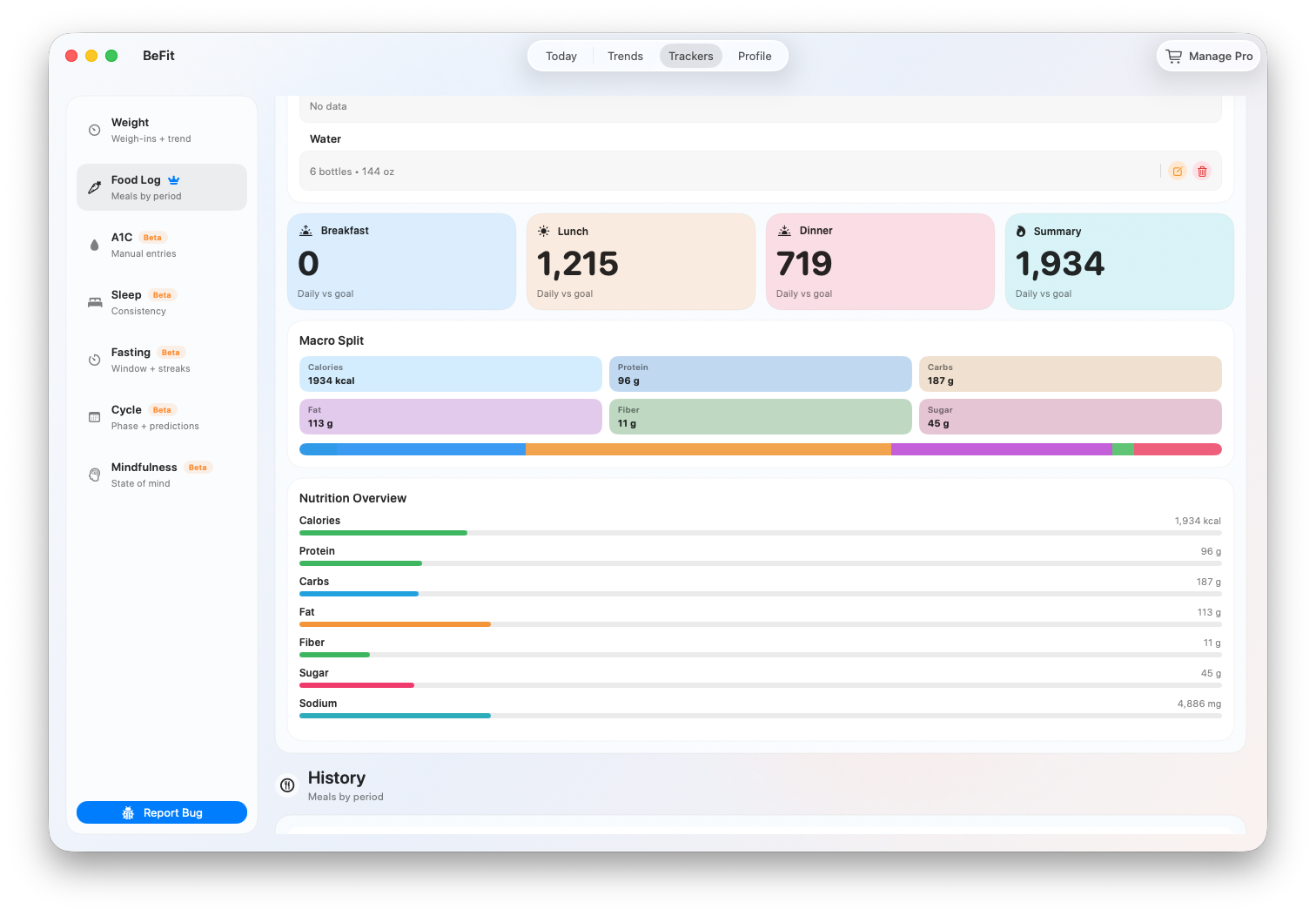
See Food Library and Open Food Facts on Mac for bundled food search, external imports, and source review. Use the Food Library guide when you want the reusable library and collection flow.
Use the tracker pages
Each Mac tracker deserves its own page because the workflows are different. Use the overview here to choose the right destination, then open the dedicated article for the full step-by-step guide.
- Weight on Mac for the weight workspace, history, BMI, and entry controls.
- A1C tracking on Mac for history, goal comparison, and corrections.
- Sleep tracking on Mac for totals, stages, and sleep history.
- Fasting tracking on Mac for plans, live timers, completed sessions, and results.
- Cycle tracking on Mac for periods, predictions, and observations.
- Mindfulness tracking on Mac for session notes, duration, and history.
- Food Library and Open Food Facts on Mac for food search, source review, and imports.
- Collections, favorites, and source detail on Mac for reusable foods and organized lists.
- Water logging on Mac for daily water entry and goal context.
If you need the broader explanation of how Mac fits into the app, keep reading the overview here. If you need to change a record, open the dedicated tracker page instead.
Optional AI integrations
Mac can connect to Apple Intelligence, OpenAI, Claude, or a customer-run Ollama vision model for assisted food workflows. These integrations help identify a dish from a description or photo, but every result still needs your review before it is saved.
See AI Integrations on Mac for the step-by-step provider setup. That page explains which inputs each provider can handle and when Apple Intelligence appears.
iCloud support tools
The release-ready Mac app includes customer-facing CloudKit Logs, text export, and a guarded Reset iCloud action. Use the log to inspect a synchronization attempt and export evidence for support. Reserve Reset iCloud for a confirmed recovery procedure because it purges and rebuilds cloud synchronization state.
If devices disagree, capture what is different and share it with support instead of removing the app. A forced reset can hide the real problem and make recovery harder.
For the iCloud side of the workflow, see Synchronize supported records with iCloud. That guide covers what synchronization does, what to check when records differ, and why deleting the app is not a routine fix.