 BeFit Tracker Help
iPhone & iPad tracker guide
Food history and logging on iPhone and iPad
Add foods to meals, review daily totals, correct servings, and use food history to understand patterns over time.
Food Log connects each item you save with a date, meal, serving count, and available portion. Daily calorie and macro summaries are calculated from those entries, so the most useful habit is to review the food and serving before saving and correct the individual row when a total looks wrong.
Add a food to a meal
- Open Trackers → Food Log, or tap Add Meal or Add Snack on Today.
- Search the Food Library, browse a category, or open Favorites, Collections, Recent, or User Library.
- Select a food and review its name, source, serving options, and available nutrition. Missing fields remain missing.
- Choose Breakfast, Lunch, Dinner, or Snack; set the date; enter a serving count greater than zero; and choose an available gram-based portion.
- Tap Add, then return to the selected day and confirm the food appears under the intended meal.
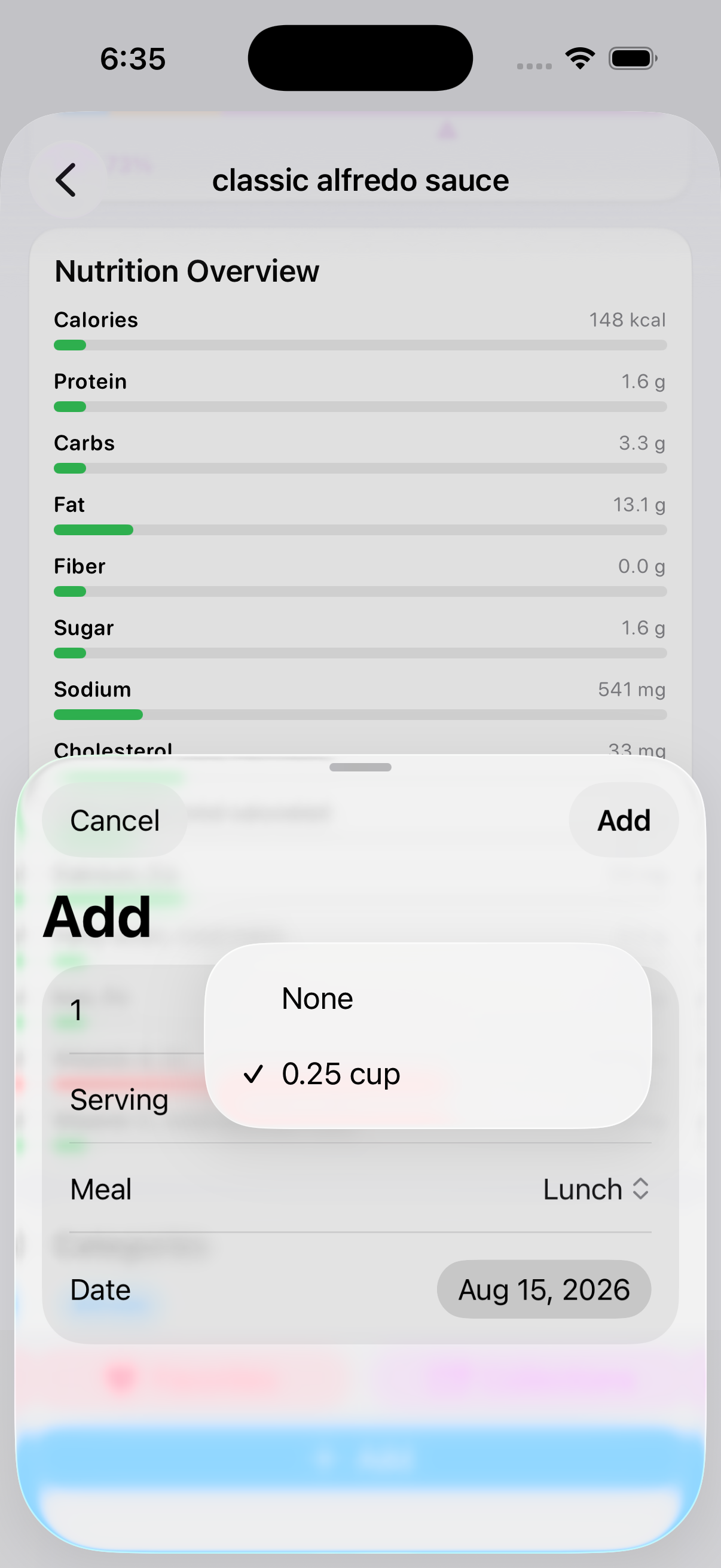 Choose how the food should be logged
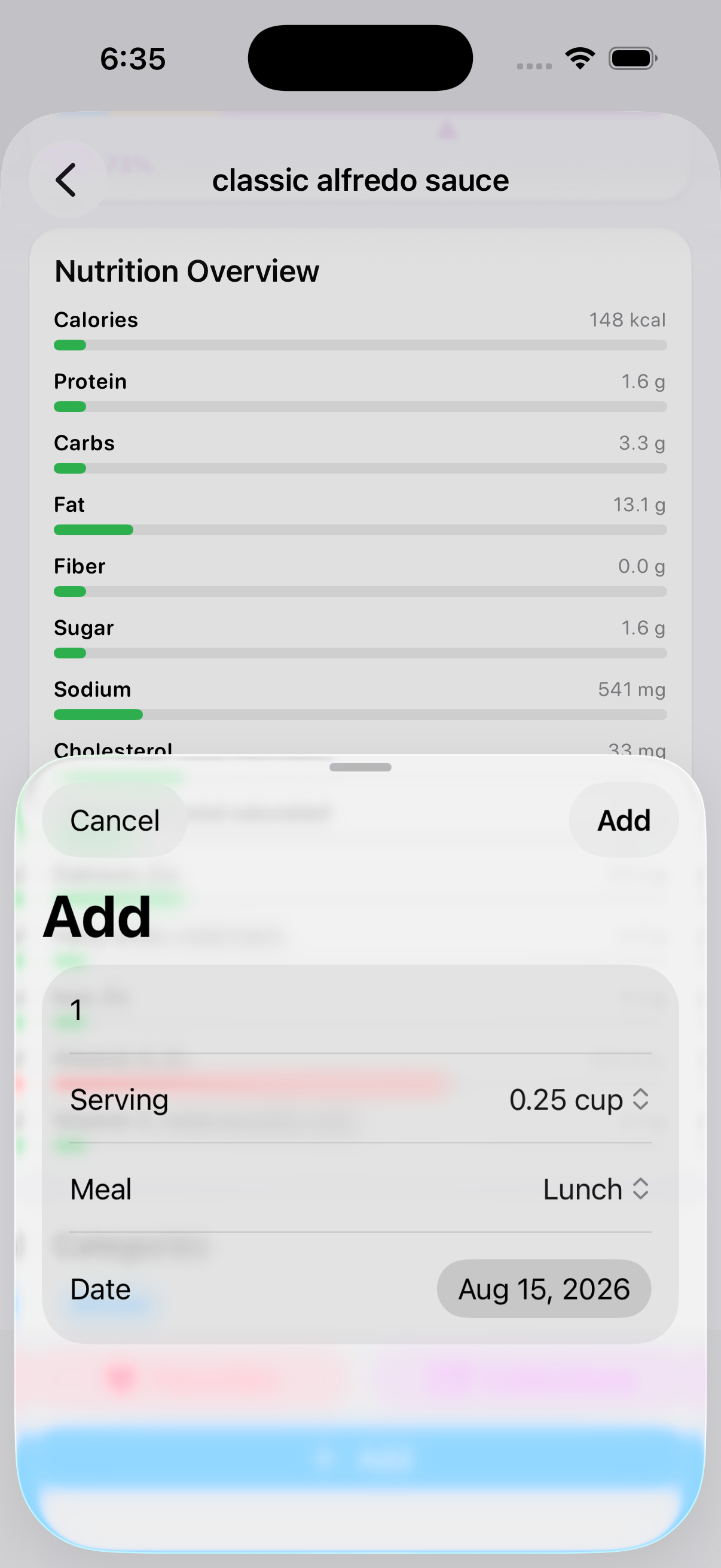 Review the resulting meal entry
Read the day from totals to details
- Calories compares the sum of logged food calories with the daily calorie goal saved in Profile.
- Macro split summarizes available protein, carbohydrate, and fat values from the logged servings.
- Meal groups show which foods contributed to Breakfast, Lunch, Dinner, and Snack.
- Water is a separate daily hydration record and does not alter food nutrition.
- History lets you change dates and inspect previous days without changing today’s entries.
If a source food lacks a nutrient, BeFit Tracker does not invent it. A daily total can therefore be incomplete even when every food you ate is listed.
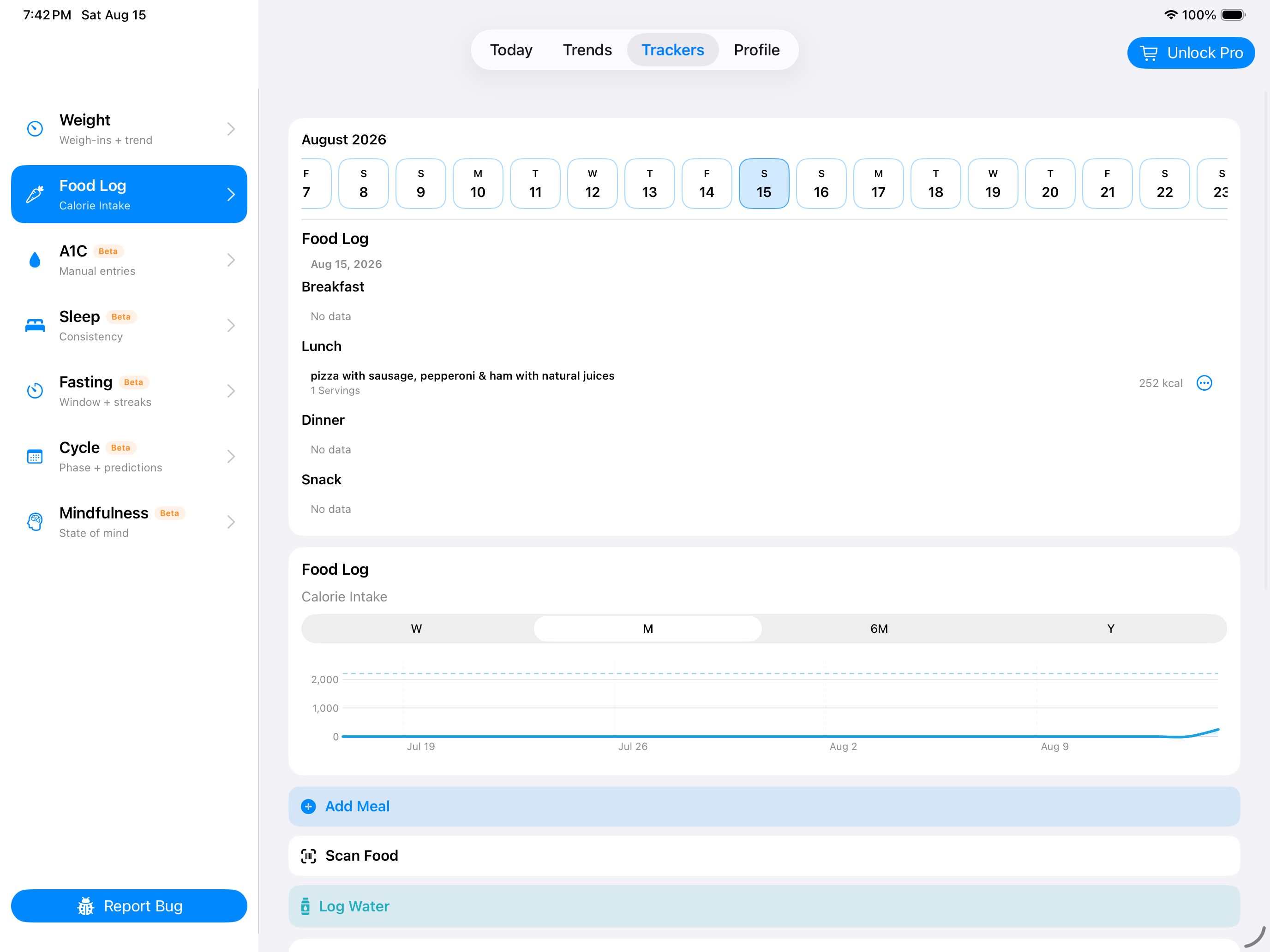
Correct a serving or remove a food
- Open the date and meal containing the incorrect entry.
- Select the saved food row and choose its edit action.
- Change the serving count and save. This edits the logged amount; it does not alter the read-only catalog food.
- Use Delete and confirm when the food was logged to the wrong day or should not exist.
- Review calories, macros, and the meal subtotal again after the change.
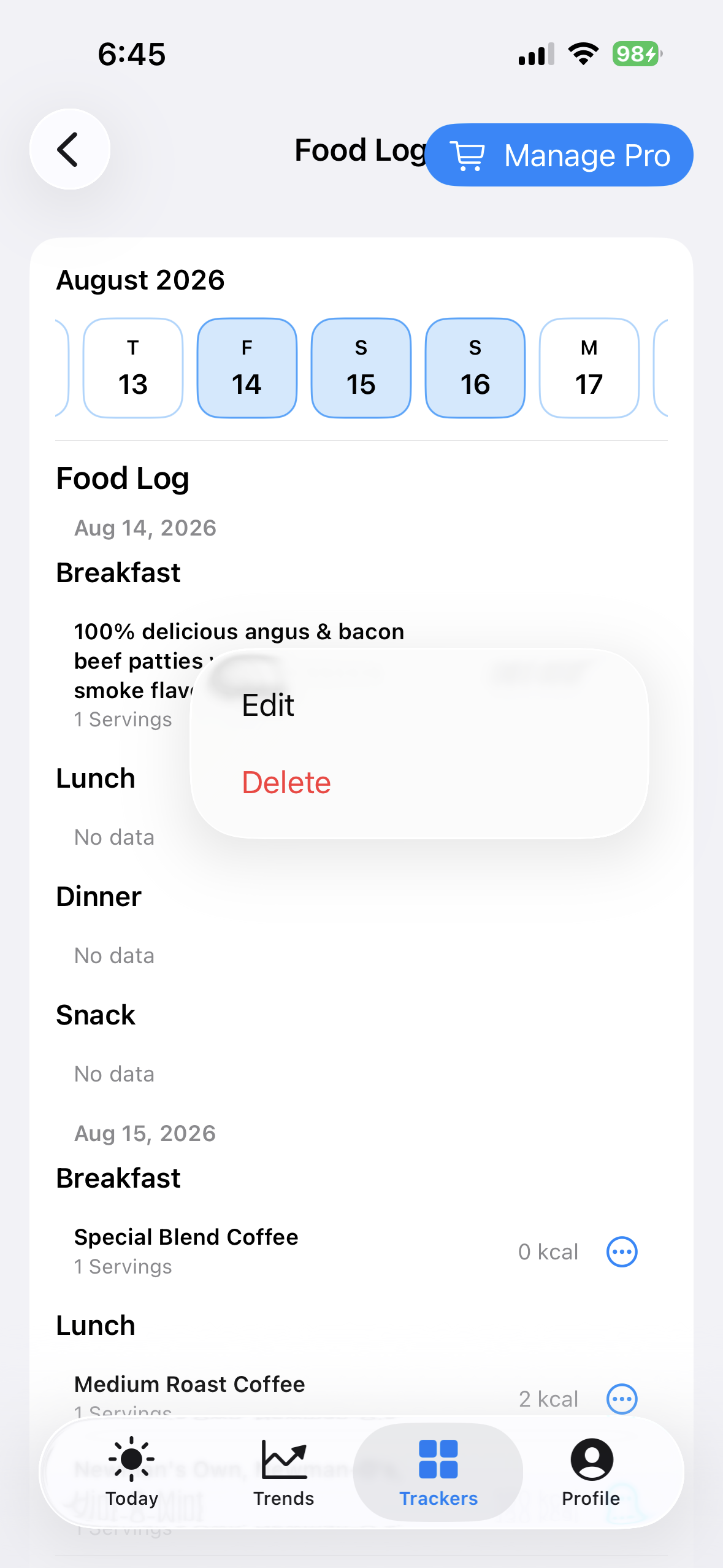 Open the saved row
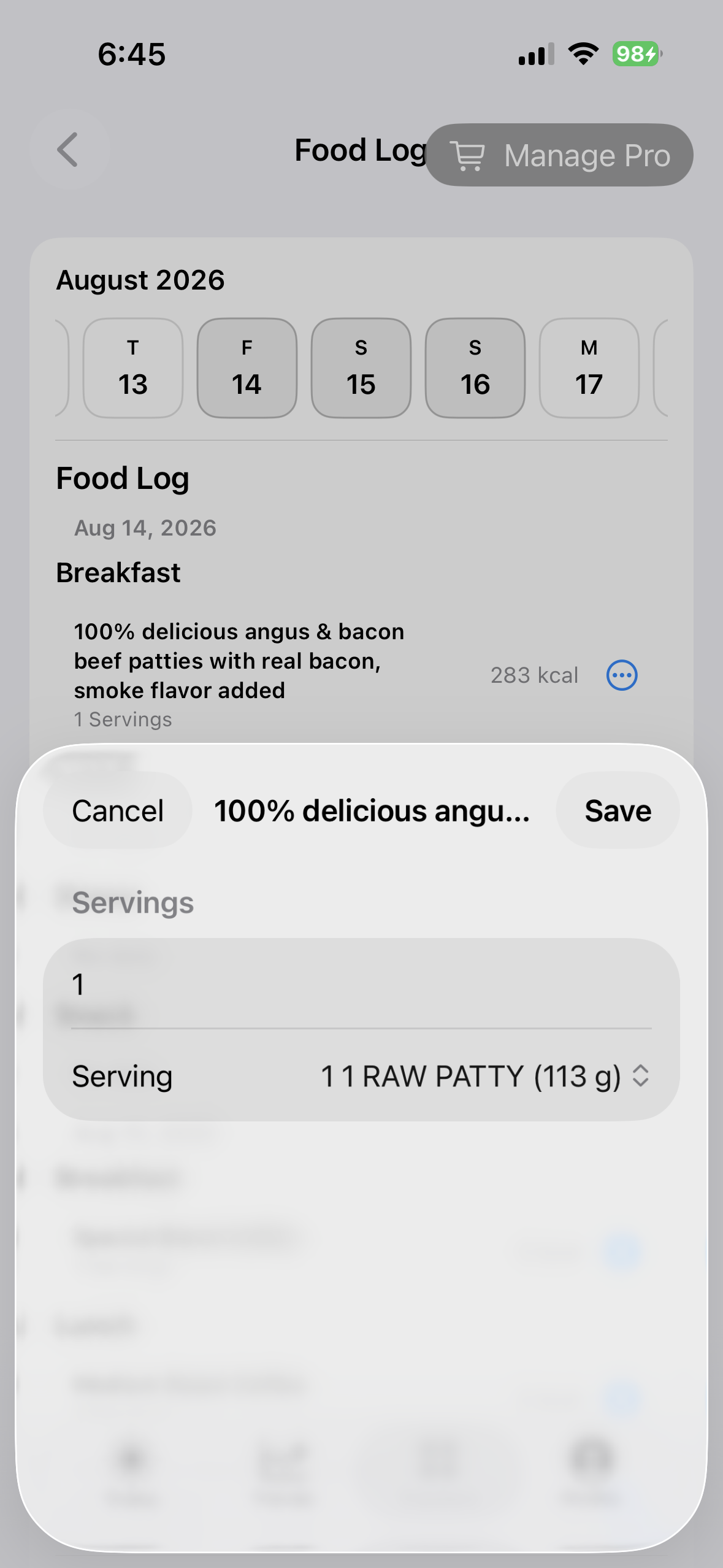 Correct the logged serving count
Use history to understand your routine
One day answers what you logged; a longer history helps you notice recurring meal timing, commonly used foods, hydration consistency, and changes in calorie or macro patterns. Compare those dates with your own weight, activity, sleep, or other tracker history when useful, but remember that logged food data depends on portion choices and source completeness and cannot prove why another metric changed.
When a total looks wrong
- Confirm you are viewing the intended date.
- Look for a duplicate food or an item assigned to the wrong meal.
- Open each likely row and check its serving count and portion.
- Review the food’s source and available nutrition. Compare community-maintained Open Food Facts values with the package label when appropriate.
- Create a personal food when the bundled or provider record does not represent what you ate; do not try to edit the bundled catalog.
Portion estimates, package data, public datasets, and personal foods can contain omissions or errors. Use source context and your own review rather than treating a displayed total as medical-grade nutrition analysis.