BeFit Tracker Help
Mac food guide
Collections, favorites, and source detail on Mac
Organize foods for reuse without losing the source and nutrition context needed for accurate logging.
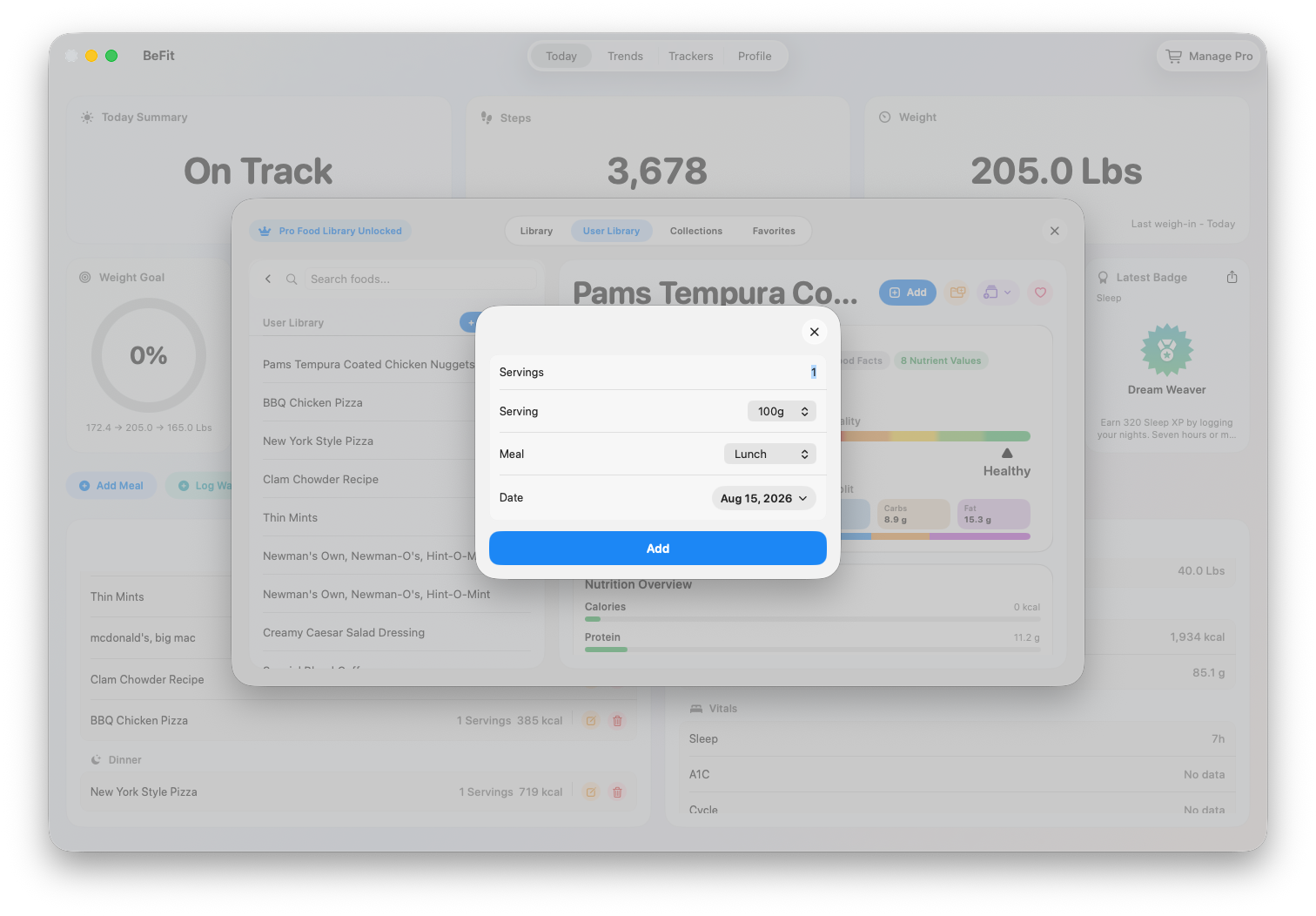
Favorites and Collections are retrieval tools: they help you return to a food without copying or changing the underlying record. User Library is different; it contains foods and recipes you created or imported and can reuse across future logs.
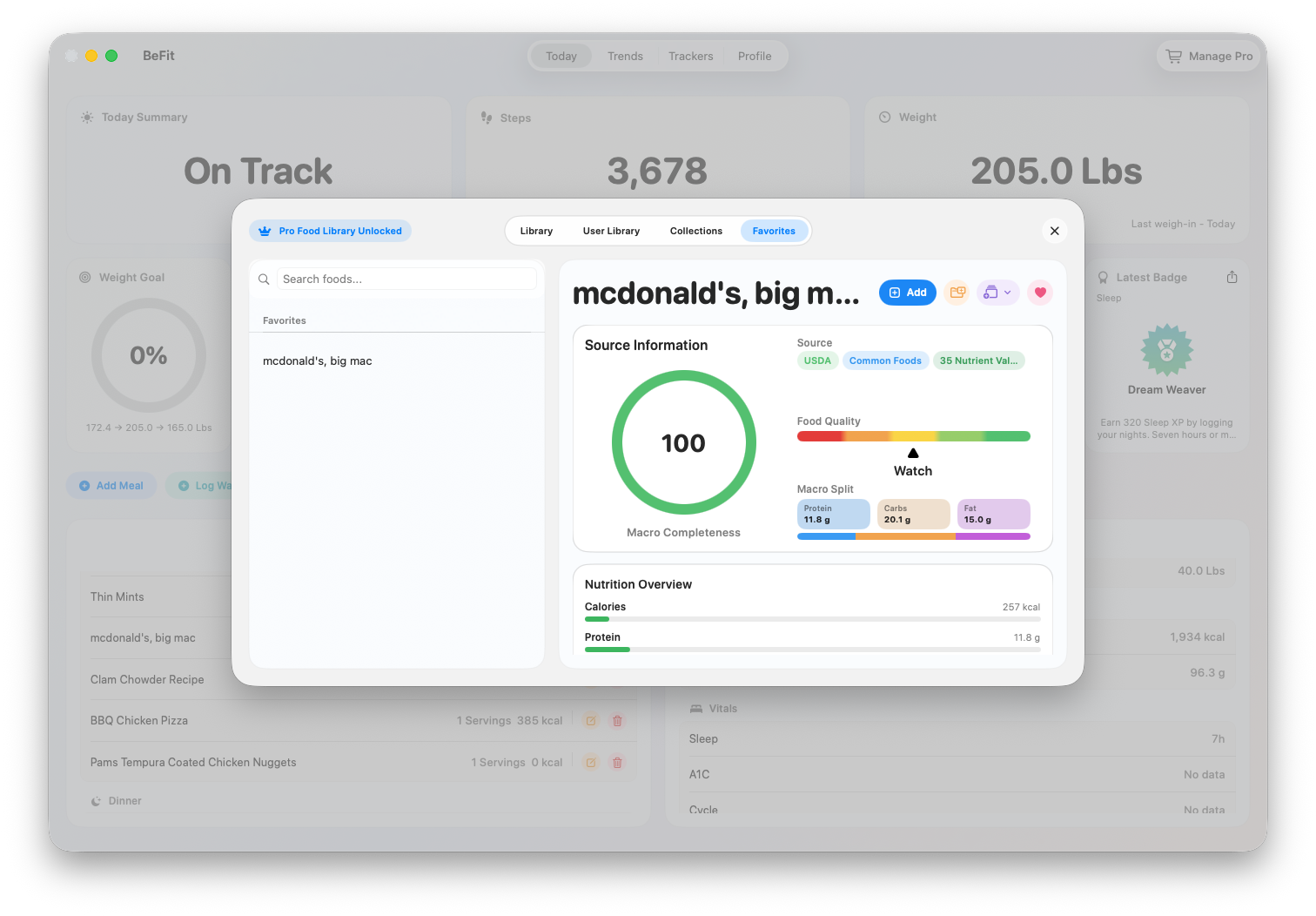
Favorite a food you use often
- Search the Food Library or open a food from recent history.
- Review its detail to confirm it is the intended food and serving basis.
- Choose the Favorite action.
- Open Favorites to verify the shortcut.
Removing a favorite removes the shortcut only. It does not delete the catalog food, User Library food, or past meal entries.
Create a collection
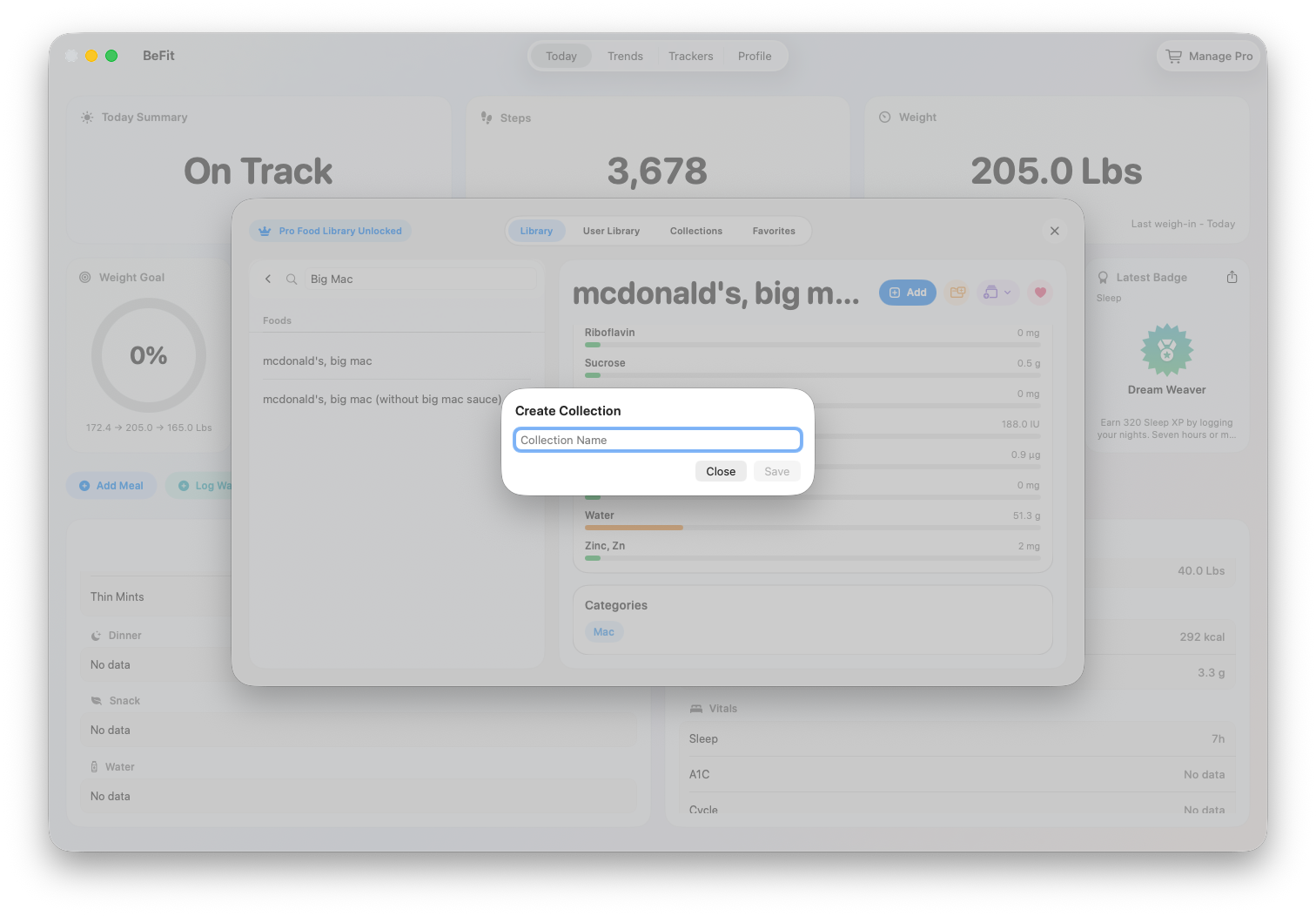
- Open Collections and choose Create Collection.
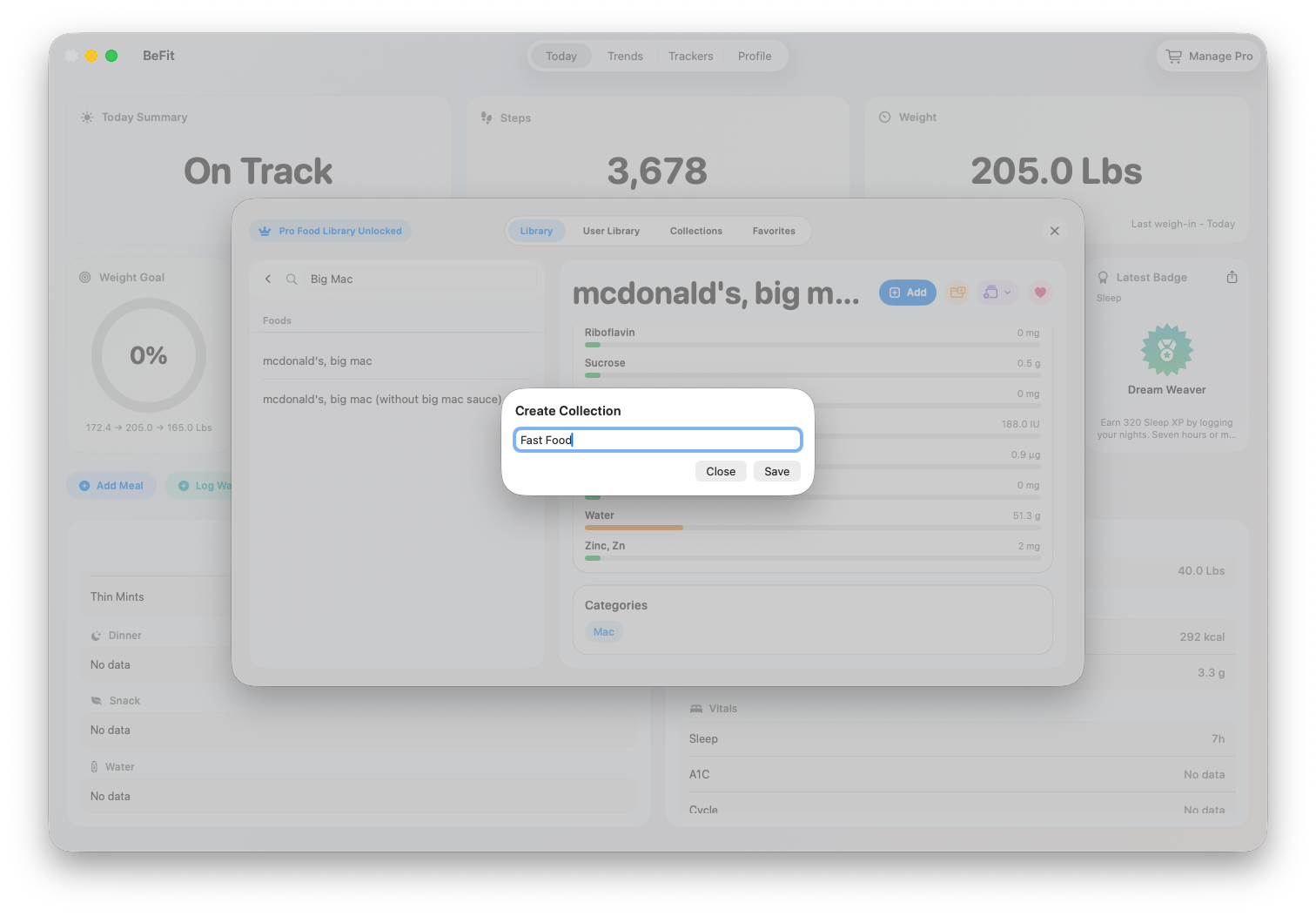
- Enter a name that describes how you expect to find the foods later, then save.
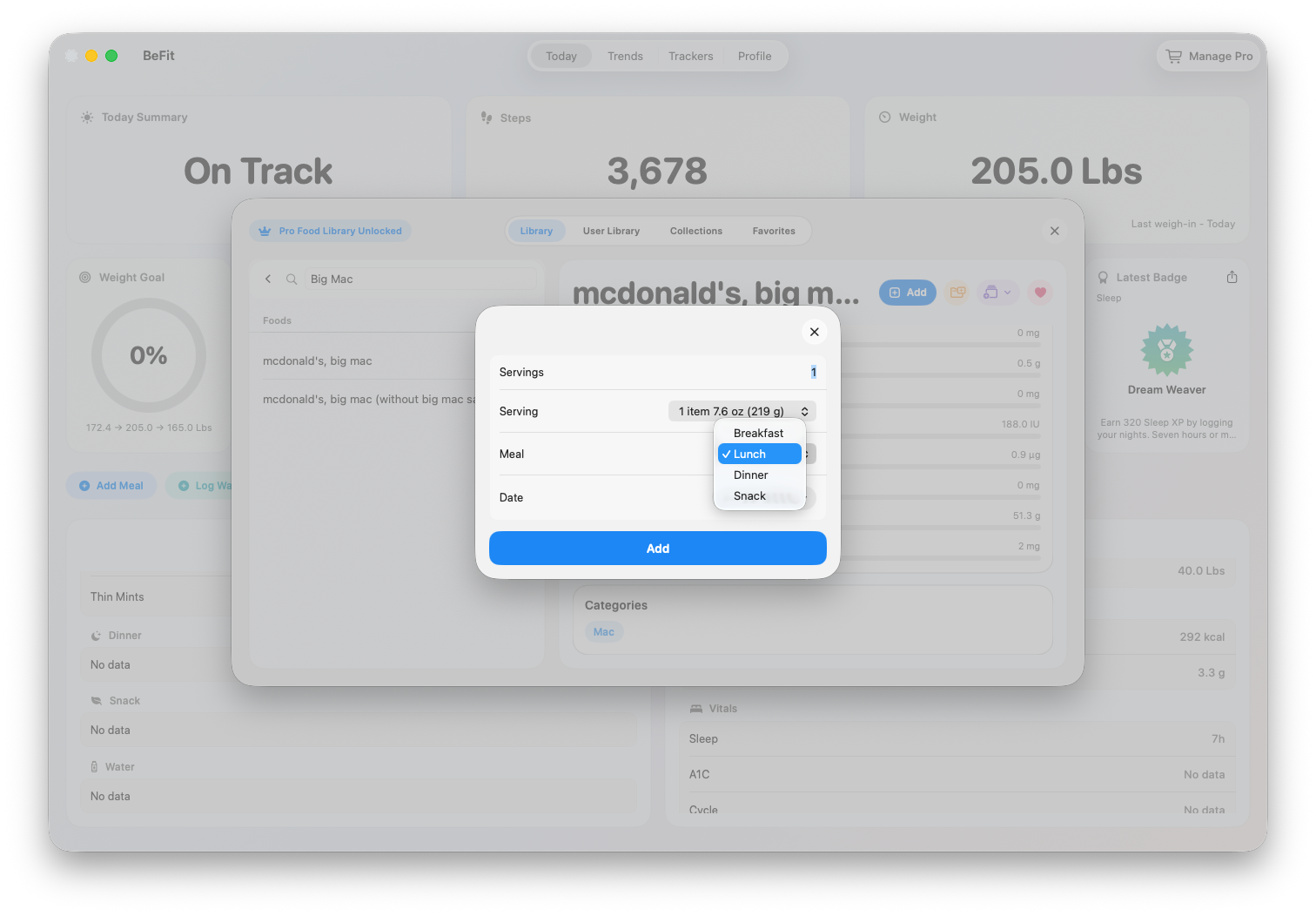
- Open a food’s assignment action and select the collection.
- Return to Collections and confirm the food appears in the intended group.
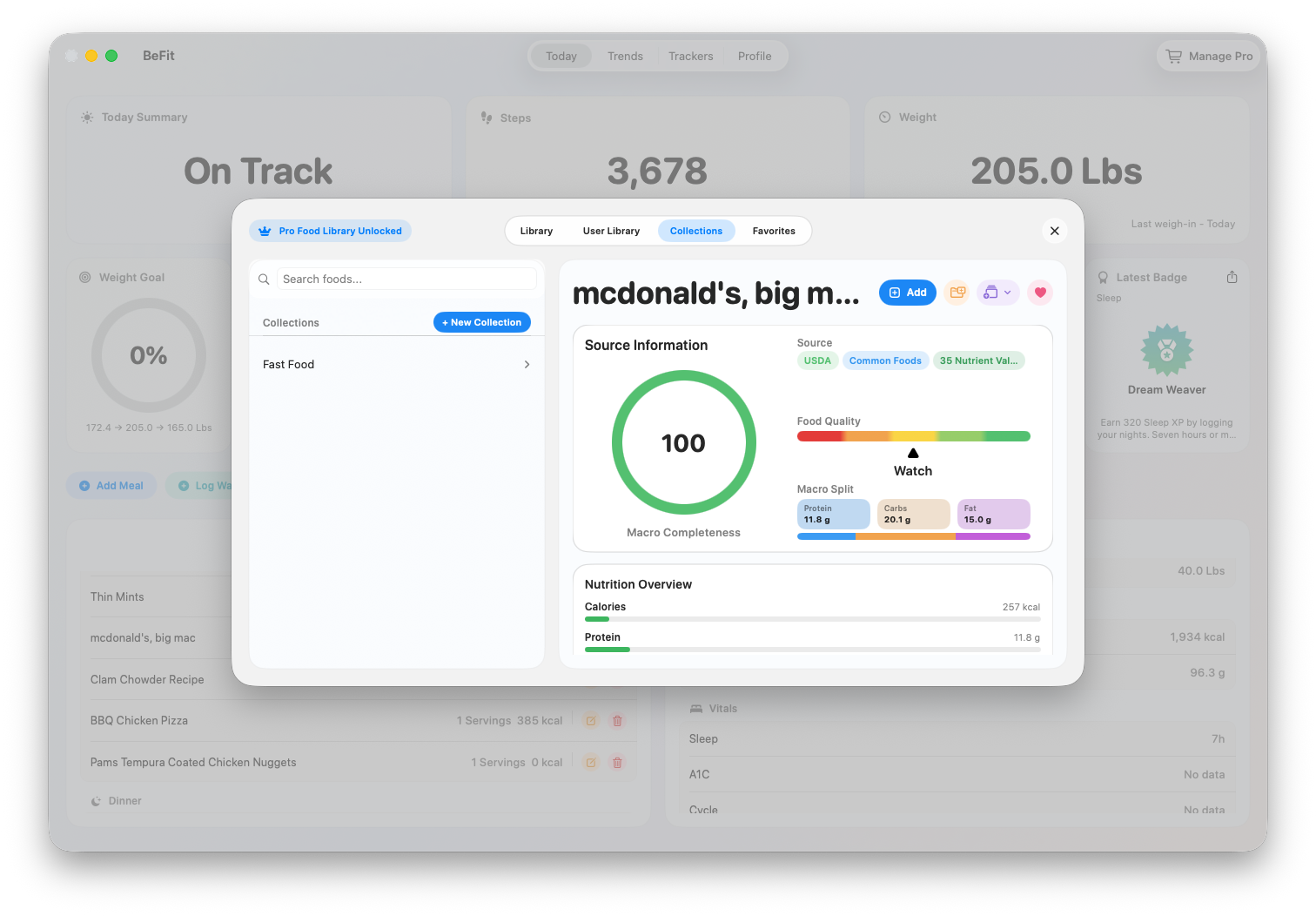
Remove an item or collection
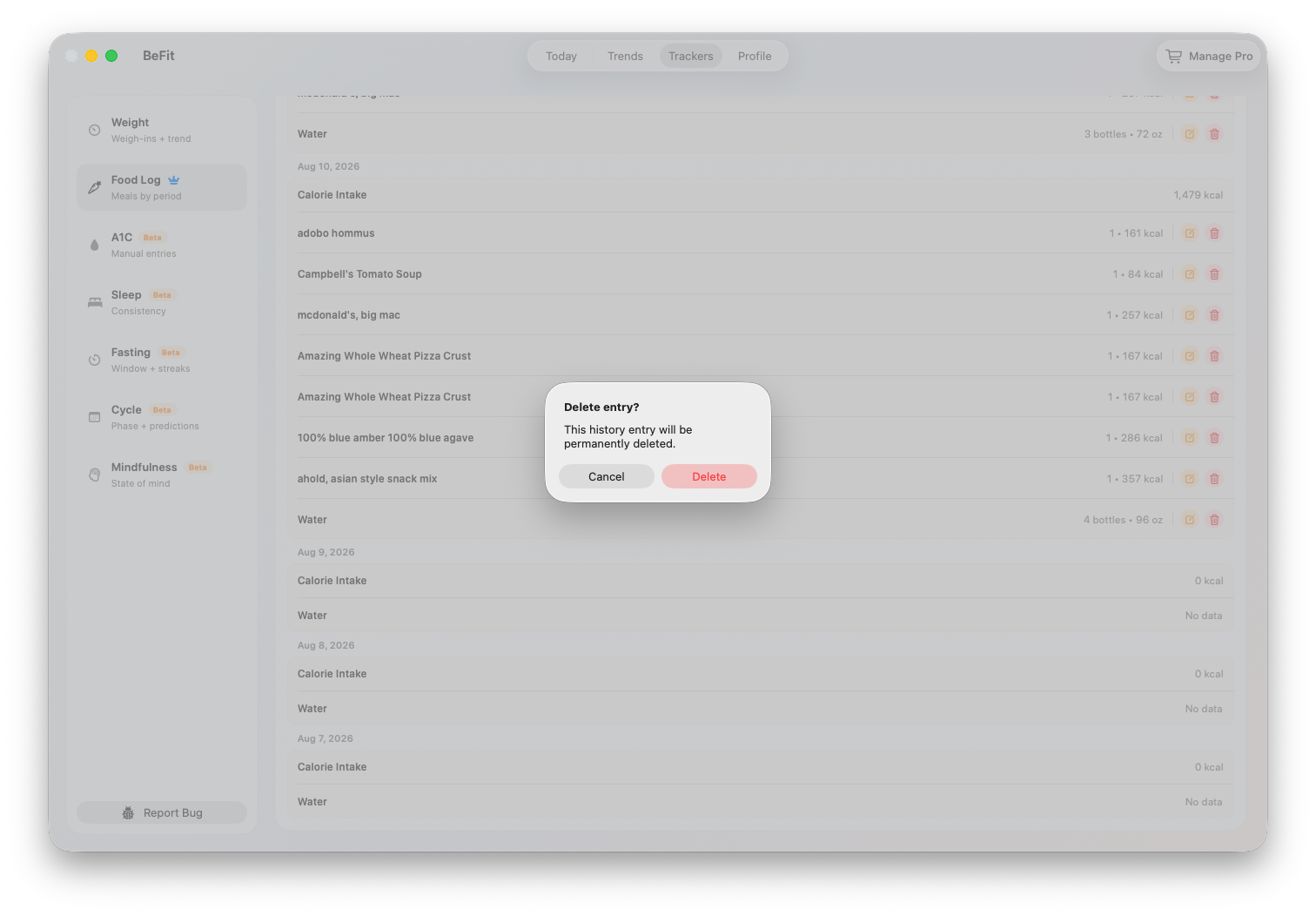
Remove a food from a collection when only the grouping is wrong. Delete the collection when the group is no longer useful. Neither action should be treated as deleting the underlying food or its historical logs; use the User Library or Food Log controls for those separate tasks.
Review User Library foods before reuse
- Open User Library and select the saved food.
- Check its source type, source URL or provider context when available, serving basis, ingredients, and nutrition.
- If the food is still the right match, favorite it, assign it to a collection, or log it.
- If source information or nutrition is wrong, correct the personal food where supported or create a replacement from a reliable source. Do not change the read-only bundled catalog.
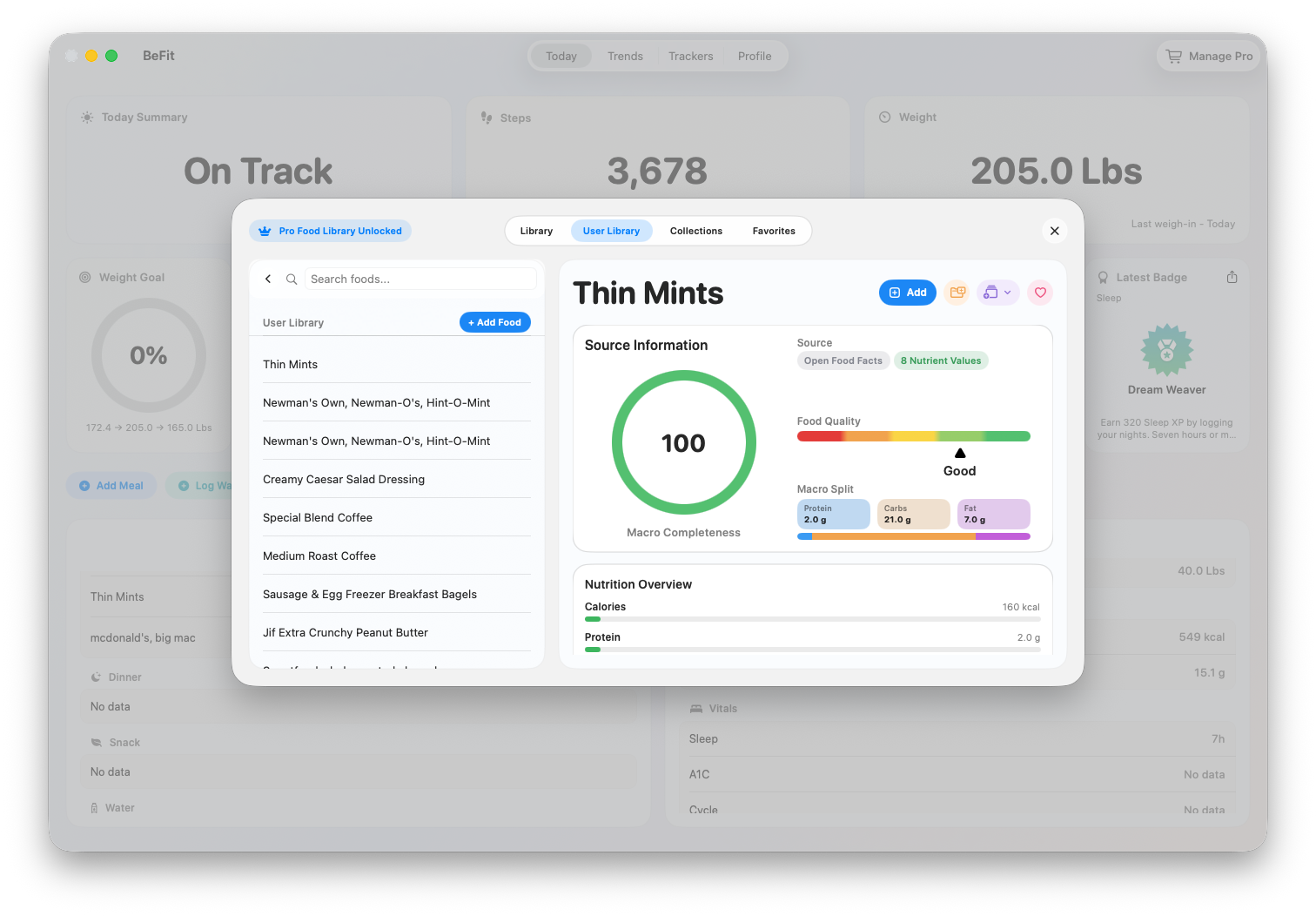
Organize an Open Food Facts import
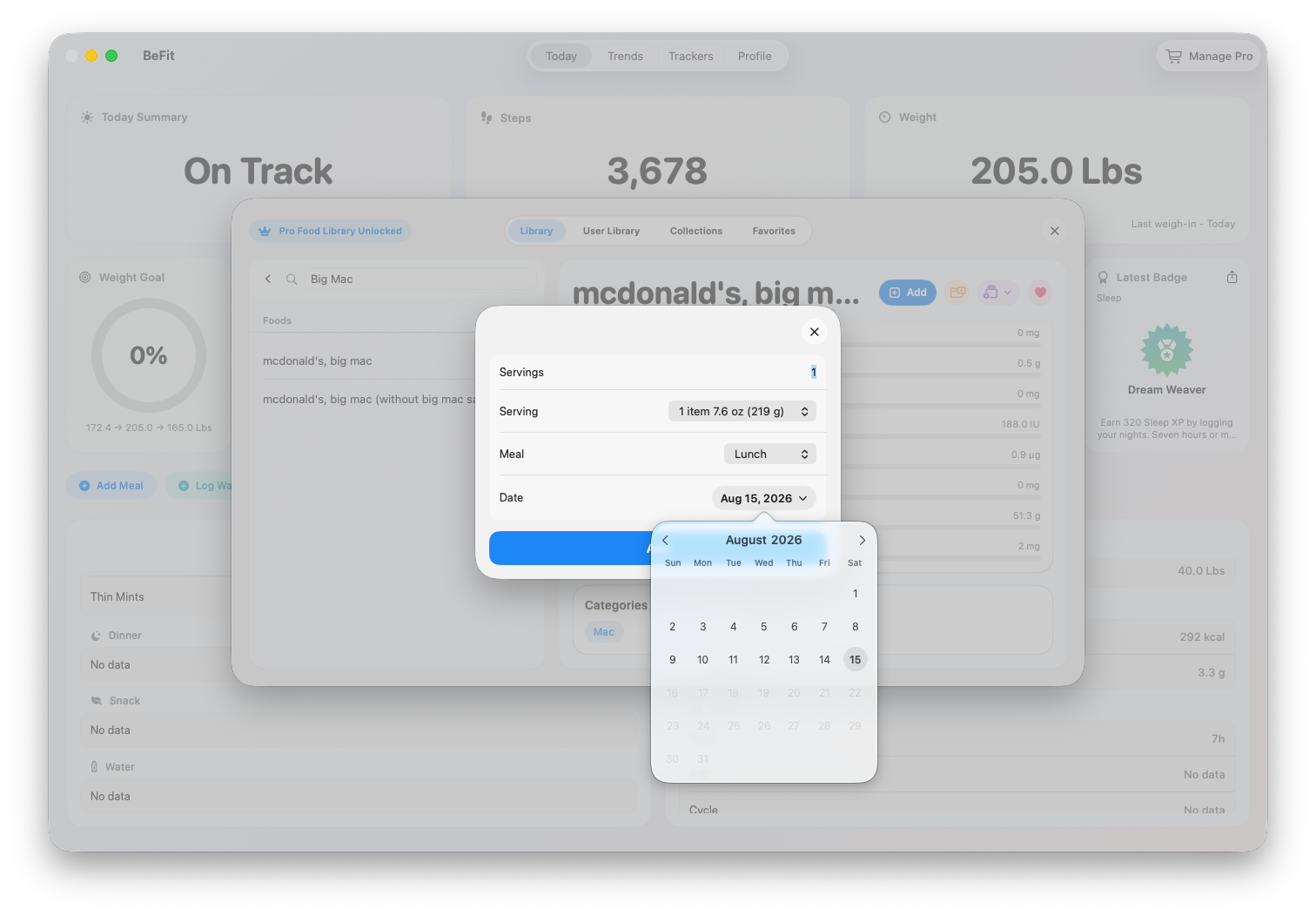
Search Open Food Facts from Add Food, review the external product, and import it to User Library only when it matches. After import, you can favorite or collect it like another reusable personal food. Serving choices still need review when logging.
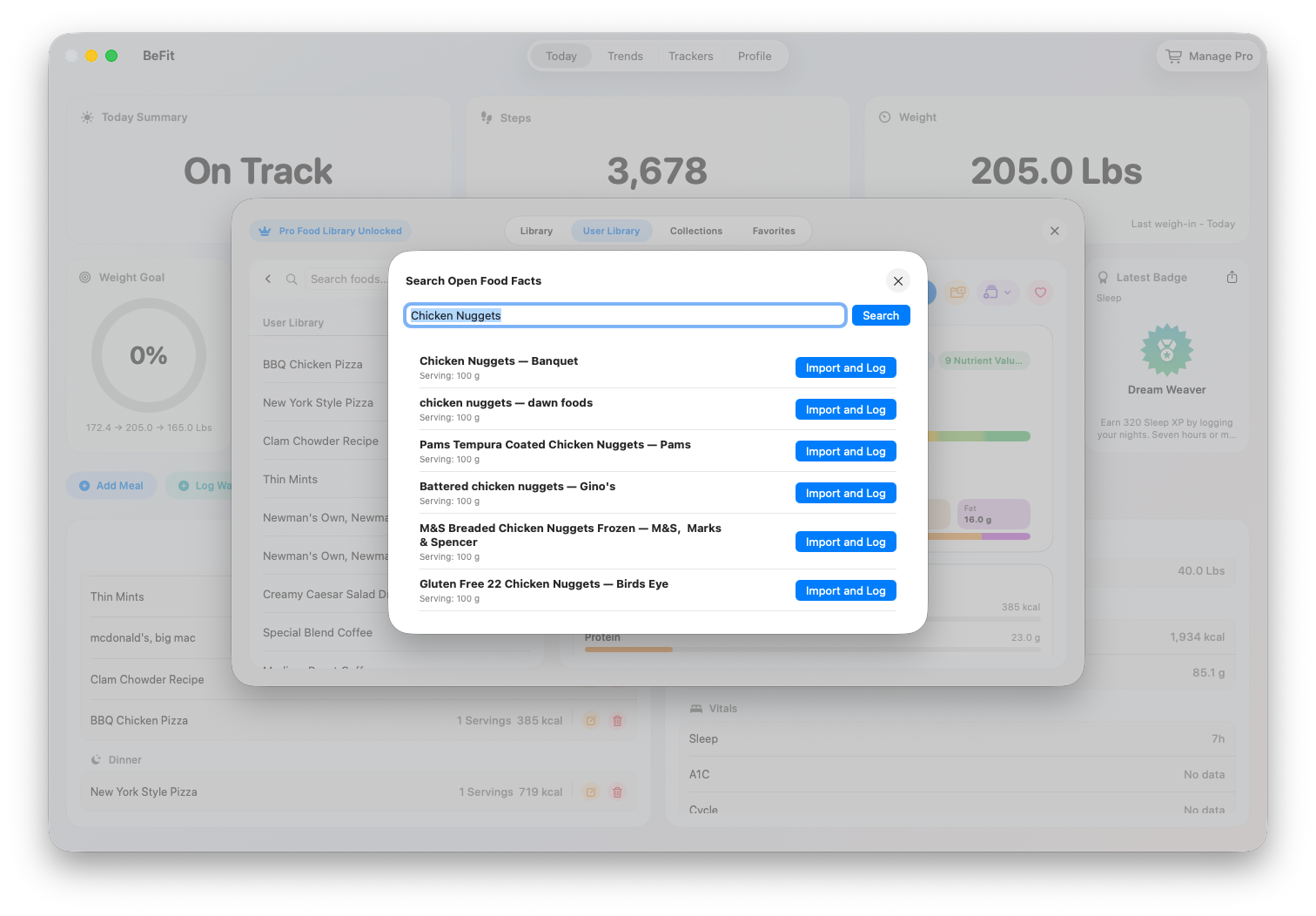
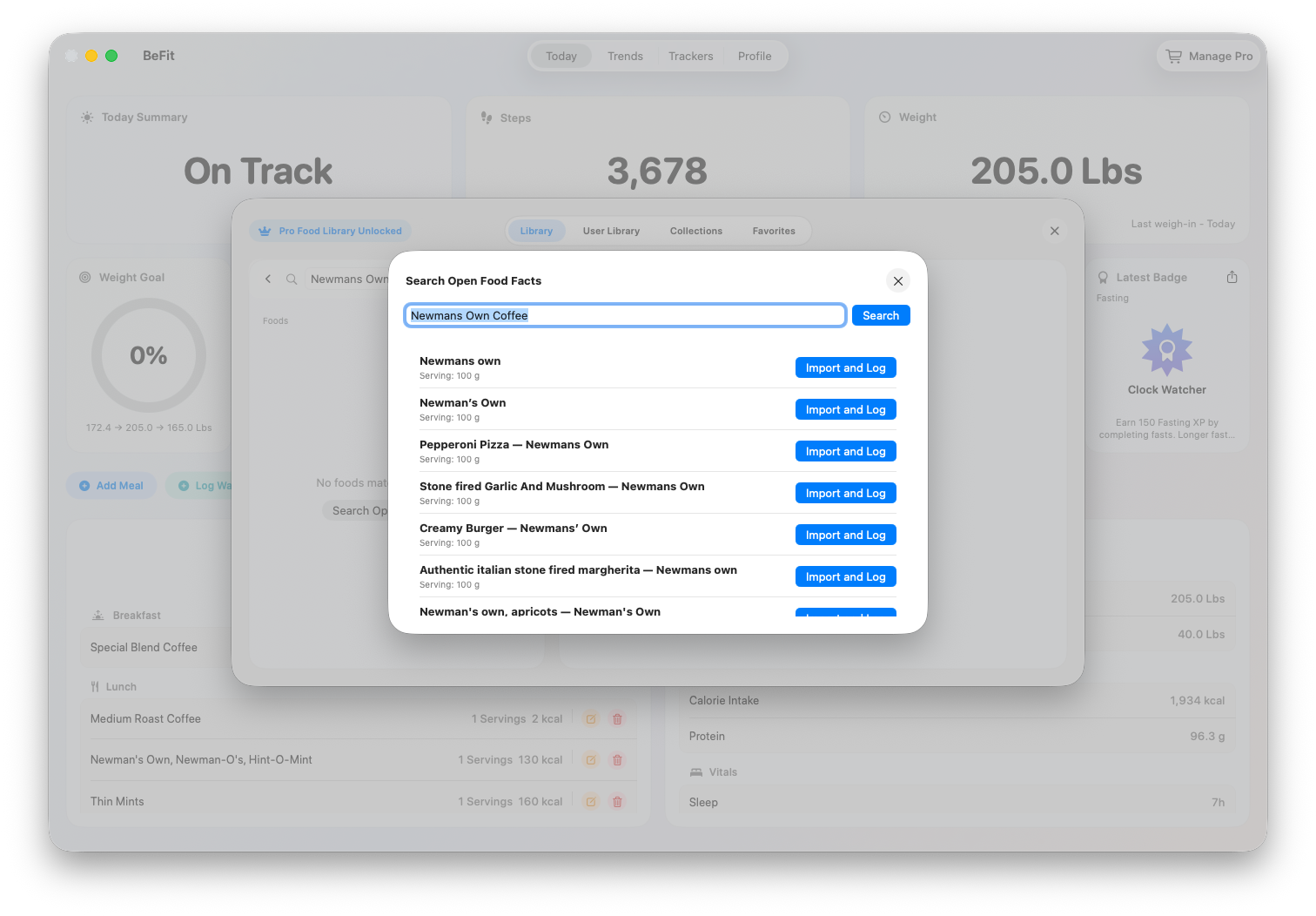
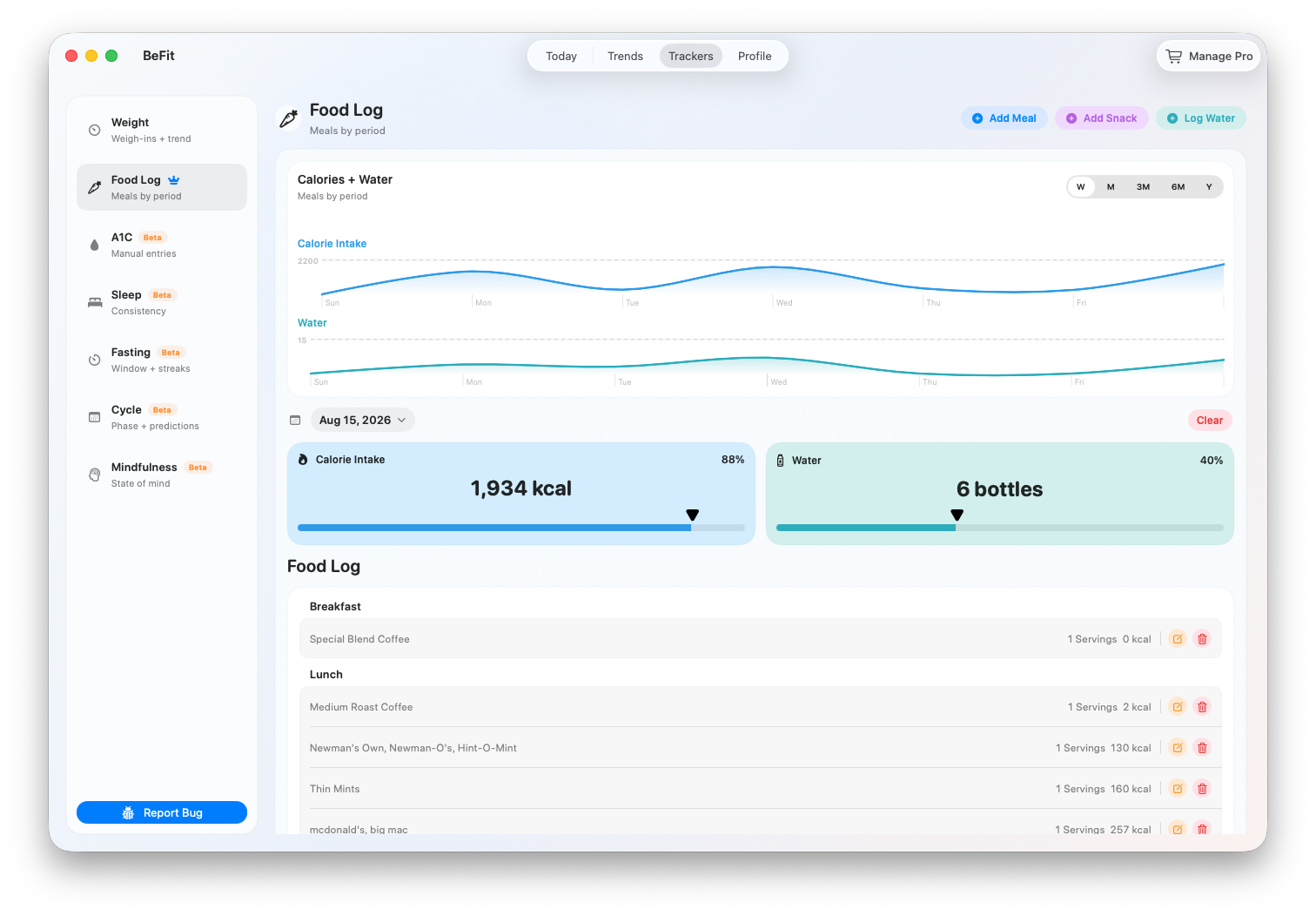
Correct a logged use, not the library shortcut
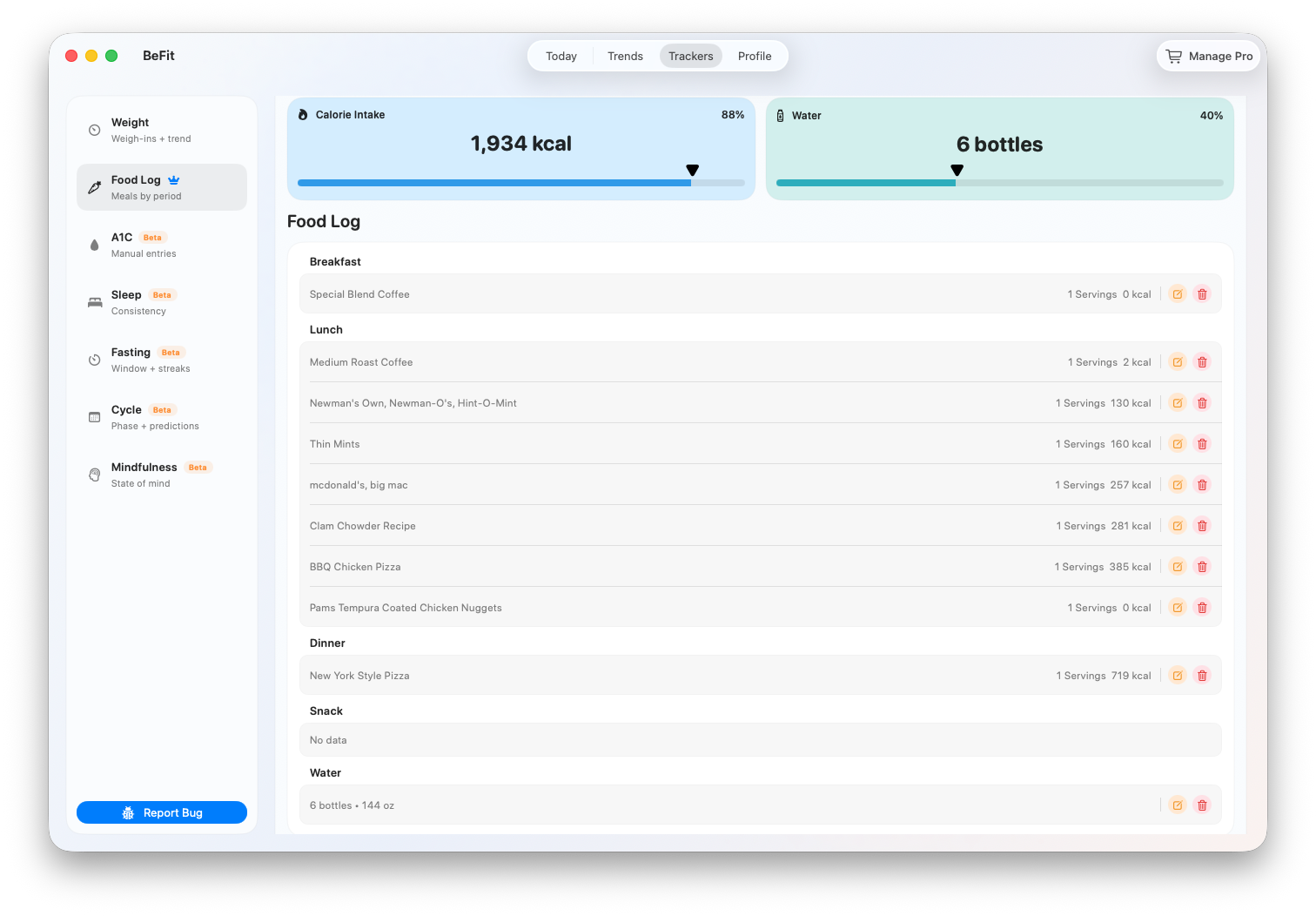
If a daily calorie or macro total is wrong, open the dated Food Log row. Correcting a favorite or collection will not change an existing meal entry.