 BeFit Tracker Help
iPhone & iPad tracker guide
Weight, BMI, steps, and hydration on iPhone and iPad
Record everyday measurements, correct dated history, and use goals and trends to understand progress over time.
The Weight tracker brings four everyday records together: timed weigh-ins, a daily step total, BMI calculations, and hydration progress. They share a selected date but remain separate records, which lets you correct one measurement without rewriting the rest of the day.
Choose the day you are working on
Open Trackers → Weight and select the date before entering older information. Today is selected by default. History can contain more than one weigh-in or BMI calculation on a day, while steps and water are daily totals.
Record a weigh-in
- Tap Weigh In from the Weight tracker or Today.
- Move the scale control to the measured weight. BeFit Tracker displays the unit system selected in Profile.
- Set the actual date and time of the measurement.
- Save and confirm that a new timed row appears in History.
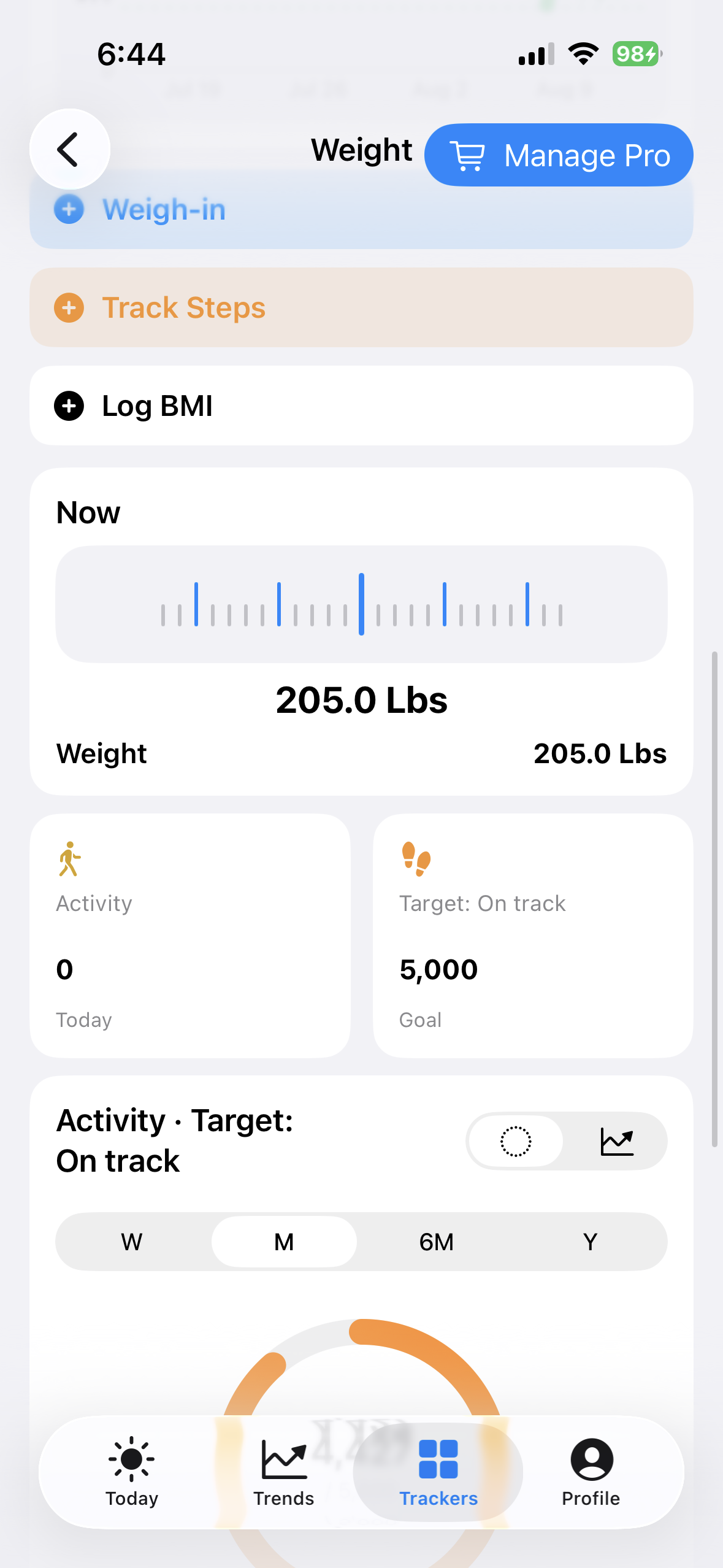 Set the measured weight
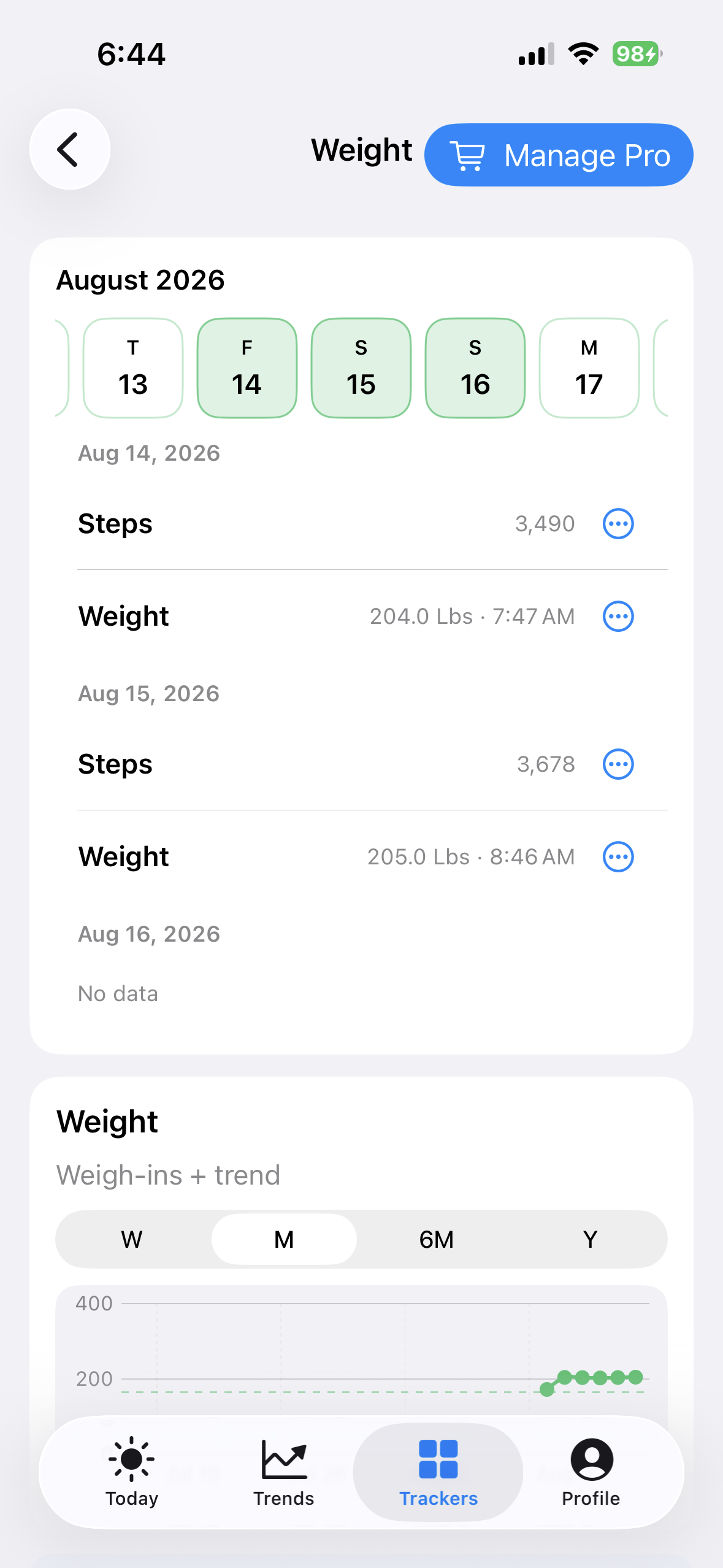 Verify the timed entry in History
Track steps
With permission, iPhone and iPad can read supported step records from Apple Health. To enter steps manually:
- Select the day, then tap Track Steps.
- Enter the steps to add for that day and save.
- Use the day’s edit control when you need to replace the total rather than add another amount.
- Use Clear only when the entire daily step total should be removed.
Before manually adding steps, check whether Health import already supplied them. Health-sourced steps are the synchronization authority for supported mobile imports.
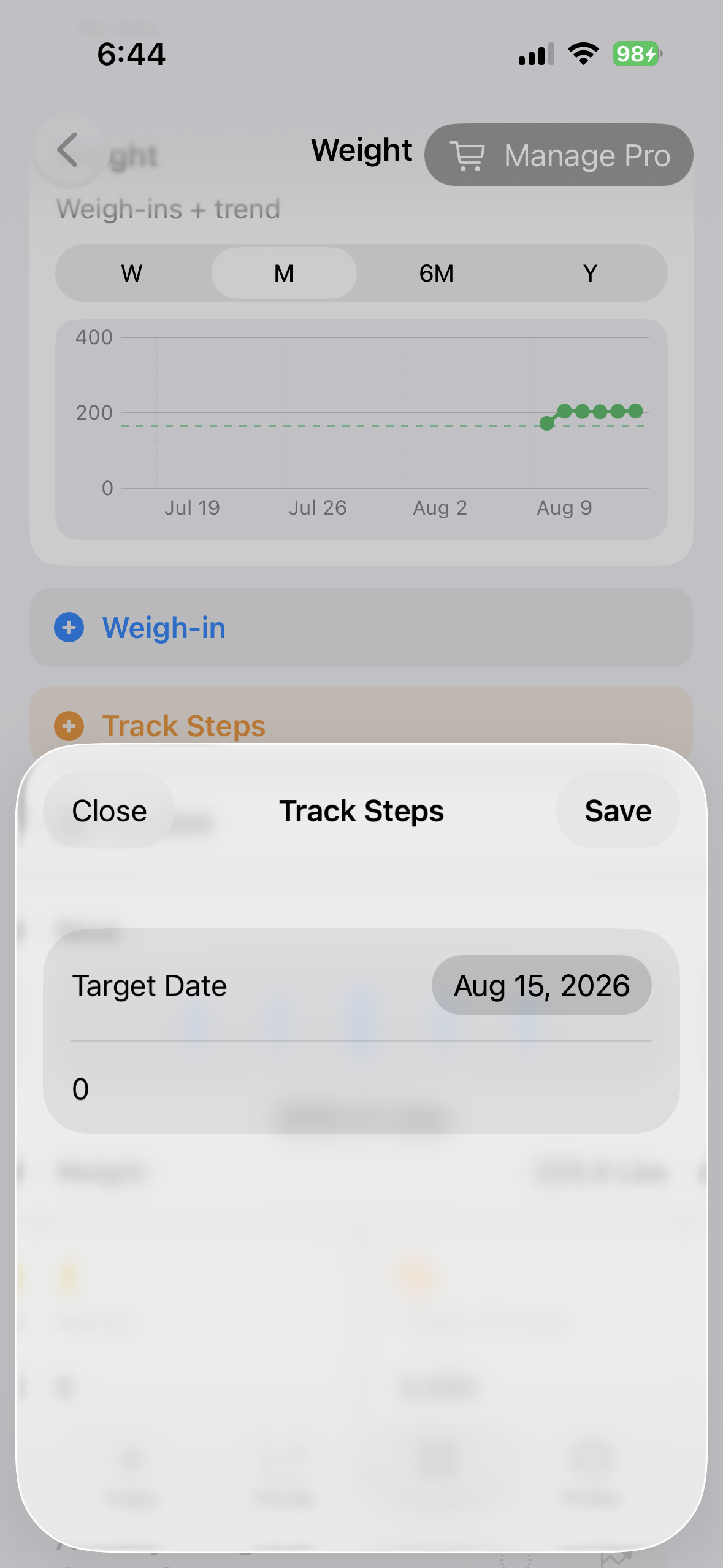 Add steps to the selected day
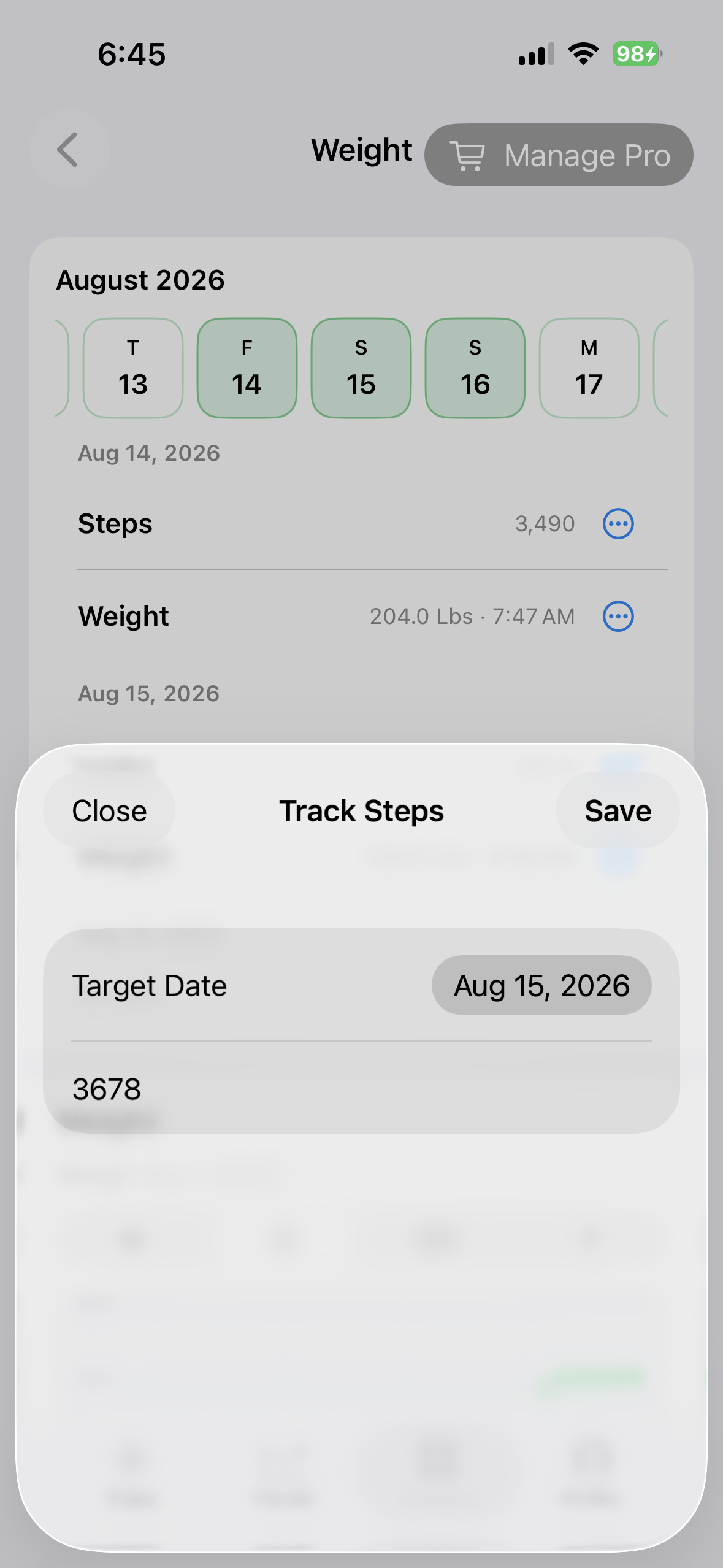 Replace the total when correcting it
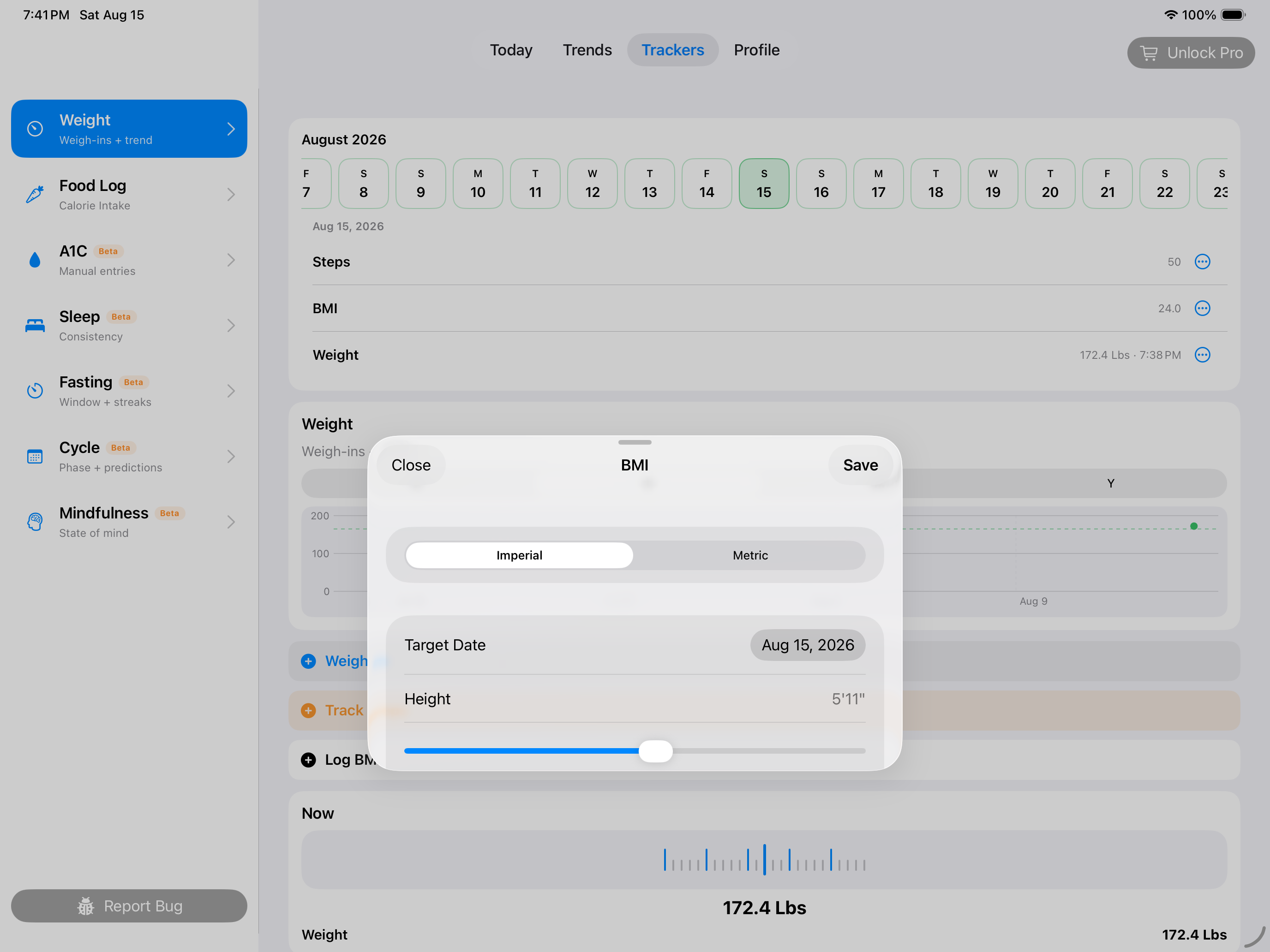
Calculate and save BMI context
- Select the day and tap Log BMI.
- Confirm the height and weight used in the calculation.
- Save the calculated BMI row with its date and time.
- Return to History to verify the inputs when the result looks unexpected.
BMI is calculated from the stored height and weight. It is a general ratio, not a direct measurement of body composition or an assessment of individual health.
Log water against your goal
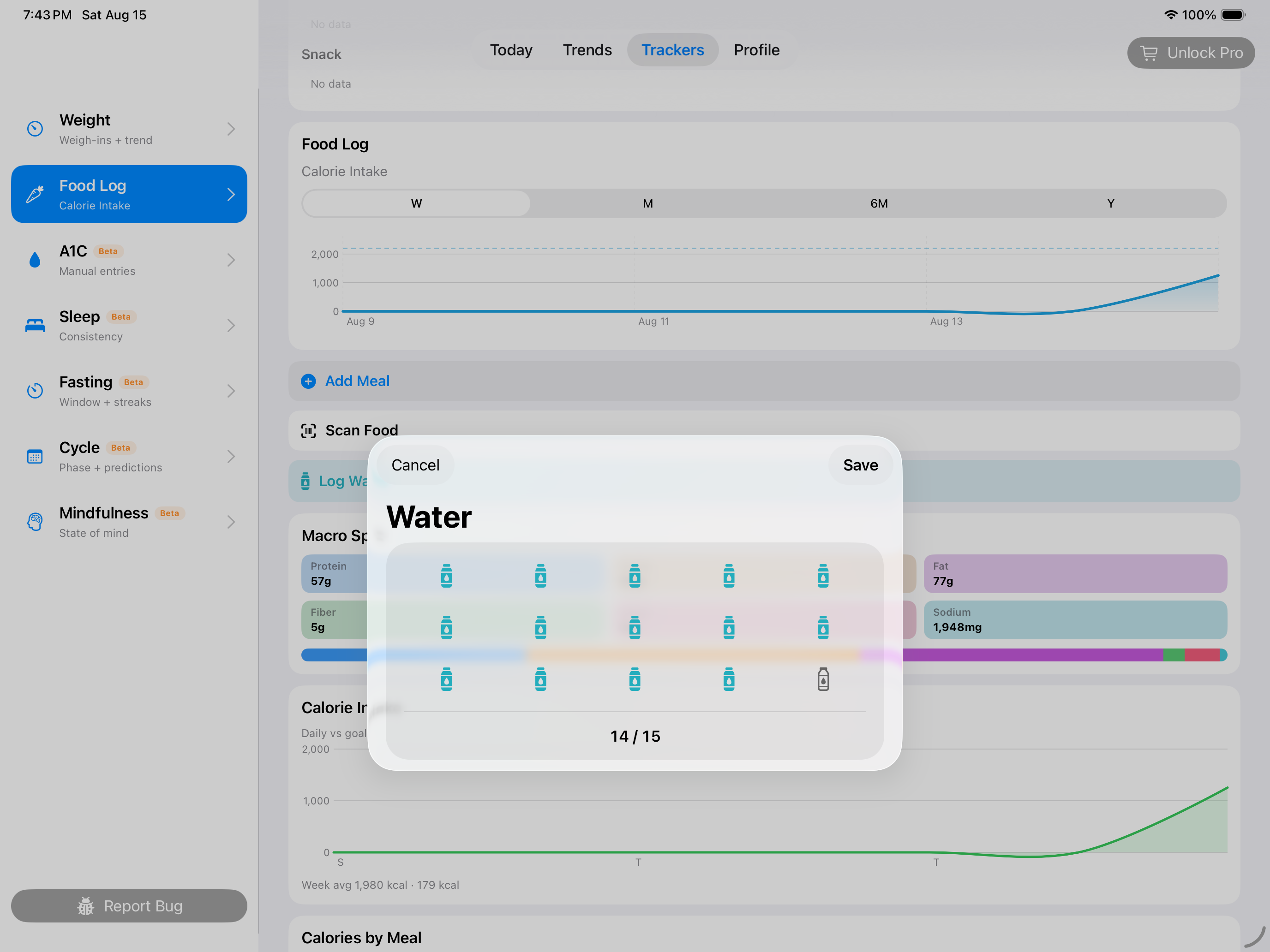
- Tap Log Water from Today or the food and hydration tools.
- Add the bottle or glass count represented by the entry.
- Save and compare the daily total with the hydration goal set in Profile.
- Clear or correct the selected day if an amount was added by mistake.
The goal and app units are personal tracking references. BeFit Tracker does not measure hydration or prescribe fluid intake.
Read goals, history, and trends together
- Current and target weight compare the latest applicable weigh-in with the goal saved in Profile.
- History shows the timed measurements and daily totals behind the summary.
- Trends help you move beyond a single fluctuation. Use short ranges for recent detail and longer ranges for overall direction.
- Steps and weight can be viewed over the same dates, but a visual relationship does not establish that one caused the other.
Correct or delete history
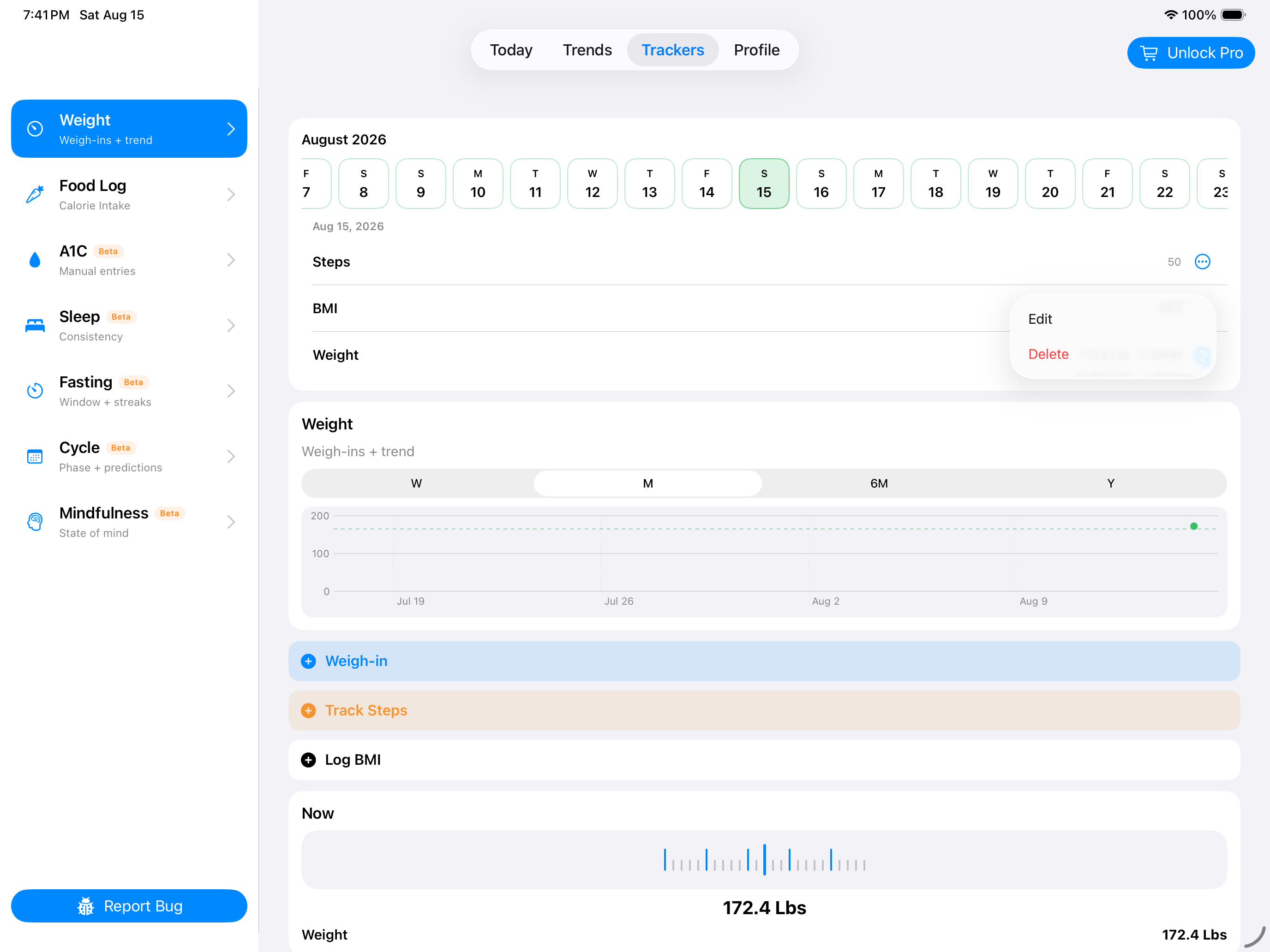
- Select the date and locate the exact weight, BMI, or daily step record.
- Edit a weigh-in to change its value, date, or time. Delete only the incorrect timed row when other weigh-ins exist that day.
- Replace or clear the daily step total as appropriate.
- Delete the day’s BMI entries when their source measurements were wrong, then create a corrected calculation if needed.
- Review the current value, goal comparison, and trend after the change.
Weight, steps, BMI, and water can vary for many reasons. BeFit Tracker organizes your records and goals; it does not diagnose health, prescribe targets, or guarantee an outcome.