 BeFit Tracker Help
Track your progress
See your progress in Trends
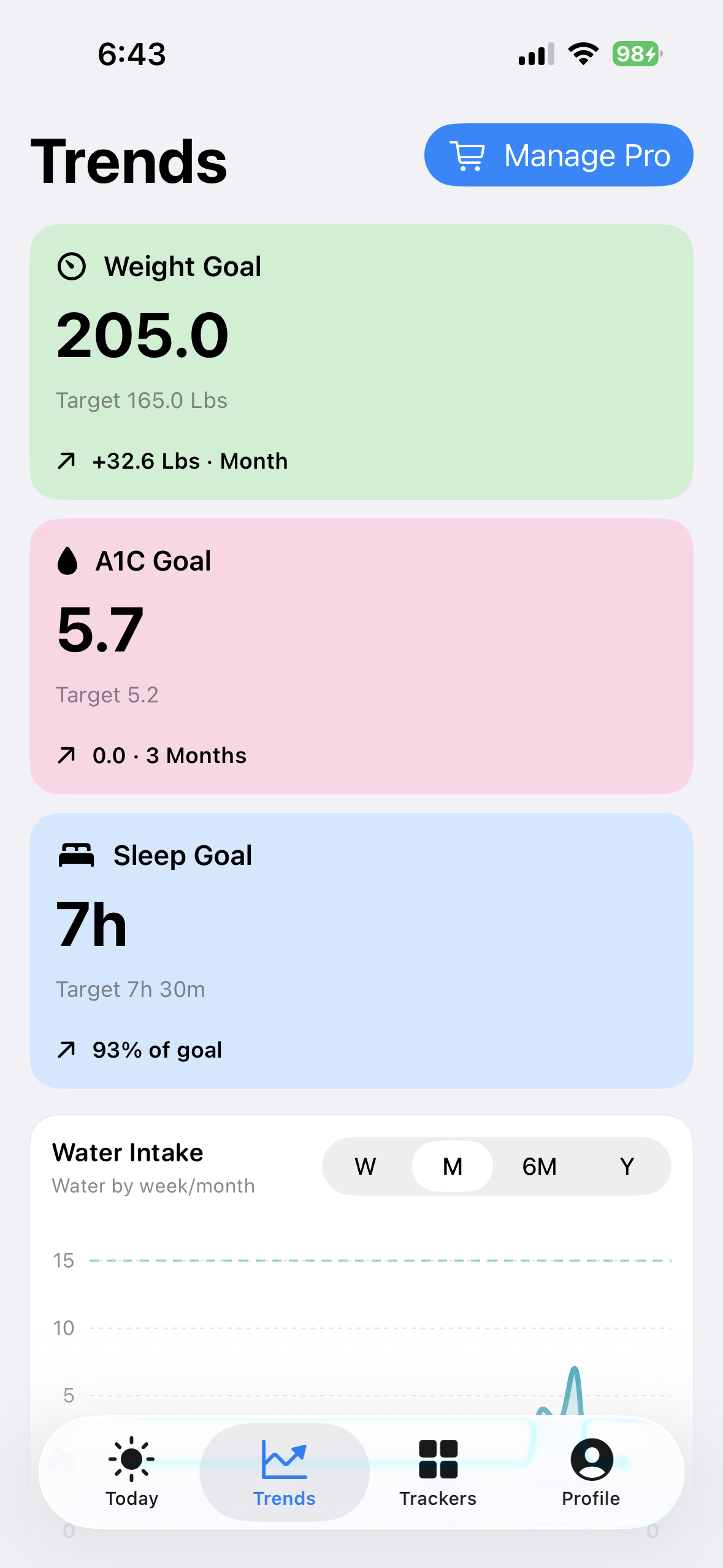
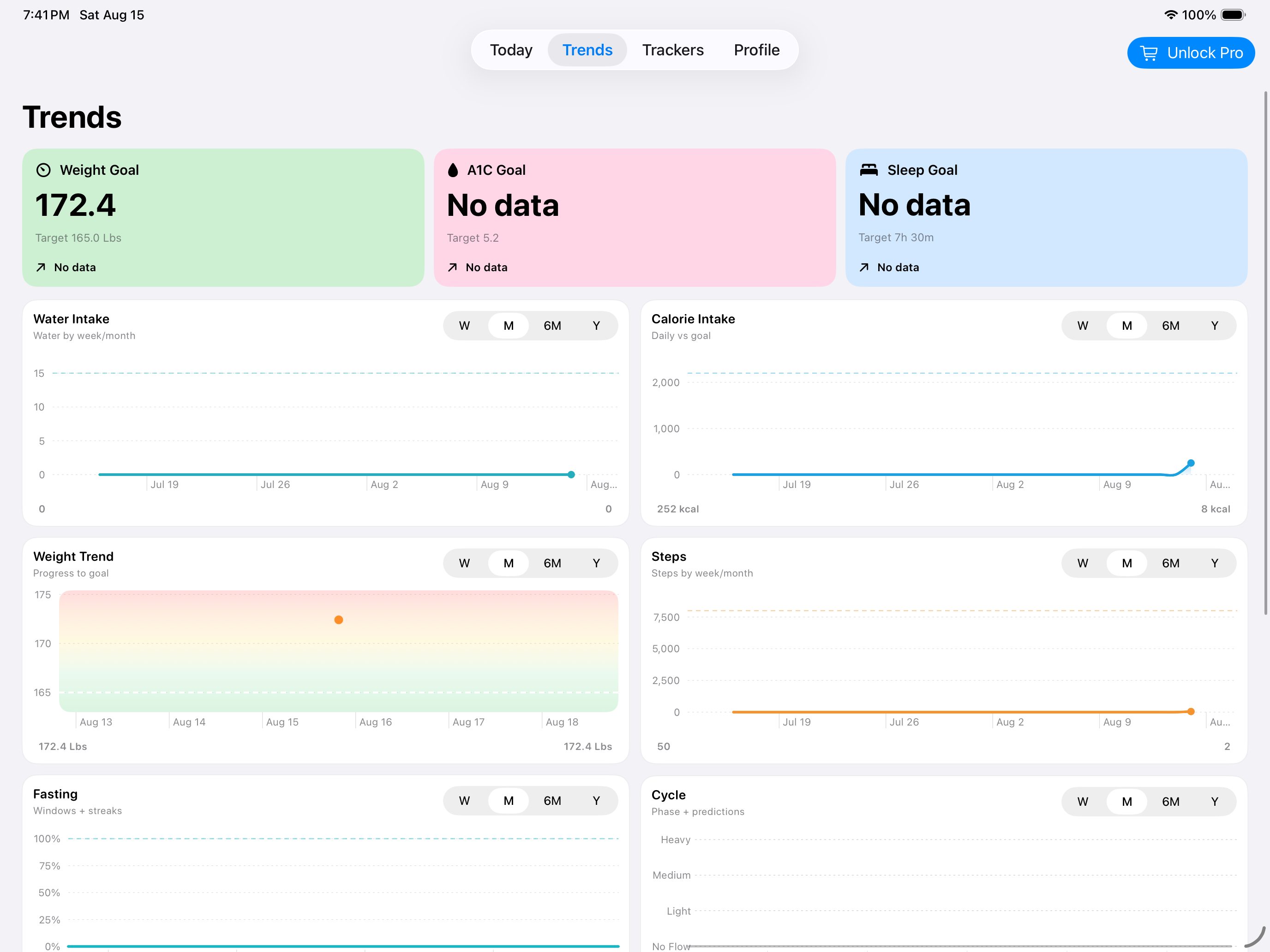
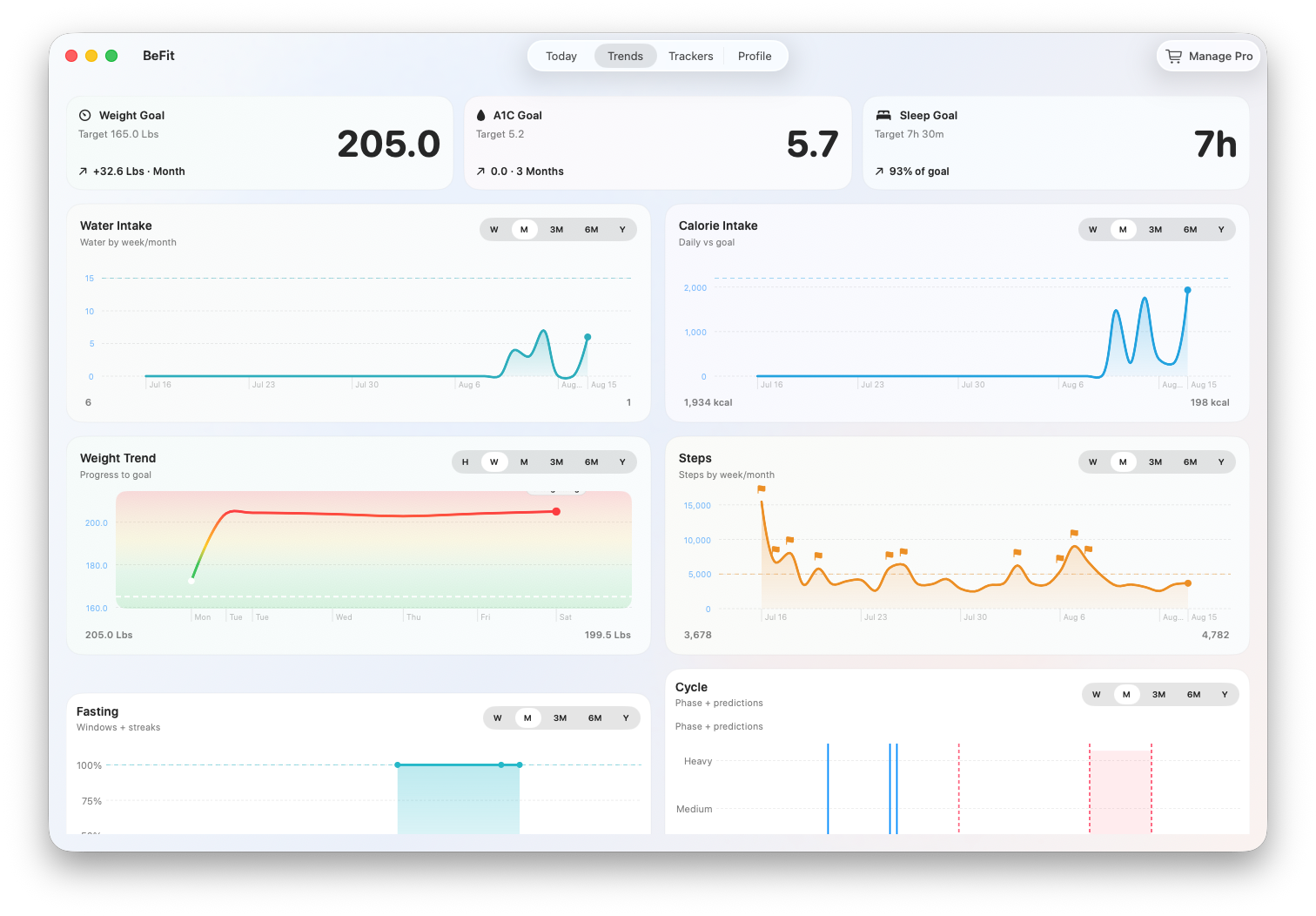
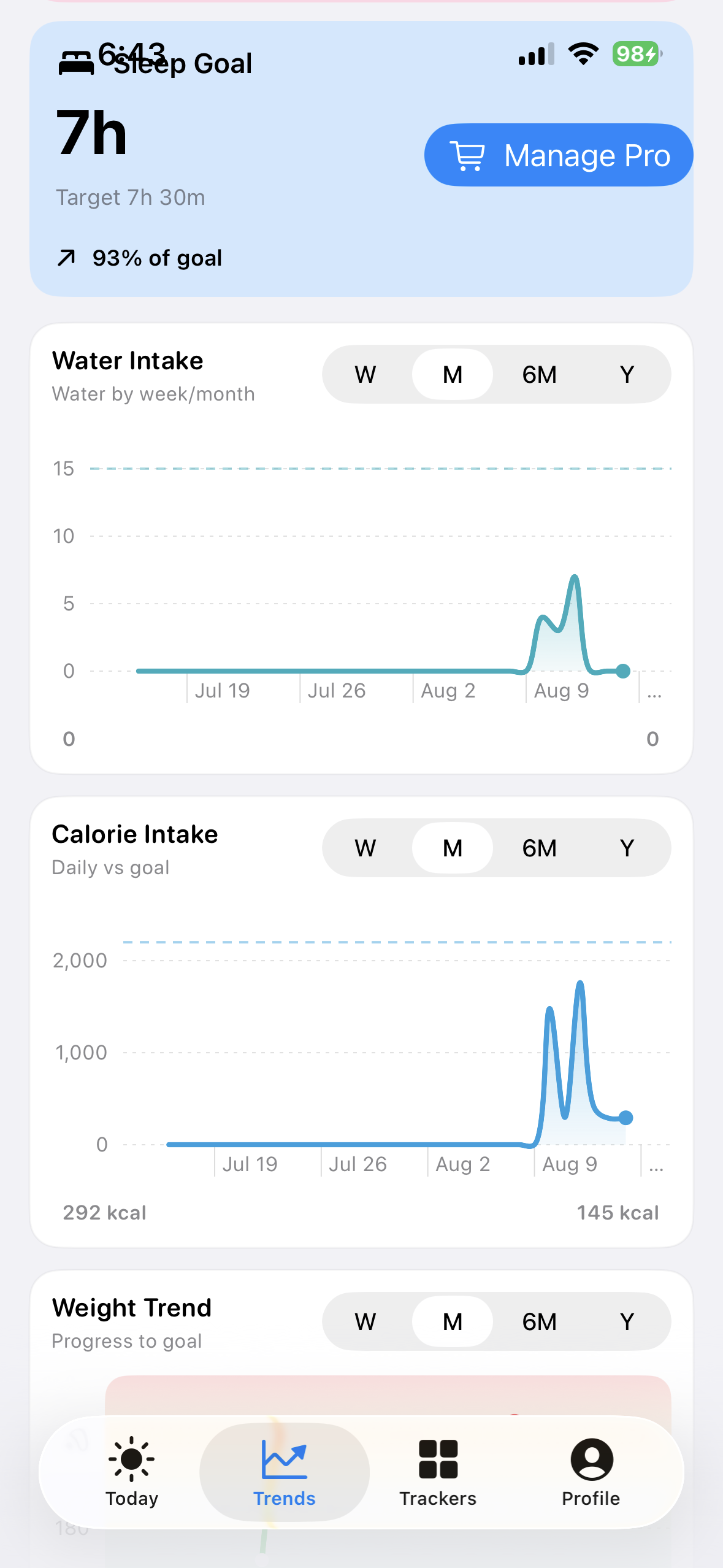
Move through every BeFit Tracker trend on iPhone, iPad, and Mac and open the records behind each chart.
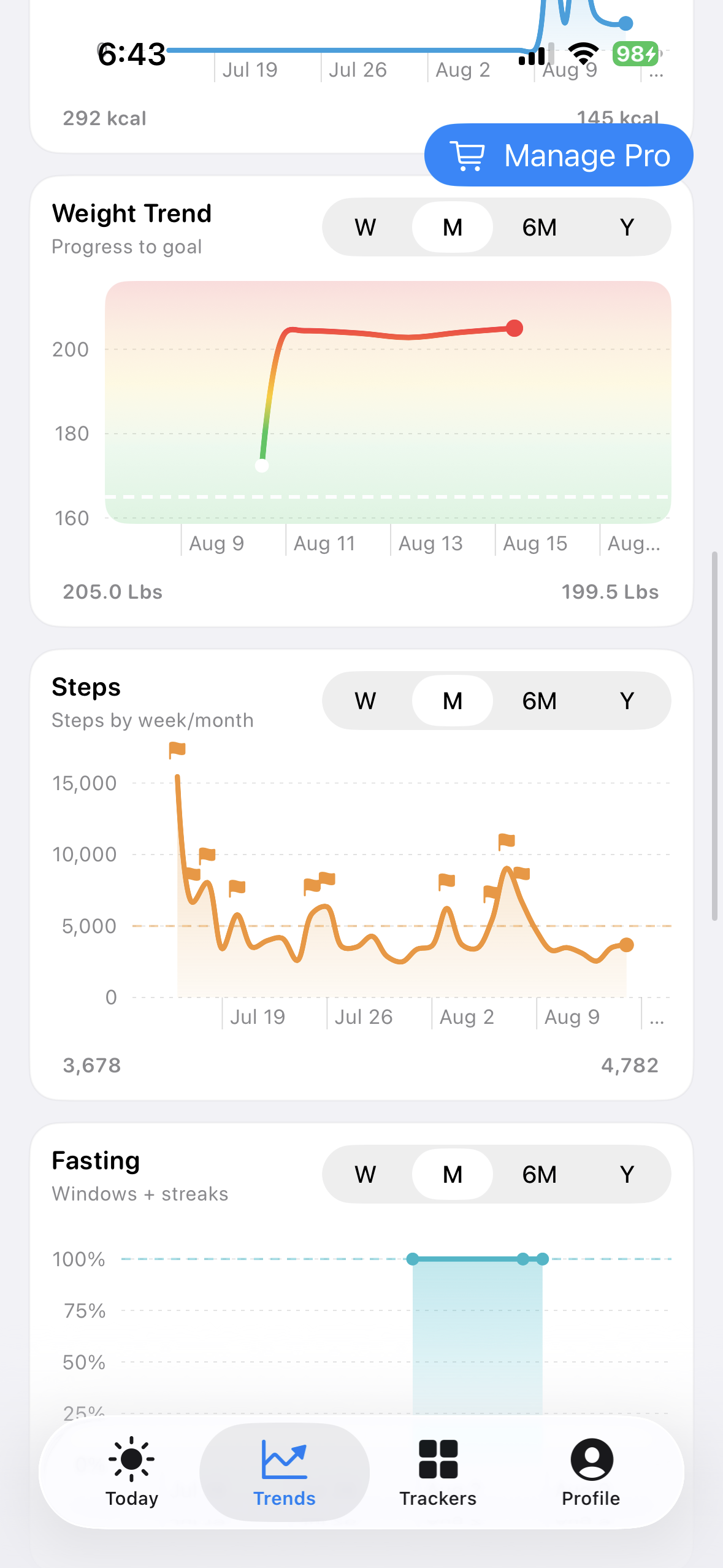
Trends brings your saved records into one place. Follow weight, calorie intake, water, steps, Sleep, Fasting, A1C, Cycle, and Mindfulness without turning separate records into one mystery score.
iPhone
iPad
Mac
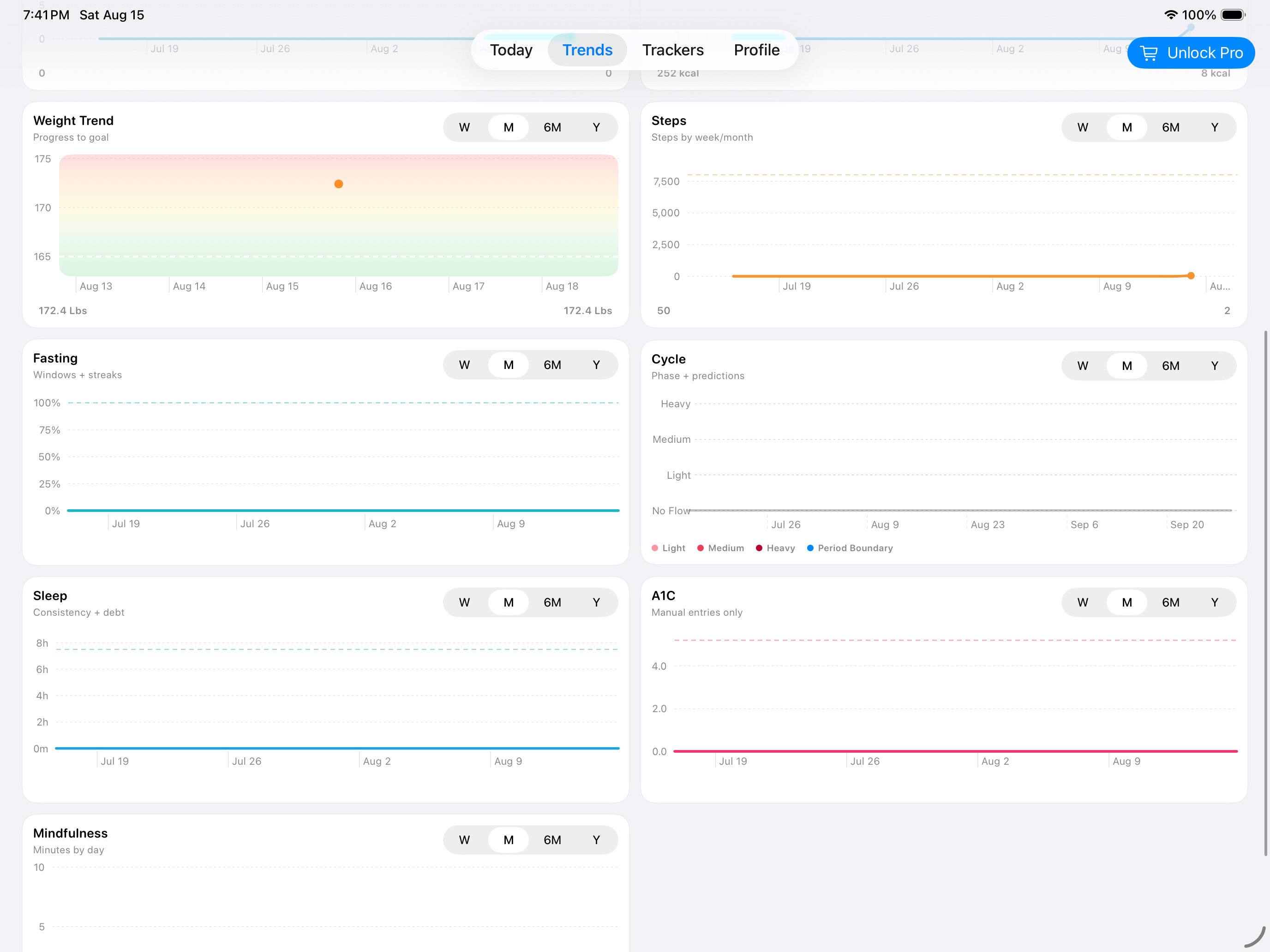
Choose the view that answers your question
Each chart has its own range controls, so changing Weight to six months does not force Sleep or Steps into the same period. On iPhone and iPad, use week, month, six-month, or year views where offered. On Mac, use the range controls attached to the chart you are reviewing.
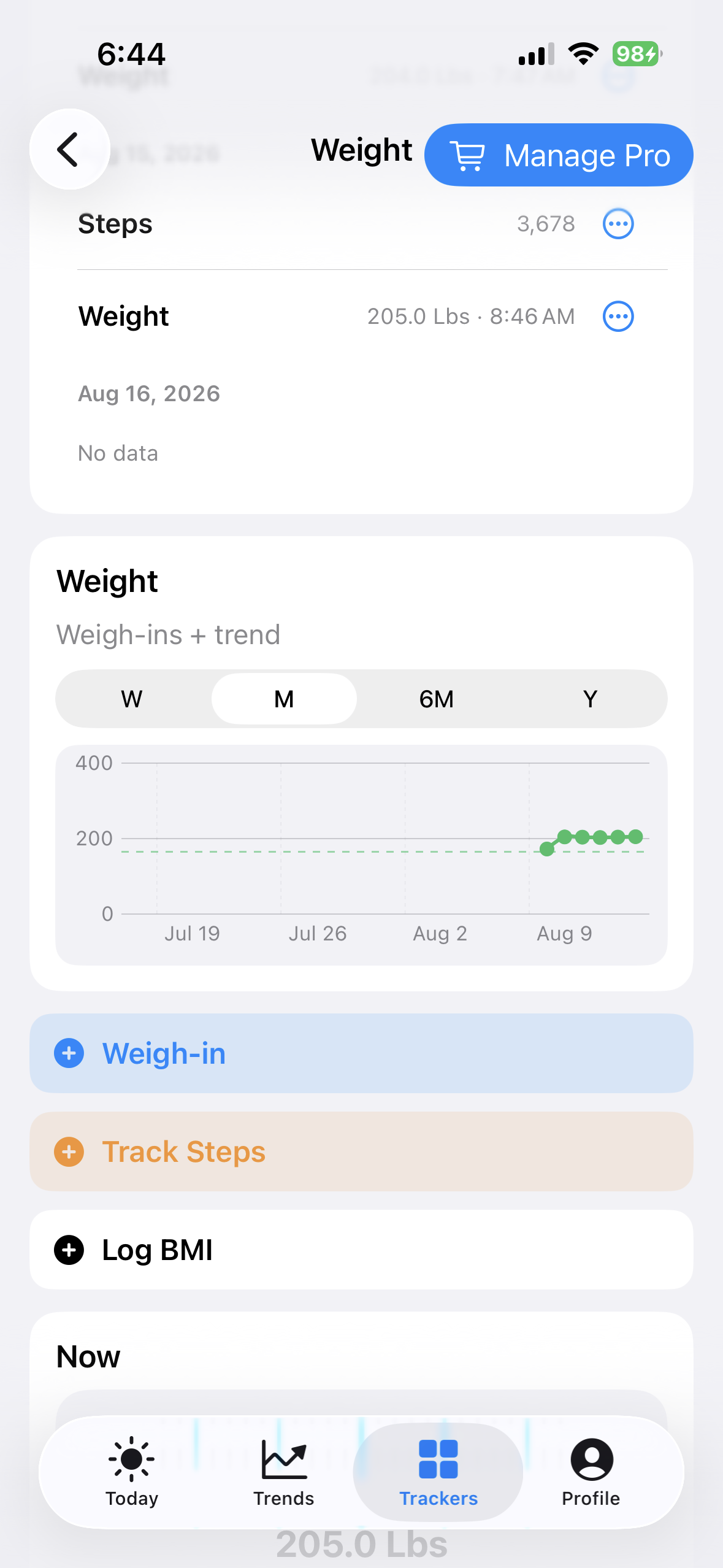 Change the range on the chart you are reading
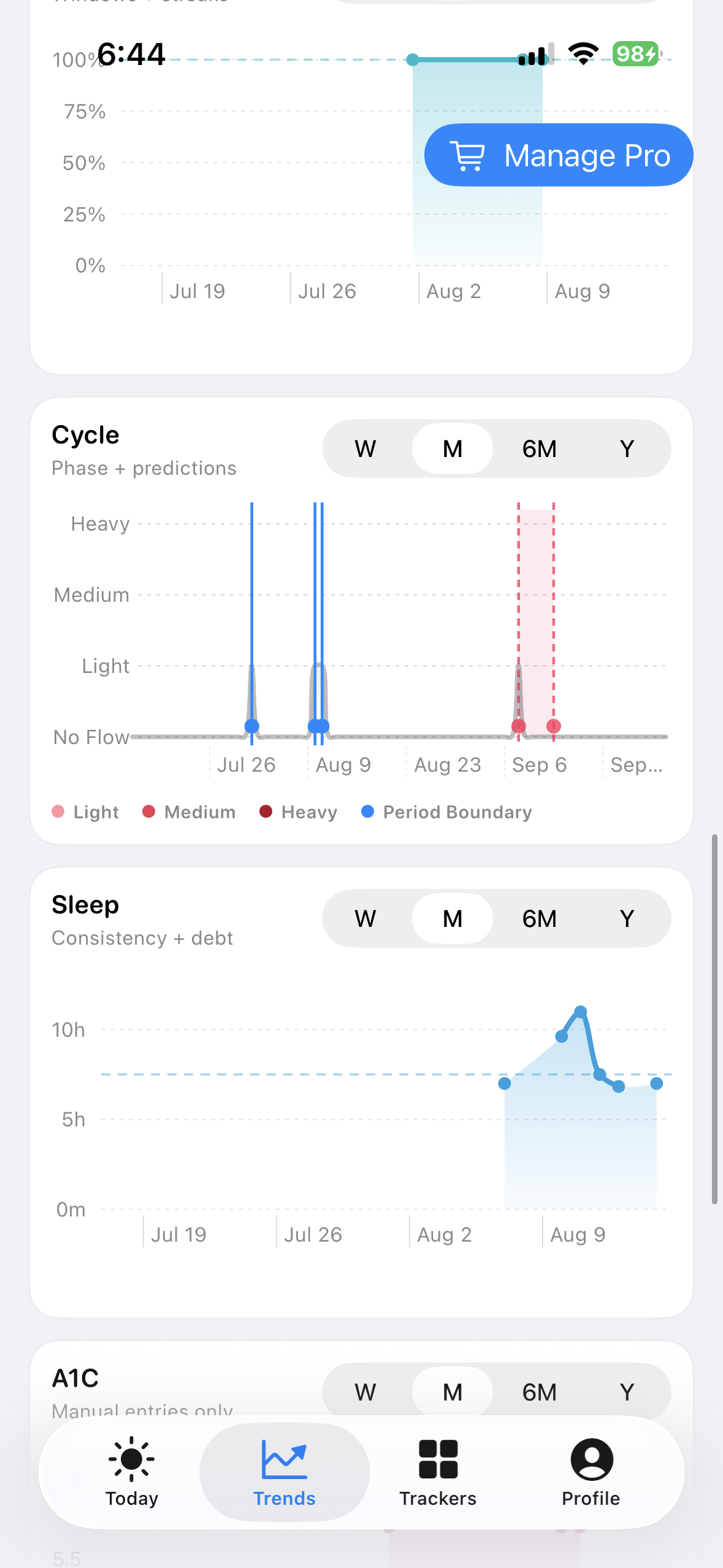 Read Cycle as its own dated history
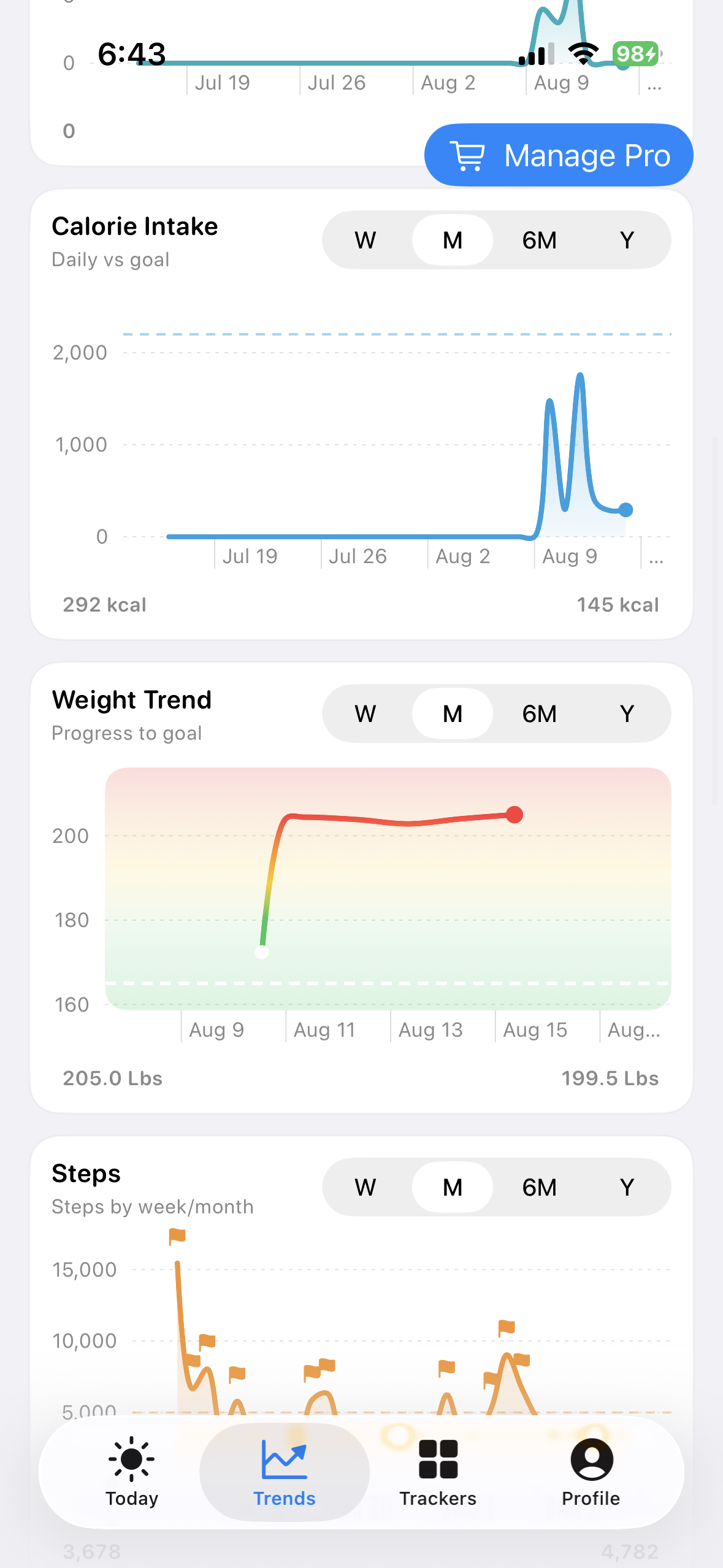 Compare dates, not unlike units
 Use overlap as context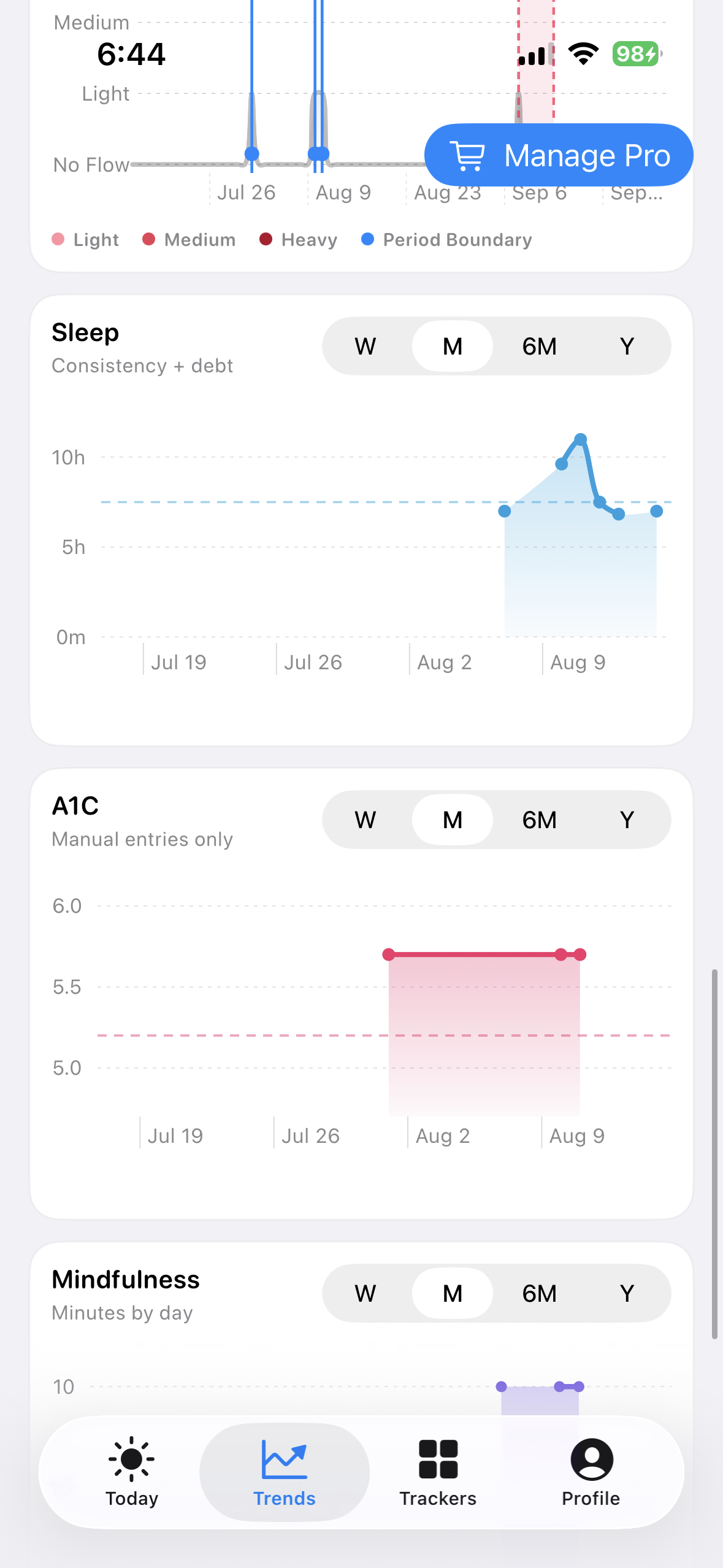
Open the records behind a trend
The summary cards at the top of Trends are shortcuts. Select Weight, A1C, or Sleep to move into that tracker and inspect its history. For the remaining trackers, open Trackers and choose the tracker directly.
Why a trend says “No data”
BeFit Tracker does not manufacture missing values. Confirm that the tracker contains saved records inside the date range you selected. Some change summaries need at least two real samples before a comparison is possible.
A quieter week is still useful information when you are shaping a routine that lasts.
Review or correct a record
- Open the relevant tracker and choose its history or calendar view.
- Select the dated record you want to inspect.
- Edit or delete the record when that record type supports the action.
- Return to Trends and confirm the selected range includes the saved date.