 BeFit Tracker Help
Mac tracker guide
Sleep tracking on Mac
Log sleep samples, inspect stage totals, and use goals, history, and trends to understand sleep patterns on Mac.
The Mac Sleep tracker keeps nightly totals and their individual stage samples together. A day can contain Awake, REM, Core, and Deep records. BeFit Tracker totals the stages that count as time asleep while preserving Awake and each source sample for review.
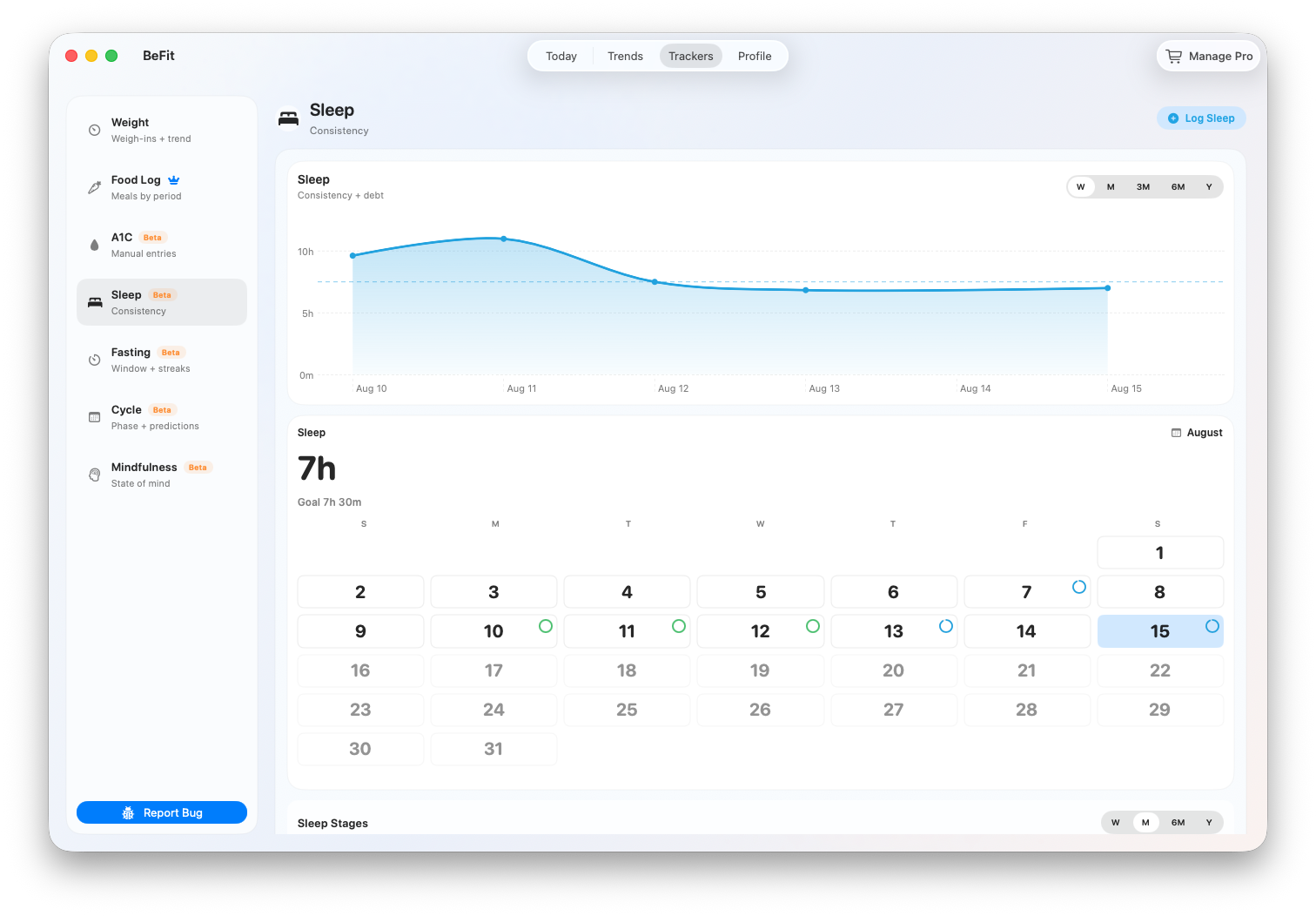
Review a night before adding to it
- Open Trackers → Sleep.
- Select the date in the calendar or History.
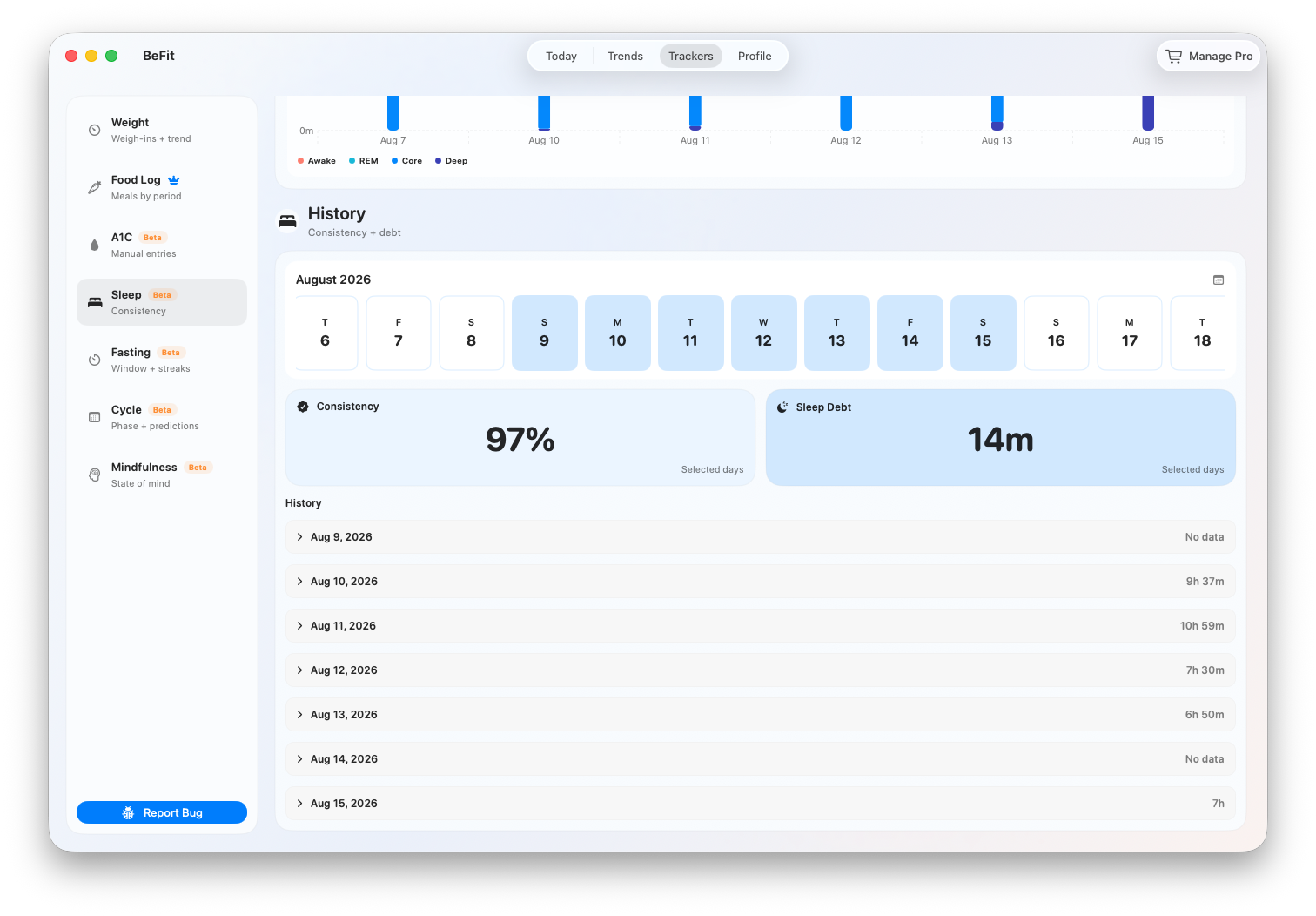
- Read the daily total, then expand the day and inspect its stage rows.
- If the records came from a mobile device through iCloud, compare them with Apple Health on that device before adding manual time on Mac.
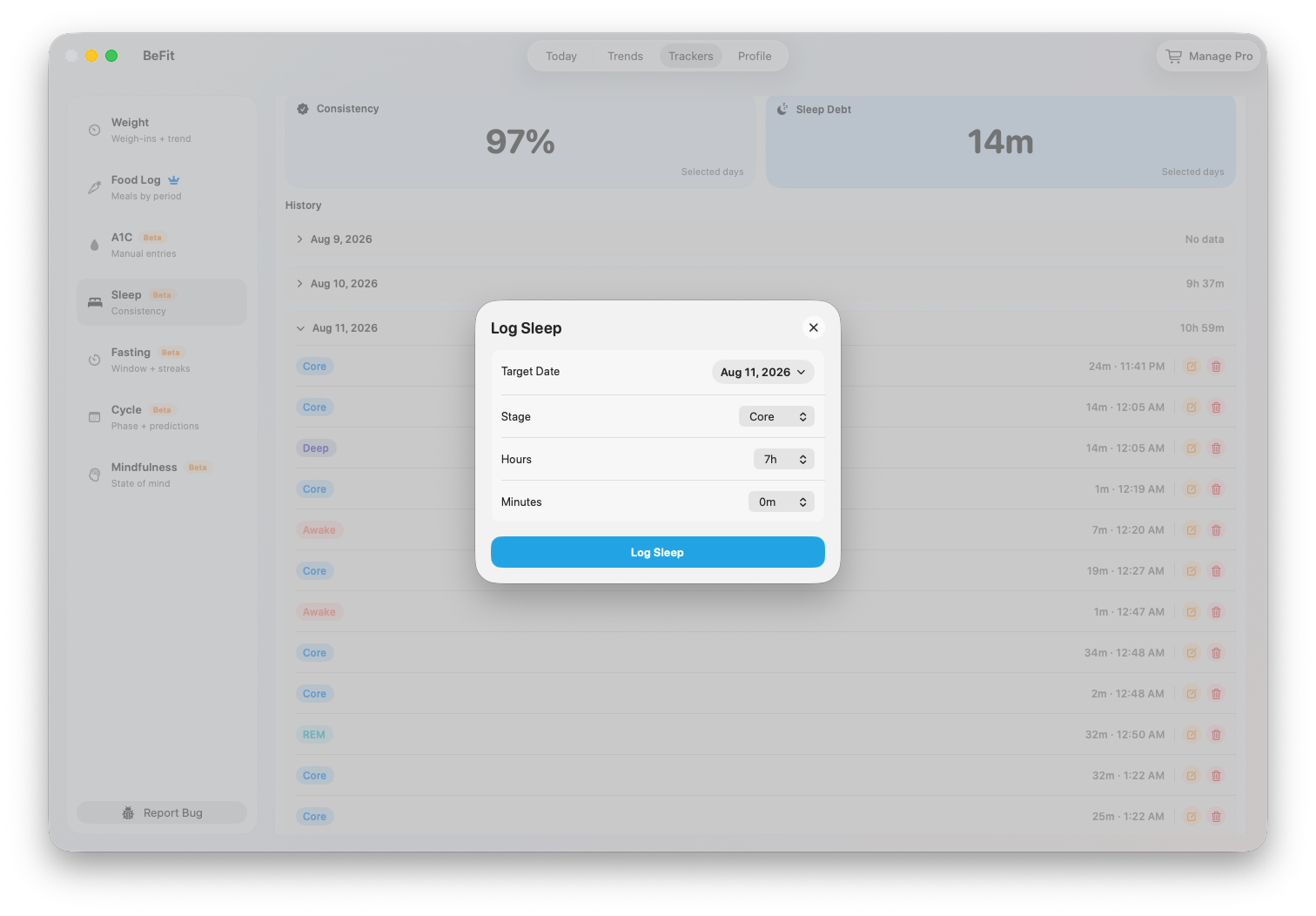
Log a completed sleep sample
- Choose Log Sleep.
- Select the stage represented by the source: Awake, REM, Core, or Deep.
- Enter the duration and choose the date and time associated with that sample.
- Save and verify the new row under the intended day.
- Repeat only for another distinct stage sample. Do not enter one total and then enter the stages that make up the same total.
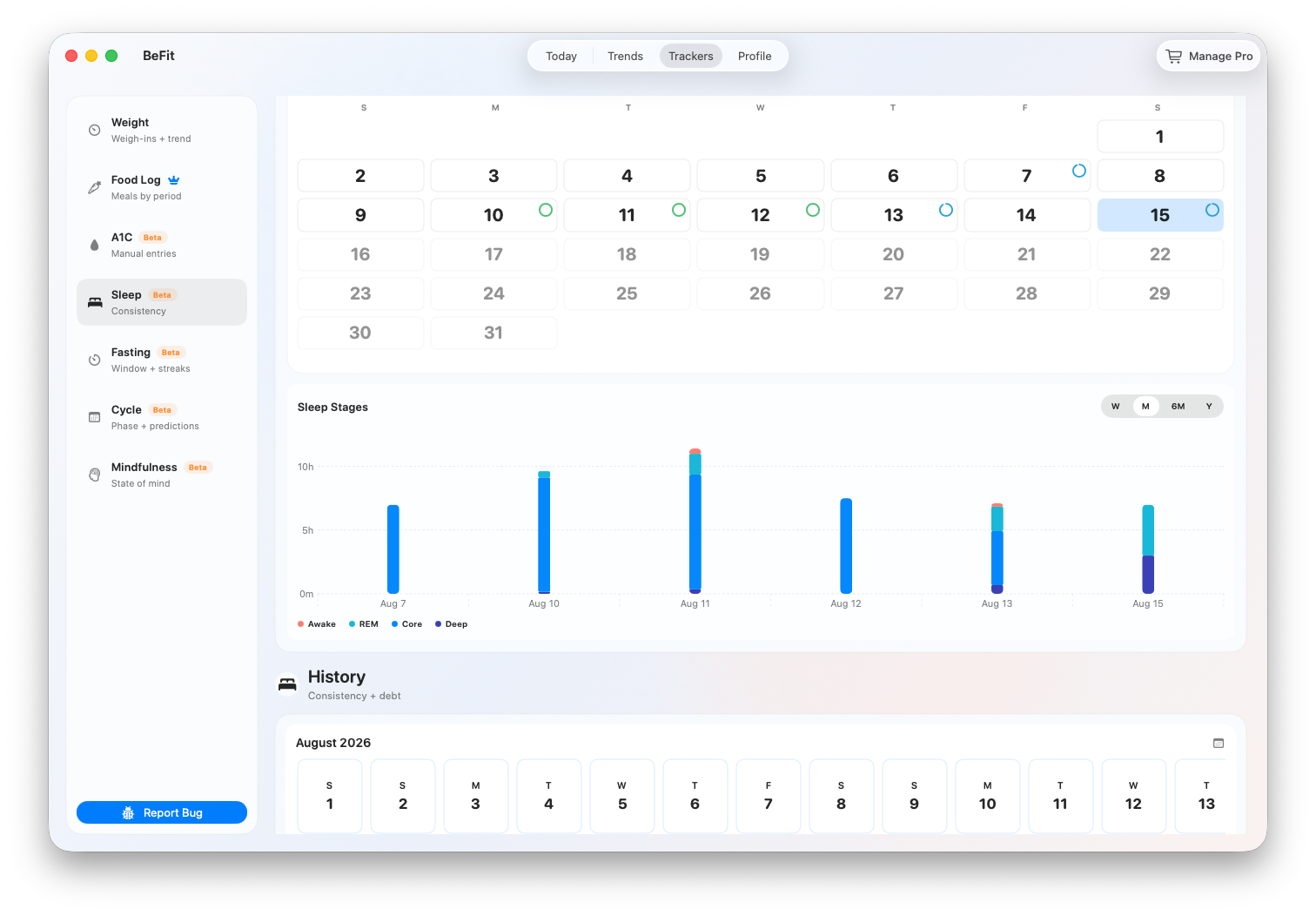
Understand the stage chart
- Awake remains visible but does not count toward time asleep.
- REM, Core, and Deep count toward the daily sleep total when present.
- No Data means the source did not provide that stage; BeFit Tracker does not infer a missing category.
- Stage detail separates the samples behind the total so overlapping or unexpected records can be investigated.
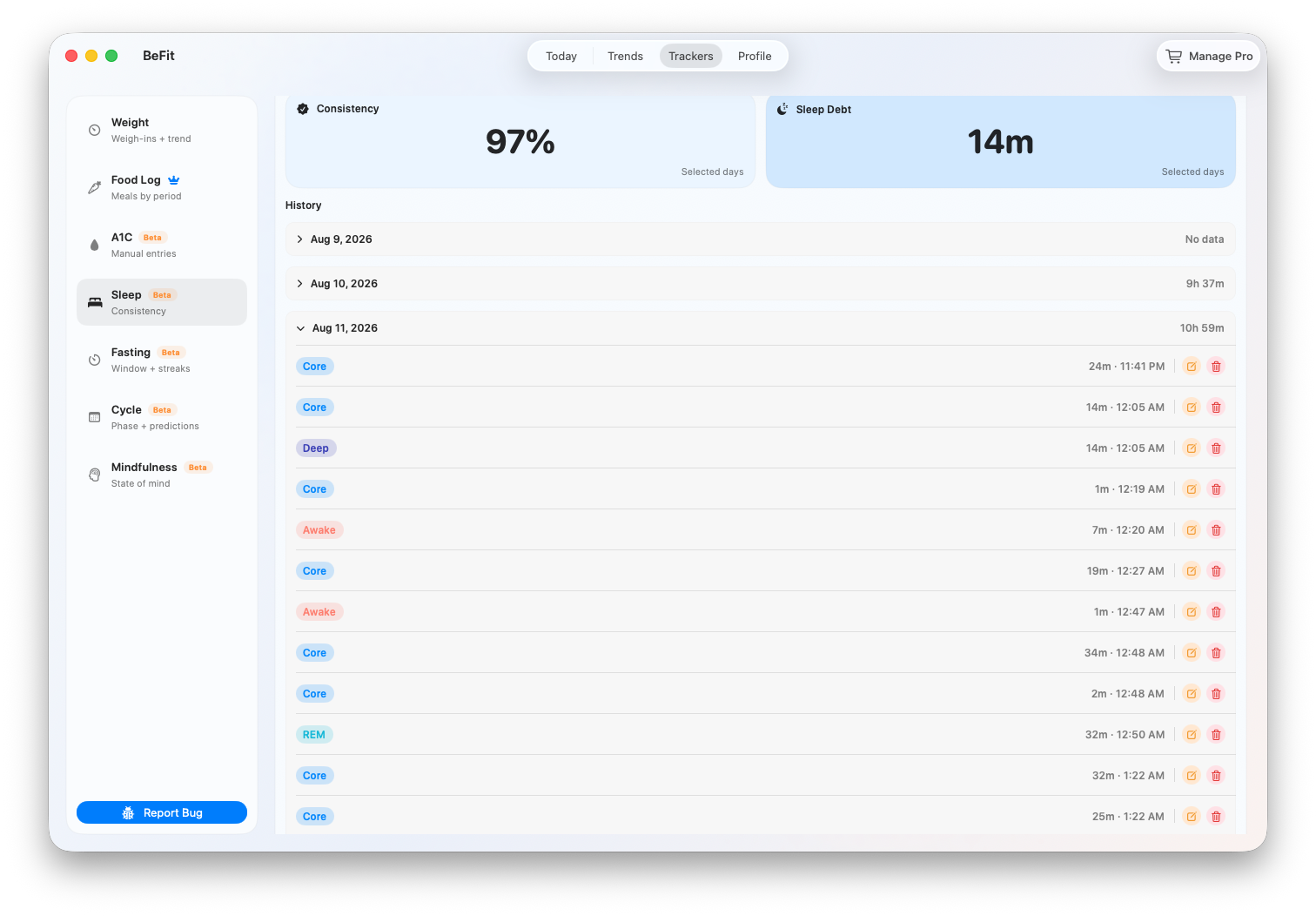
Use the goal and trend
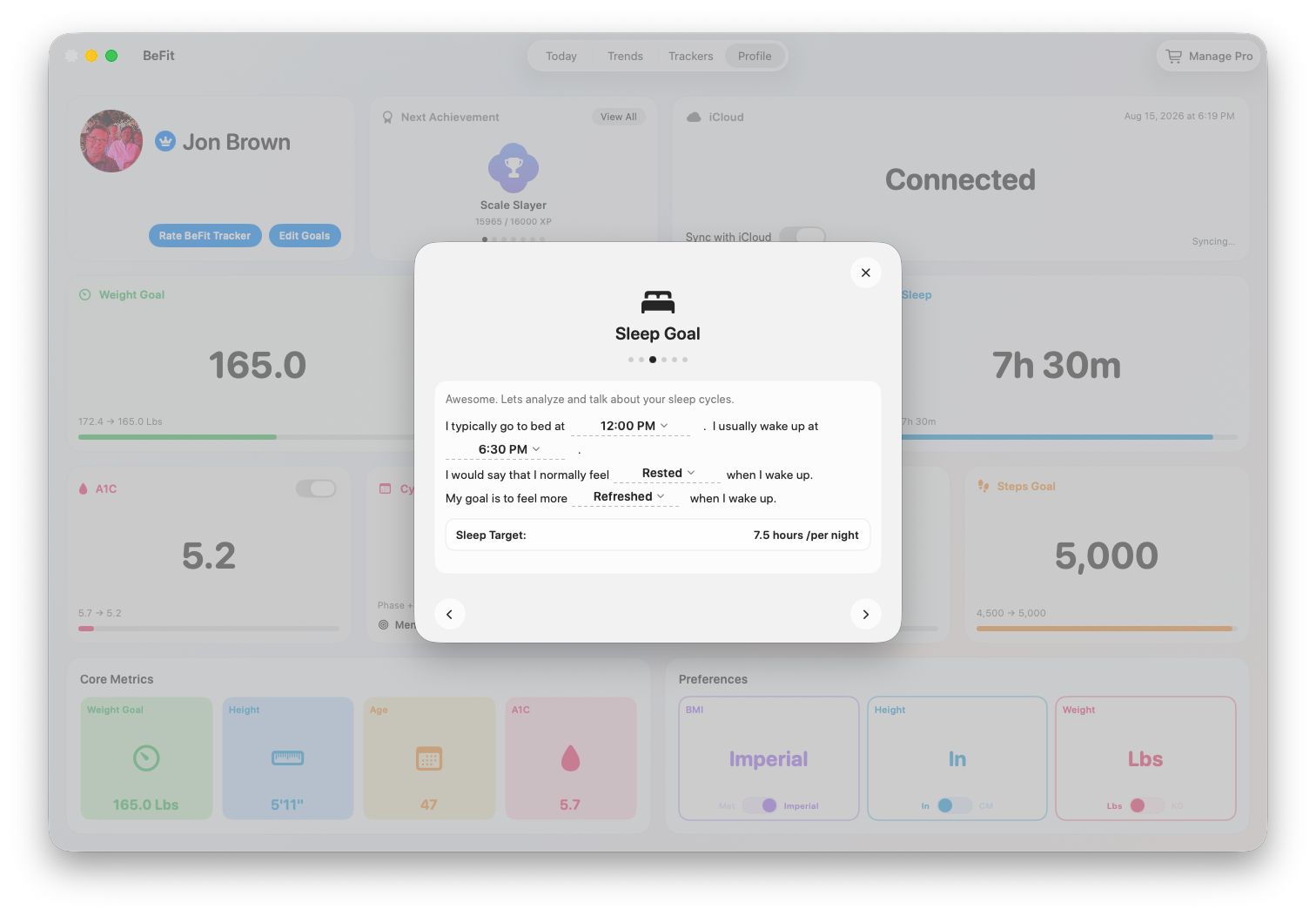
- Goal is the personal sleep target saved in Profile.
- Consistency compares available daily totals with that target and caps each day at full progress.
- Sleep debt summarizes the average amount below the target in the selected records; it is an app calculation, not a clinical assessment.
- Trend plots daily time asleep across Week, Month, 6 Months, or Year.
Correct a sleep record
- Select the affected day and find the specific sample in History.
- Choose Edit, correct its stage, duration, date, or time, and save.
- Choose Delete for a duplicate or unwanted sample, then confirm.
- Review the daily total, stage chart, consistency, debt, and trend again; one changed sample can affect each summary.
Put sleep beside the rest of your history
Short ranges help with recent routine; longer ranges show whether sleep duration and consistency are changing. Comparing the dates with your own activity, food, fasting, cycle, or mindfulness history can add useful context, but the app does not determine why sleep changed.
Devices and apps can classify sleep differently. Sleep is a Beta tracker and does not diagnose sleep disorders, assess medical sleep quality, or verify a source device’s stages.