 BeFit Tracker Help
Beta tracker manual
Use the Fasting tracker
Learn every fasting plan, record live or completed sessions, and read weekly plans, progress, results, and history.
What Fasting tracking helps you see
The Fasting tracker separates an active timer from completed history. You can start a fast as it happens or log a complete session afterward, then use the weekly plan, completion results, and history to understand your own consistency.
iPhone
iPad
Mac
Choose a fasting plan
A plan labels the intended fasting window; it does not create a health recommendation. Choose the plan that matches the session you intend to record.
An even 12-hour fasting and 12-hour eating rhythm.
A 14-hour fast followed by a 10-hour eating window.
A 16-hour fast followed by an 8-hour eating window.
An 18-hour fast followed by a 6-hour eating window.
A 20-hour fast followed by a 4-hour eating window.
One Meal a Day represented as a 23-hour session.
The fasting portion of this weekly pattern.
Alternate Day Fasting represented as a 36-hour session.
Fasting can be inappropriate for some people. Choose whether to fast and which schedule to use with appropriate professional guidance for your circumstances.
Start and finish a live fast
- Open Trackers and choose Fasting.
- Select Start Fast, choose the plan, and confirm the start date and time.
- While active, review Duration, Remaining, Started, and the calculated Ends time.
- Select End Fast when the session actually finishes and confirm the end time.
Only one fast can be active at a time. Ending it converts the live session into a completed record for History, the weekly view, and plan results.
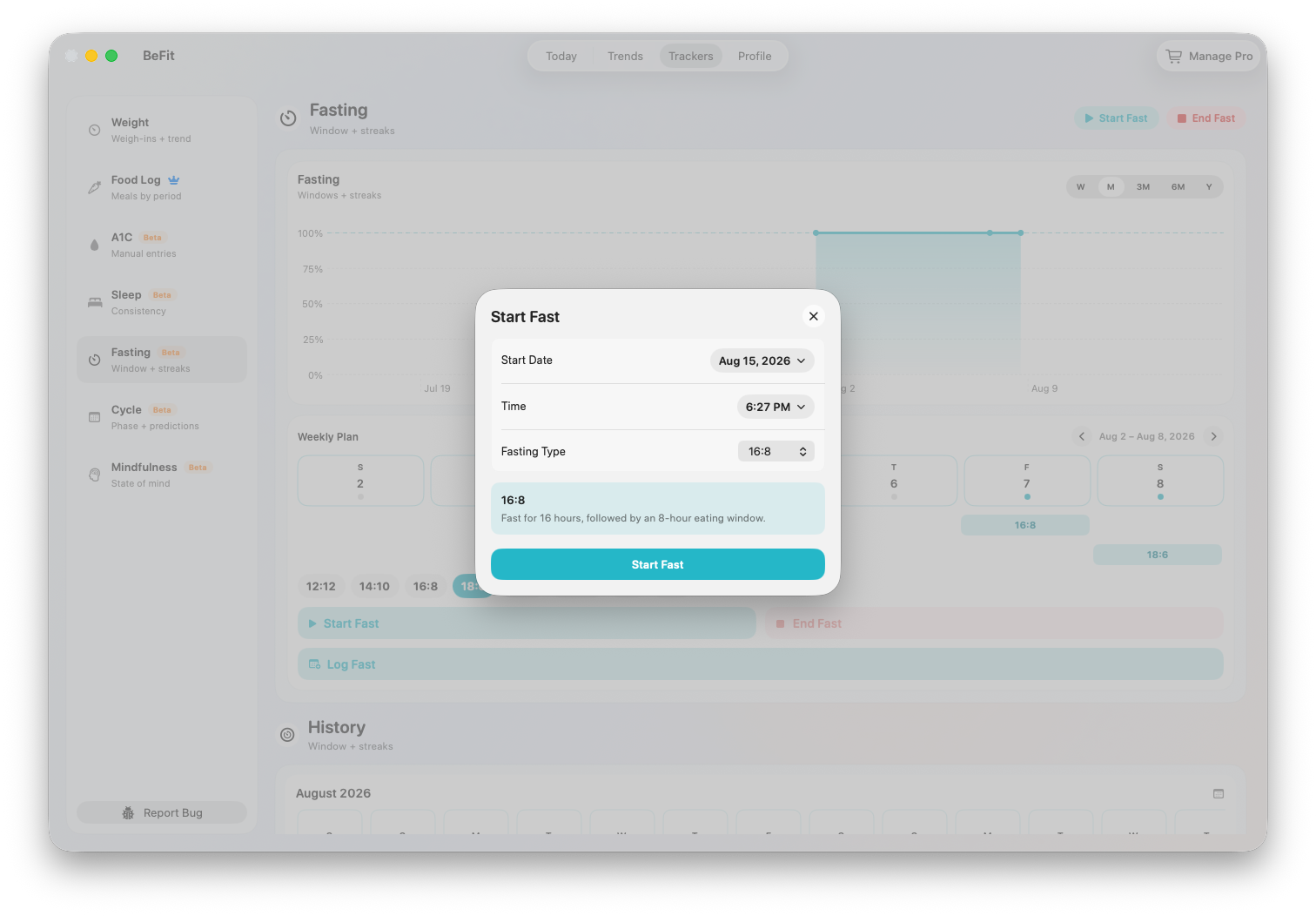
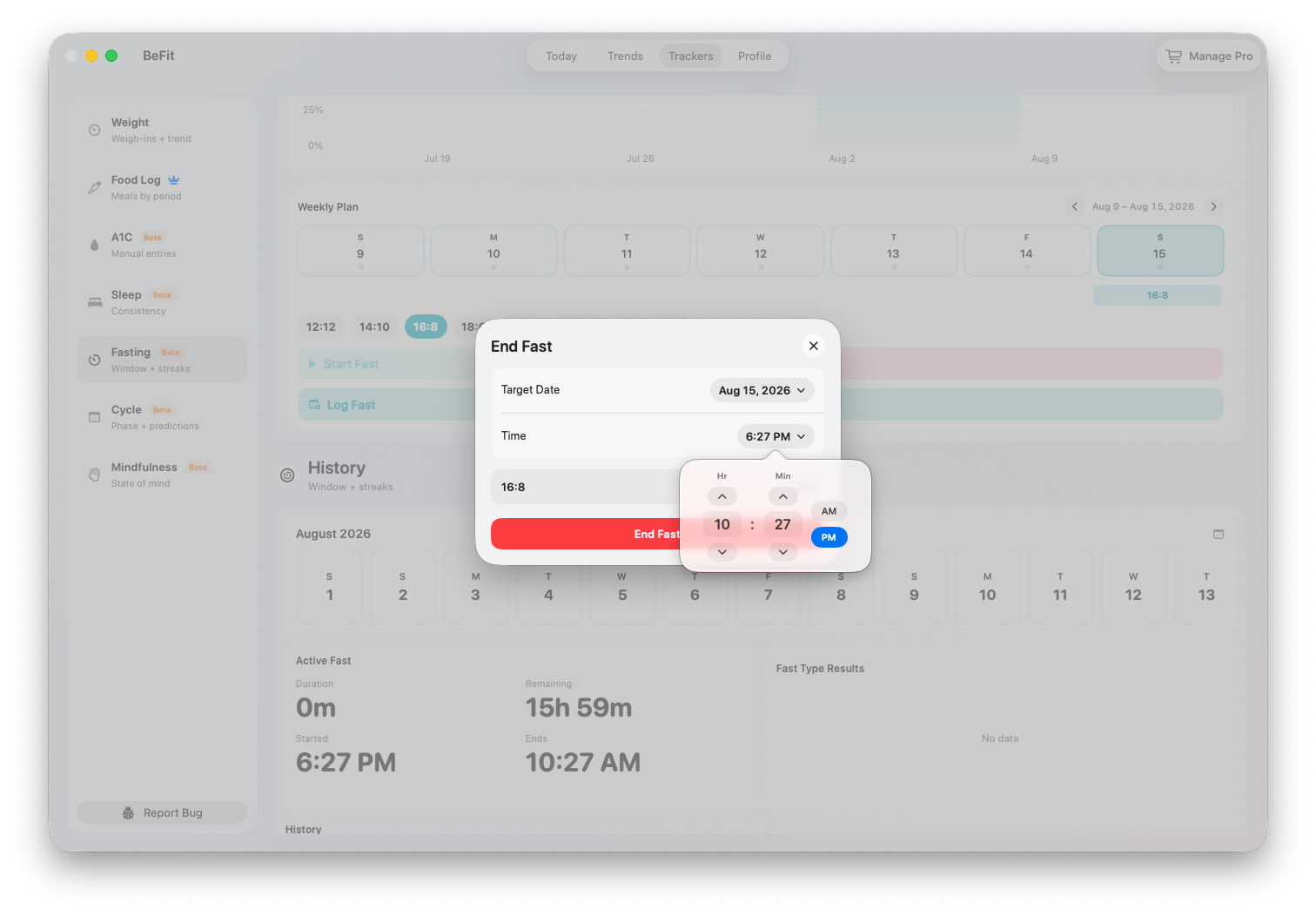
Log a completed fast
Use Log Fast when the entire session happened in the past. Select the plan and its start time; BeFit Tracker calculates the target end from that plan. Review the interval before saving. This avoids briefly creating a live session just to backfill history.
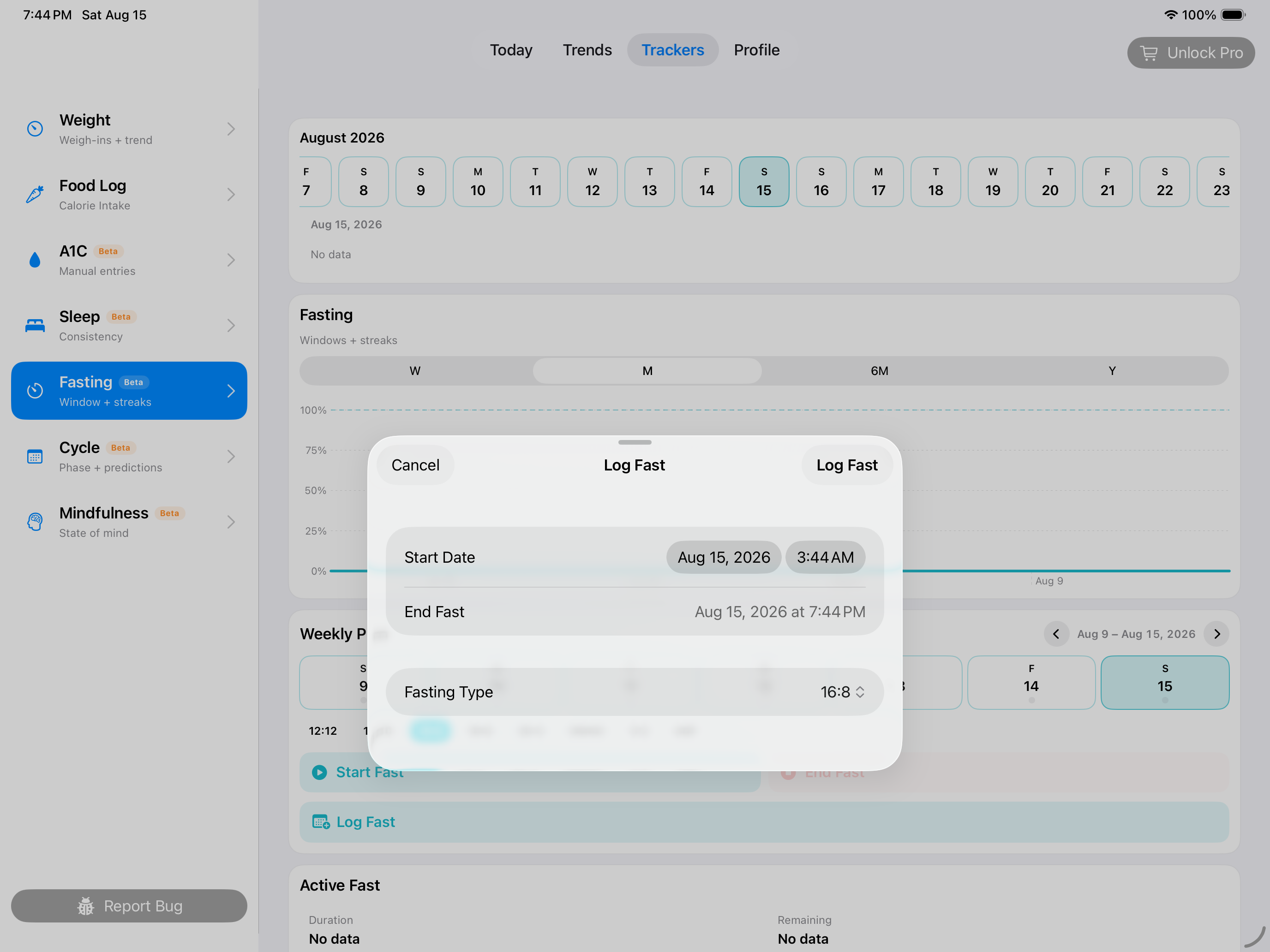
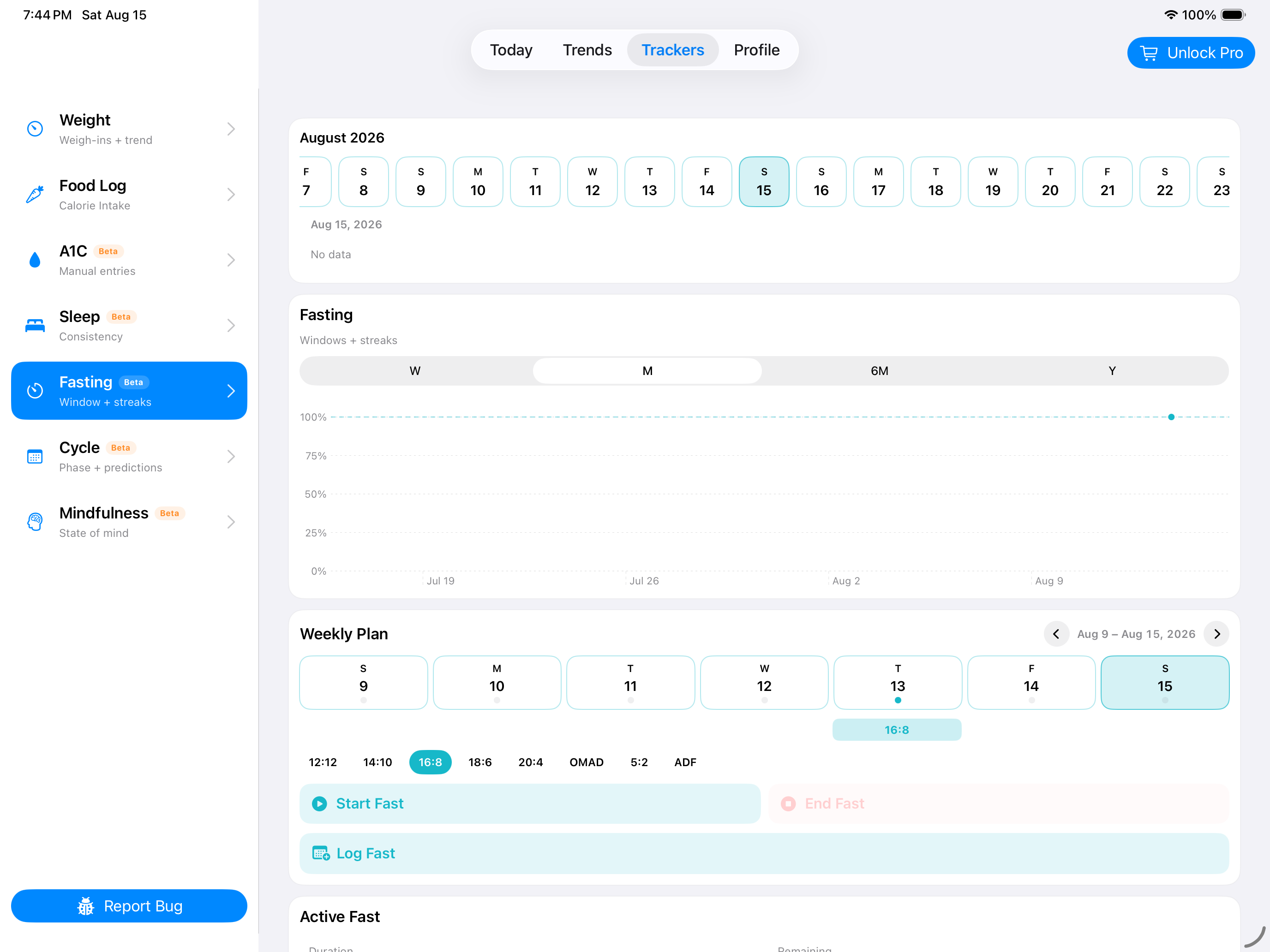
Read the tracker workspace
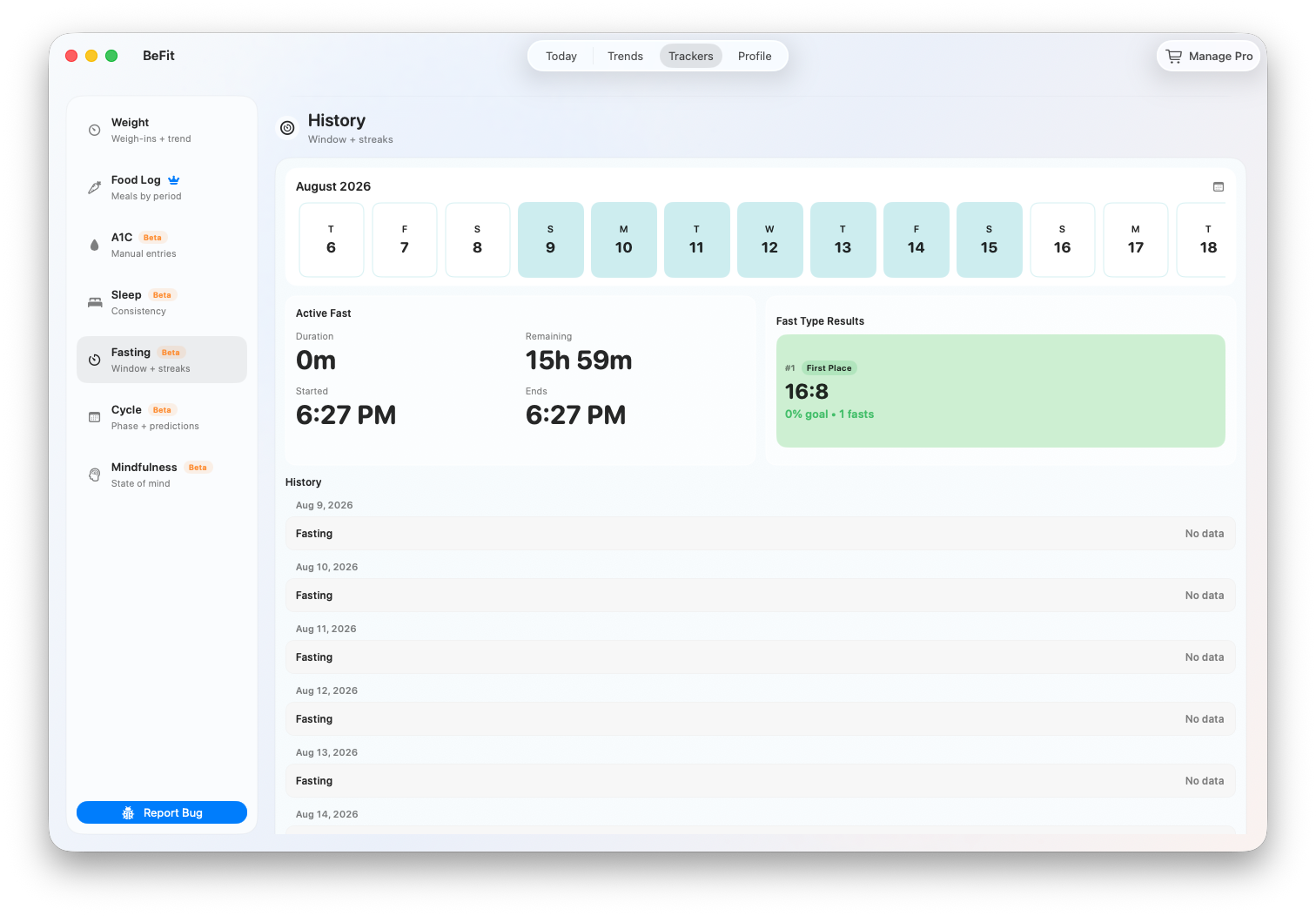
Active Fast
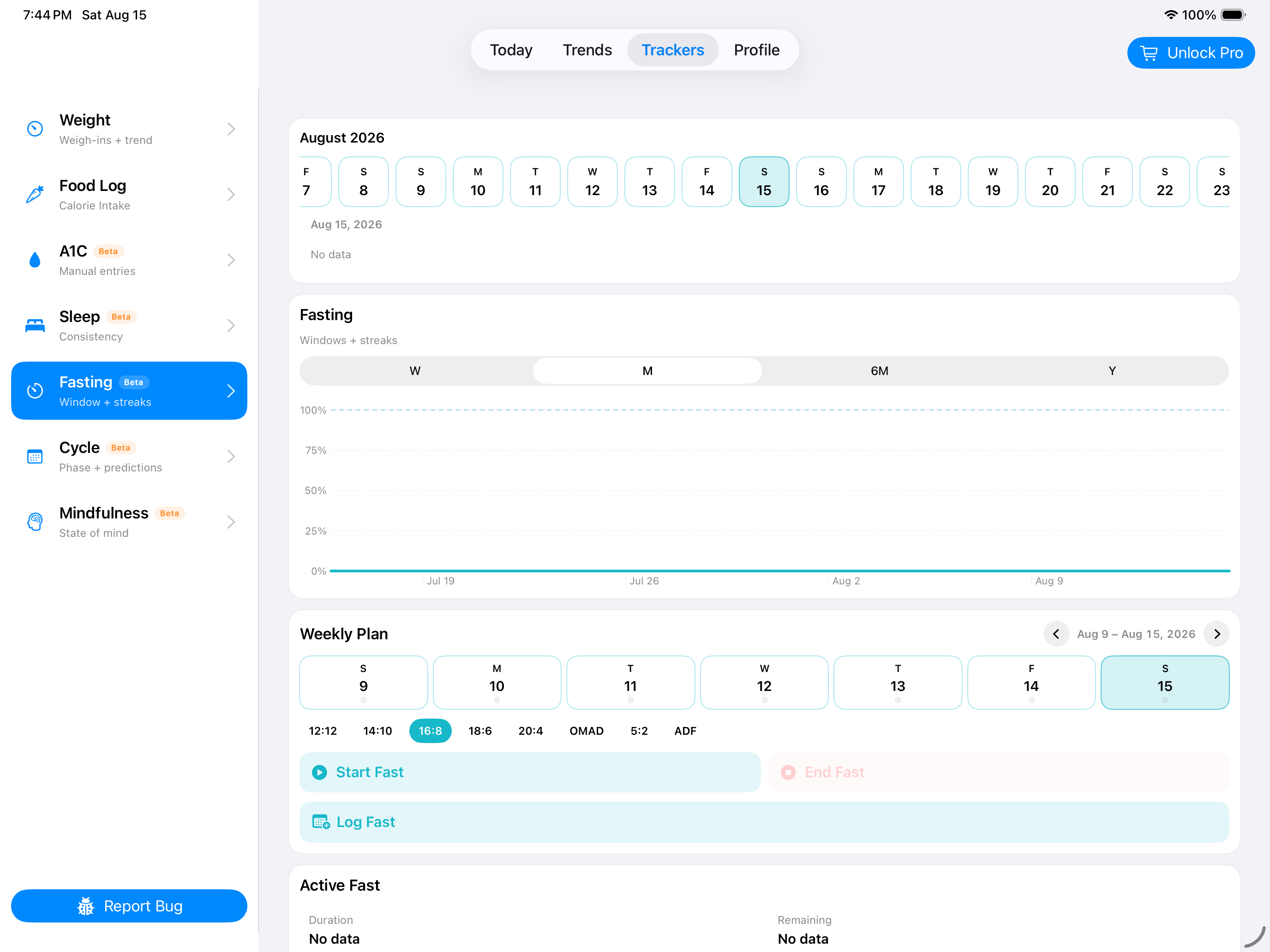
Duration shows time elapsed; Remaining compares it with the selected plan; Started and Ends make the interval explicit.
Weekly Plan
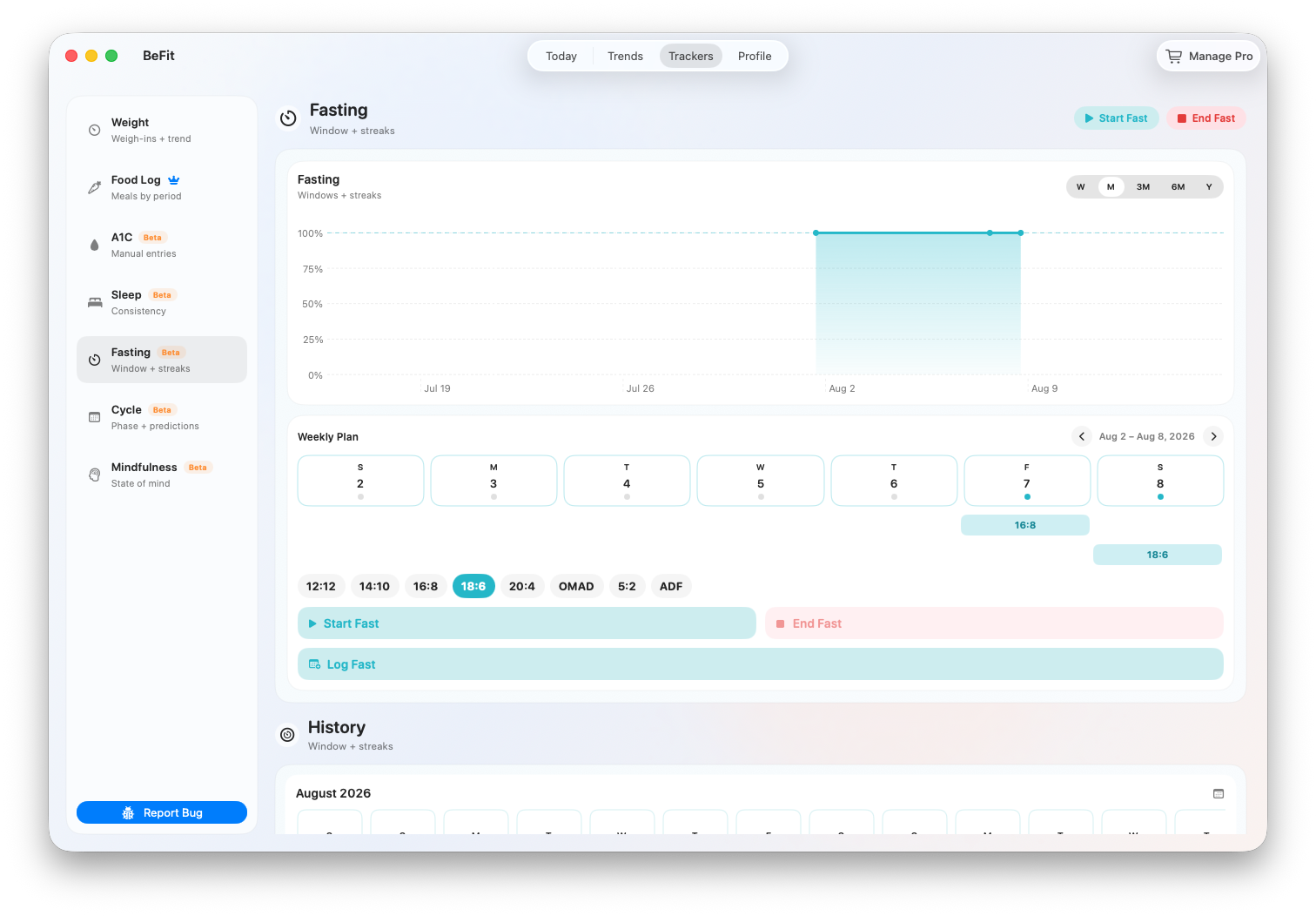
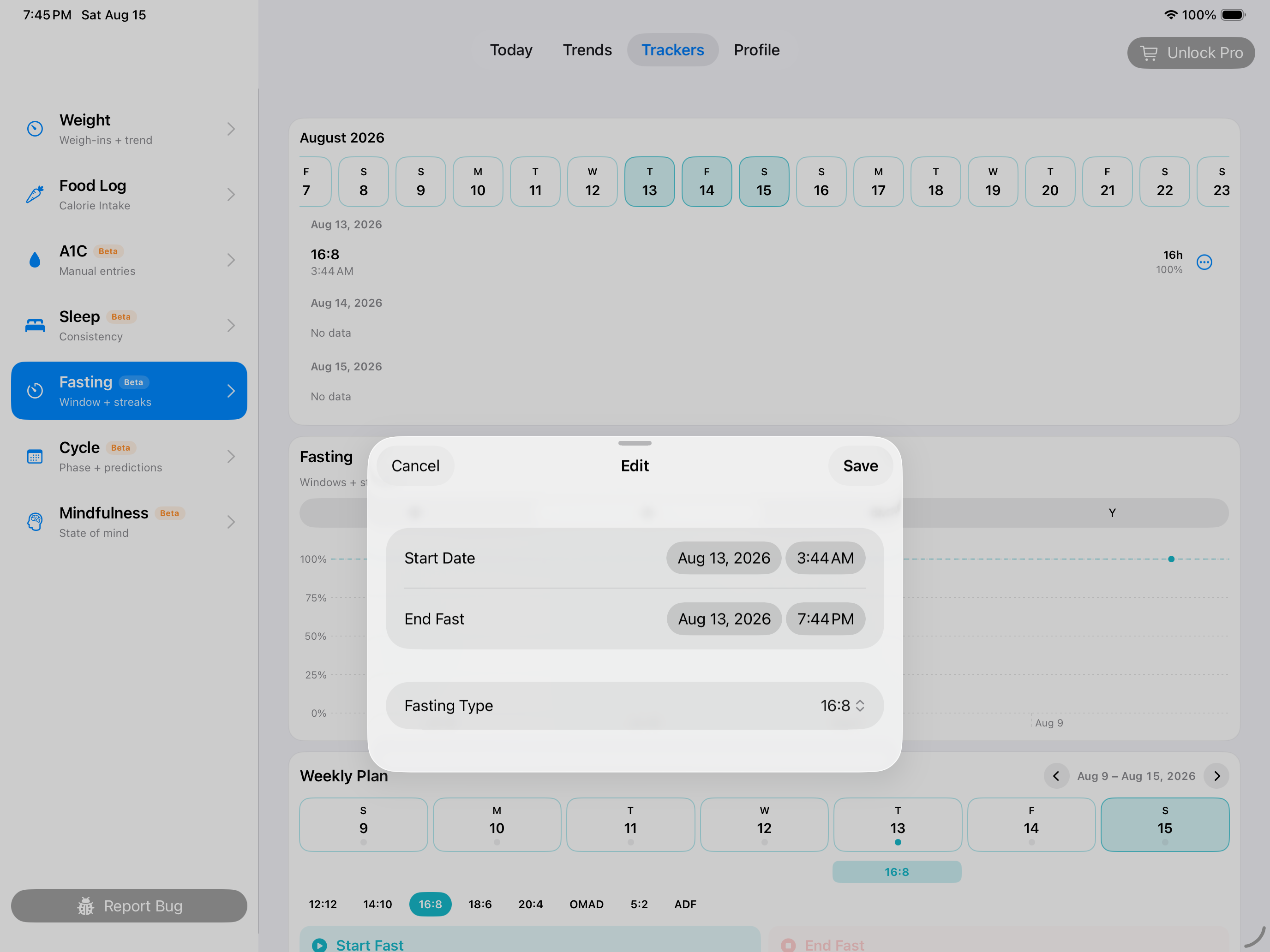
Move between weeks to review when sessions occurred. Day markers and session spans show completed activity, while plan pills identify the protocol attached to each record. The view reports what you saved; it does not prescribe fasting days.
Fast Type Results
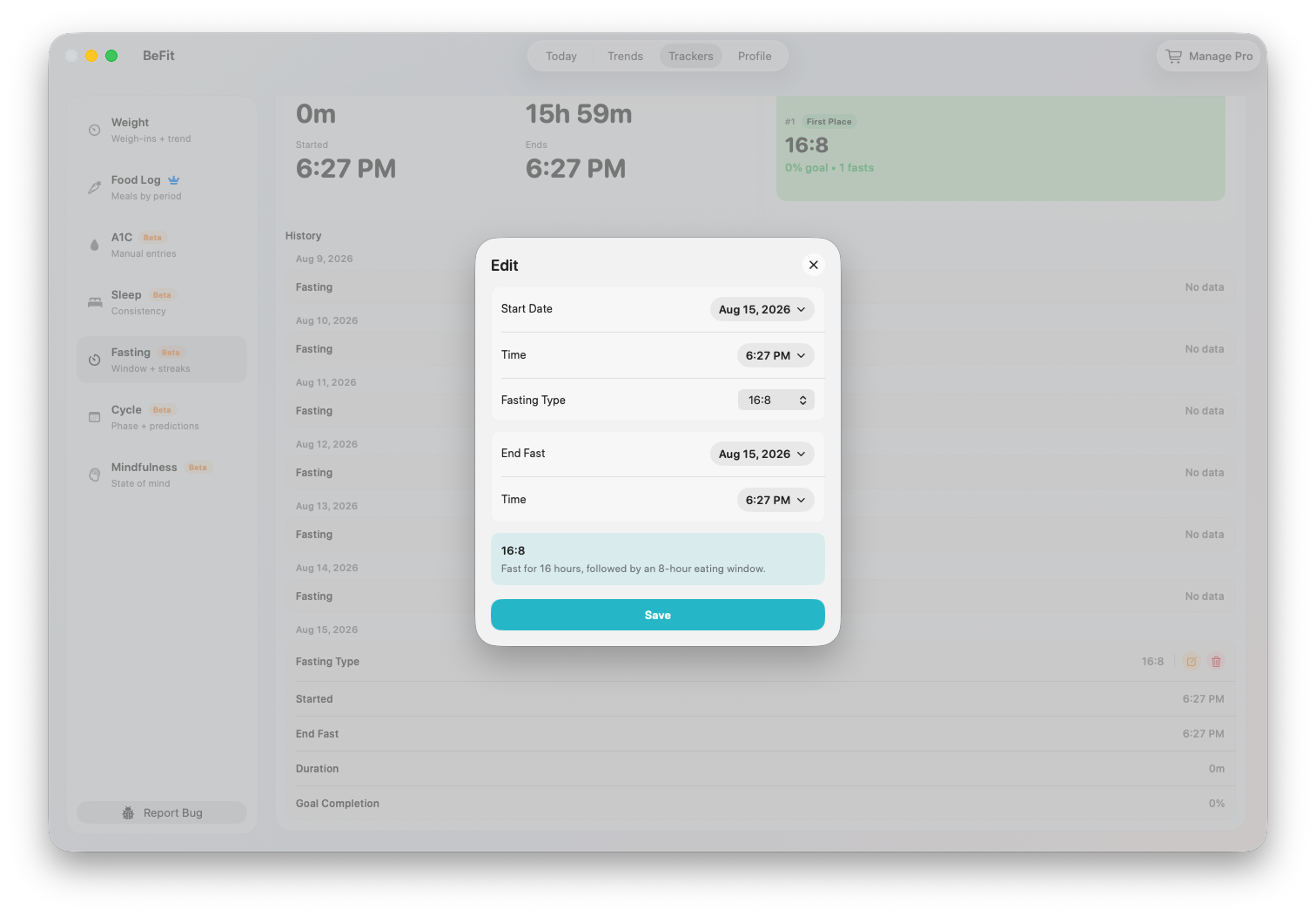
This comparison groups sessions by plan and ranks them using average completion percentage and completed count. It can show which plan you followed most consistently, but it does not measure medical benefit.
History and trend
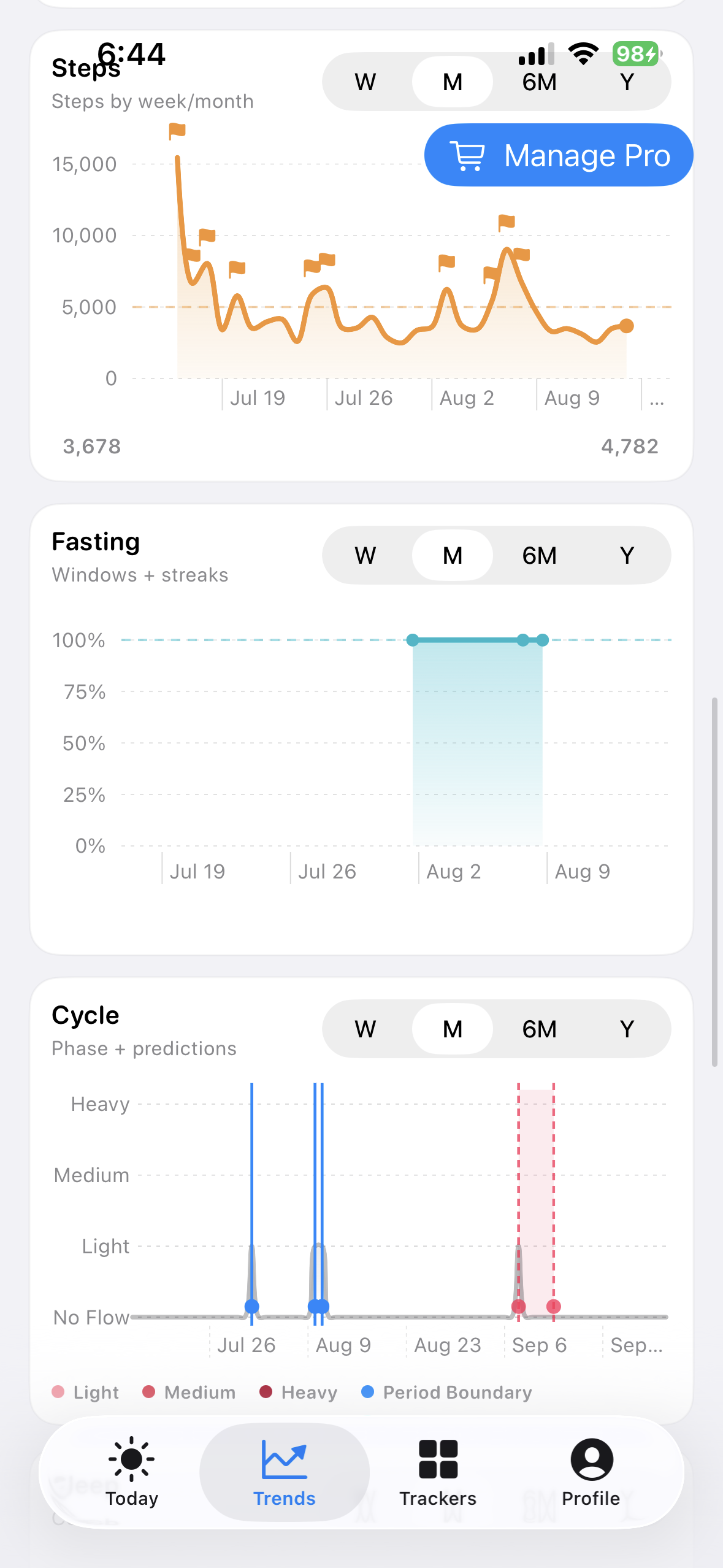
History preserves dates, times, plan, and actual duration. The trend summarizes sessions over Week, Month, 6 Months, or Year. Edit an incorrect session instead of logging a duplicate.
iPhone and iPad
On iPhone, open the Fasting tracker for live controls; the general Trends screen is only a summary. Landscape iPad makes the weekly plan and session details easier to compare.
Mac
Mac offers the same session model in a wider workspace. It can show manual records and supported records reconciled through iCloud. Mac does not connect directly to HealthKit. Check synchronization before creating a duplicate mobile session.
Fasting is a Beta informational tracker. It does not recommend a schedule, assess whether fasting is appropriate for you, or provide medical guidance.