 BeFit Tracker Help
Organize foods
Create food folders and read summaries
Organize foods into reusable Classic folders and understand their aggregate nutrition charts.
Classic folders group foods for planning and comparison. They are reusable lists, not calendar-based meal logs.
Create and fill a folder
- Use the add-folder control in the left sidebar.
- Name the folder so its purpose is easy to recognize.
- Drag foods from the Food Library or User Food Library into the folder.
- Choose the quantity and an available serving when Classic asks for them.
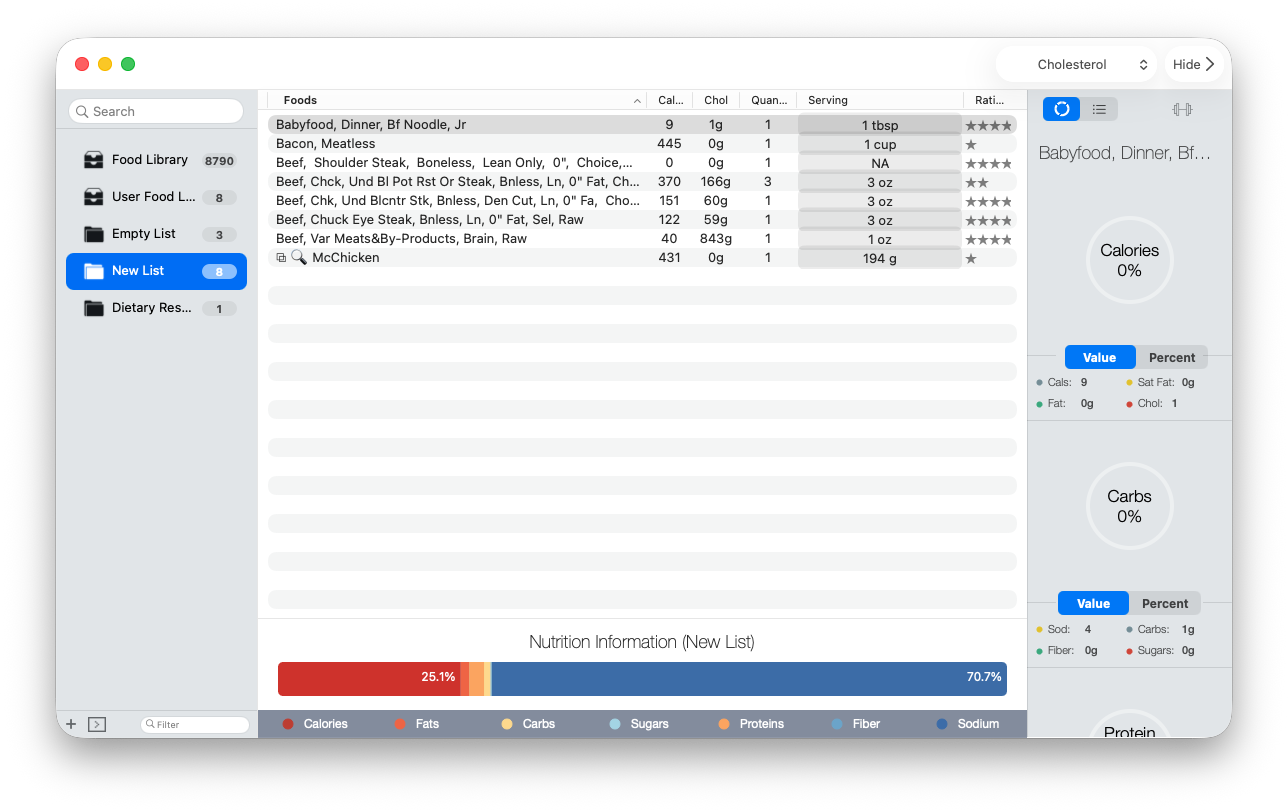
- Select the folder to review its foods and combined nutrition summary.
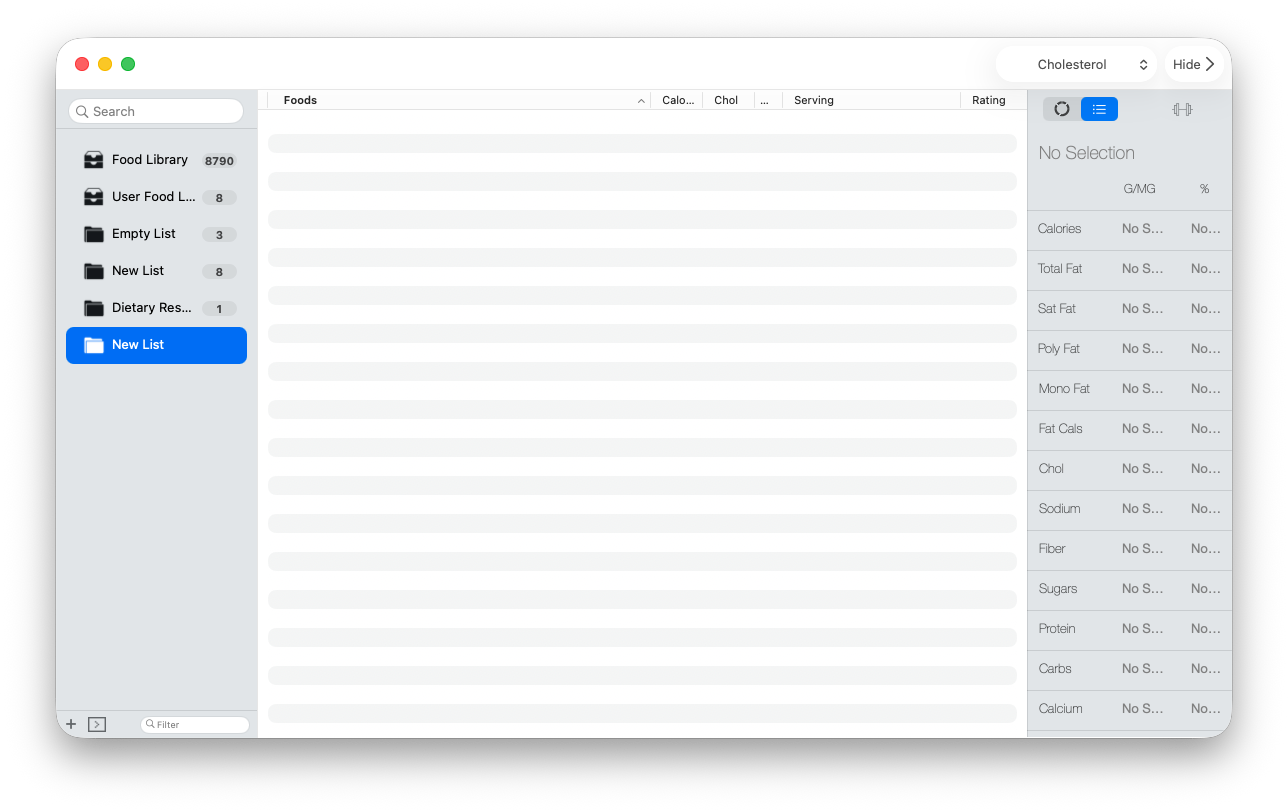
Name the list for the way you will use it
The default name is selected for editing when the list is created. Type a useful name, such as a meal idea, shopping group, or comparison you revisit, then press Return. The number beside the list grows as you add foods.
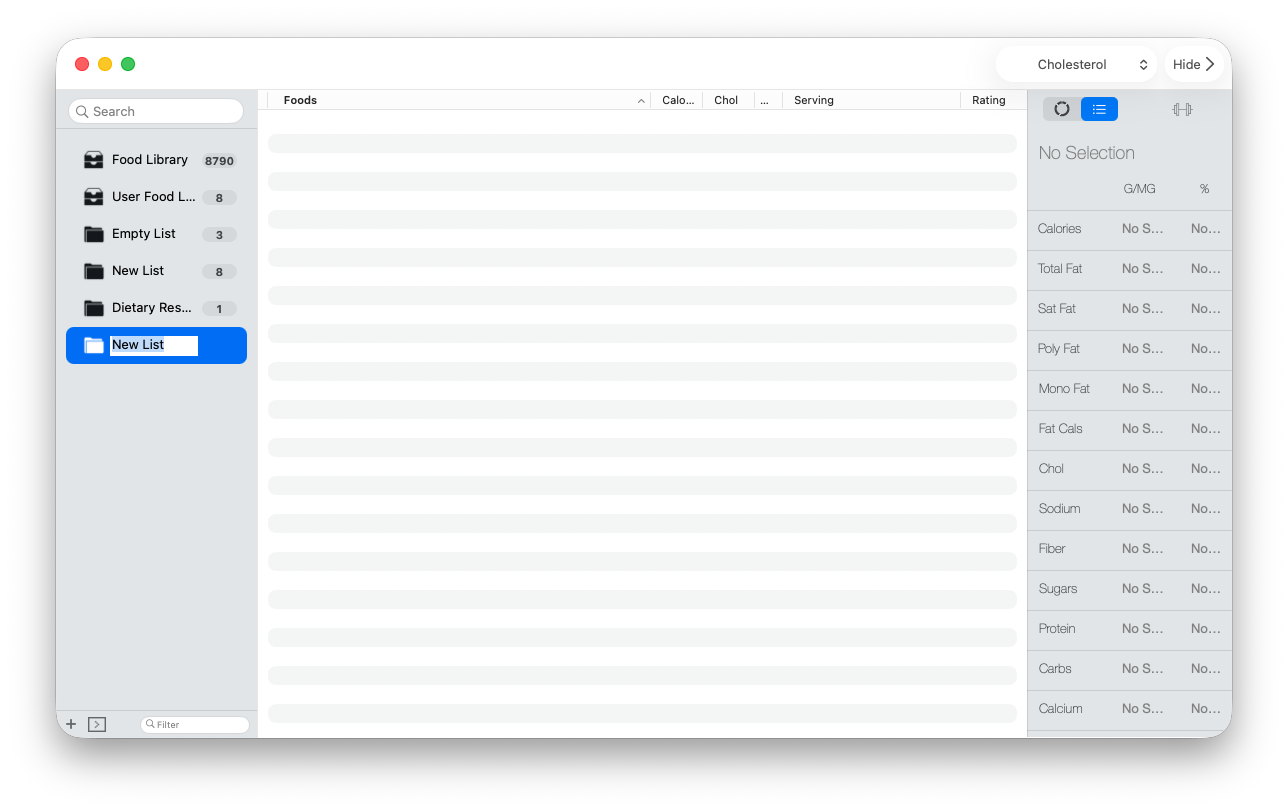
Add foods to the list
Return to the Food Library or User Food Library, find the food you want, and drag its row onto the destination list in the sidebar. Classic asks for an amount when the food has usable serving information. Once added, the row belongs to this list configuration: changing its quantity or serving changes the list calculation without rewriting the source food.
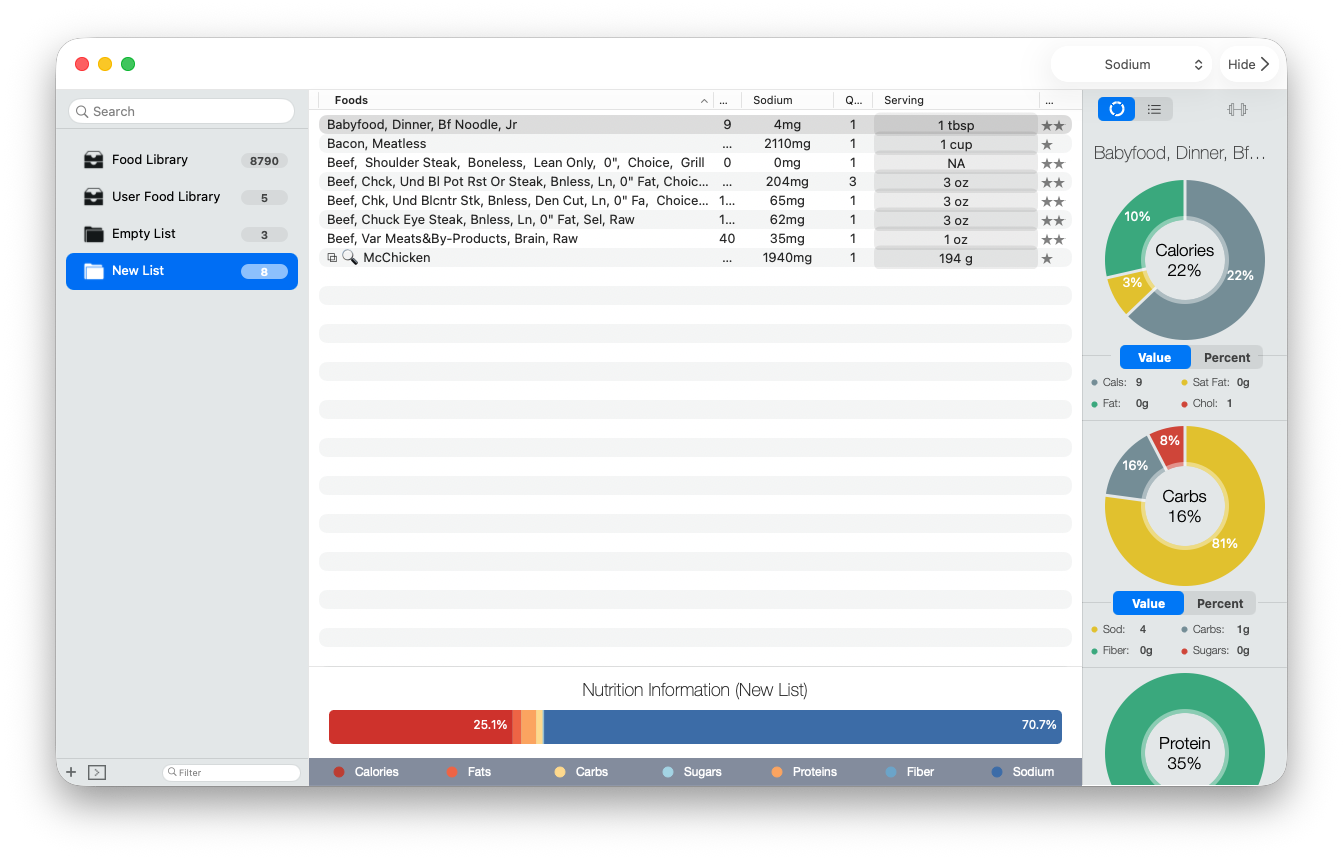
Why the folder chart looks different
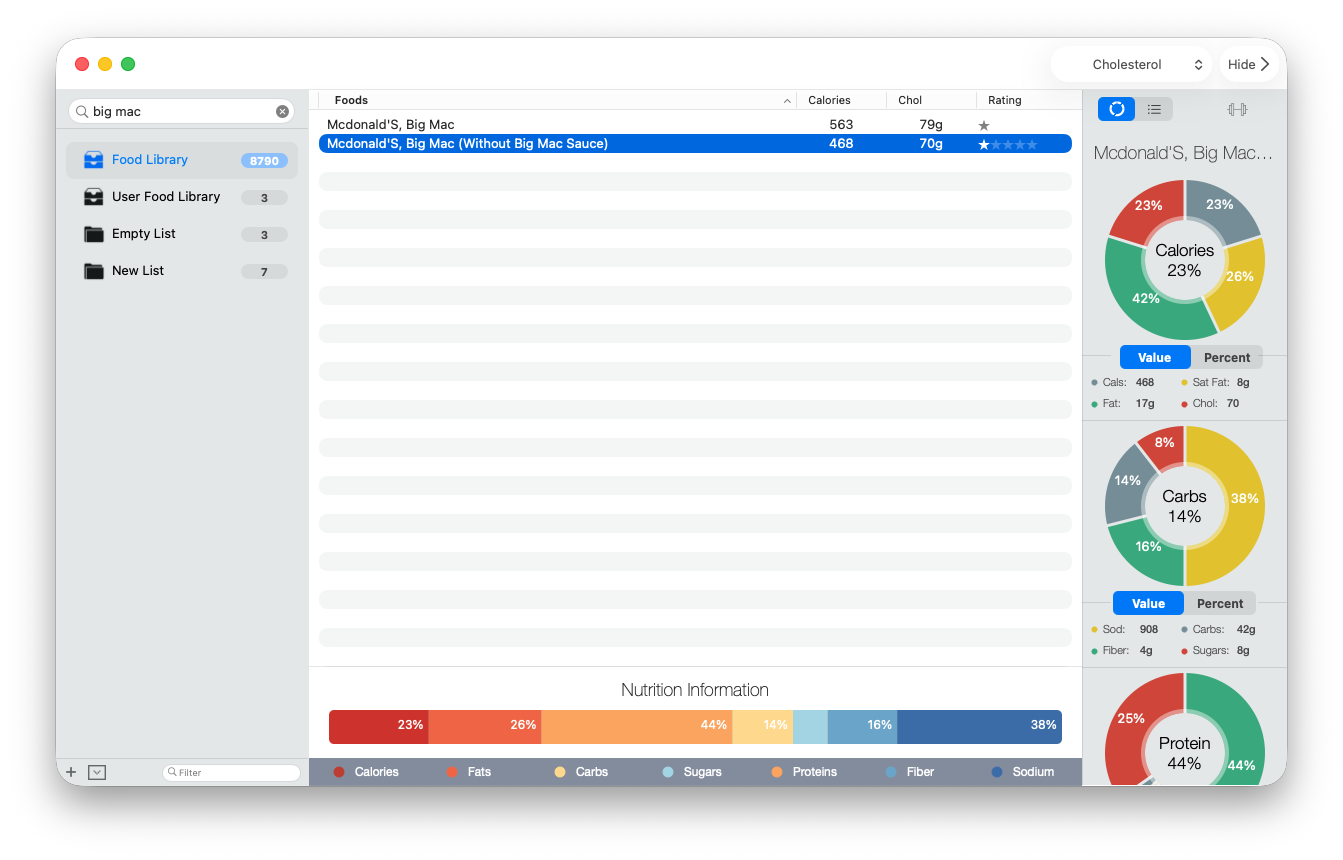
A selected food shows that food’s stored details. A selected folder summarizes the foods and amounts inside the folder and normalizes their nutrition into a complete visual. It is an informational comparison, not a judgment about whether the folder is medically appropriate.
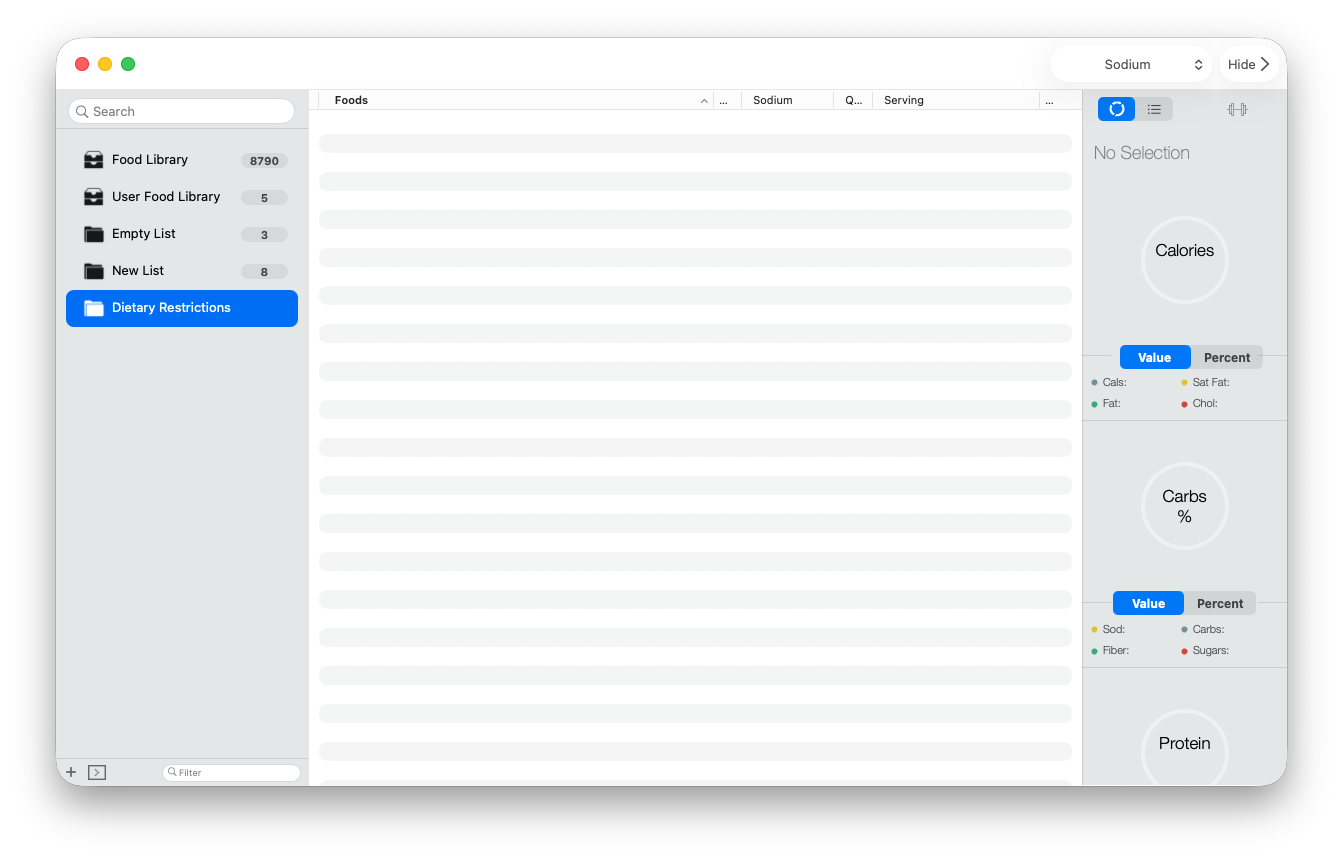
Change a folder’s totals
Select the list and edit the Quantity or Serving cell for the relevant row. Quantity represents how many of the selected servings you want included. Serving uses one of the measures supported by that food record. Classic recalculates the row and the combined Nutrition Information bar from the new choice.
They do not synchronize to iCloud and cannot be migrated into the newer BeFit Tracker.