 BeFit Tracker Help
iPhone & iPad tracker guide
A1C tracking on iPhone and iPad
Record a dated A1C result, compare it with your personal goal, and review changes over time on iPhone and iPad.
A1C is a Beta tracker for keeping laboratory results in chronological order. Each saved day has one A1C value, so the trend, calendar, latest result, and goal comparison all refer to the same history. BeFit Tracker organizes this information; it does not interpret a result for treatment or choose a medical target for you.
Before you record a result
Have the original laboratory report or another reliable source in front of you. Confirm both the reported value and the specimen or result date. The date matters because BeFit Tracker places the result on the calendar and uses it in the time-range charts.
Record an A1C result
- Open Trackers and choose A1C. You can also use Enter A1C from Today when that quick action is enabled.
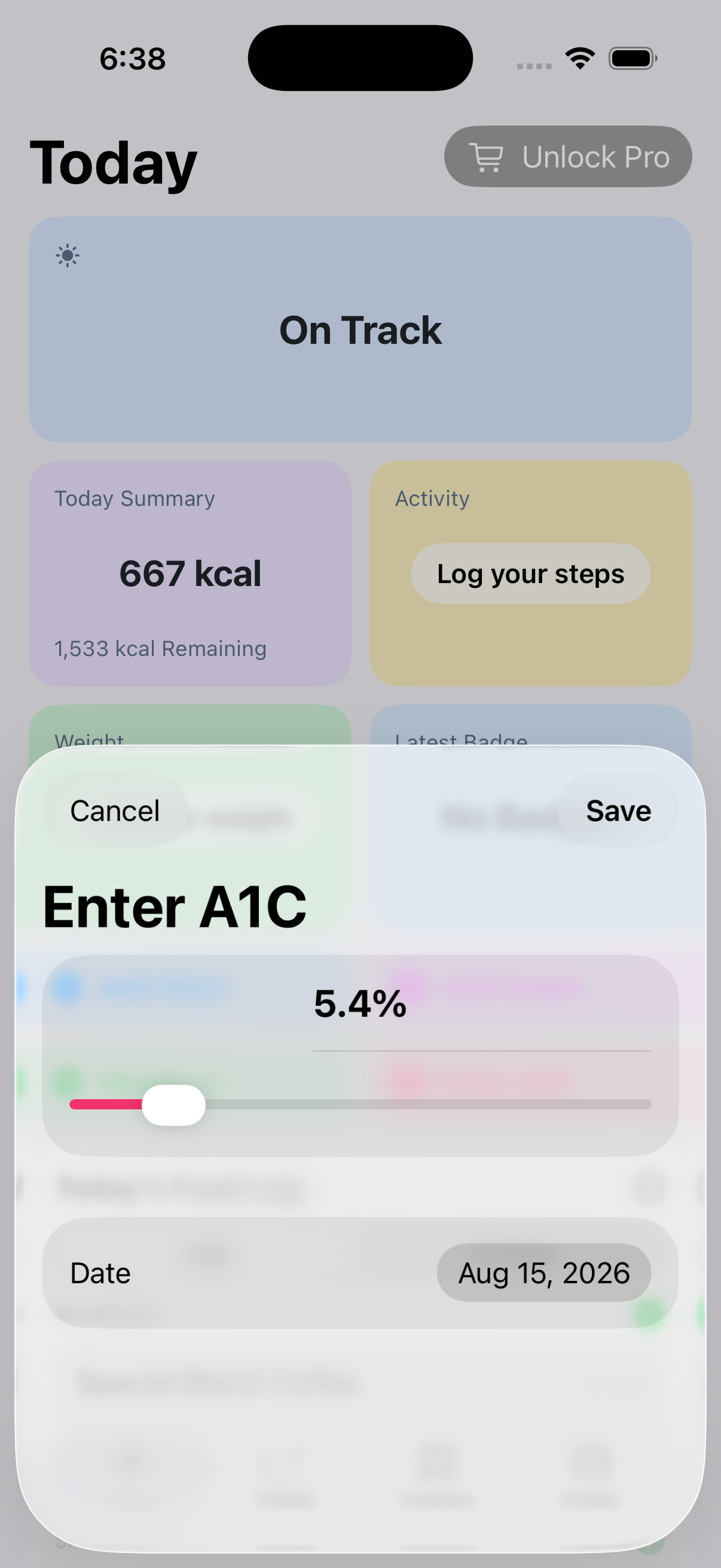
- Tap Enter A1C.
- Set the result value to the number shown on your source report.
- Choose the date associated with that result. Use the report date consistently rather than today’s date when adding older history.
- Tap Save. Confirm that the value now appears on the selected date in History and on the chart.
Read the tracker
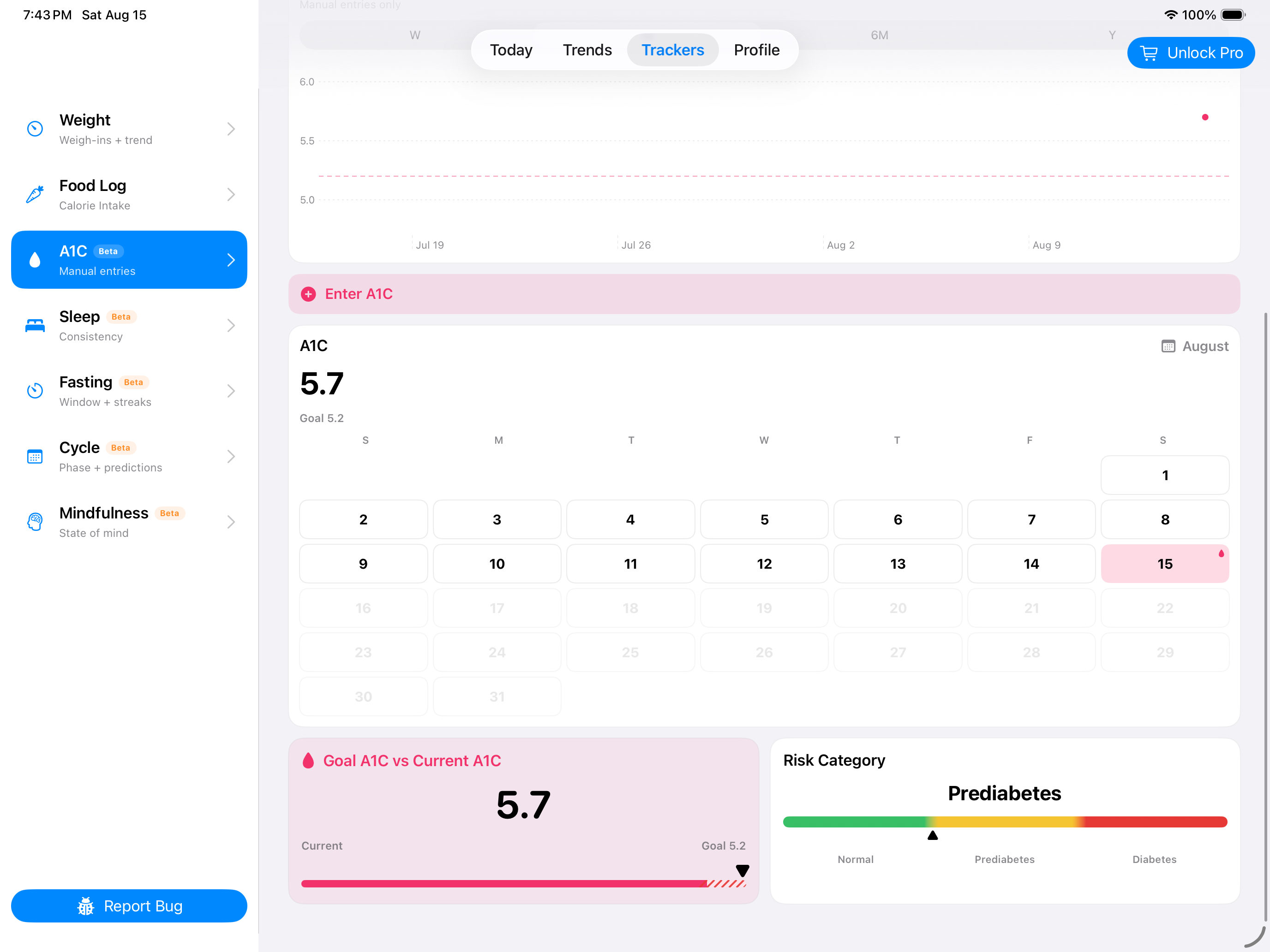
- Trend plots saved results in date order. Change the range between Week, Month, 6 Months, and Year to answer different questions about your history.
- Calendar shows which days contain a result. Select a marked day when you need the exact value behind a chart point.
- Goal vs. Current compares the latest saved value with the A1C goal you entered in Profile. The goal is your reference value, not a recommendation generated by BeFit Tracker.
- Risk Category is informational context calculated from the saved value. It cannot account for your history, laboratory method, symptoms, or clinician’s assessment.
- History is the source of truth inside the app. Use it to verify dates and values before drawing conclusions from the chart.
Correct or remove a result
- In History, find the day containing the incorrect result.
- Choose Edit to reopen that day, change the value or date, and save it.
- Choose Delete only when the result should not remain in BeFit Tracker, then confirm the deletion.
- Check the latest value, goal comparison, category, calendar, and chart again. Each can change when the newest result or its date changes.
Use A1C as part of your larger history
A1C reflects a longer period than a single day, so it is most useful beside your dated routines rather than treated as a daily score. BeFit Tracker lets you compare its direction with weight, food, activity, sleep, and other records over similar ranges. A visual change alongside another trend is a prompt to review your records, not proof that one caused the other.
If a result is missing on another device
Keep iCloud synchronization enabled on both devices and allow the current sync to finish before entering the result again. Mac receives supported A1C records through BeFit Tracker’s iCloud data; it does not read Apple Health directly.
A1C tracking is informational and in Beta. BeFit Tracker does not validate a laboratory result, diagnose a condition, recommend treatment, or decide whether your personal goal is appropriate.