 BeFit Tracker Help
Mac tracker guide
Fasting tracking on Mac
Start or log fasting sessions and understand active timing, weekly consistency, completion results, trends, and history.
The Mac Fasting tracker separates a session that is happening now from sessions that are already complete. Every record has a plan and start time; completed records also have an end time. Those facts drive duration, completion percentage, weekly markers, plan results, and trends.
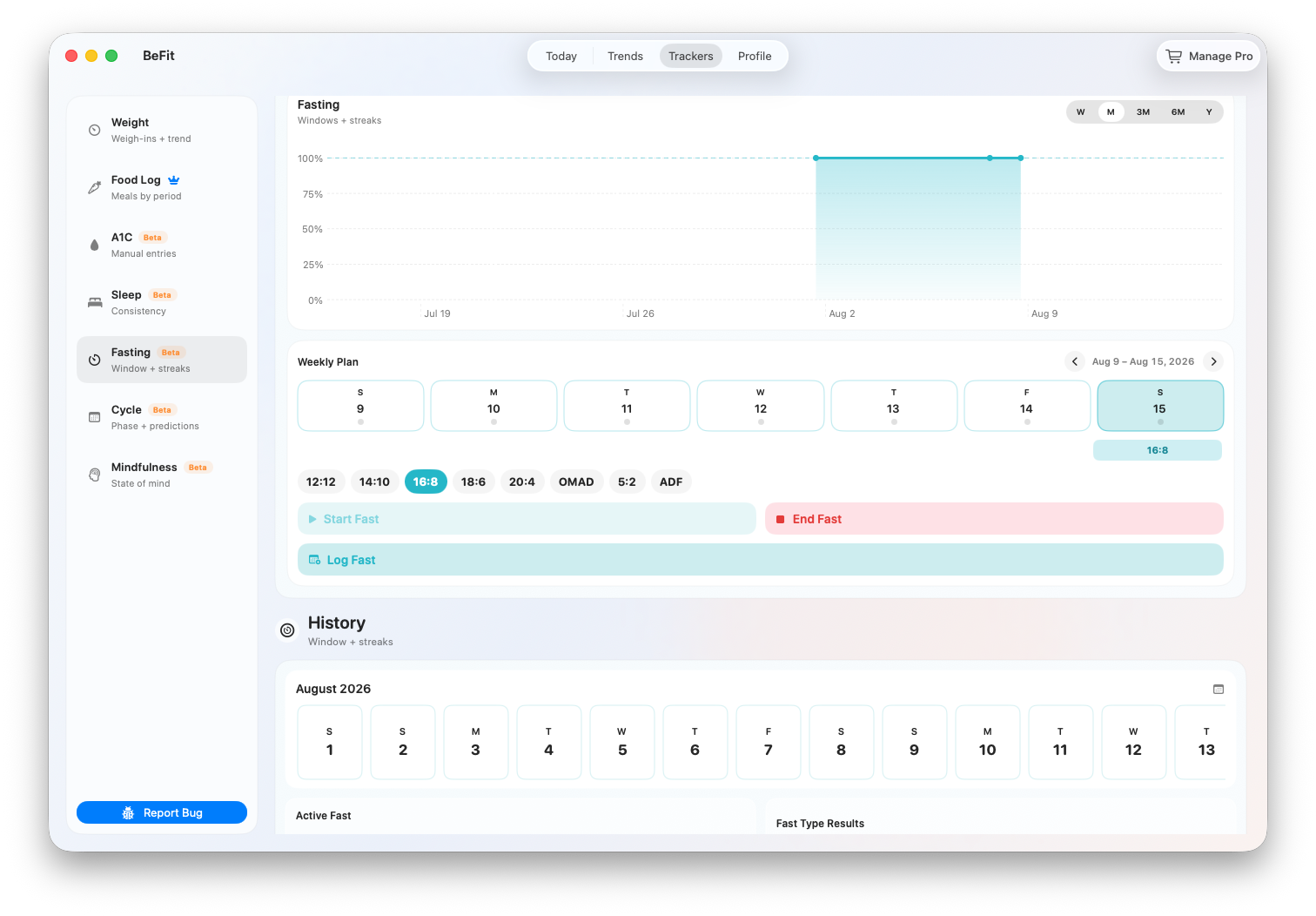
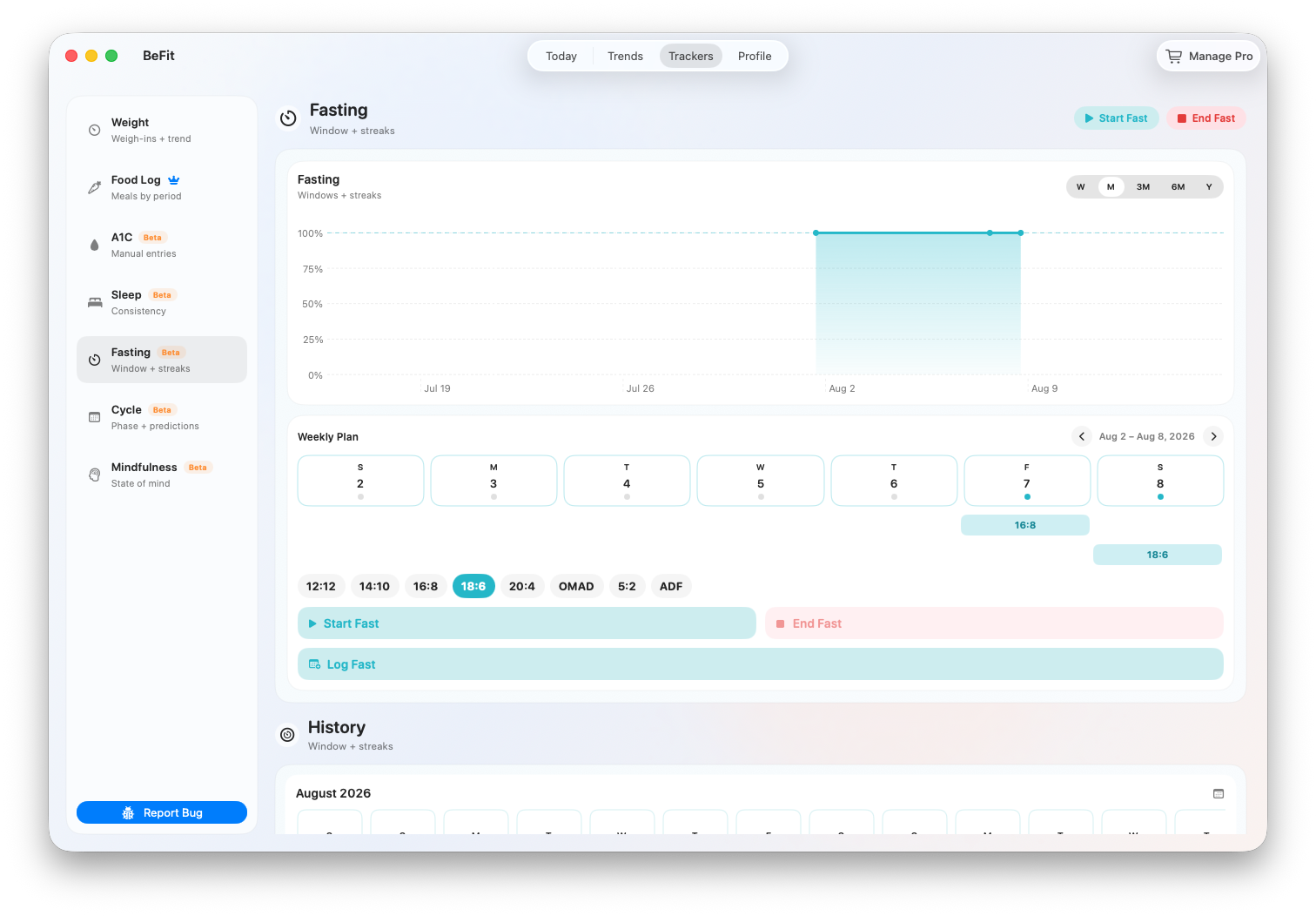
12:12, 14:10, 16:8, 18:6, 20:4, OMAD, 5:2, and ADF describe target durations in the app. They are not recommendations and do not establish that fasting is appropriate for you.
Start a live fast
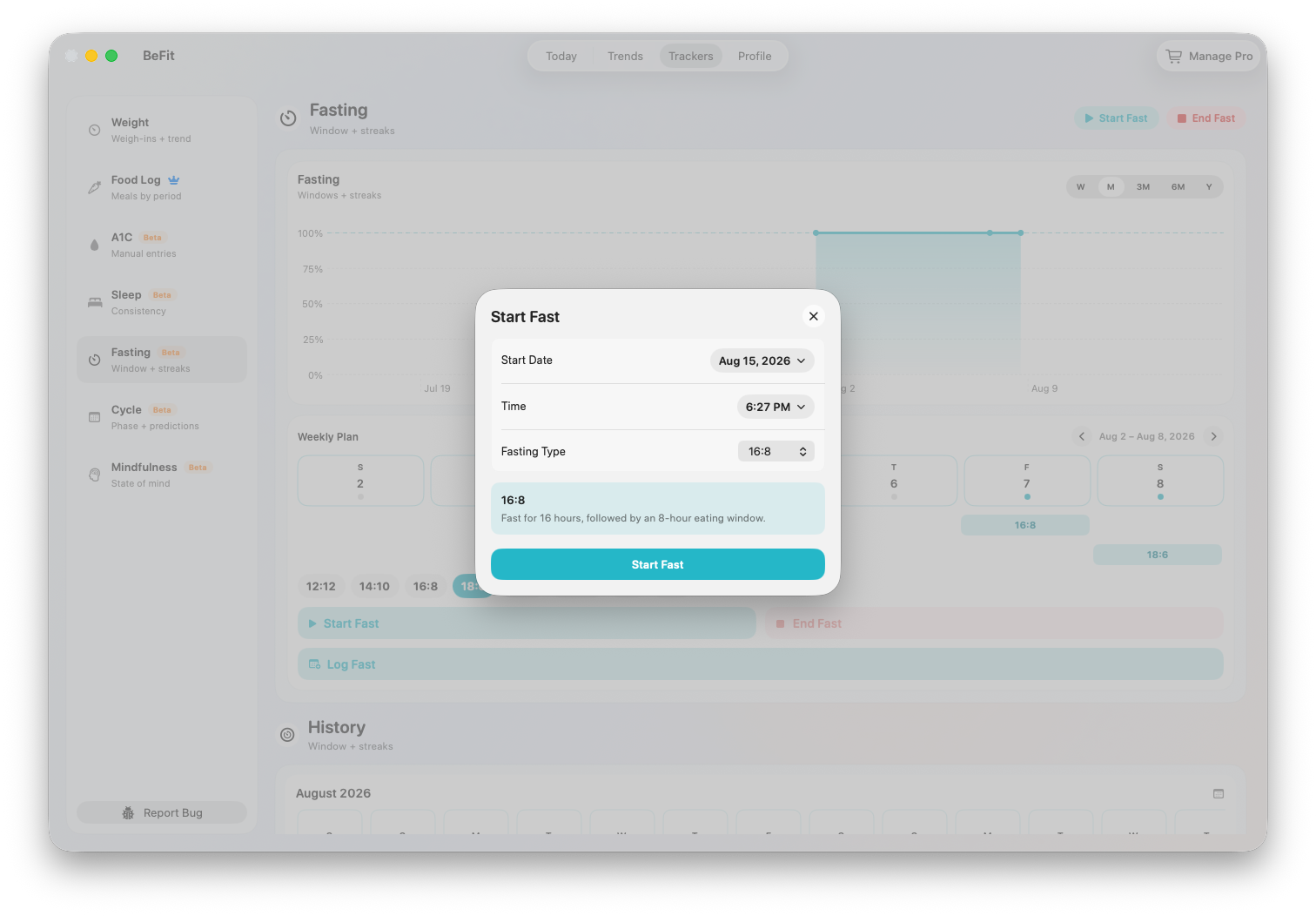
- Open Trackers → Fasting and choose Start Fast.
- Select the plan that matches the session you intend to record.
- Confirm the actual start date and time, then save.
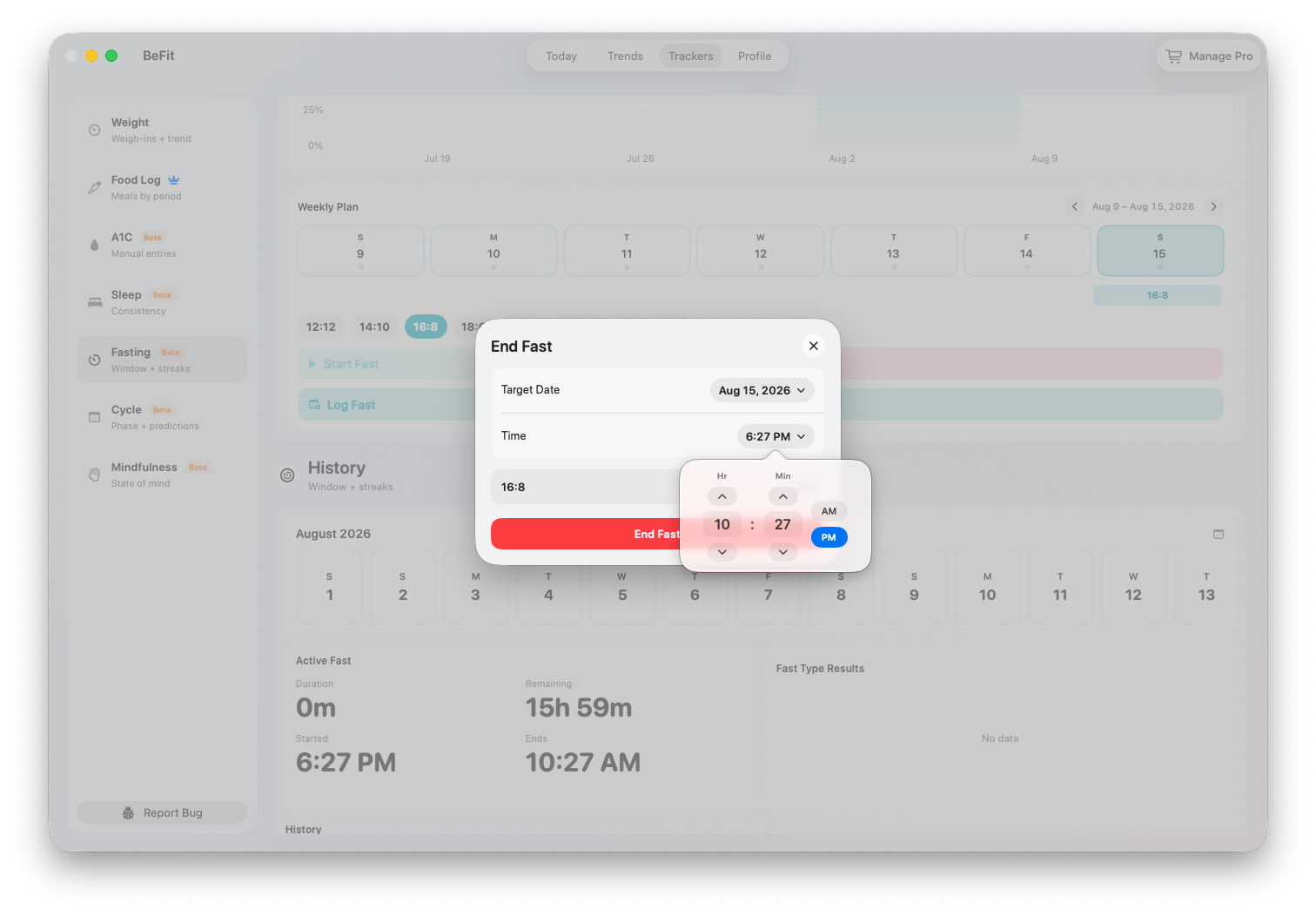
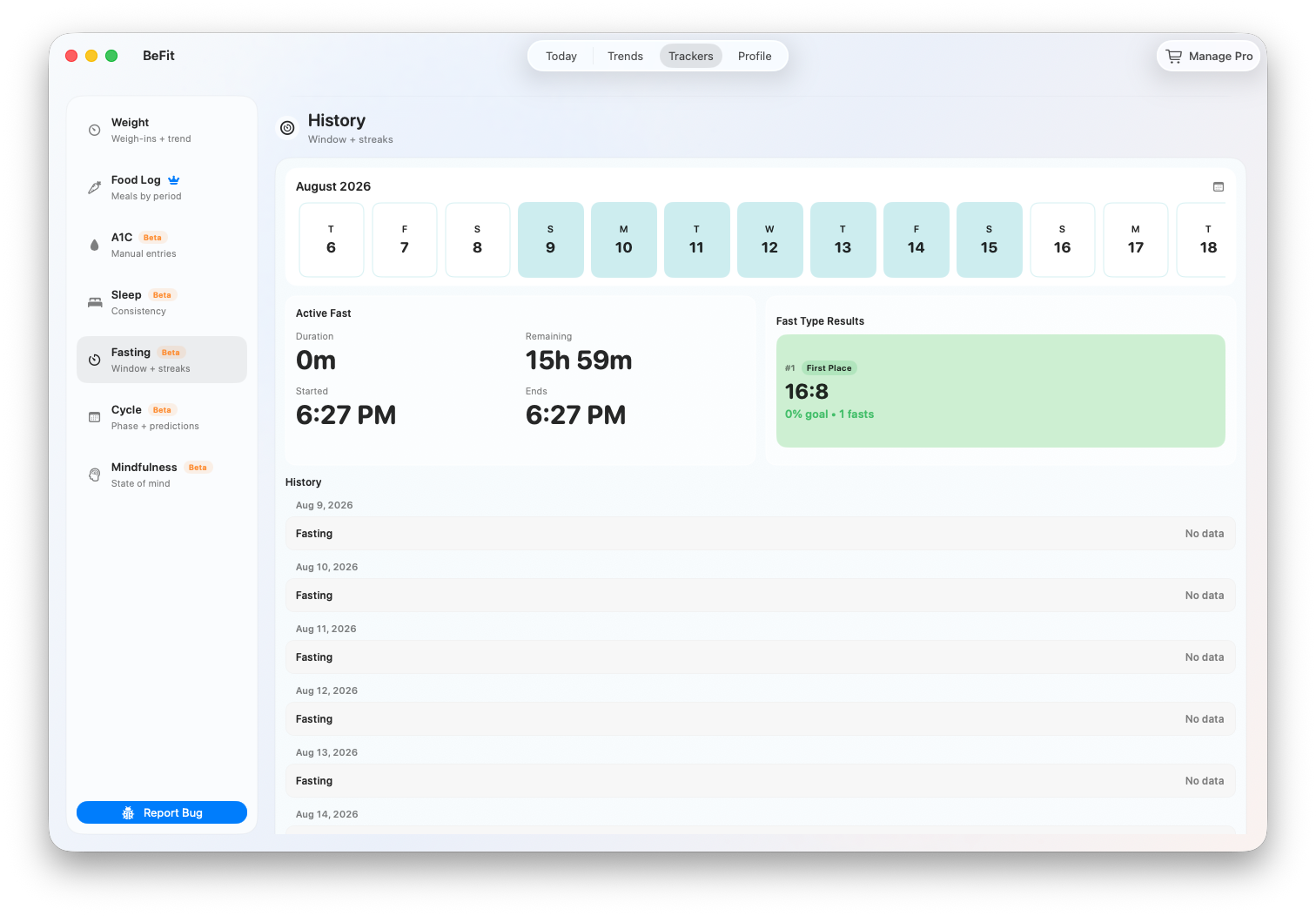
- Follow the Active Fast card for elapsed time, remaining time, recorded start, and calculated target end.
- Choose End Fast when the session finishes, confirm the end time, and save.
Only one fast can be active at a time. BeFit Tracker rejects overlapping sessions so the same period is not represented twice.
Log a session that already ended
- Choose Log Fast.
- Select the plan, start date and time, and end date and time.
- Make sure the end follows the start and that the range does not overlap an existing session.
- Save and verify the plan, duration, and completion percentage in History.
Understand the workspace
- Active Fast shows the one unfinished session, if present.
- Completion percentage compares actual duration with the selected plan’s target. It measures timing, not health benefit.
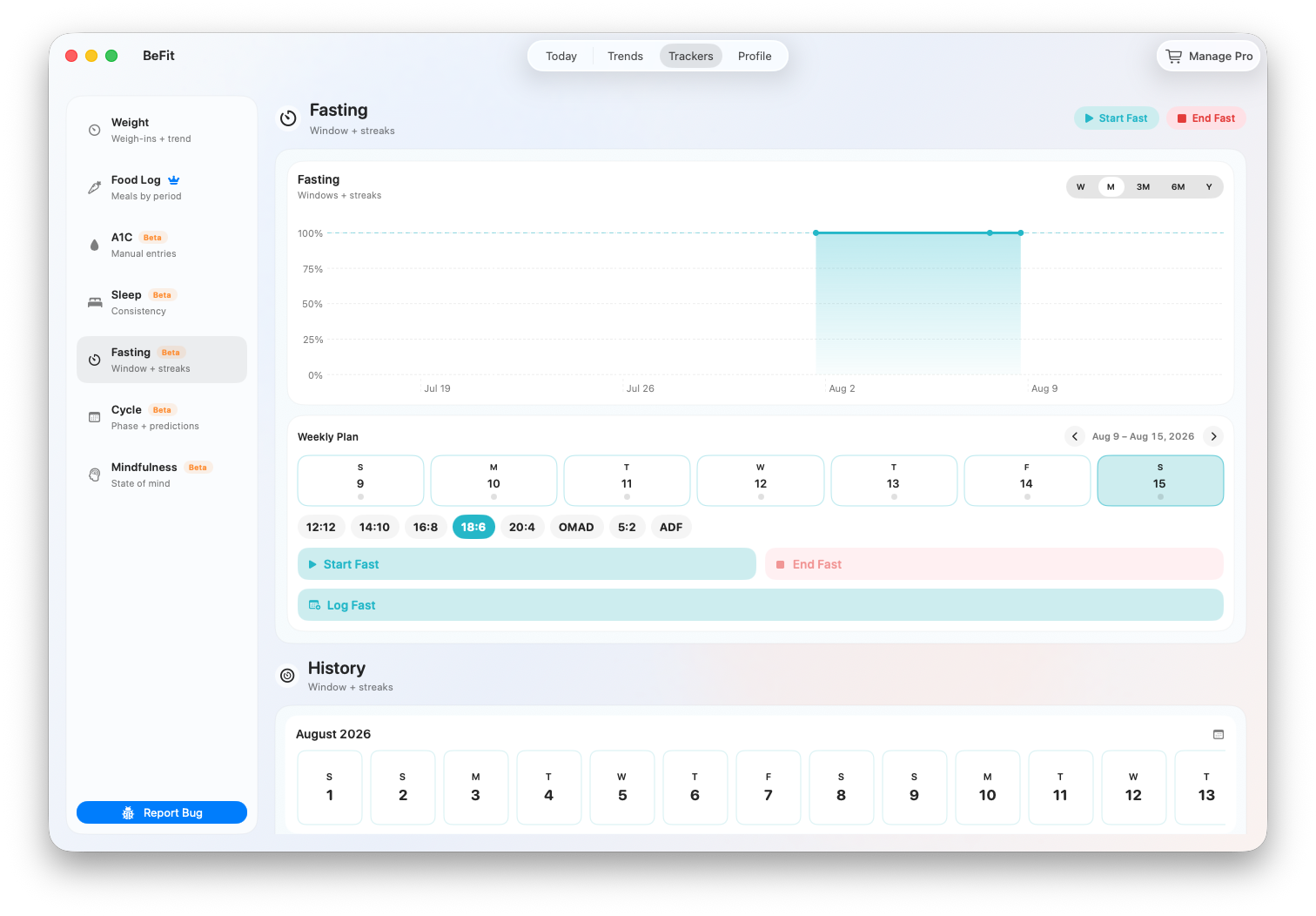
- Weekly Plan marks days containing completed sessions and lets you move through weeks.
- Fast Type Results groups completed sessions by plan, then ranks up to four types by average completion and completed count.
- Trend uses completed sessions across Week, Month, 6 Months, or Year.
- History preserves exact plan, start, end, duration, and active state.
Correct or delete a session
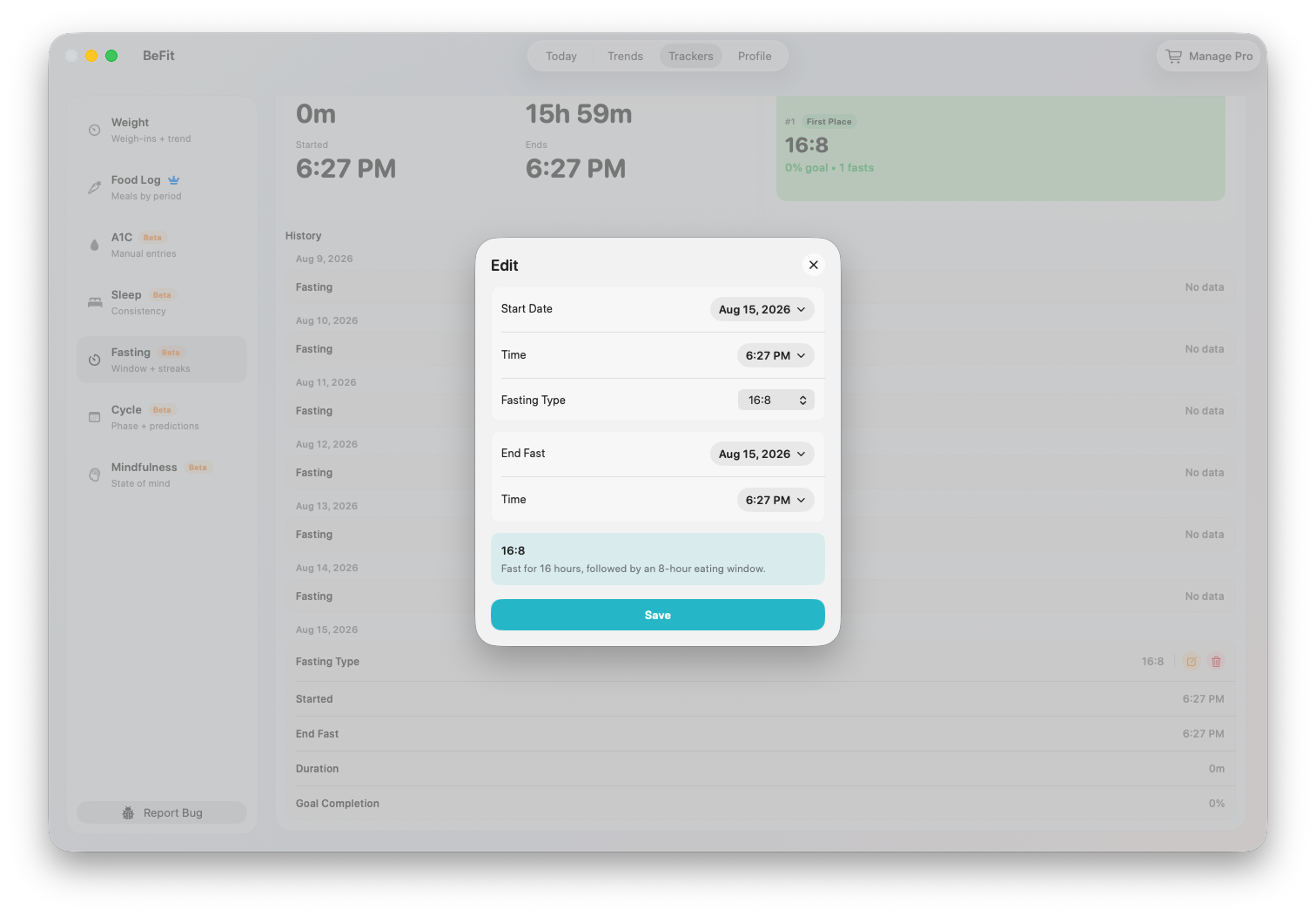
- Find the session in History and choose Edit.
- Correct its plan, start time, or end time. An active session has no end time until it is finished.
- Save, then check duration, completion, the weekly marker, plan results, and trend.
- Choose Delete and confirm only when the entire session should be removed.
Use fasting history with other trends
Longer ranges can show when fasting was part of your routine and how closely saved sessions matched their selected plans. Place those dates beside your own food, sleep, weight, or mindfulness history when useful, but do not interpret a visual relationship as proof of safety, effectiveness, or cause.
Fasting is a Beta tracker. Stop or change a session based on your needs and appropriate professional guidance, not because the app displays a remaining time or target end.