 BeFit Tracker Help
Mac tracker guide
Weight tracking on Mac
Record timed weigh-ins, daily steps, and BMI calculations, then use goals, history, and trends to understand progress.
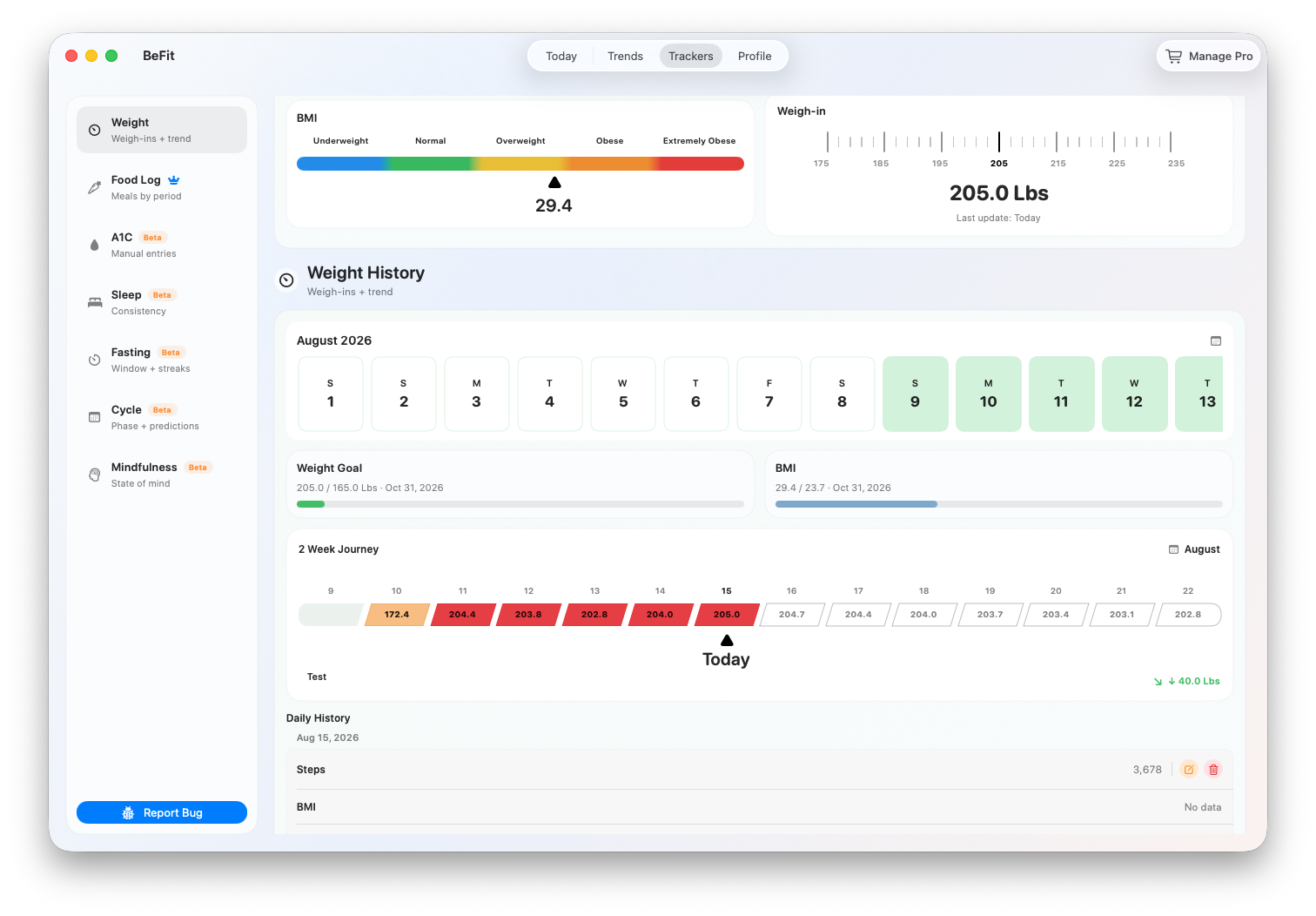
The Mac Weight tracker combines timed weigh-ins, a daily step total, BMI calculations, goal context, and a year of dated history. These are separate records: correcting a BMI row does not change a weigh-in, and changing steps does not rewrite weight.
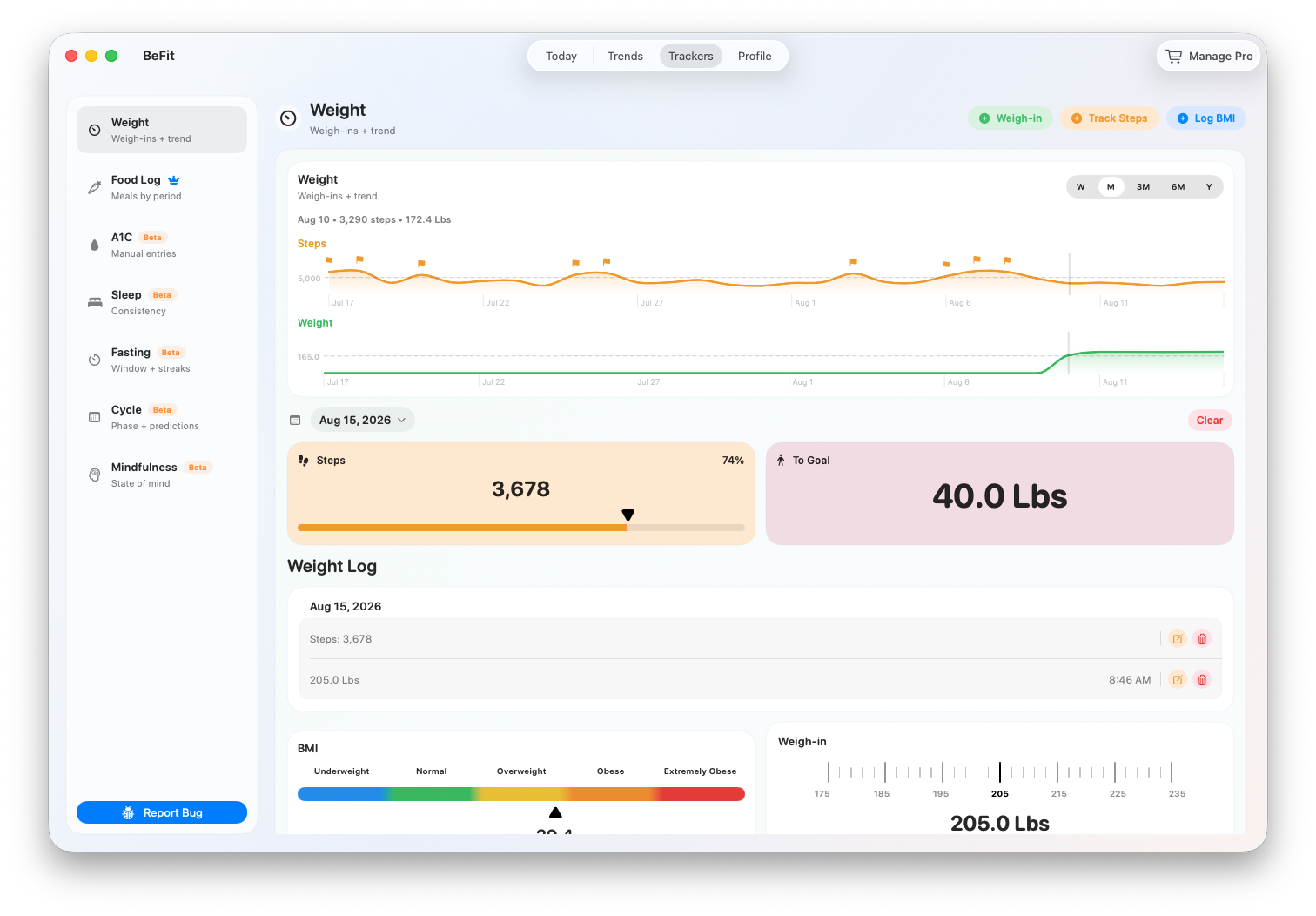
Select the date first
- Open Trackers → Weight.
- Use the date control to choose the day you want to review or update.
- Check History before adding an older measurement. A day can contain more than one timed weigh-in or BMI row.
Record a weigh-in
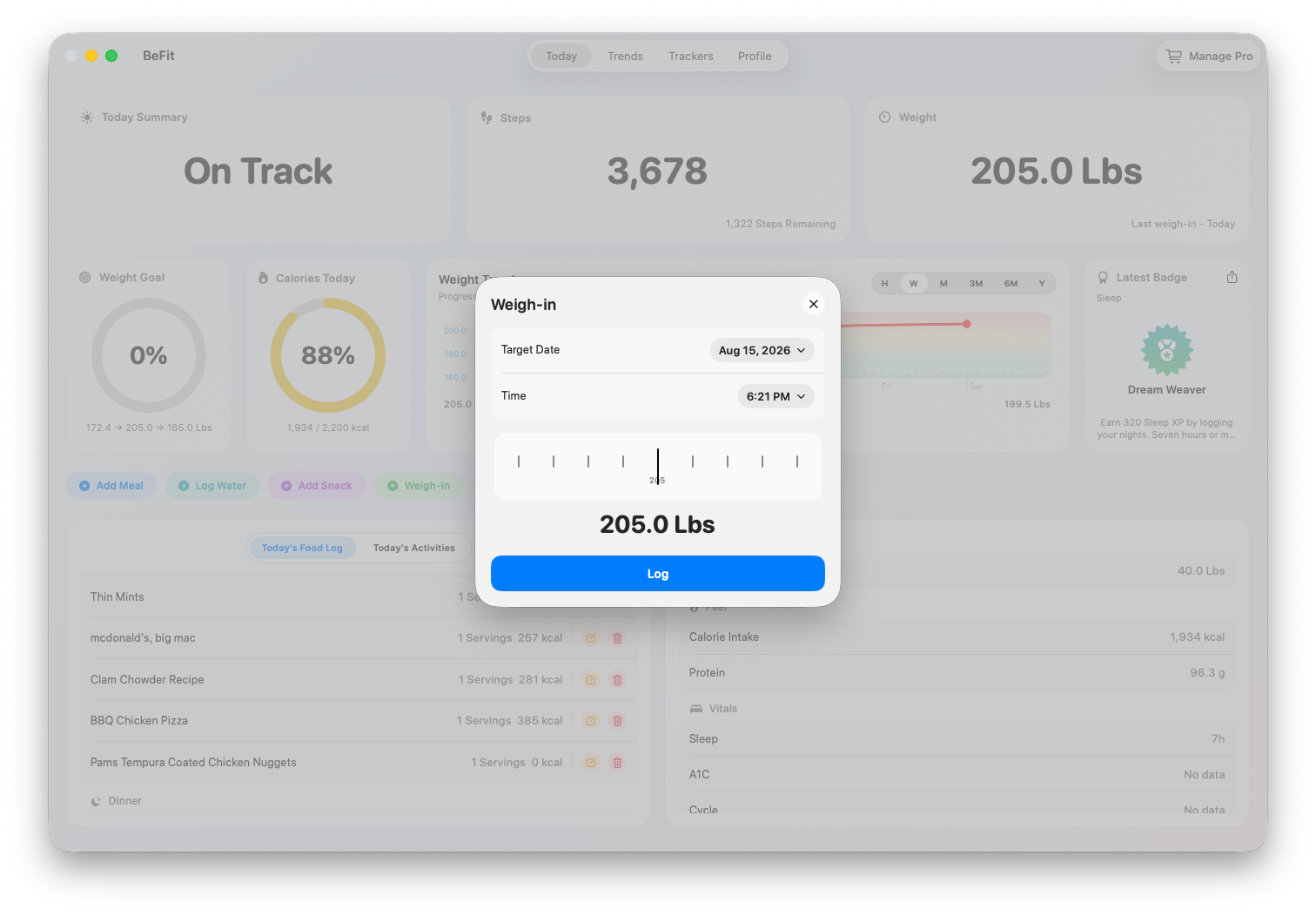
- Choose Weigh In.
- Enter the measured weight using the unit system selected in Profile.
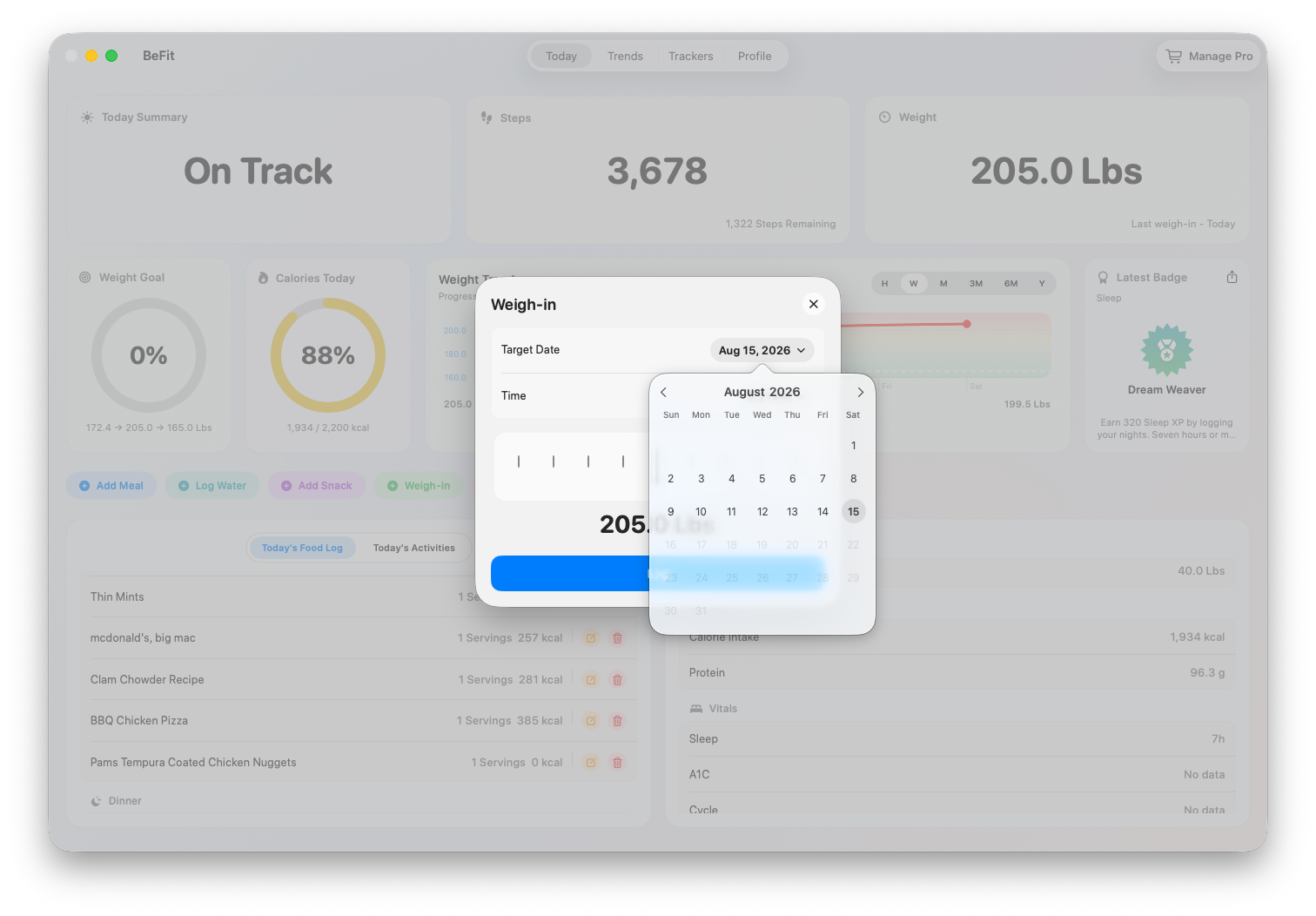
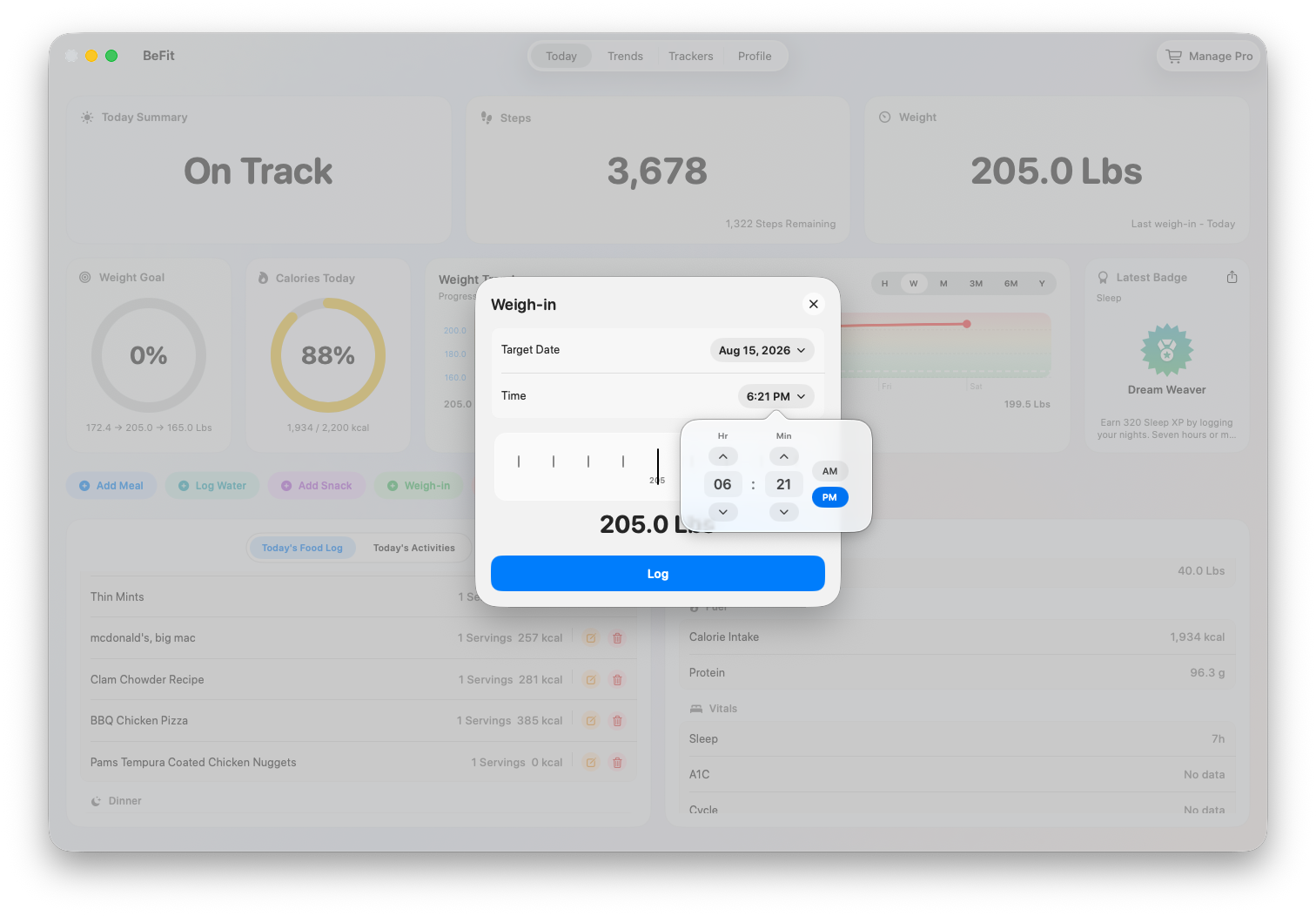
- Set the actual date and time of the measurement.
- Save and confirm that a new timed row appears in History.
When a day contains several weigh-ins, the latest timed record supplies the current weight for that day. The most recent saved day supplies the broader current-weight summary.
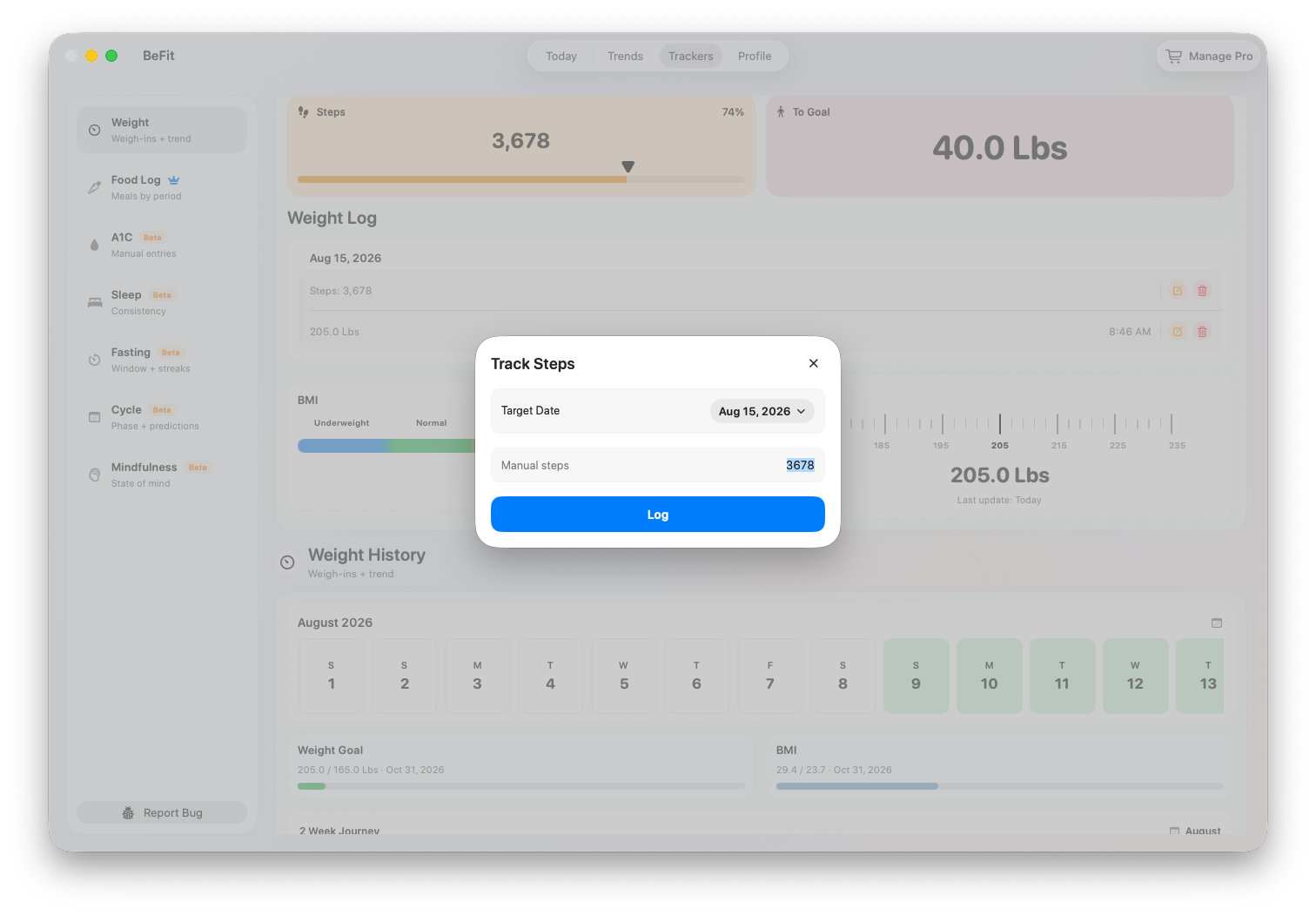
Enter or correct daily steps
- Select the day and choose Track Steps.
- Add the number represented by this entry and save.
- Use the day’s edit control to replace the total when the displayed total itself is wrong.
- Use Clear only when all steps for that day should be removed.
Mac does not read Apple Health directly. Supported Health-sourced steps originate on iPhone or iPad and reach Mac through BeFit Tracker’s iCloud synchronization. Wait for sync before manually reproducing a mobile total.
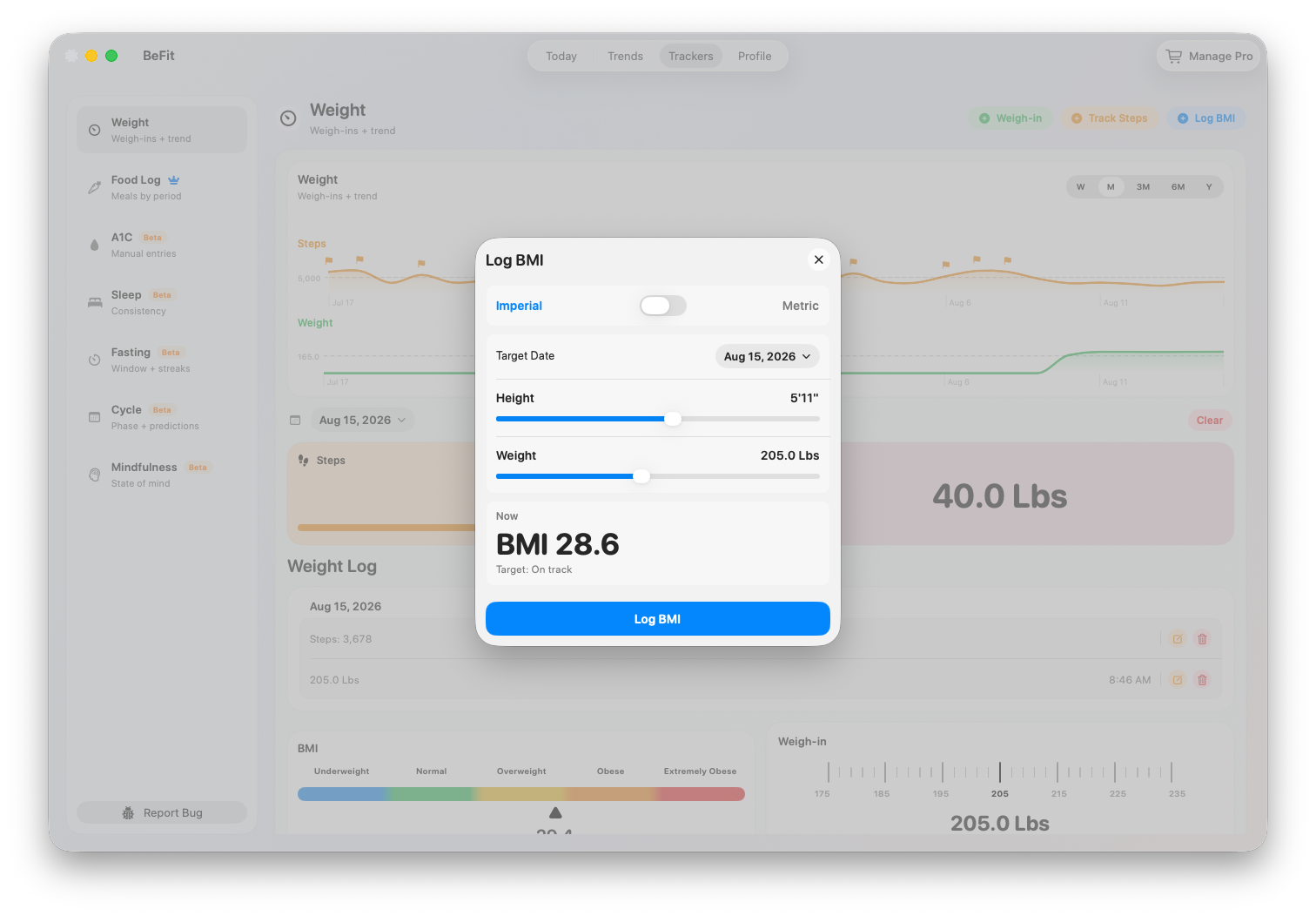
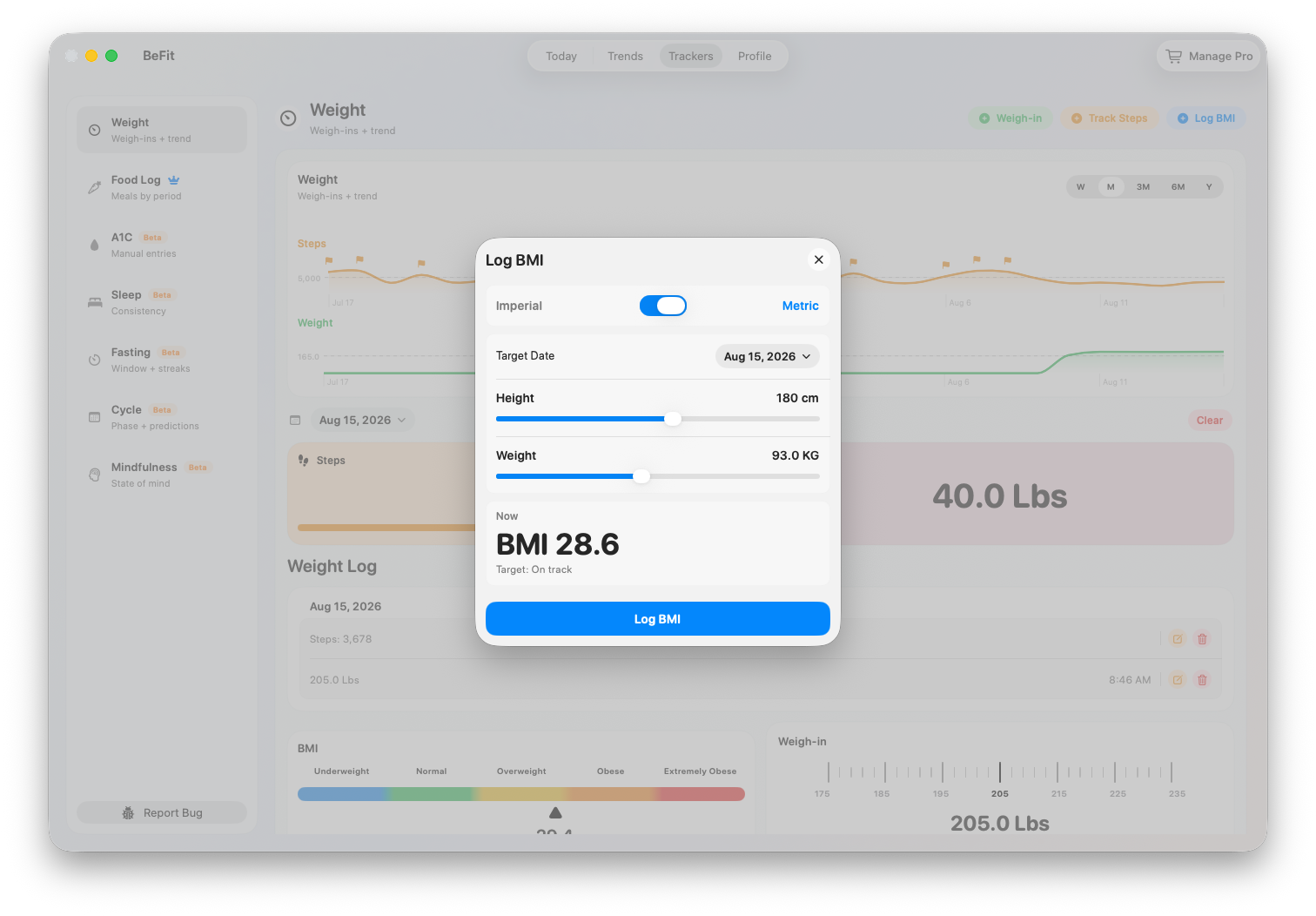
Calculate and save BMI context
- Select the date and choose Log BMI.
- Confirm the height and weight used for the calculation.
- Save the calculated BMI with its date and time.
- Return to History to verify the source measurements when the result looks unexpected.
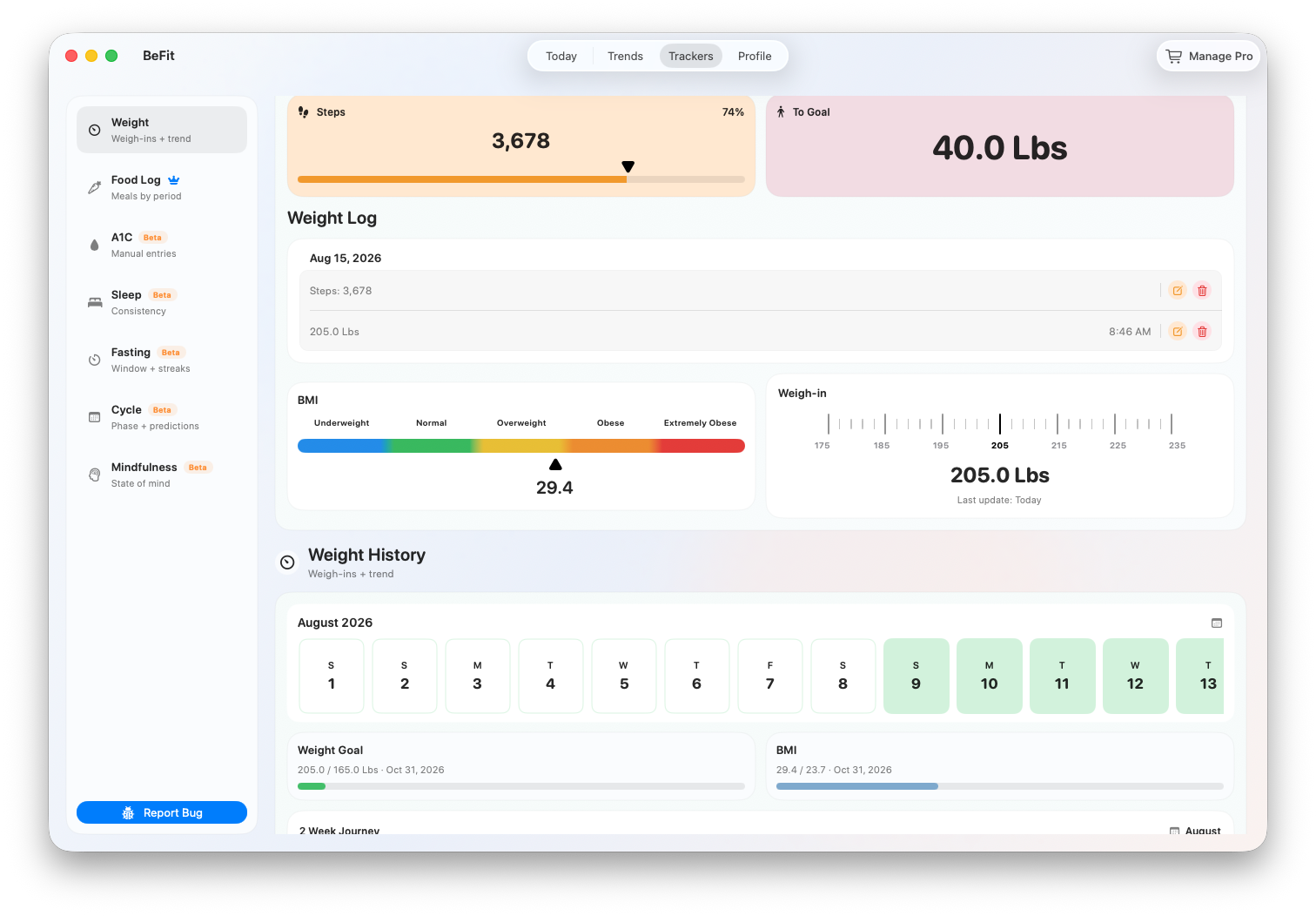
Read goals, history, and trend together
- Current vs. Target compares the latest applicable weight with the goal saved in Profile.
- Trend plots timed weigh-ins so one short-term fluctuation does not have to carry the whole story.
- History lists the exact measurements behind the chart and is the correct place to make a correction.
- Daily steps can provide activity context for the same dates, but a visual relationship does not prove cause.
Correct or delete history
- Select the date and locate the exact record.
- Edit a weigh-in to change its value, date, or time. Delete only the incorrect row when other weigh-ins exist that day.
- Replace or clear the daily step total as appropriate.
- Delete the day’s BMI entries when their source measurements were wrong, then save a corrected calculation if needed.
- Review the current value, target comparison, and trend after the change.
Weight, steps, and BMI vary and have different limitations. BeFit Tracker organizes your records and goals; it does not diagnose health, prescribe a target, or guarantee an outcome.