 BeFit Tracker Help
Mac tracker guide
A1C tracking on Mac
Record A1C results, inspect exact history, compare a personal goal, and understand changes over time on Mac.
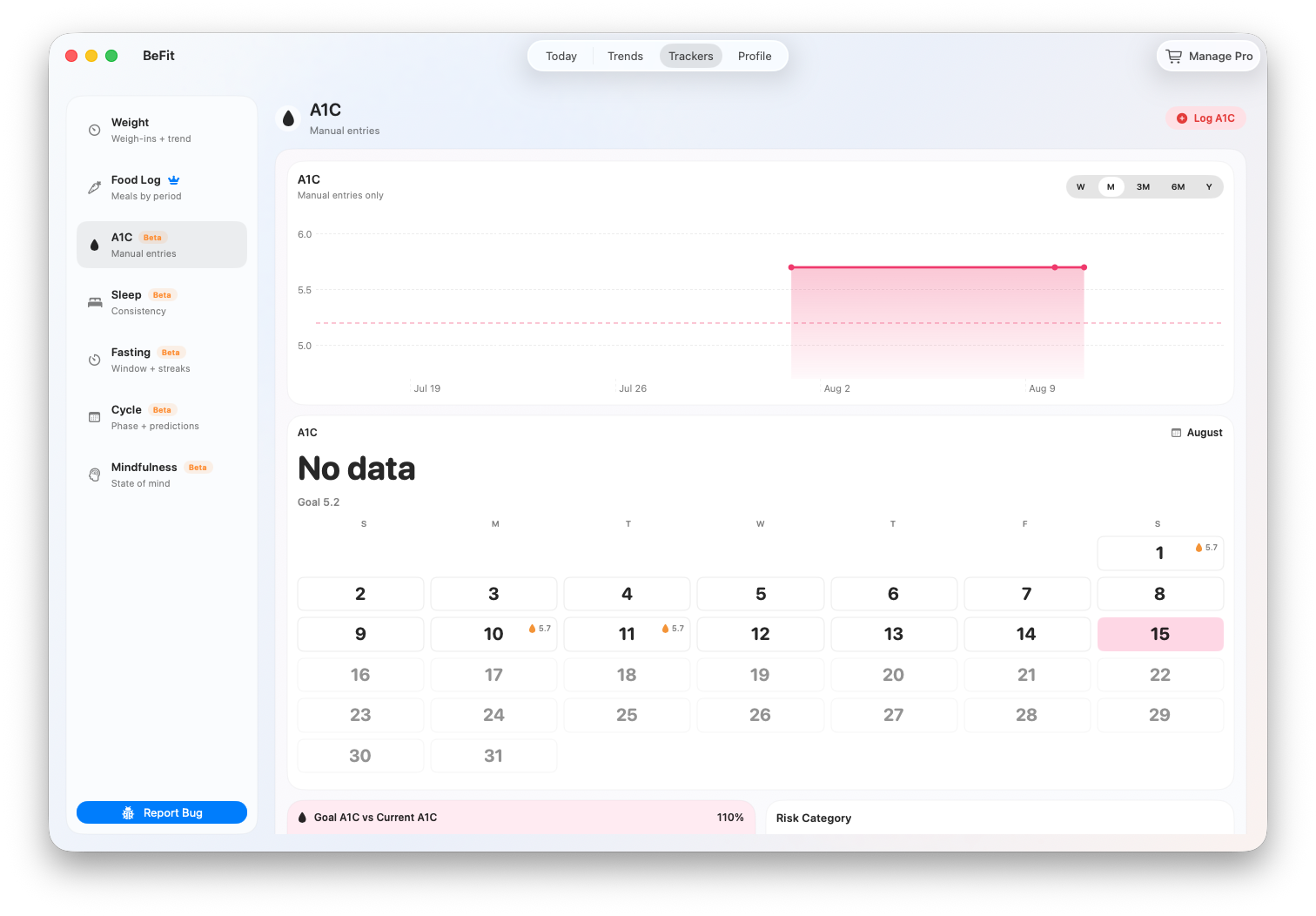
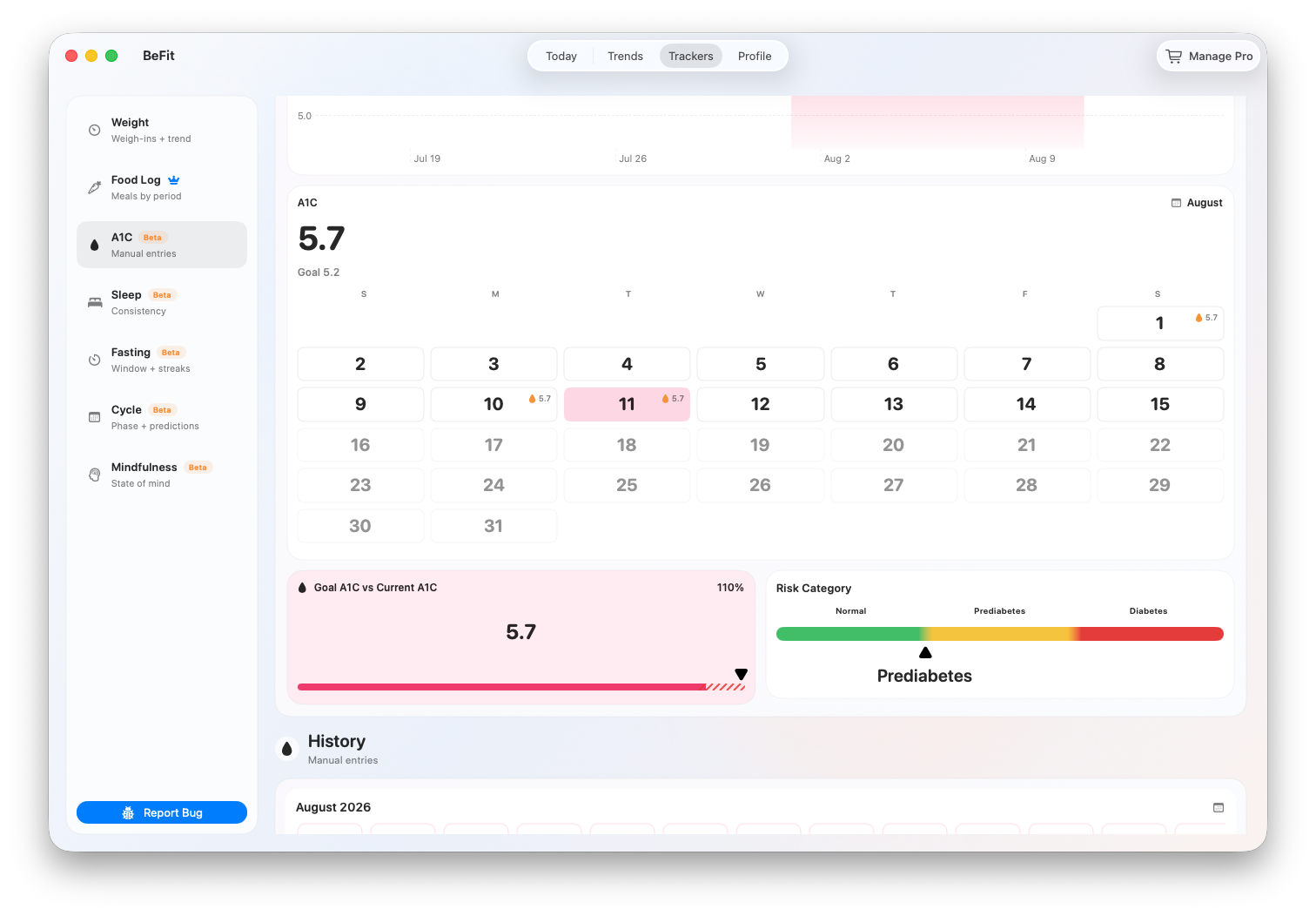
The Mac A1C tracker places the trend, calendar, latest result, personal goal, informational category, and dated history in one view. Each day stores one A1C result, so editing a day updates every summary that depends on it.
Open the A1C tracker
- Select Trackers in the main navigation.
- Choose A1C from the tracker list.
- Before adding anything, check History for the result date. If the record arrived from another BeFit Tracker device through iCloud, entering it again is unnecessary.
Record a laboratory result
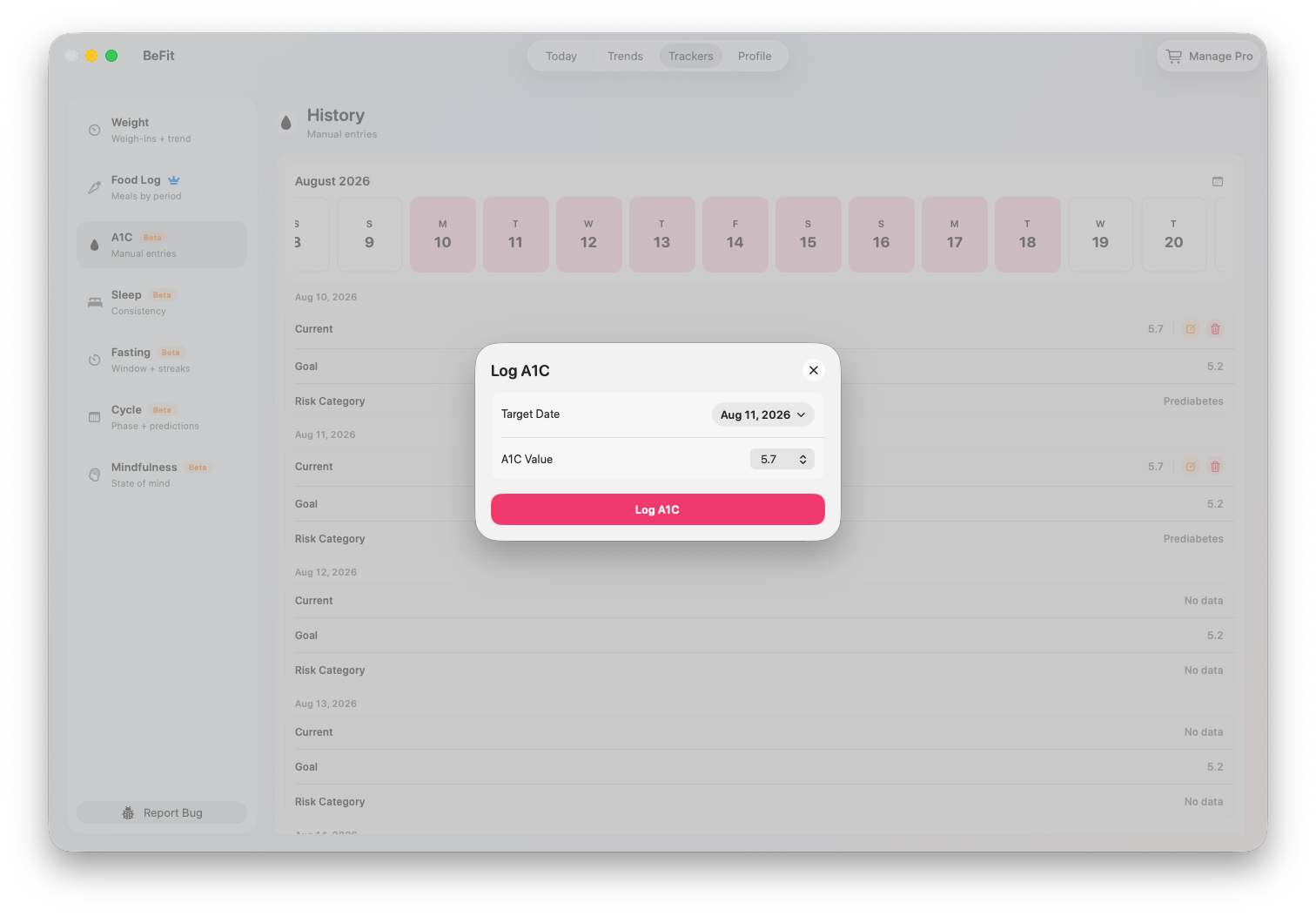
- Choose Enter A1C.
- Set the value to the number shown on the original laboratory report or other reliable source.
- Choose the date associated with that result. When adding older history, do not leave today selected by accident.
- Review the value and date together, then choose Save.
- Confirm the result appears in History, on the calendar, and as a point in the appropriate trend range.
Read each part of the workspace
- Trend plots results chronologically. Switch between Week, Month, 6 Months, and Year to change the history being considered.
- Calendar marks days with a saved result. Select a marked day to connect a chart point with its exact value.
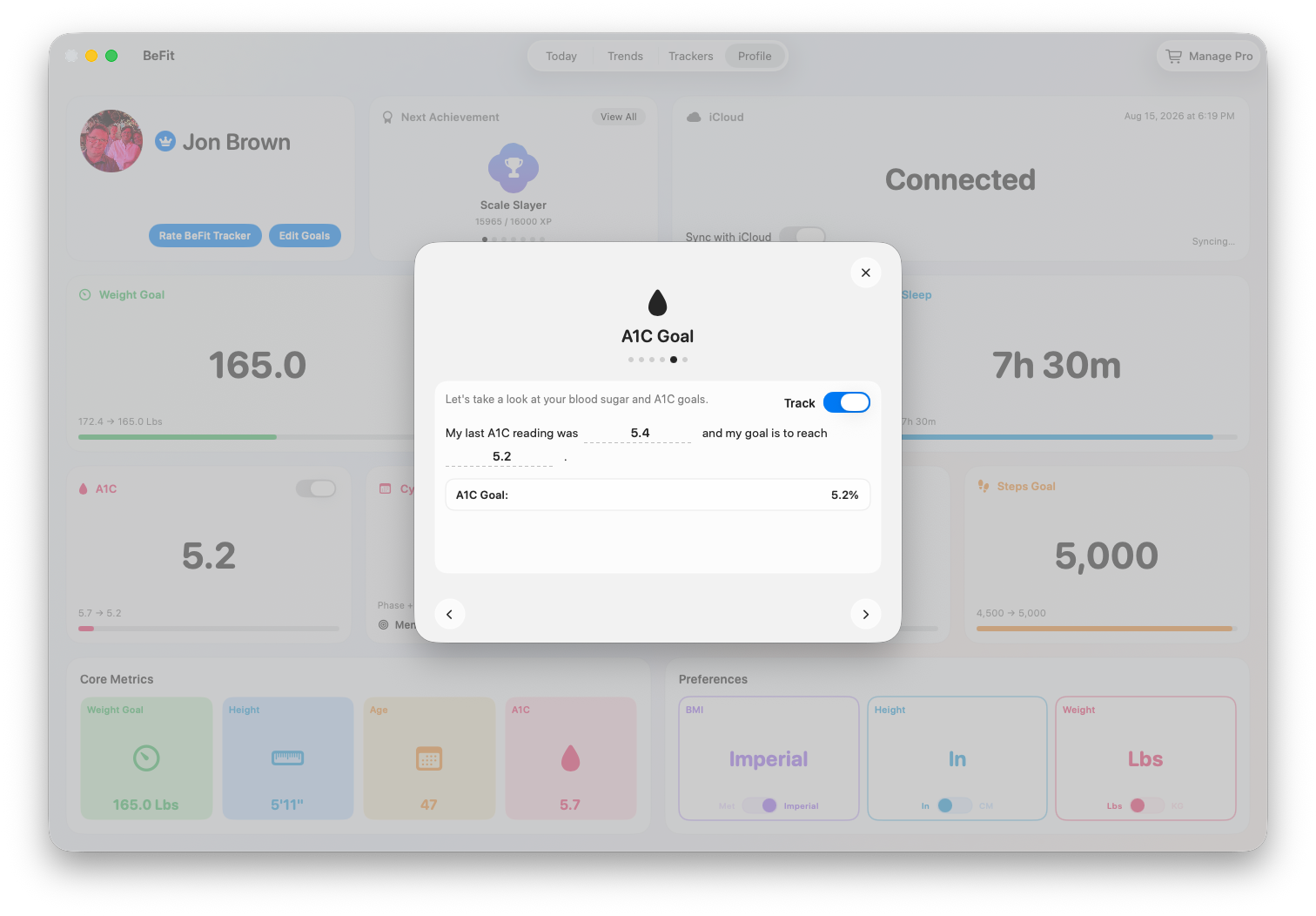
- Goal vs. Current compares the latest result with the goal saved in Profile. BeFit Tracker does not choose that goal or determine whether it is appropriate.
- Risk Category is informational context derived from the value. It cannot incorporate laboratory method, personal history, symptoms, or clinical judgment.
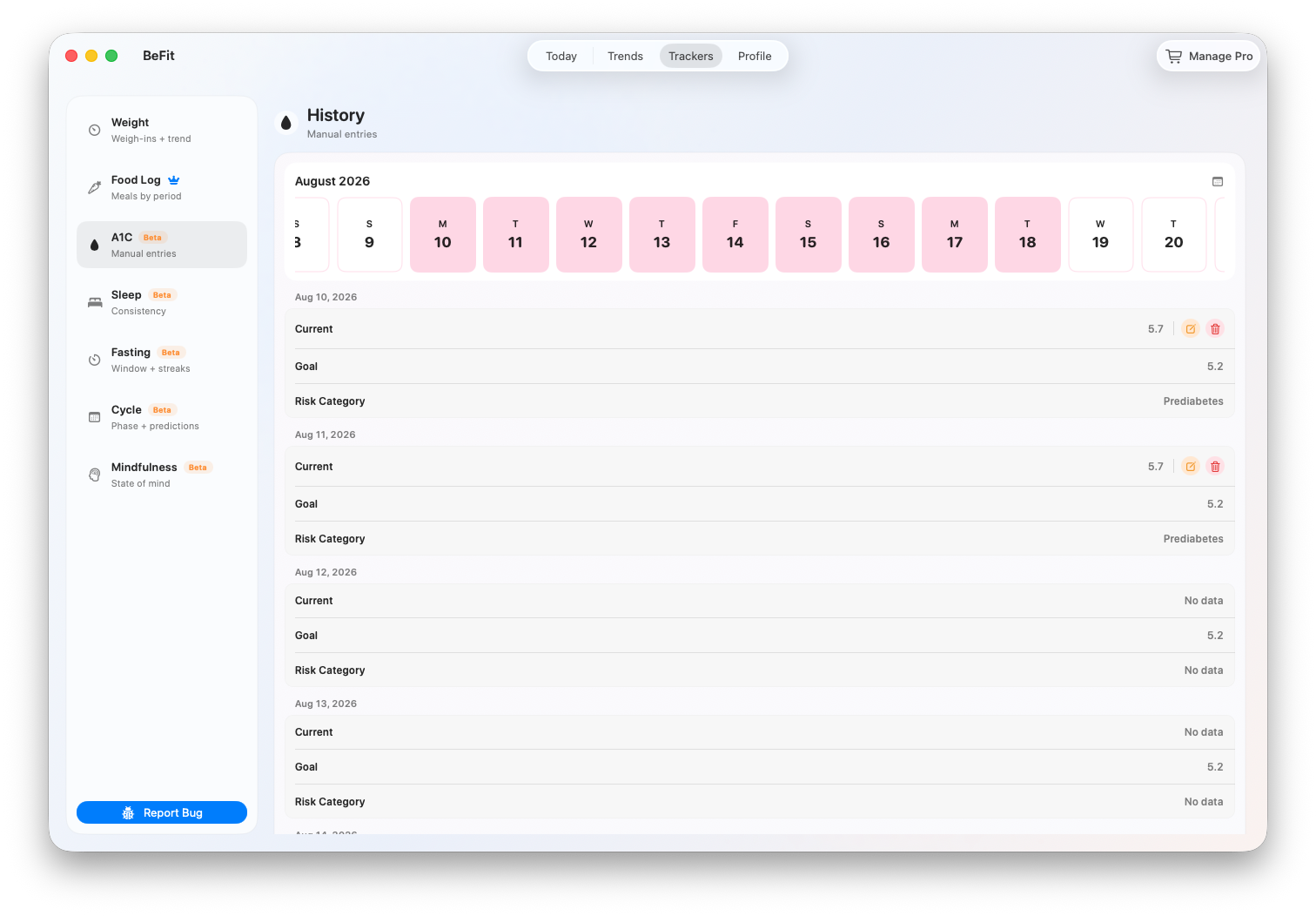
- History is the record-level view and the place to make corrections.
Correct or delete a result
- Locate the date in History and open its action menu.
- Choose Edit to change the value or move the result to the correct date, then save.
- Choose Delete only when the result should be removed, then confirm.
- Review the latest value, goal comparison, category, calendar, and chart after the change. The newest result and trend can change immediately.
Compare A1C with longer-term routines
A1C is not a daily measurement. Use the longer trend ranges when placing results beside your own food, weight, activity, sleep, or other dated history. A visual relationship can help you prepare questions for a qualified professional; BeFit Tracker does not claim that one trend caused another.
If mobile and Mac disagree
Mac does not read Apple Health directly. It displays manual records and supported BeFit Tracker data reconciled through iCloud. Keep both devices online with iCloud synchronization enabled, allow the sync to finish, and compare the exact date before creating another record.
Use the original laboratory result and qualified medical guidance as the authority. BeFit Tracker does not validate results, diagnose a condition, recommend treatment, or select a clinical goal.