 BeFit Tracker Help
Personal foods
Build your User Food Library
Copy, create, edit, organize, and safely delete personal foods in BeFit Tracker Classic.
The User Food Library is the editable, offline area for foods you want to maintain yourself. It stays separate from the bundled catalog.
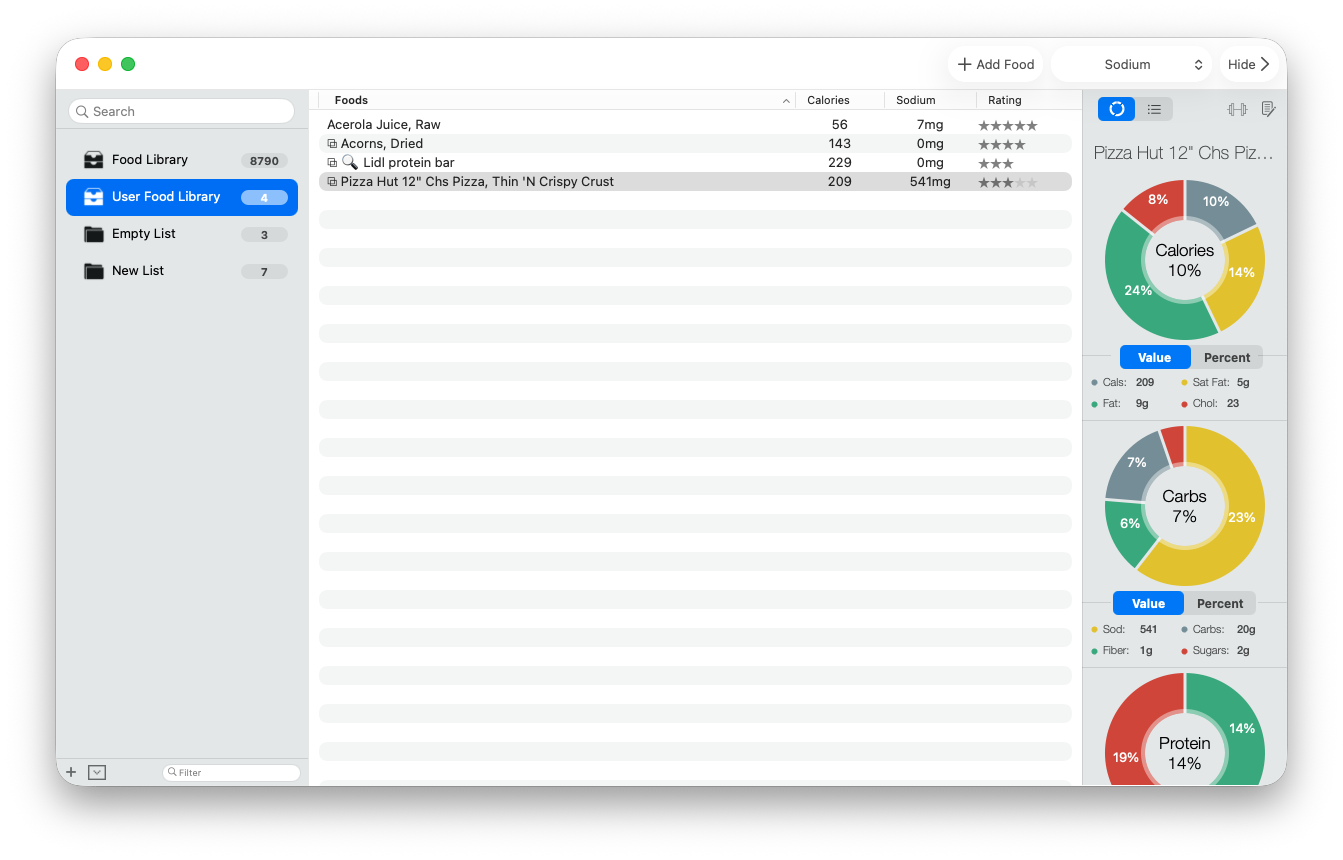
Copy a catalog food
- Find the food in the main Food Library.
- Drag its row to User Food Library in the sidebar.
- Classic creates a personal copy without changing the source catalog record.
- Reuse that personal food in other folders as needed.
Create a food manually
- Select User Food Library.
- Choose Add Food, then select Create Custom Food.
- Enter the food name and the nutrition values available from your source.
- Review the entry and save it to the User Food Library.
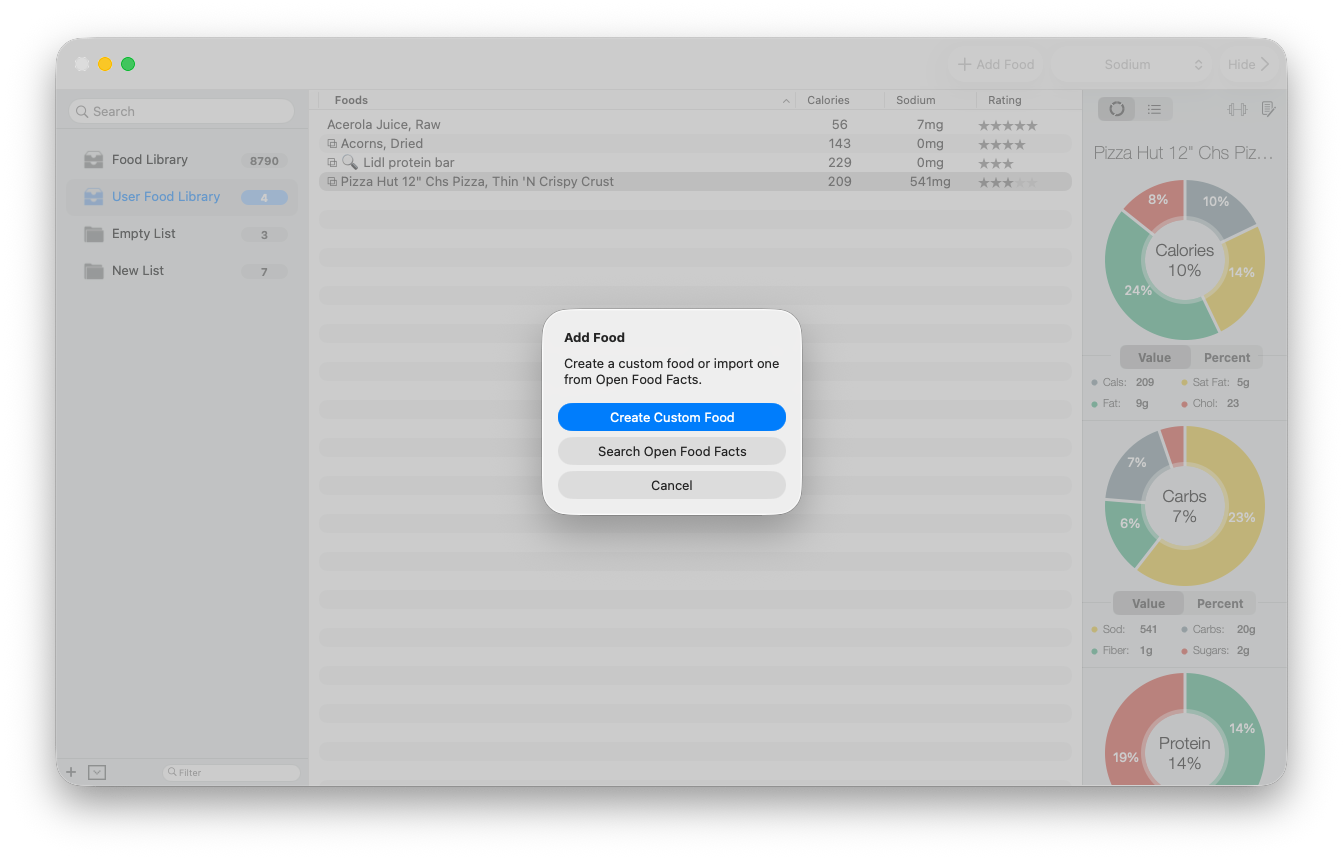
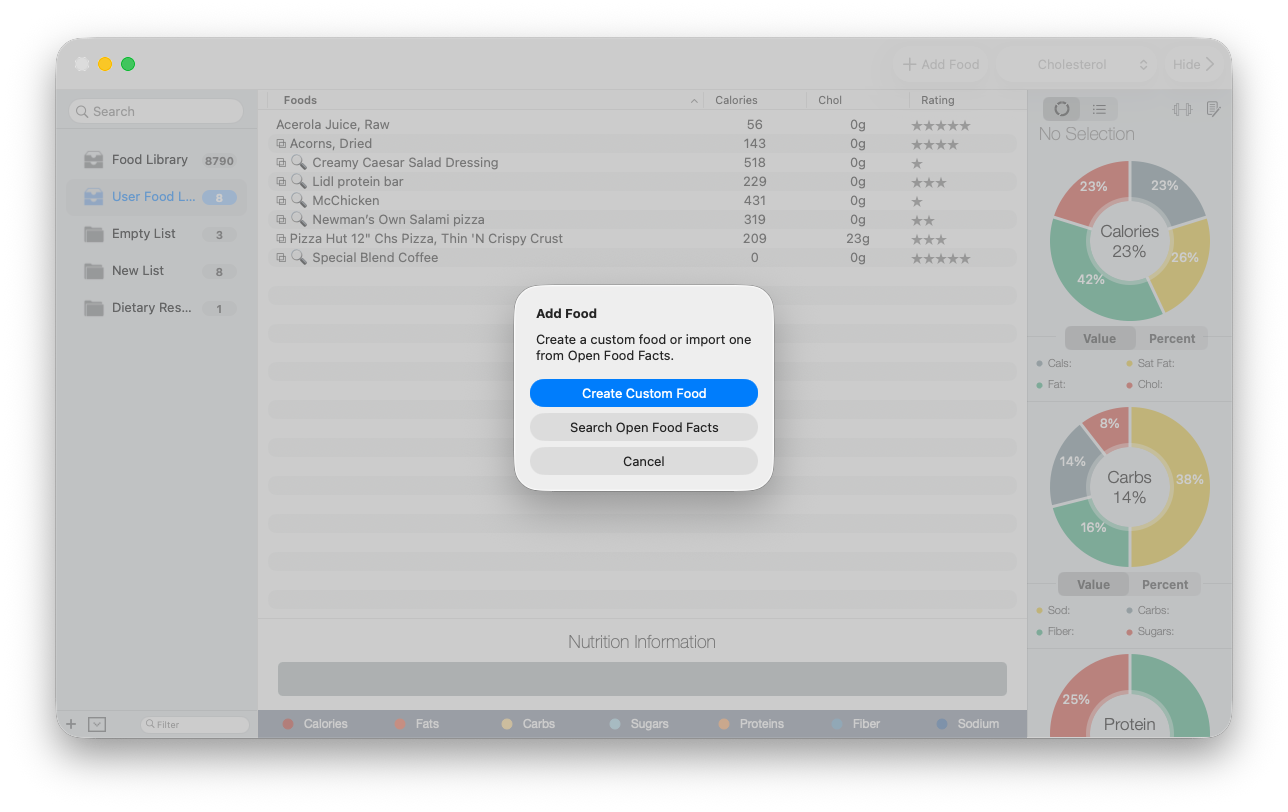
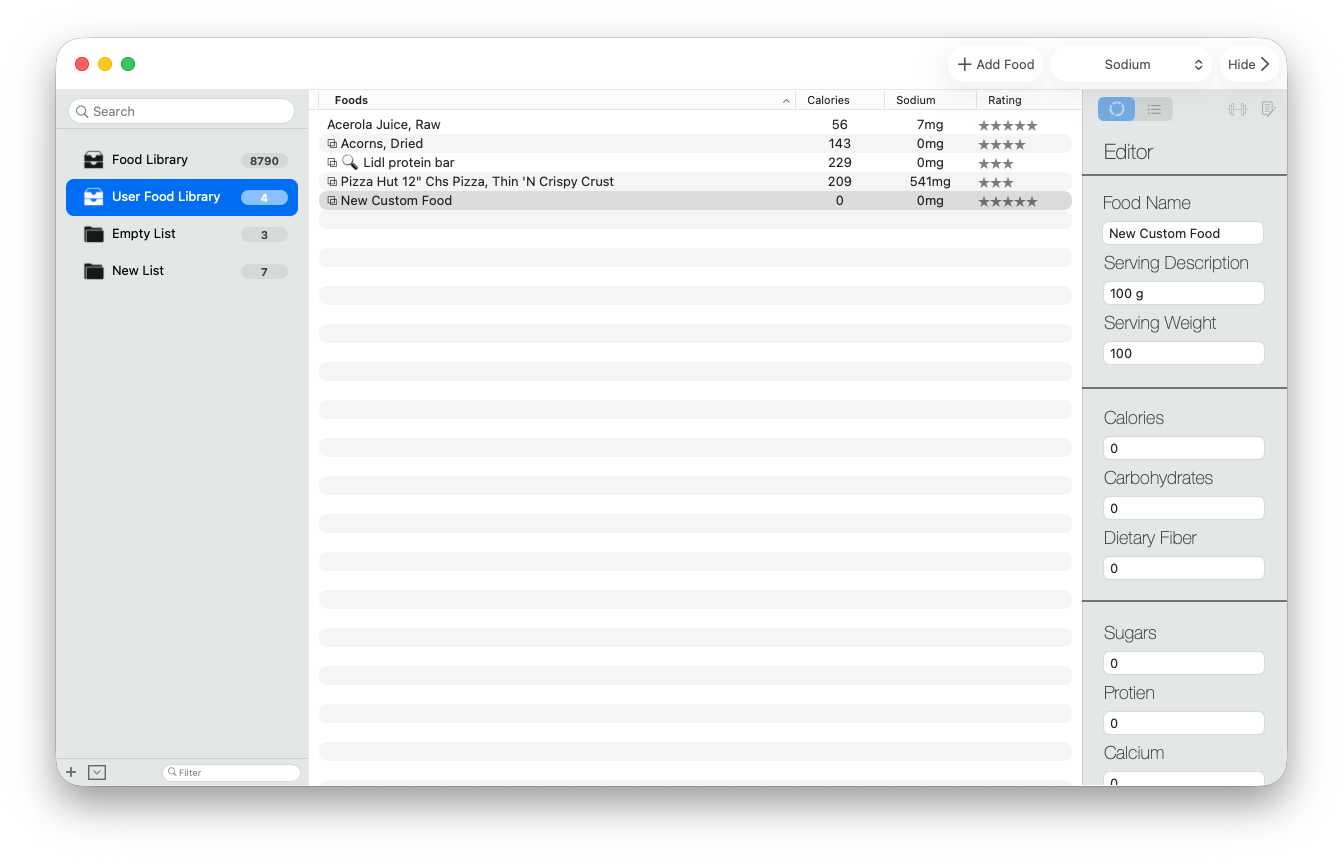
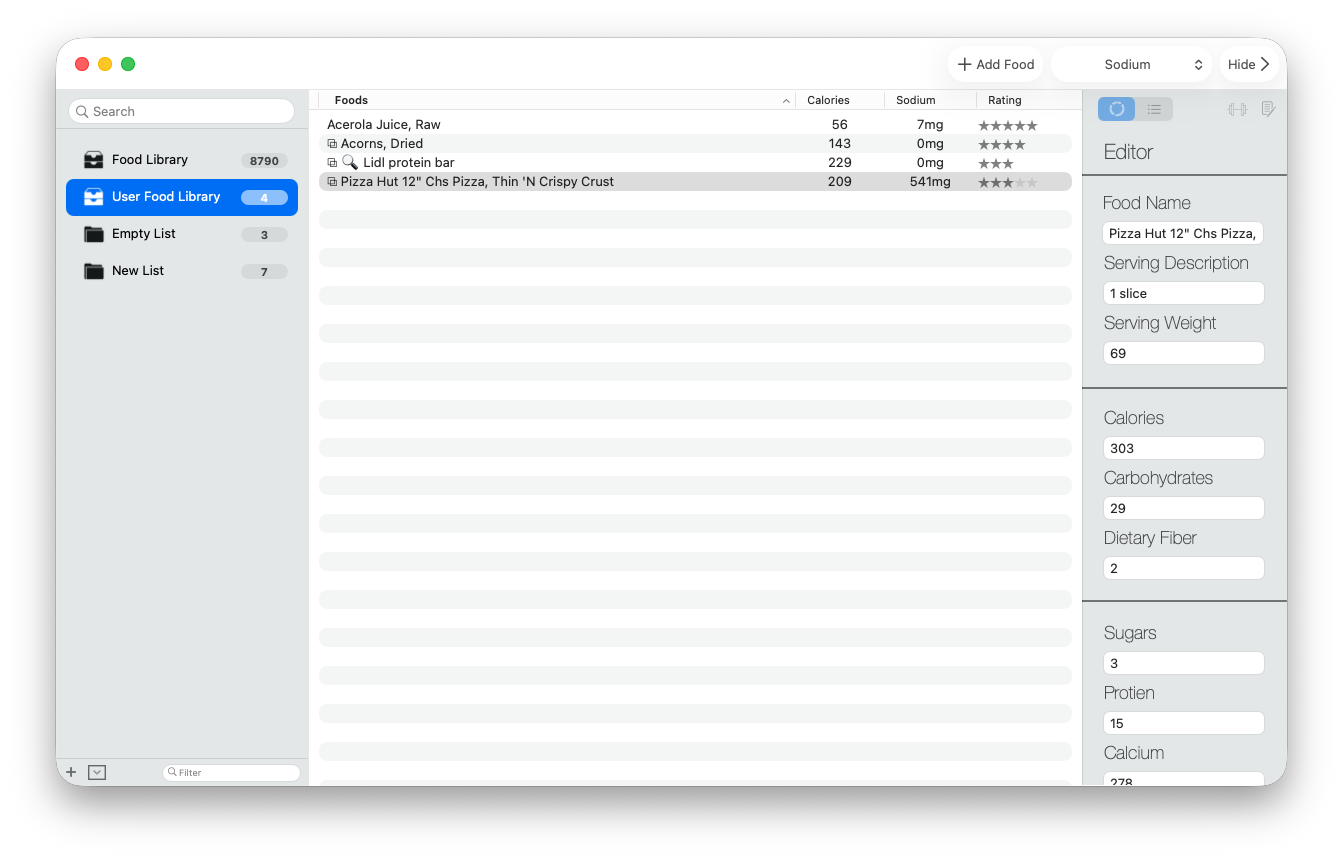
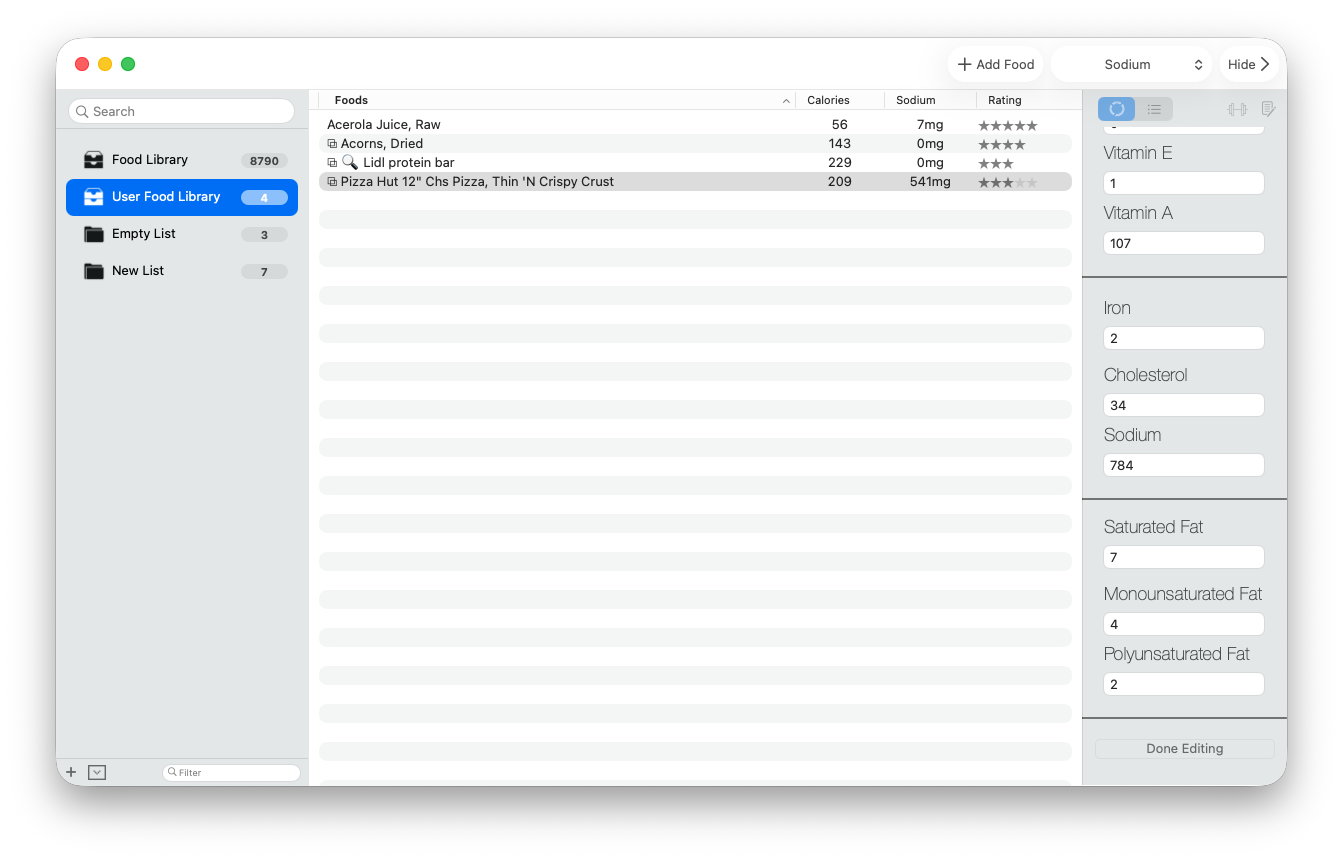
The editor begins with the food name, serving description, serving weight, and core nutrition. Continue through the remaining fields in the sidebar, then choose Done Editing.
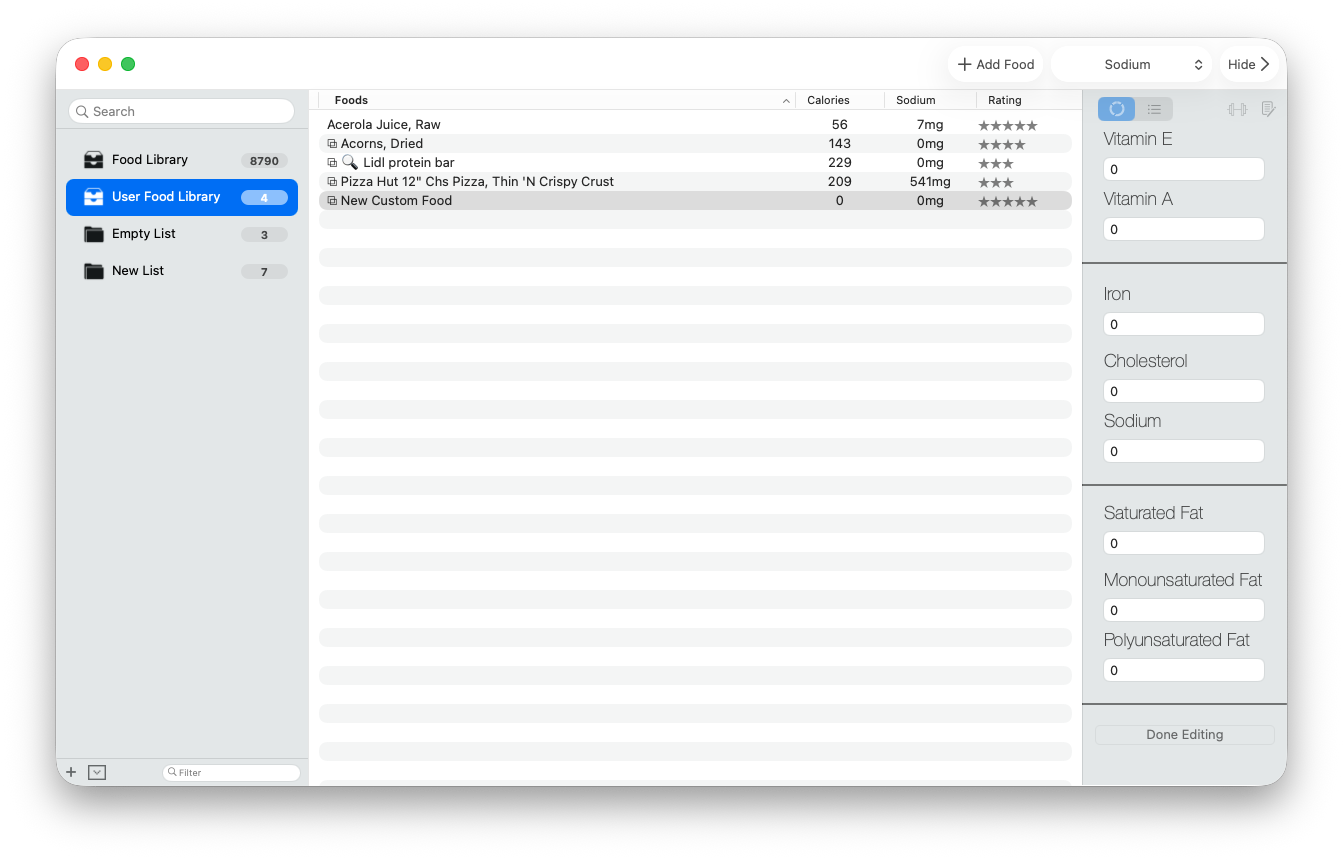
Edit or delete a personal food
Select the food in the User Food Library and use the document-and-pencil control to edit it. Update the name, serving information, or nutrients using a source you trust, then finish editing to keep the changes in the local library.
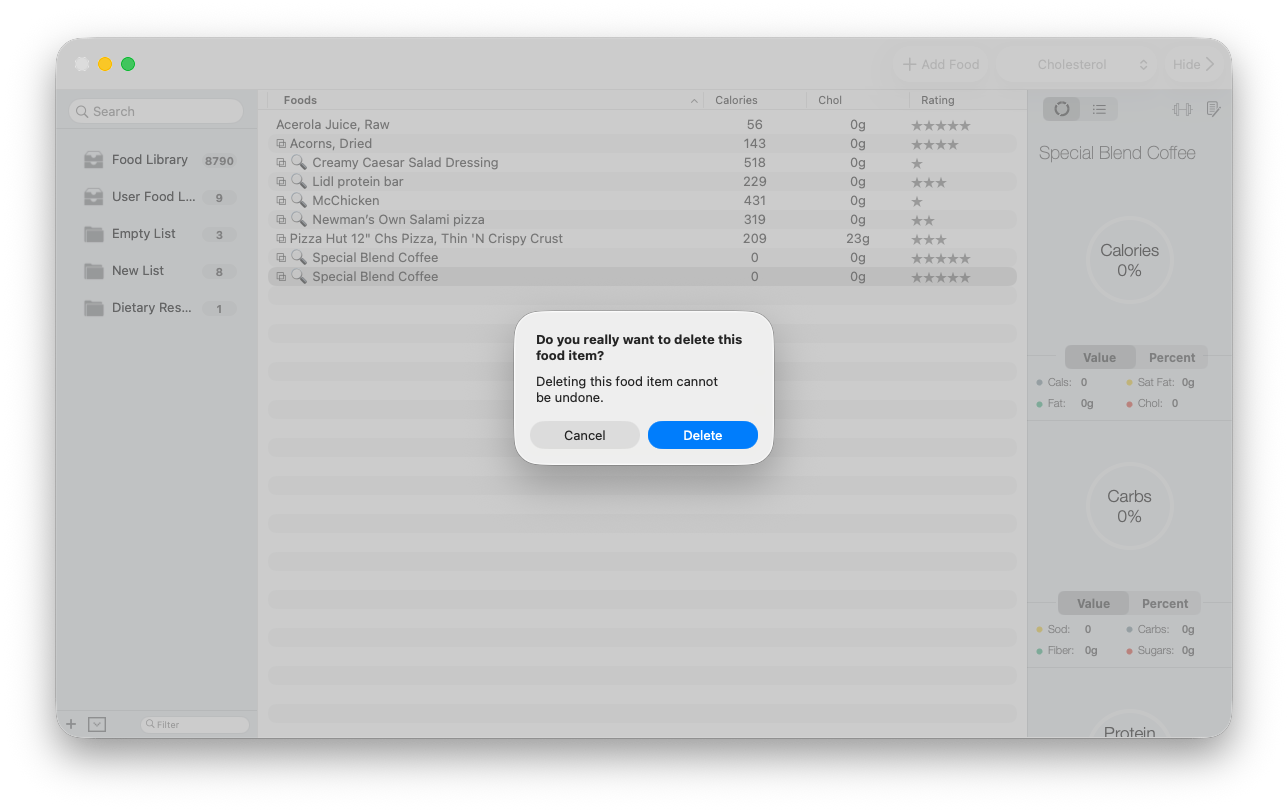
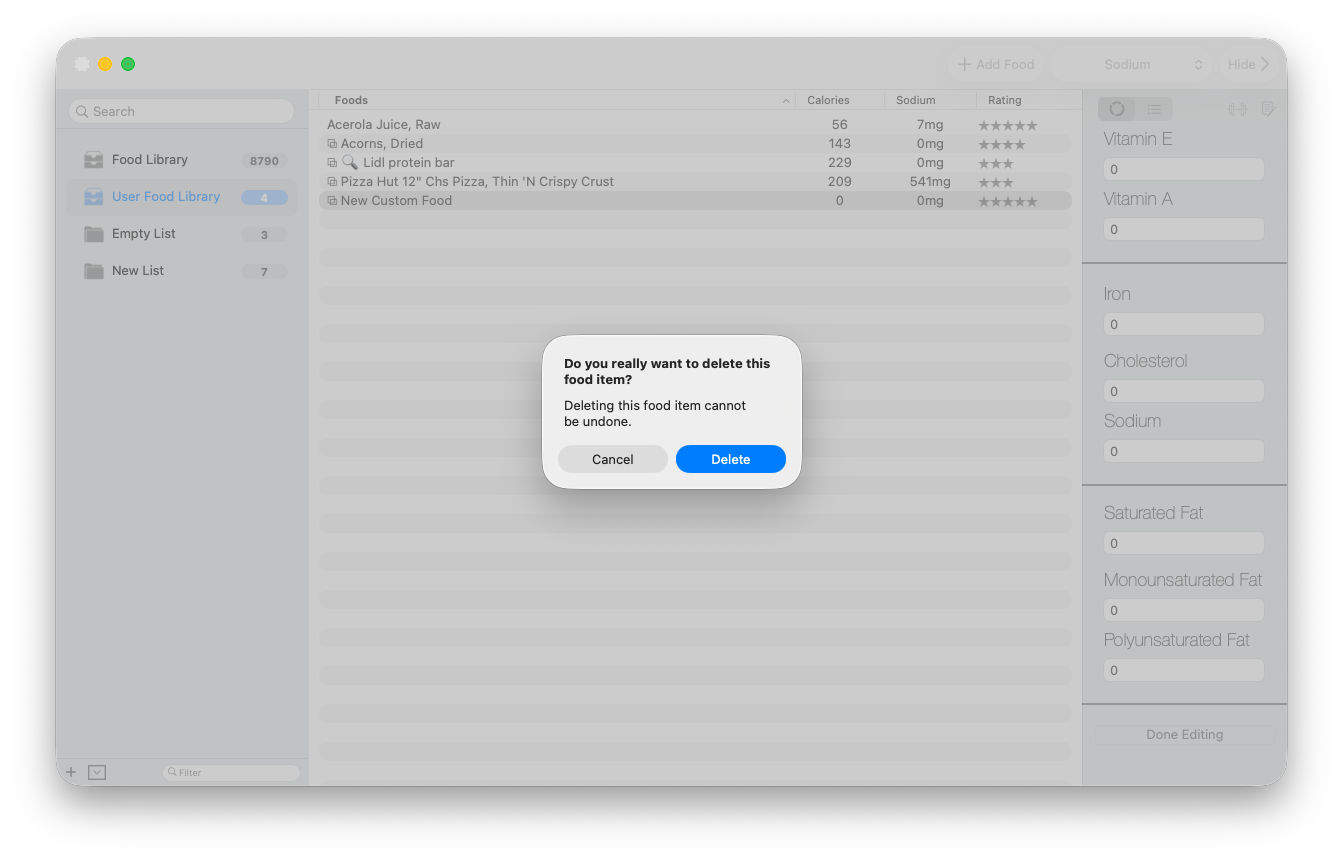
To remove a personal food, select it and choose the delete control. Stop at the confirmation and verify the food name before continuing. Deletion cannot be undone, and Classic also removes dependent entries that use that personal food in other lists so disconnected records are not left behind.
Manual entries are not automatically USDA-verified. Check the label or source you used, and keep a backup of your Classic database before substantial editing or troubleshooting.
Personal foods remain local to Classic. They are not uploaded to the source provider, synchronized through iCloud, or migrated to the newer BeFit Tracker.