 BeFit Tracker Help
Beta tracker manual
Use the Cycle tracker
Record periods and observations, understand status and metrics, and distinguish saved history from predictions.
What Cycle tracking helps you see
The Cycle tracker connects period records, flow and observations, current-cycle context, and estimated future dates. Its most important distinction is between what you recorded and what BeFit Tracker predicts.
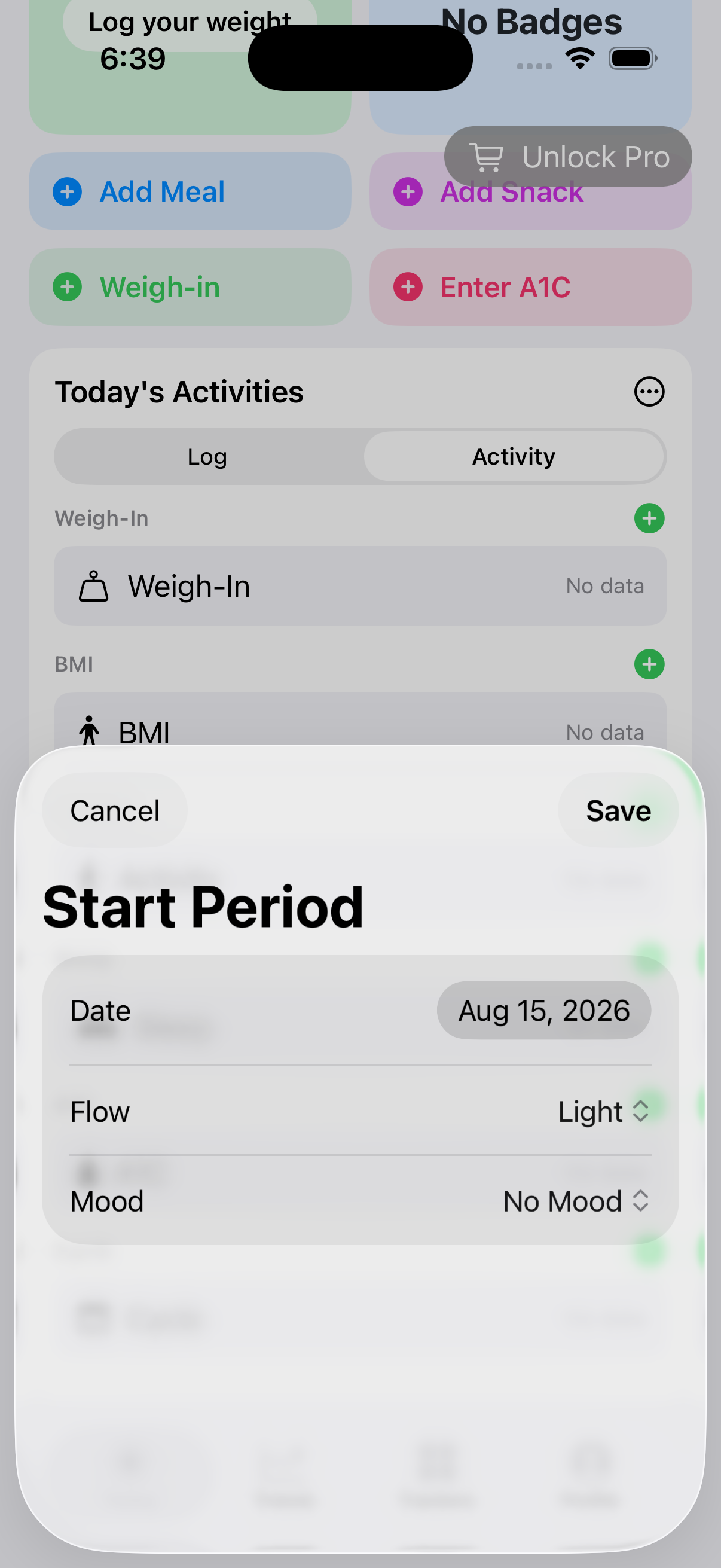
iPhone
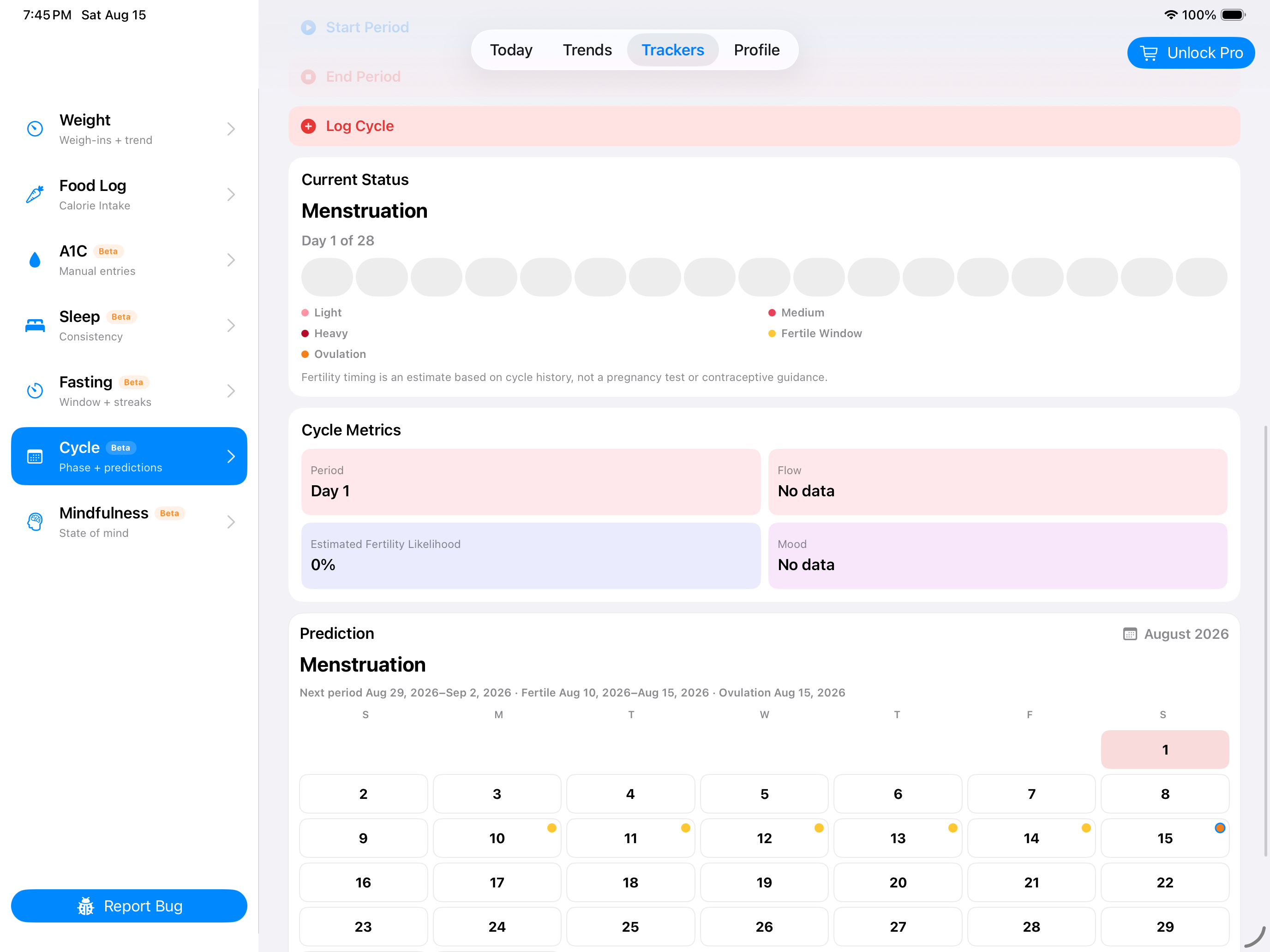
iPad
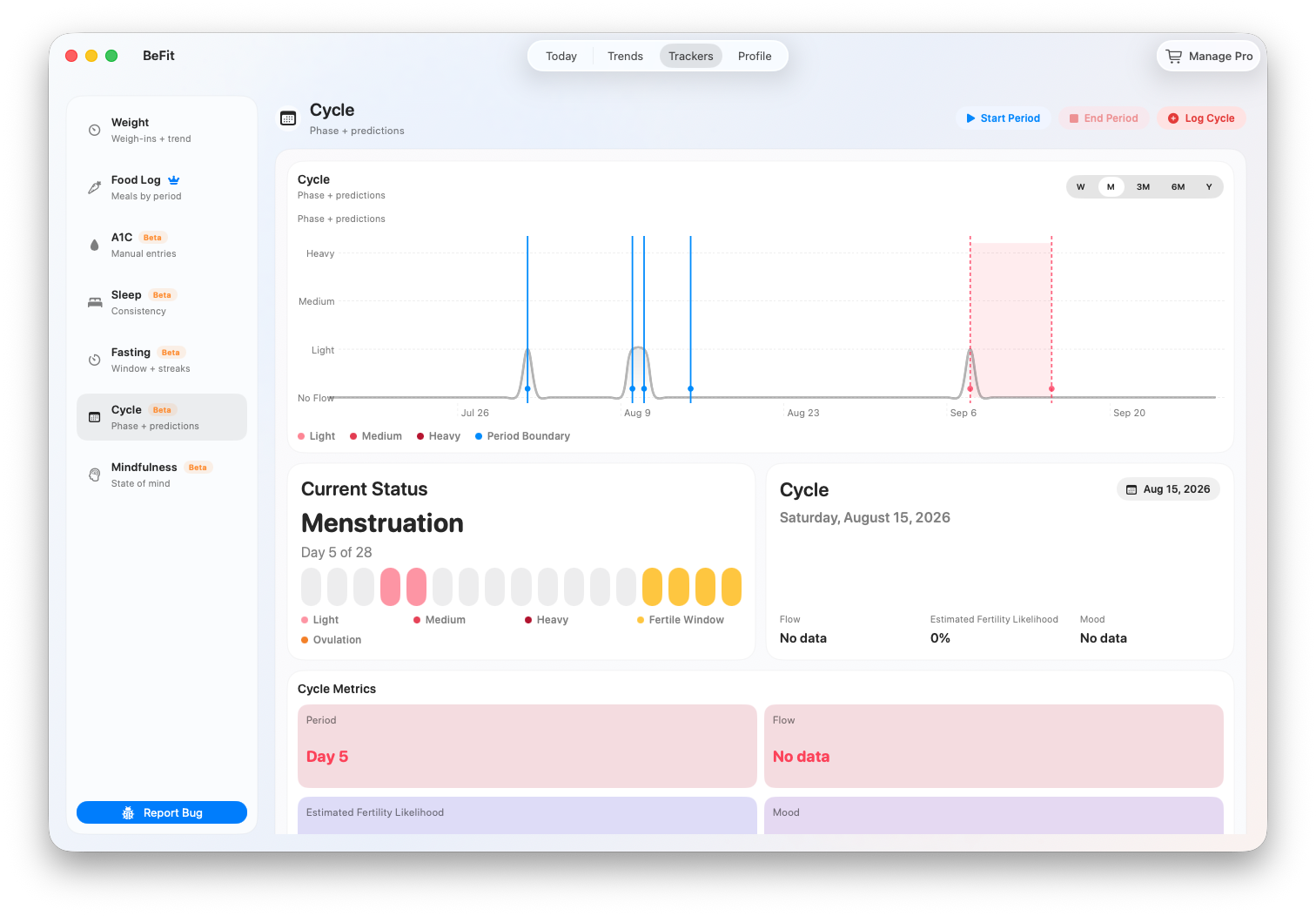
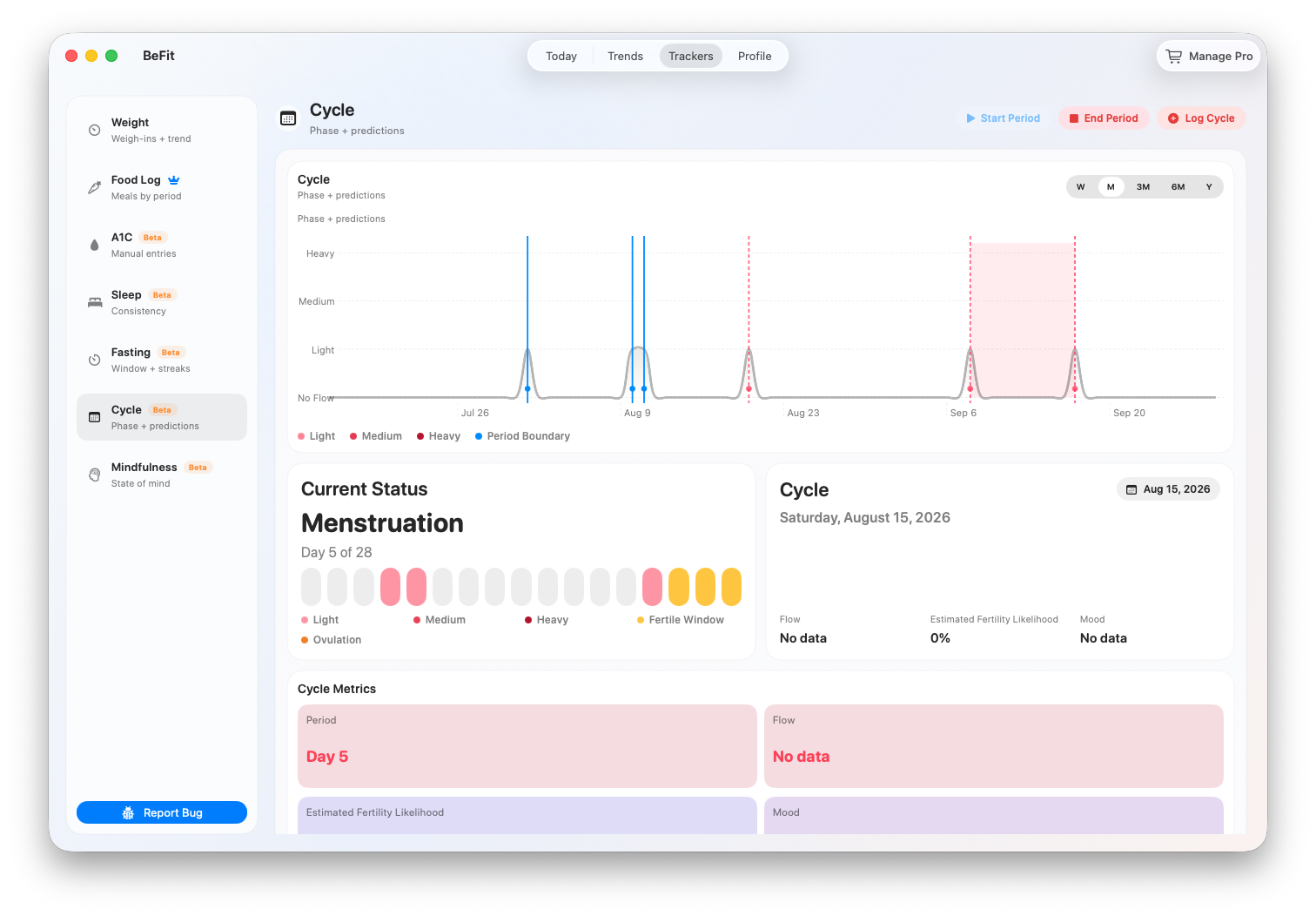
Mac
Understand the Cycle workspace
Current Status
Current Status identifies the estimated phase and shows the current cycle day in relation to the cycle length calculated from available records. Move between weeks to inspect nearby context. This status changes as history changes and is not a clinical conclusion.
Cycle Metrics
- Period or cycle day locates the date within saved cycle history.
- Flow displays the recorded level when one is available.
- Estimated fertility likelihood reflects BeFit Tracker's prediction model, not a fertility test.
- Mood displays an observation saved with the record.
Flow and timeline legend
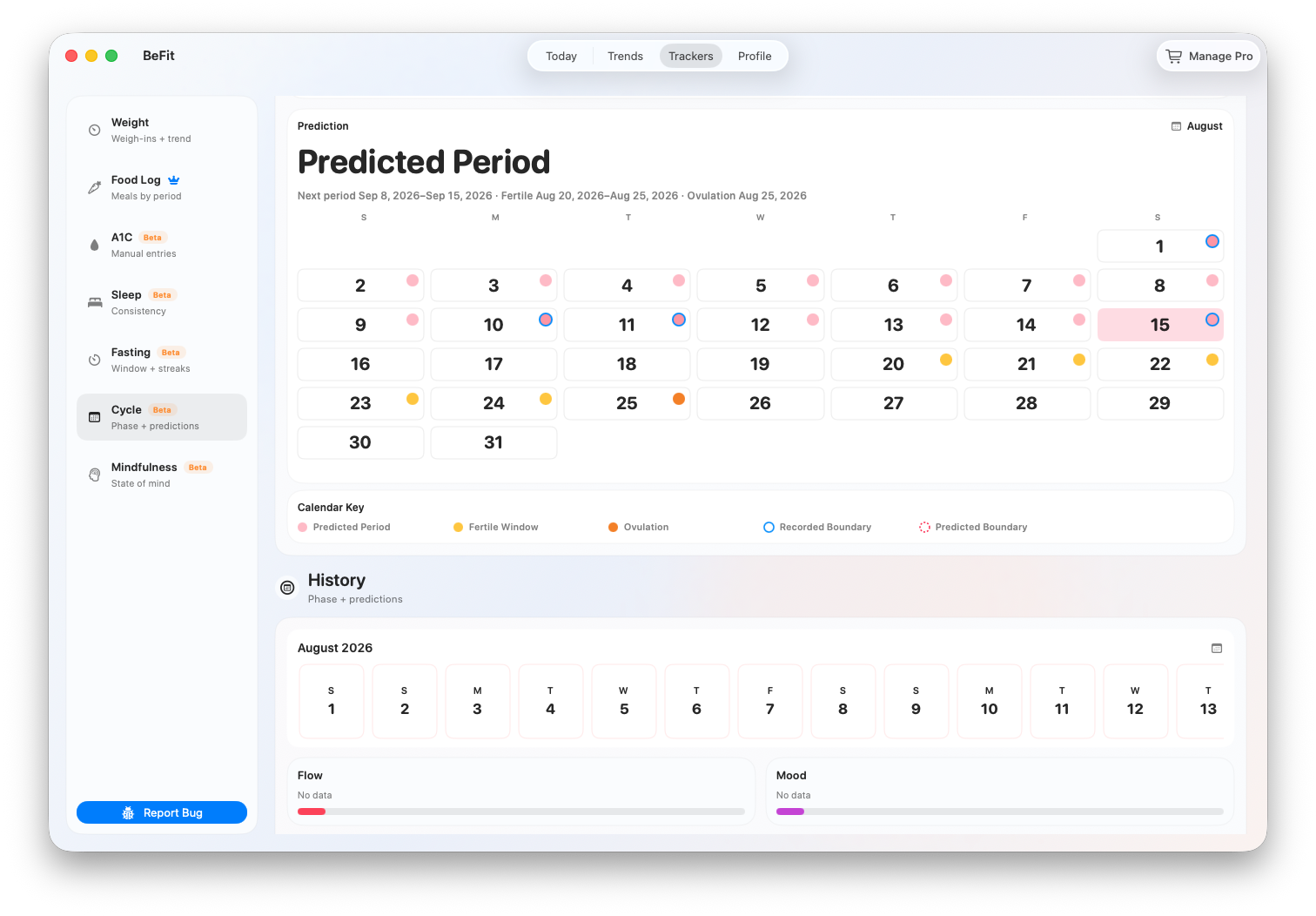
The legend separates light, medium, and heavy flow records and identifies estimated fertile-window and ovulation markers. Use it whenever comparing calendar colors so a prediction is not mistaken for a recorded period day.
Prediction Calendar
The calendar can display the next predicted period, estimated fertile window, and estimated ovulation date. Recorded boundaries come from saved history; predicted boundaries are calculated from the history available at that time. Adding or correcting a period can change future estimates.
Trend and History
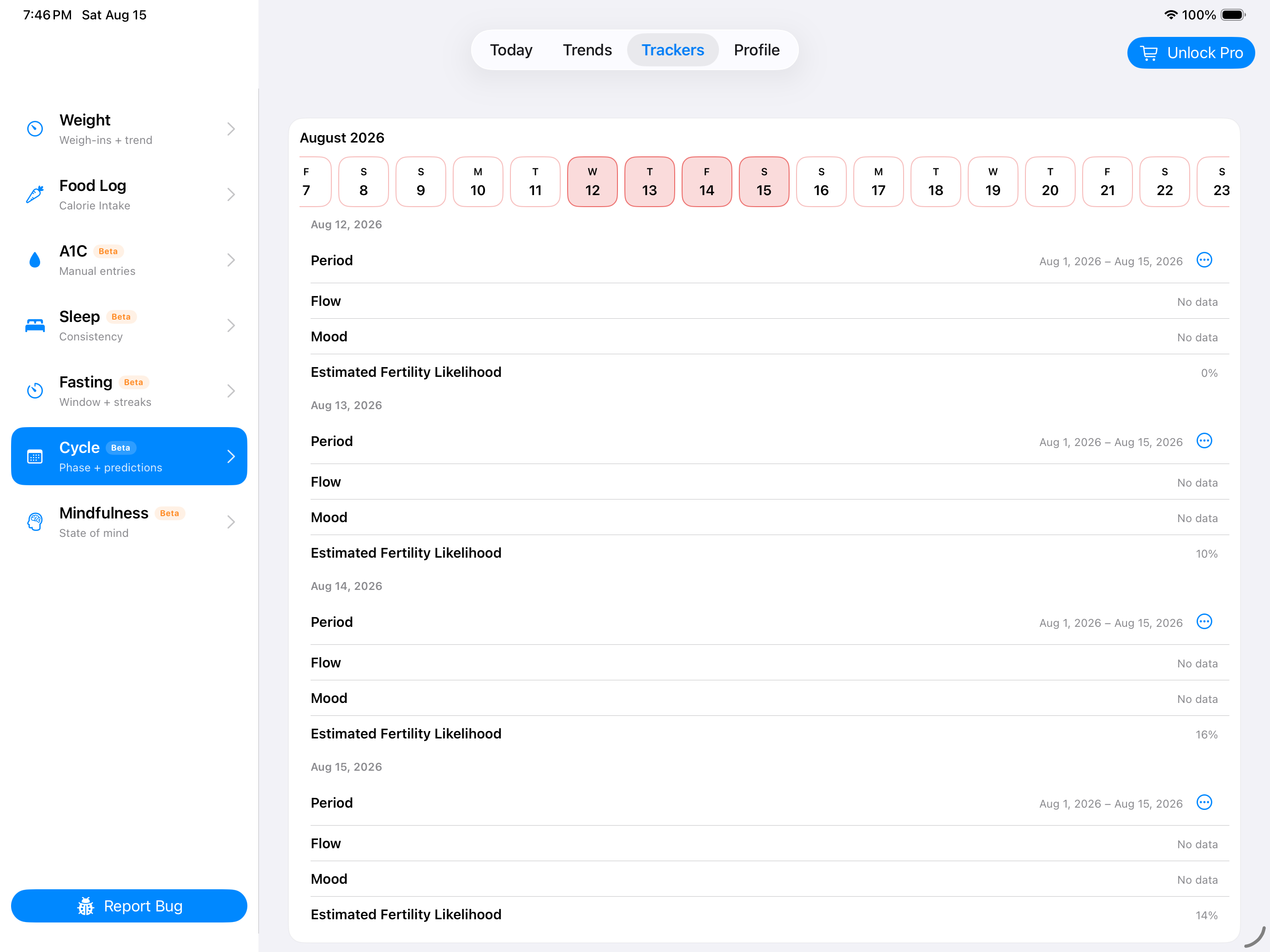
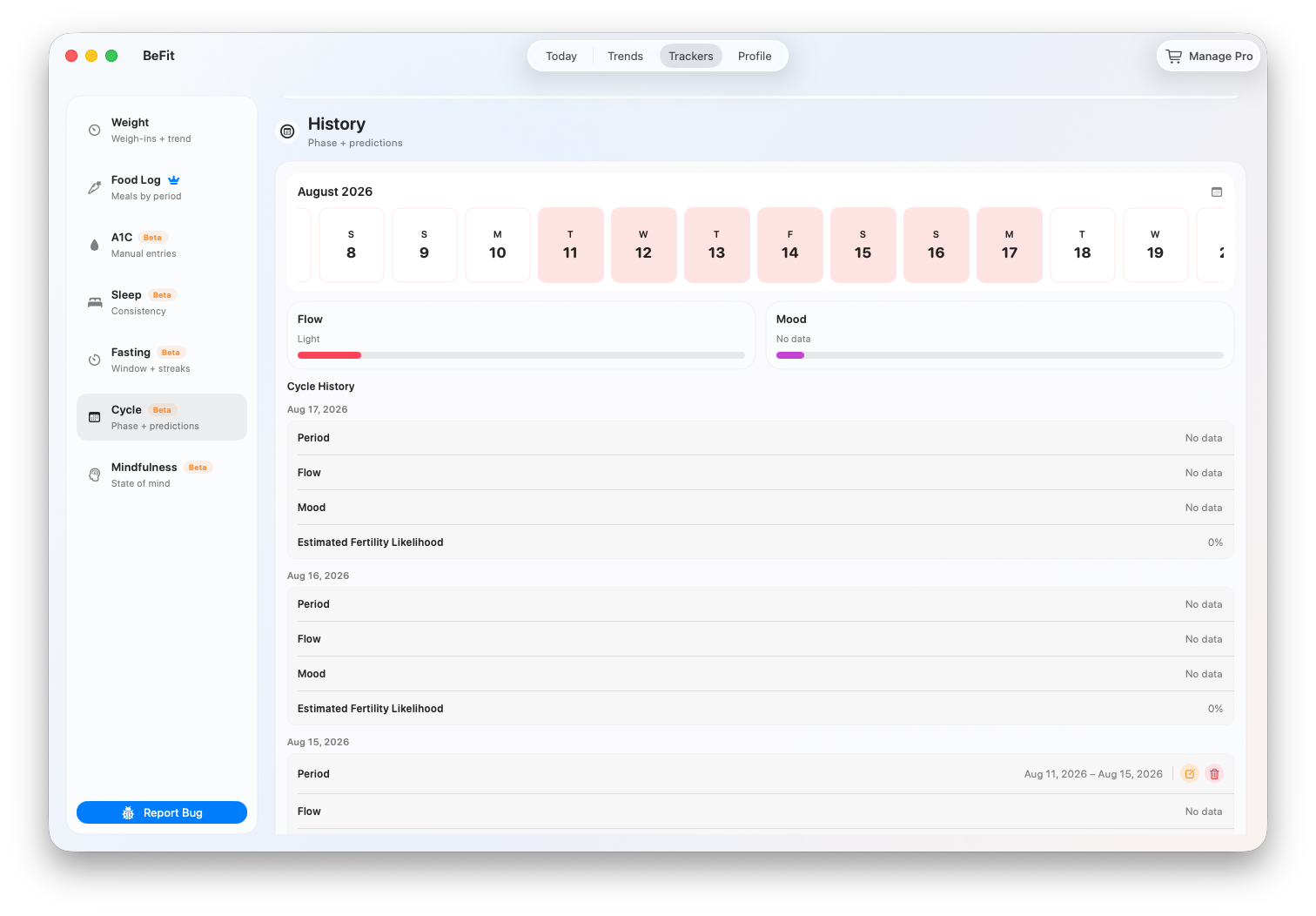
The trend summarizes history across Week, Month, 6 Months, or Year. History preserves the individual records behind those summaries. Review the record list when you need exact dates rather than relying on a chart.
Start and end a period as it happens
- Open Trackers, choose Cycle, and select Start Period.
- Confirm the actual start date and add supported details such as flow or an observation.
- When the period ends, select End Period and confirm the end date.
- Review the resulting range in History and the calendar.
Log a complete period afterward
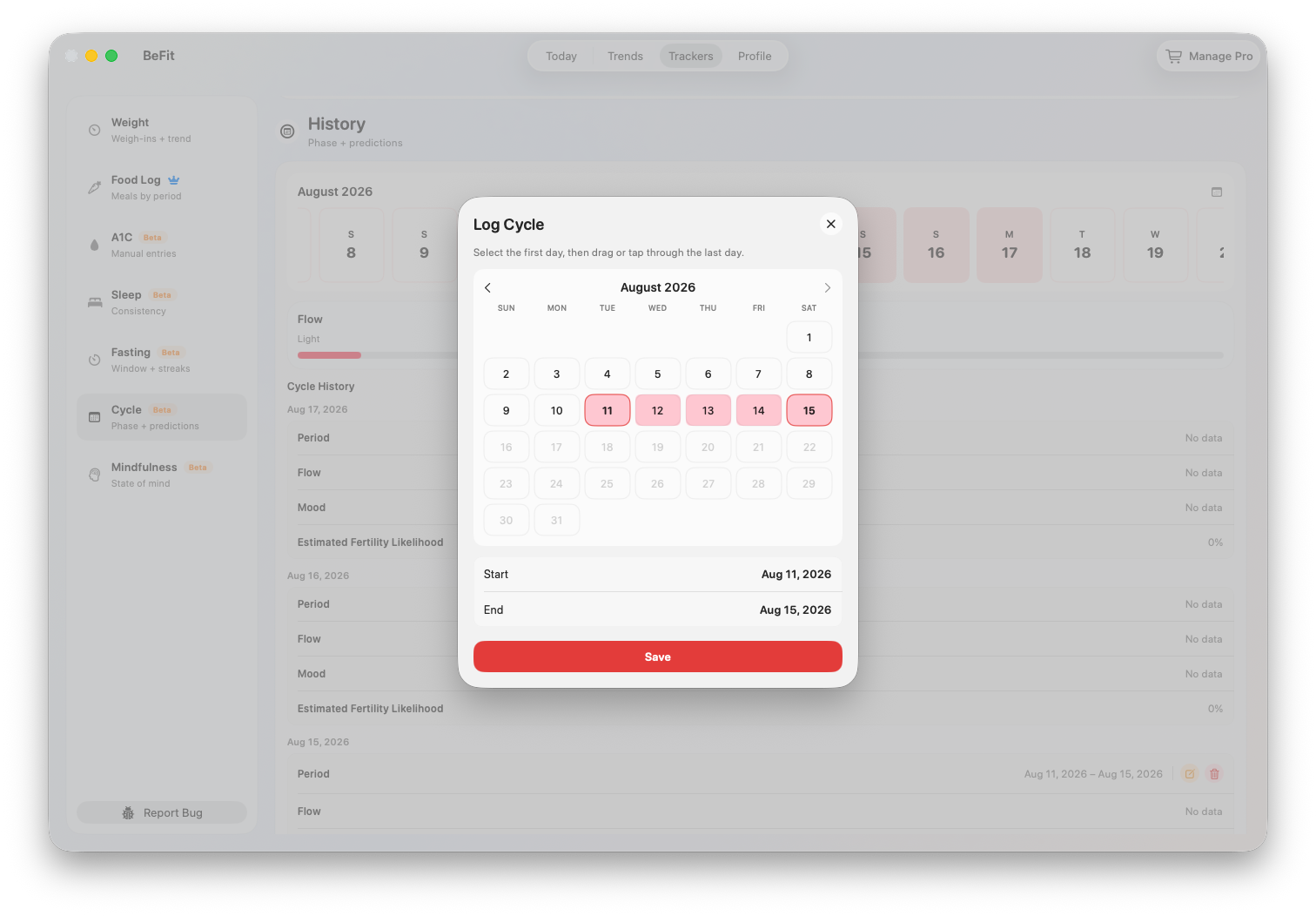
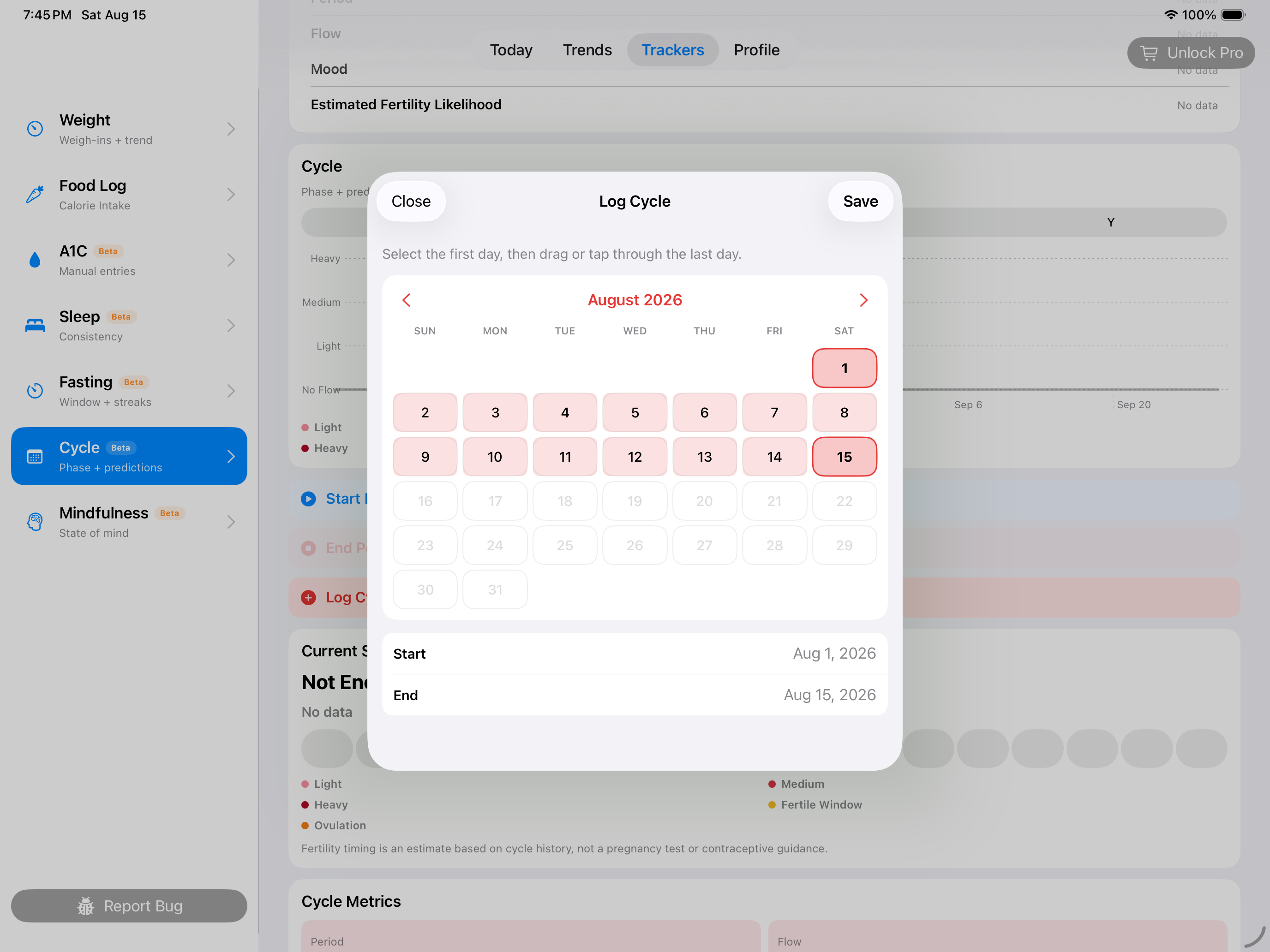
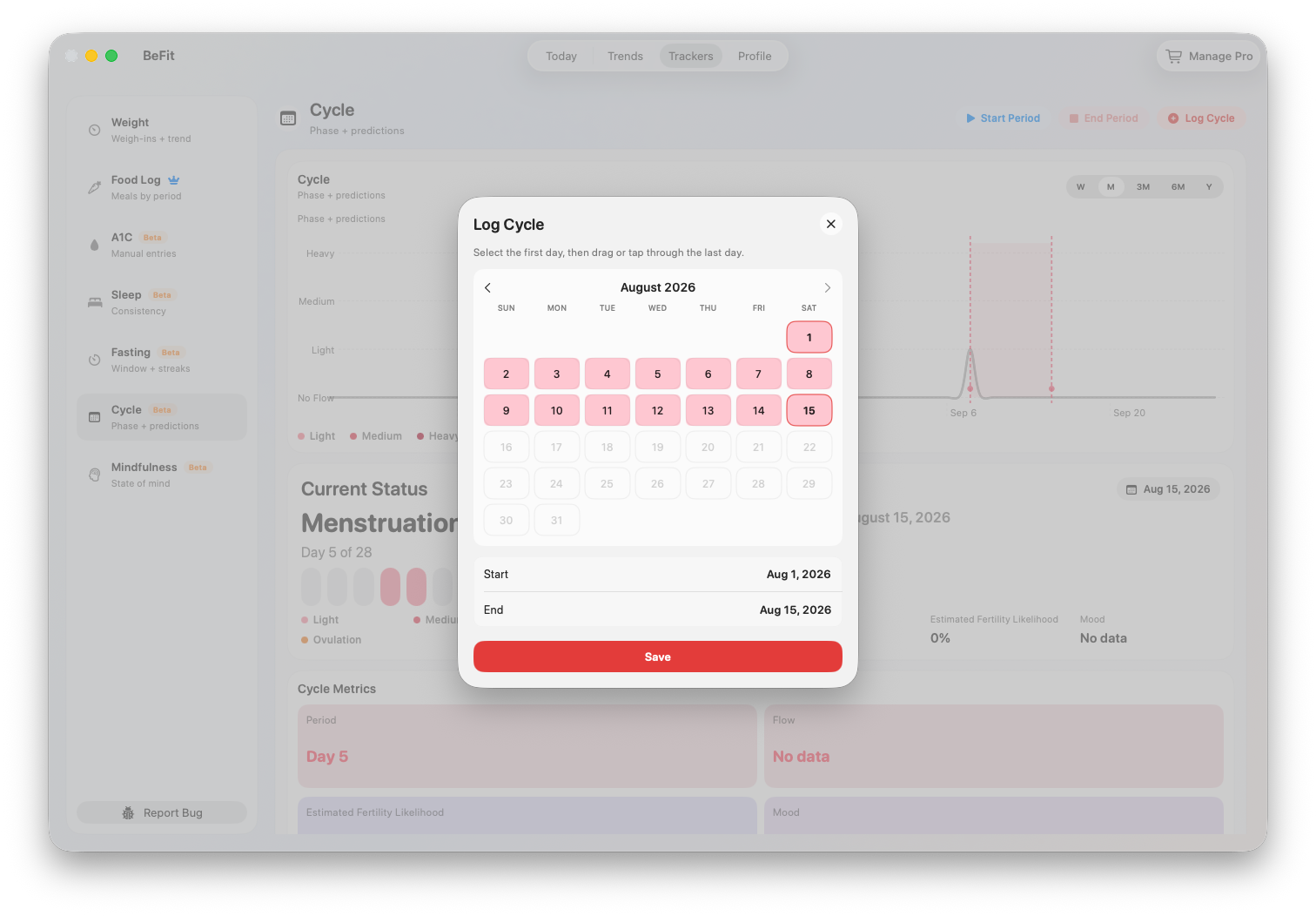
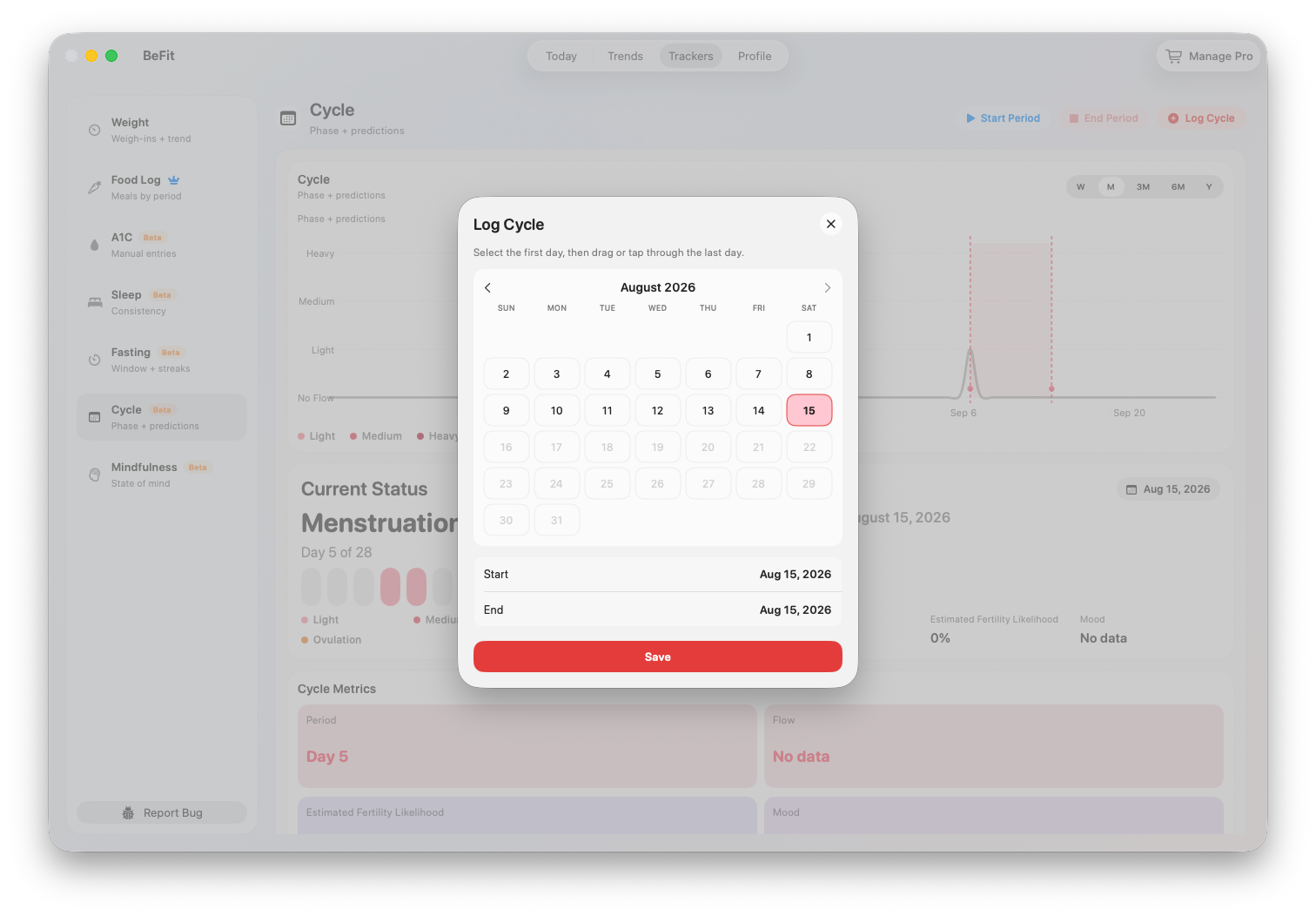
Use Log Cycle or the period-range entry when both the start and end are already known. Enter the complete range and review it before saving. This is clearer for older history because it does not create an active period that must immediately be ended.
Add observations
Supported observations add context to a date without replacing the period record itself. Use them for the details the tracker exposes, such as mood or flow. Correct an observation from History if it was attached to the wrong day.
Correct history safely
Edit the existing record when a start date, end date, flow level, or observation is wrong. Avoid creating an overlapping duplicate. Afterward, review Current Status, Cycle Metrics, the Prediction Calendar, and the trend because each may recalculate from revised history.
iPhone and iPad
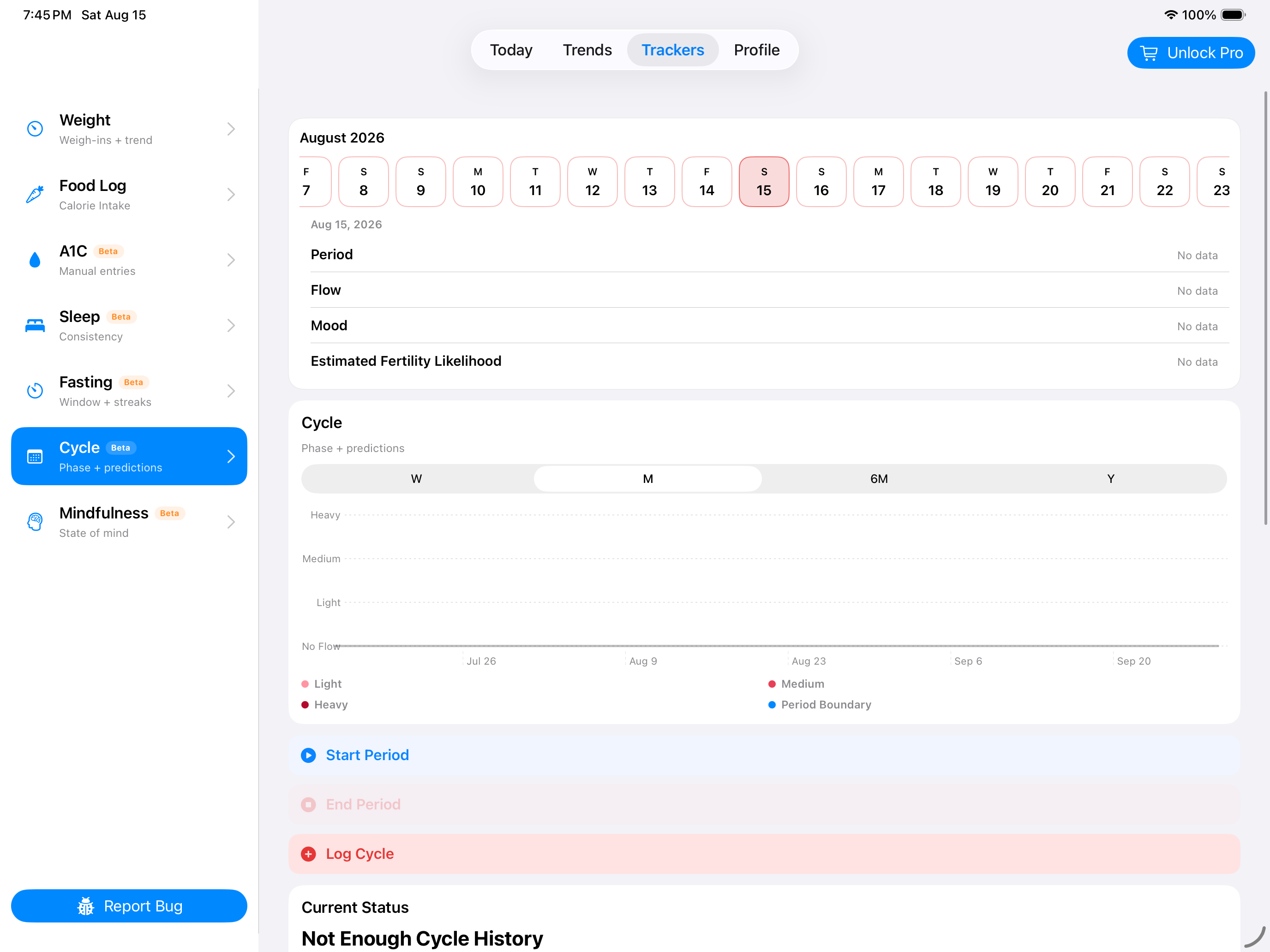
iPhone keeps Start Period, End Period, and logging actions close to daily use. The shared iPhone and iPad app can read supported Cycle records from Apple Health when permission and source data are available. Landscape iPad makes the timeline and prediction calendar easier to compare. Imported data depends on what the originating Health source supplies.
Mac
Mac displays manual Cycle records and supported records reconciled through iCloud; it does not connect directly to HealthKit. Its larger view keeps prediction context and history visible together. Confirm synchronization before entering a missing mobile record again.
Cycle is a Beta informational tracker. Fertile-window and ovulation estimates are not contraception, a fertility test, a diagnosis, or medical advice.