 BeFit Tracker Help
Trackers
Weight, BMI, steps, and hydration
Record everyday measurements and understand how BeFit Tracker uses them.
All devices
BeFit Tracker keeps everyday records editable and connected to history. Weight, steps, and hydration can be entered manually; BMI is calculated from valid height and weight information.
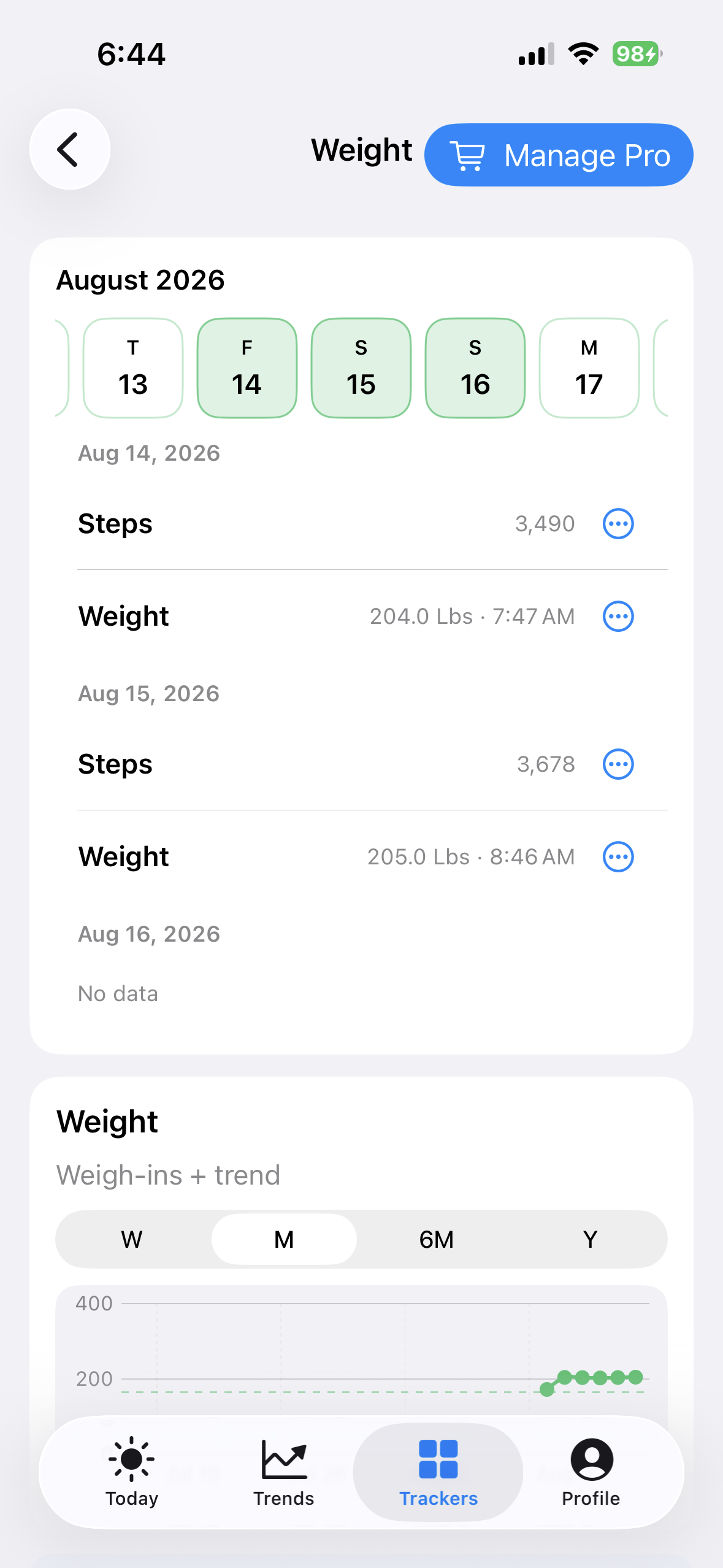
iPhone
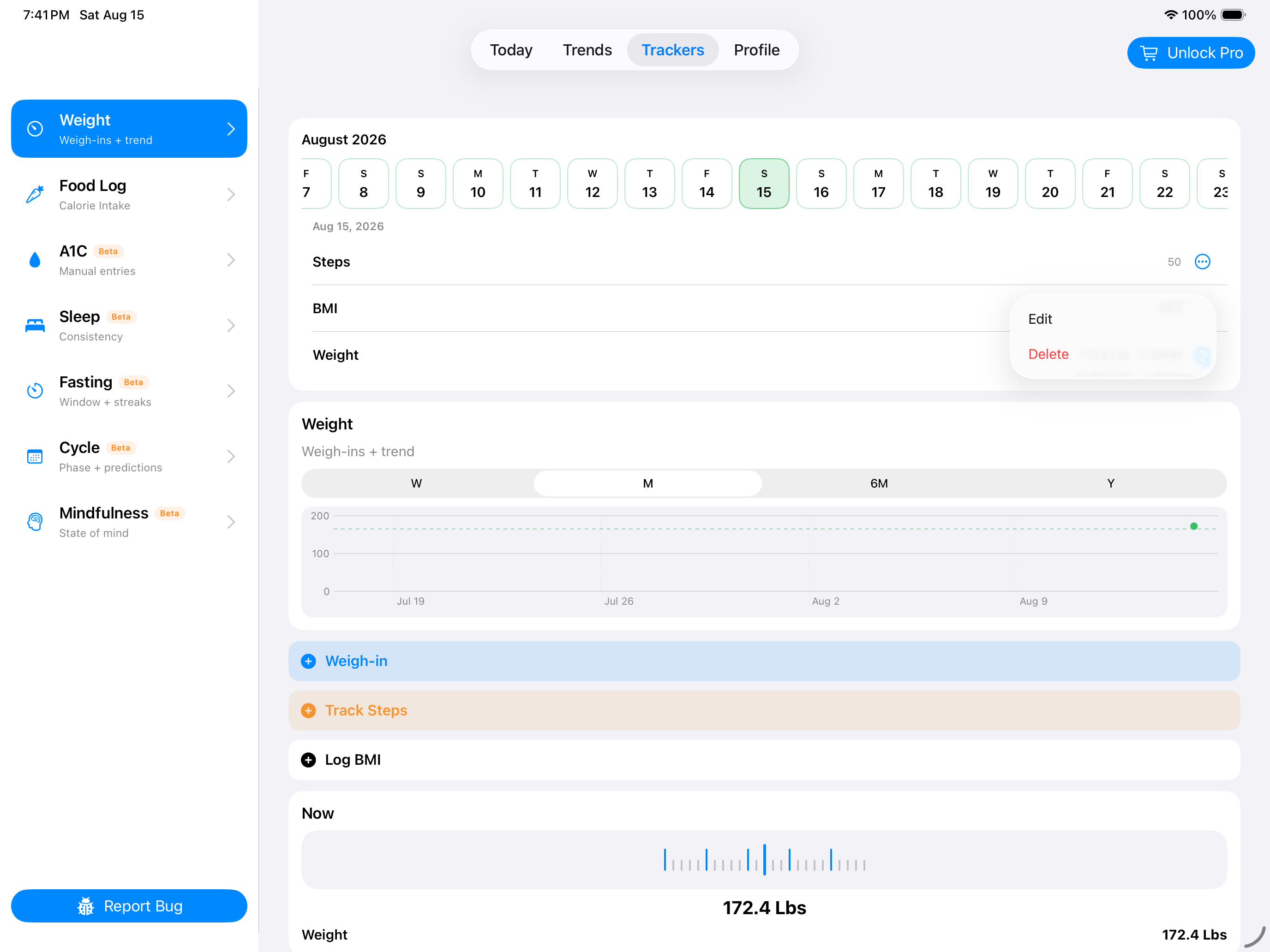
iPad
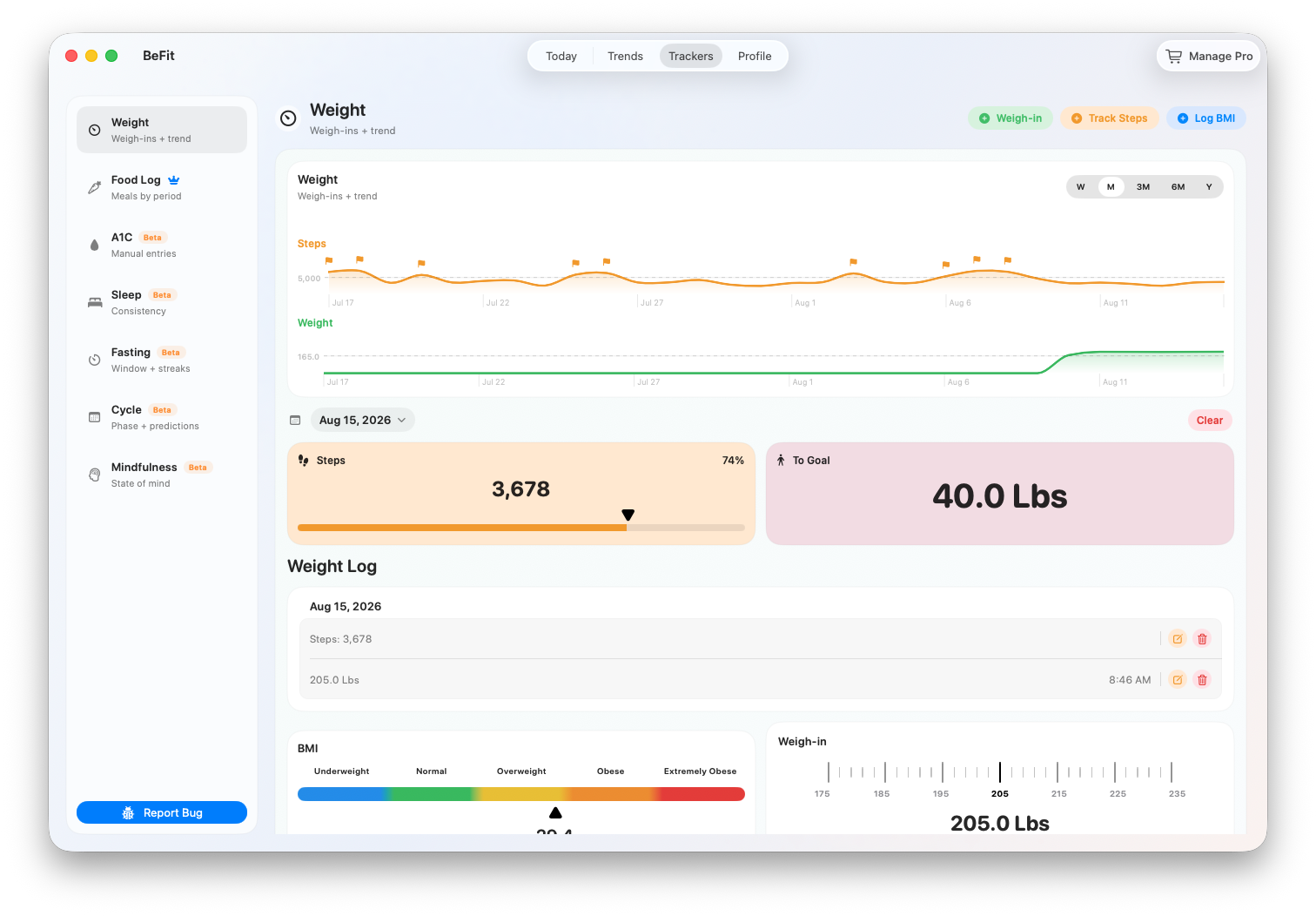
Mac
Understand the Weight tracker
Open Trackers and choose Weight. This workspace combines the selected day, saved records, the weight trend, goal progress, steps, and BMI without treating any single card as the complete story.
Date and calendar
Select a day before adding or reviewing information. The calendar controls the day used by the Weight Log and its metric cards. Clearing a day removes its saved Weight, Steps, and BMI records only after confirmation; it does not change your long-term goal.
Weight trend
The trend plots actual dated weigh-ins. Use the range control to move from recent values to longer history. Empty periods stay empty rather than being filled with fabricated values.
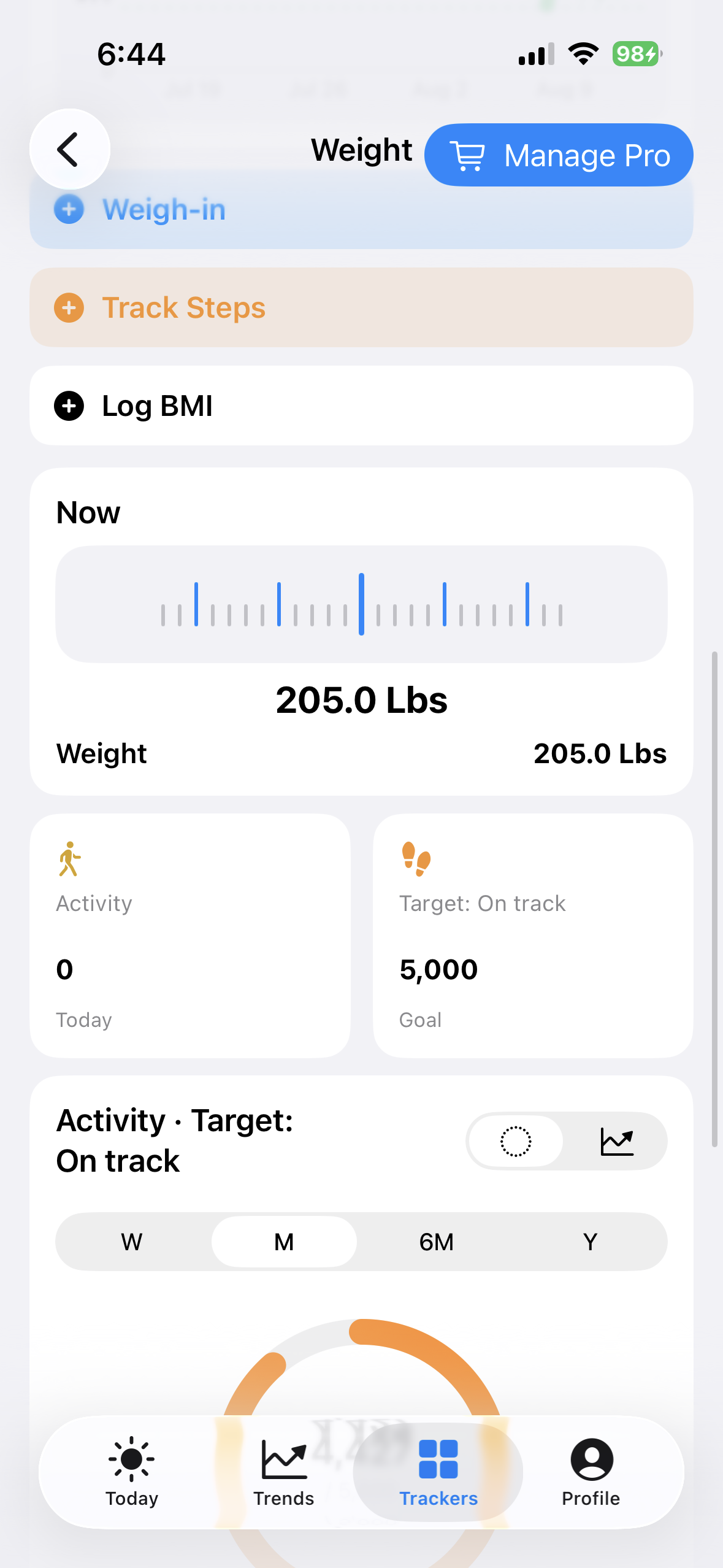 Start with the latest applicable weigh-in
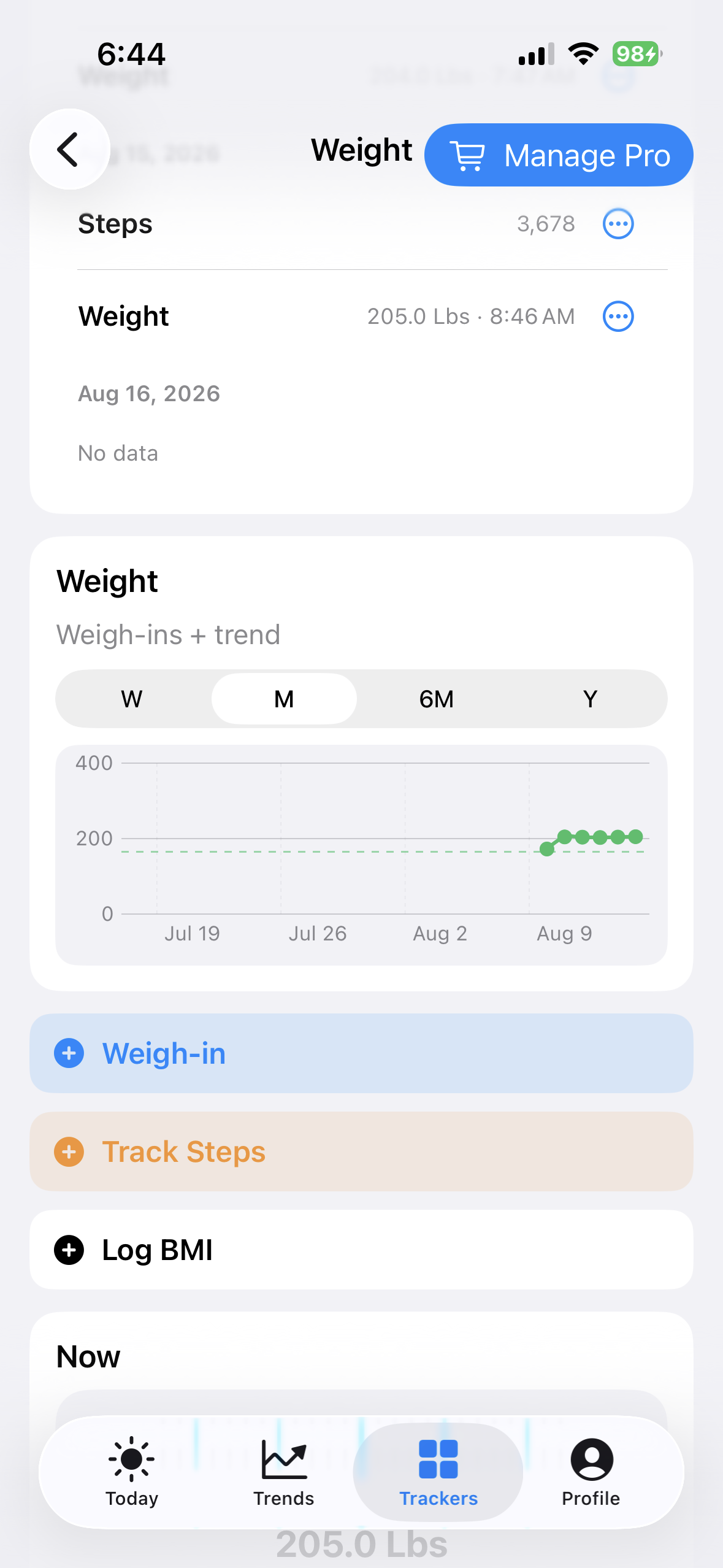 Then compare real dated measurements
Steps and To Goal
Steps shows the selected day's saved total. To Goal compares the latest applicable weight with your configured target. A goal is a reference you chose, not a health recommendation made by BeFit Tracker.
Weight Log
The grouped log shows the source records for the selected day in a stable order: Steps when present, BMI, then weigh-ins with the newest weigh-in first. Derived goal information is not editable as though it were a source record.
Weight History
History groups records by date so you can inspect the measurements behind the chart. Open a persisted row to edit it with the same entry sheet or delete only that record.
Weight Goal and BMI cards
The goal card compares current and target weight with the chosen target date. BMI uses valid height and weight information and supports Imperial or Metric entry. It is an informational calculation, not a diagnosis or assessment of body composition.
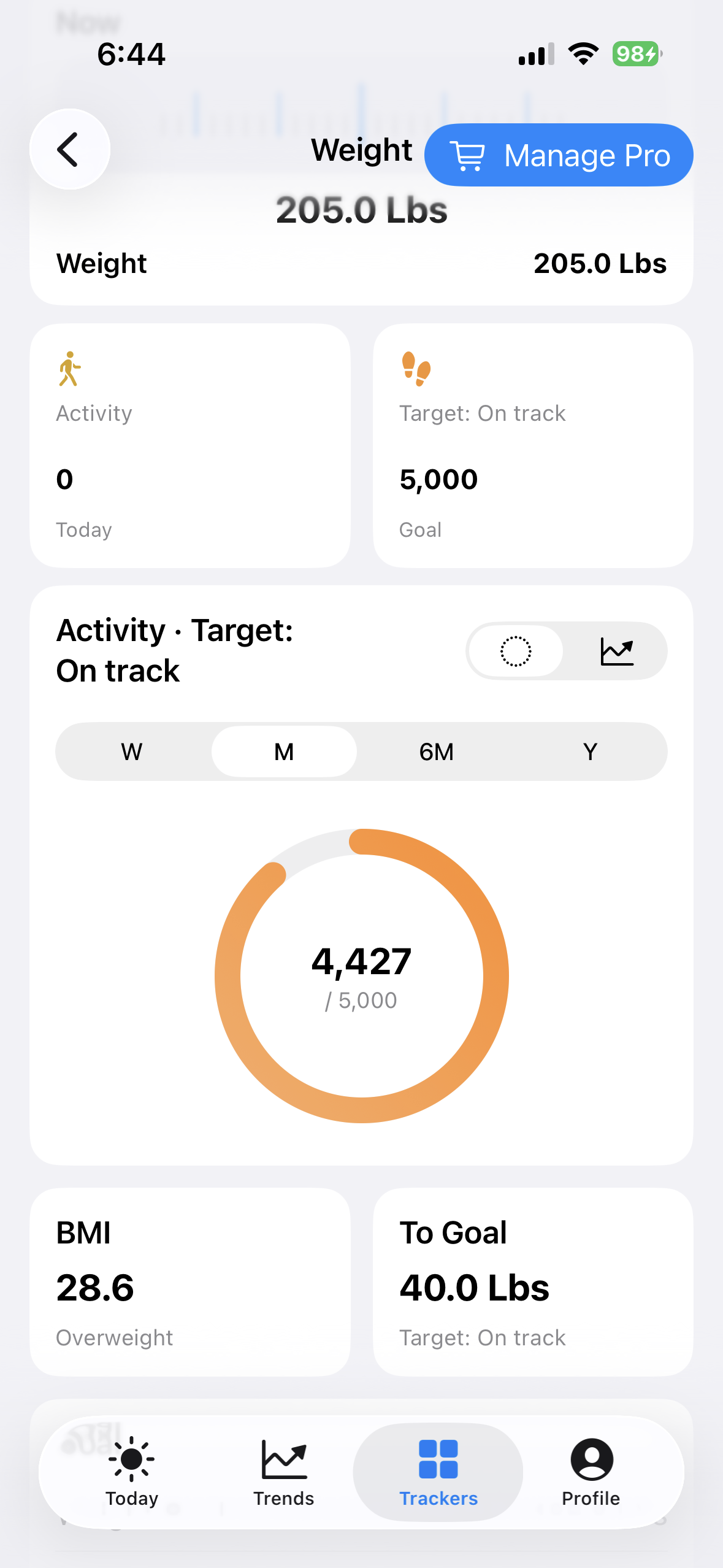 See the target you configured
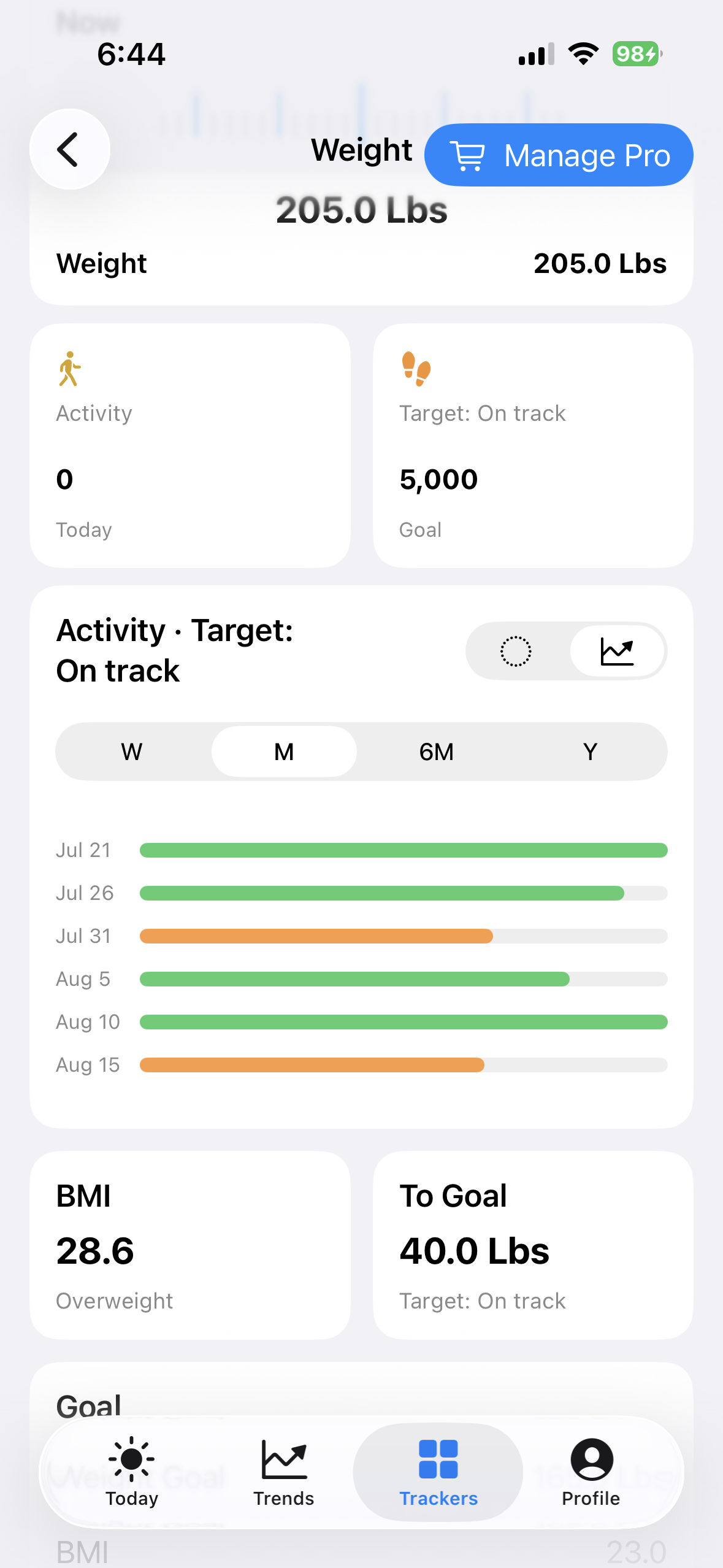 Read progress against that target
Record and correct a weigh-in
- Select the intended day, then choose Weigh-in.
- Enter the measured weight in the active unit system and confirm the date and time.
- Save and verify the new value in Weight Log, Weight History, and the trend.
- To correct it, open that same history row and choose Edit. Use Delete only when the record itself should be removed.
Find the dated measurement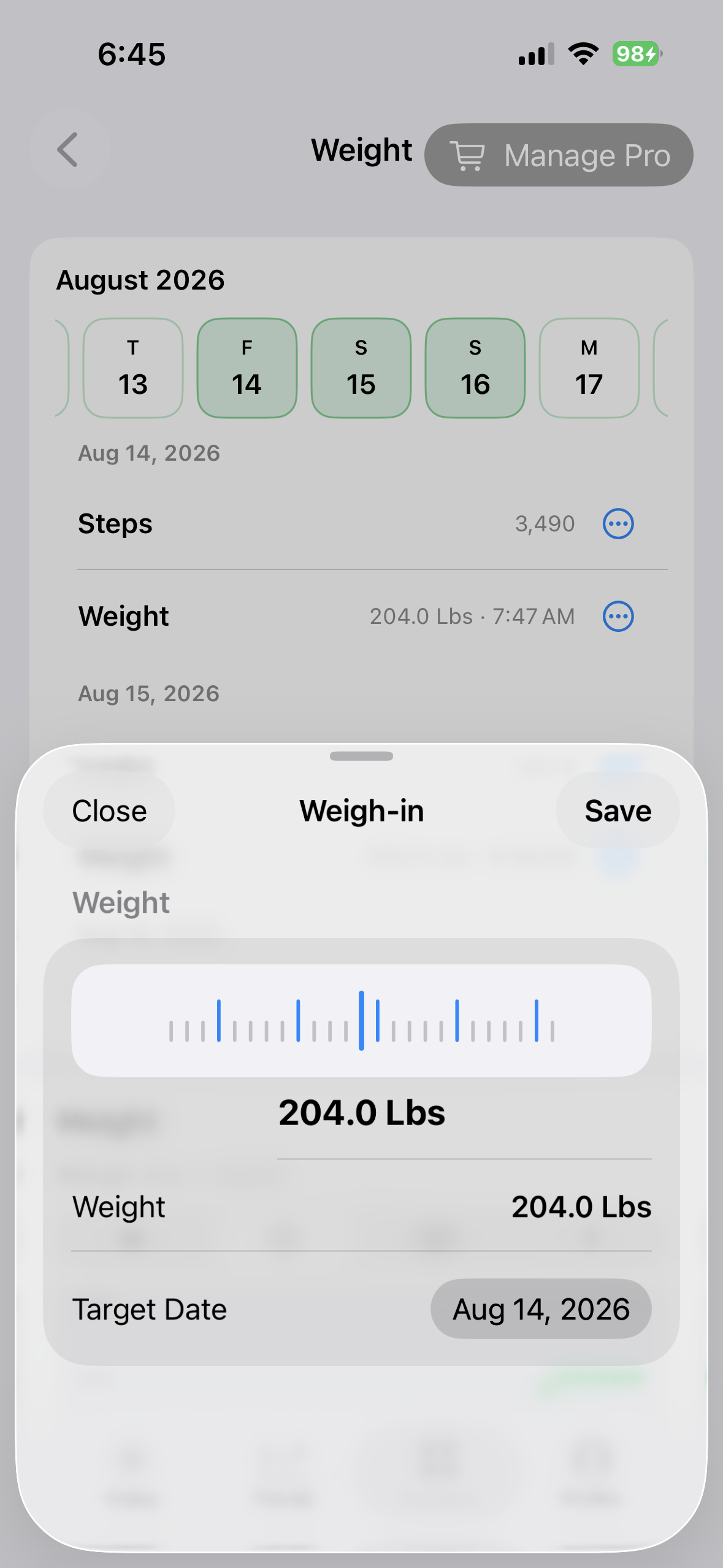 Open that record's action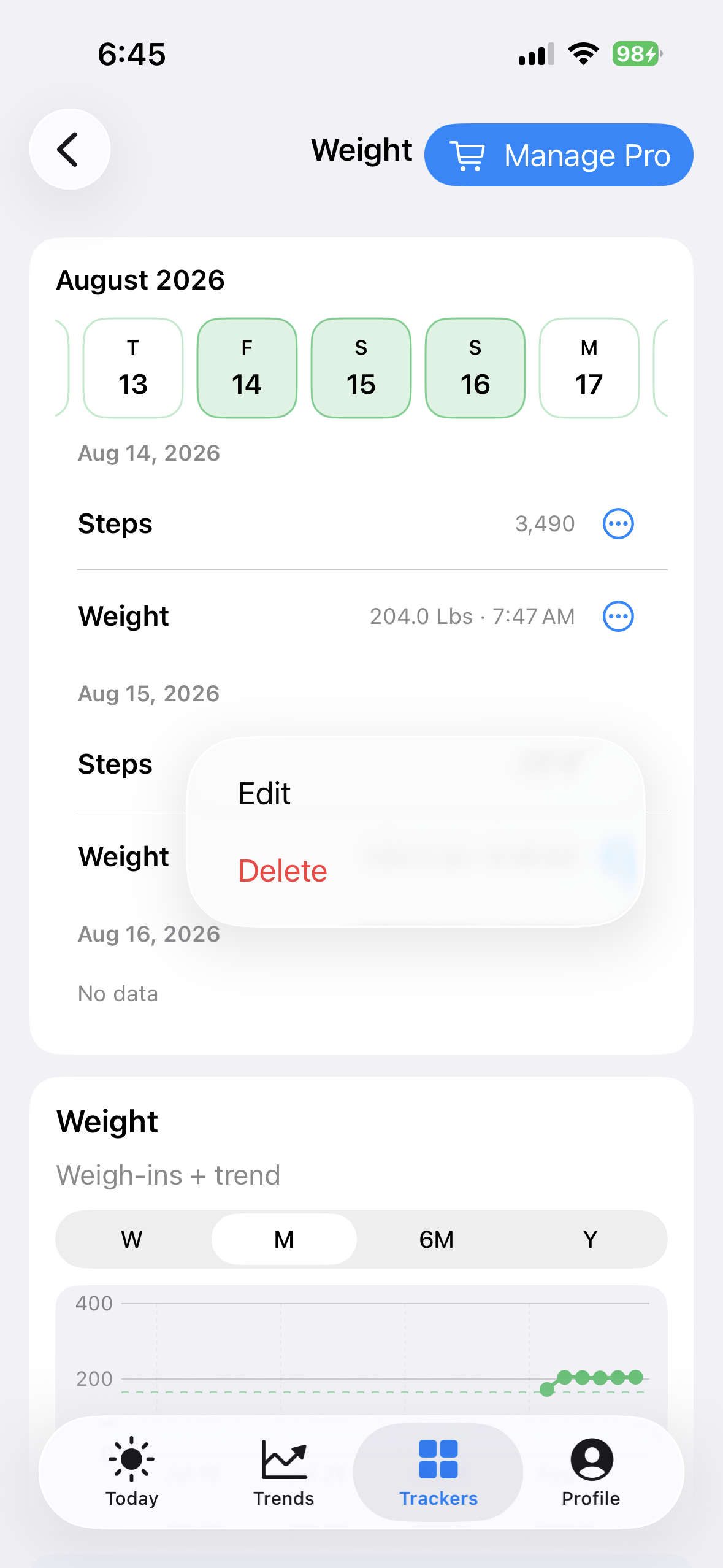
Record steps
Choose Track Steps, enter the total for the selected date, and save. A manual total can be edited or cleared from its history action. On iPhone and iPad, imported Apple Health steps and manual records must not be assumed to be interchangeable; review the original source before replacing an imported value.
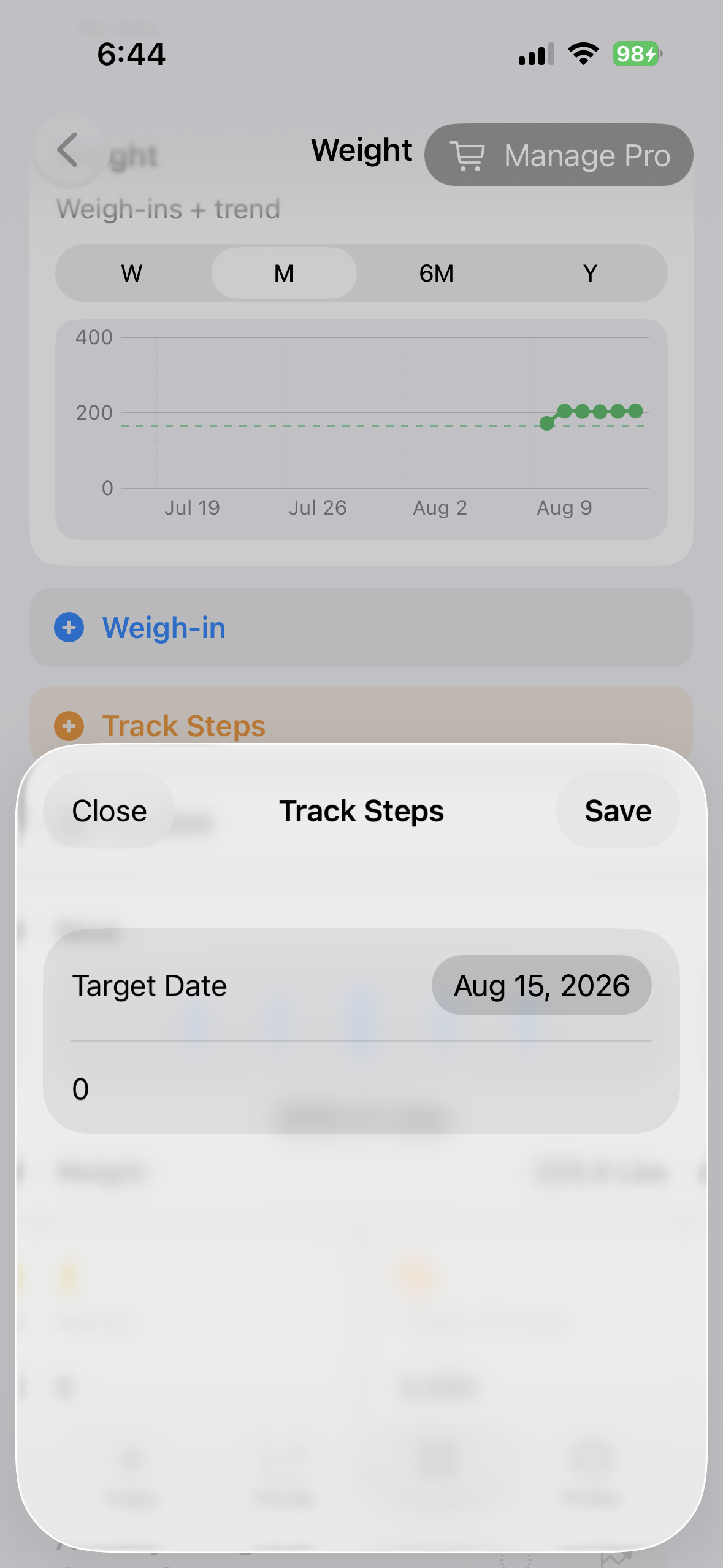 Enter the total for the intended date
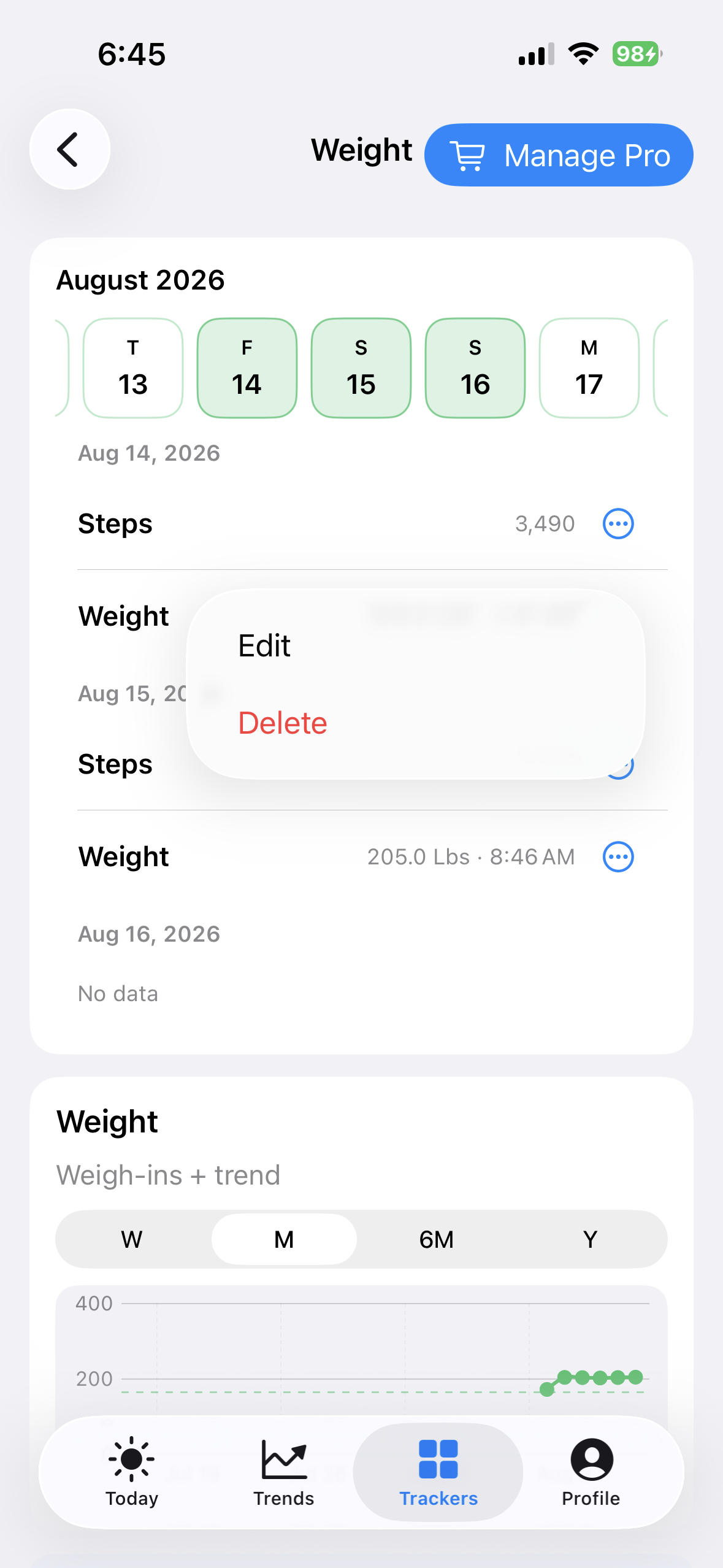 Open the saved step record to correct it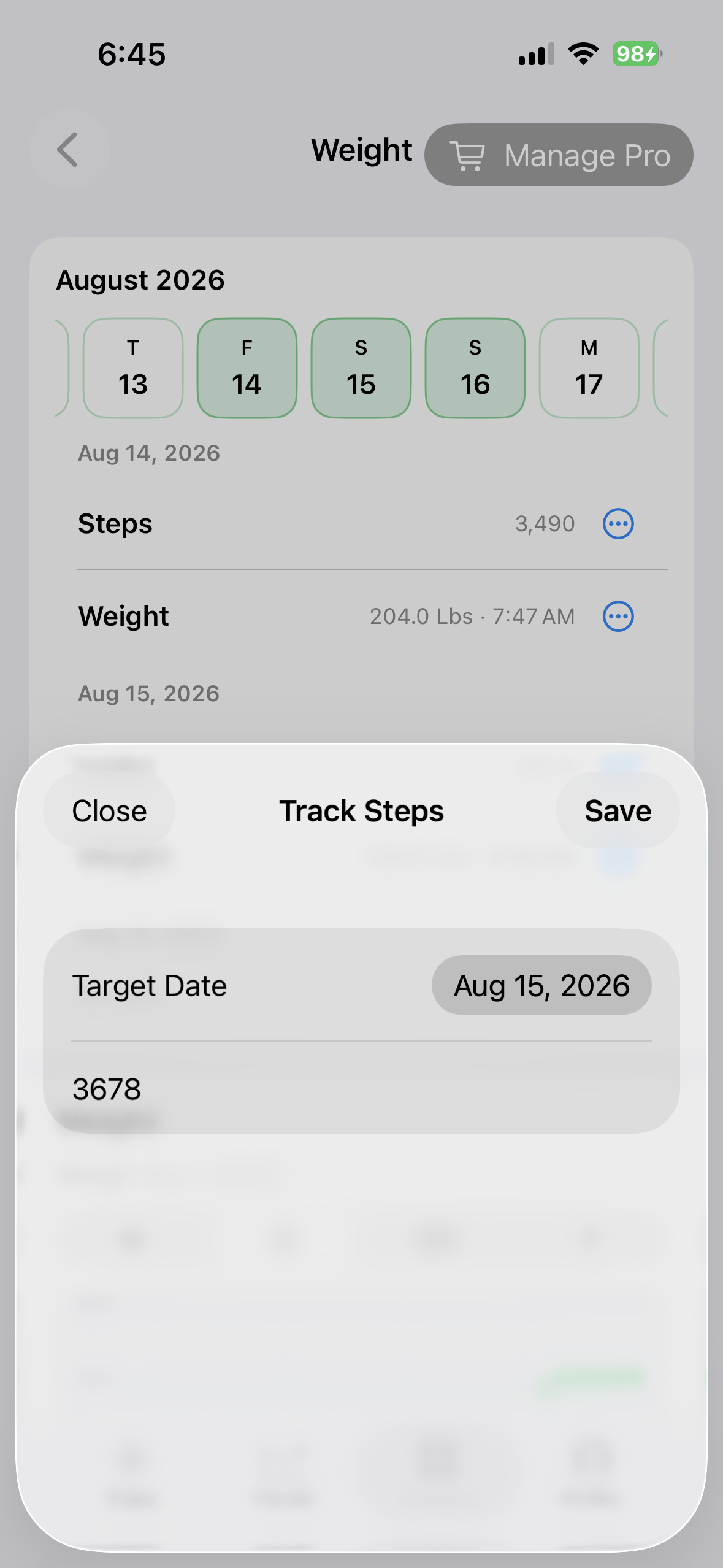
Log BMI
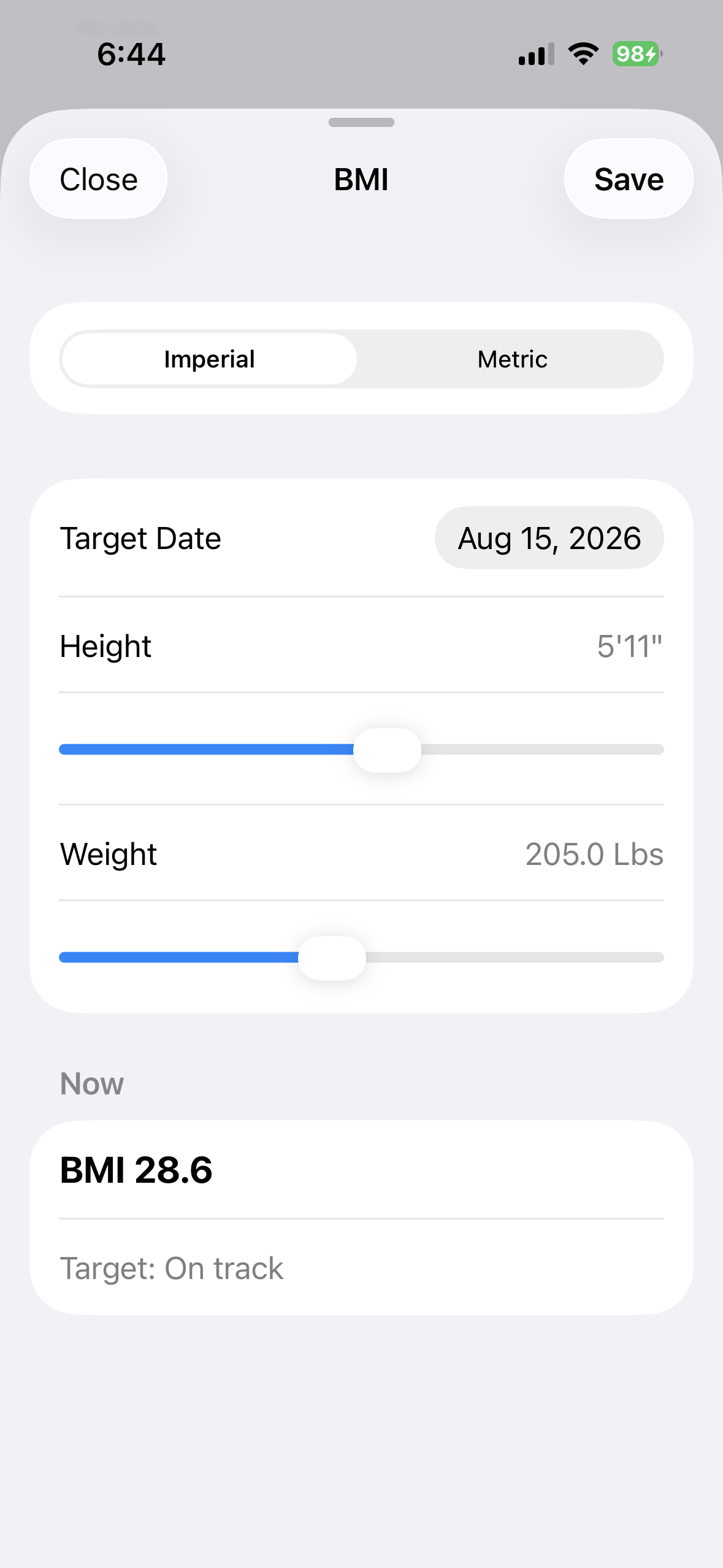
Choose Log BMI, select Imperial or Metric, and enter the height and weight used for that dated calculation. BeFit Tracker saves the resulting BMI as a history record so the calculation can be reviewed later. Correct the original entry rather than adding a duplicate for the same measurement.
Log hydration
Use Log Water from Today or the Food Log. Enter the actual amount for the intended date. Hydration contributes to daily history and progress against your configured bottle goal. BeFit Tracker does not import hydration from Apple Health, and a goal changes the comparison—not the amount you recorded.
iPhone and iPad
With read-only Apple Health permission, supported step records can be imported. Manual entry remains available if Health access is unavailable or declined. iPhone uses focused sheets for Weight, Steps, and BMI; landscape iPad keeps the selected-day history and surrounding tracker context visible while those sheets are open.
Mac
Mac does not read Apple Health directly. Supported mobile-imported records may appear on Mac through iCloud when synchronization is enabled. The wider Weight workspace keeps the calendar, Weight Log, history, goal, and BMI together. If a mobile step or weight record is missing, allow iCloud reconciliation to complete before creating a duplicate.