 BeFit Tracker Help
Mac progress guide
Review tracker history at scale
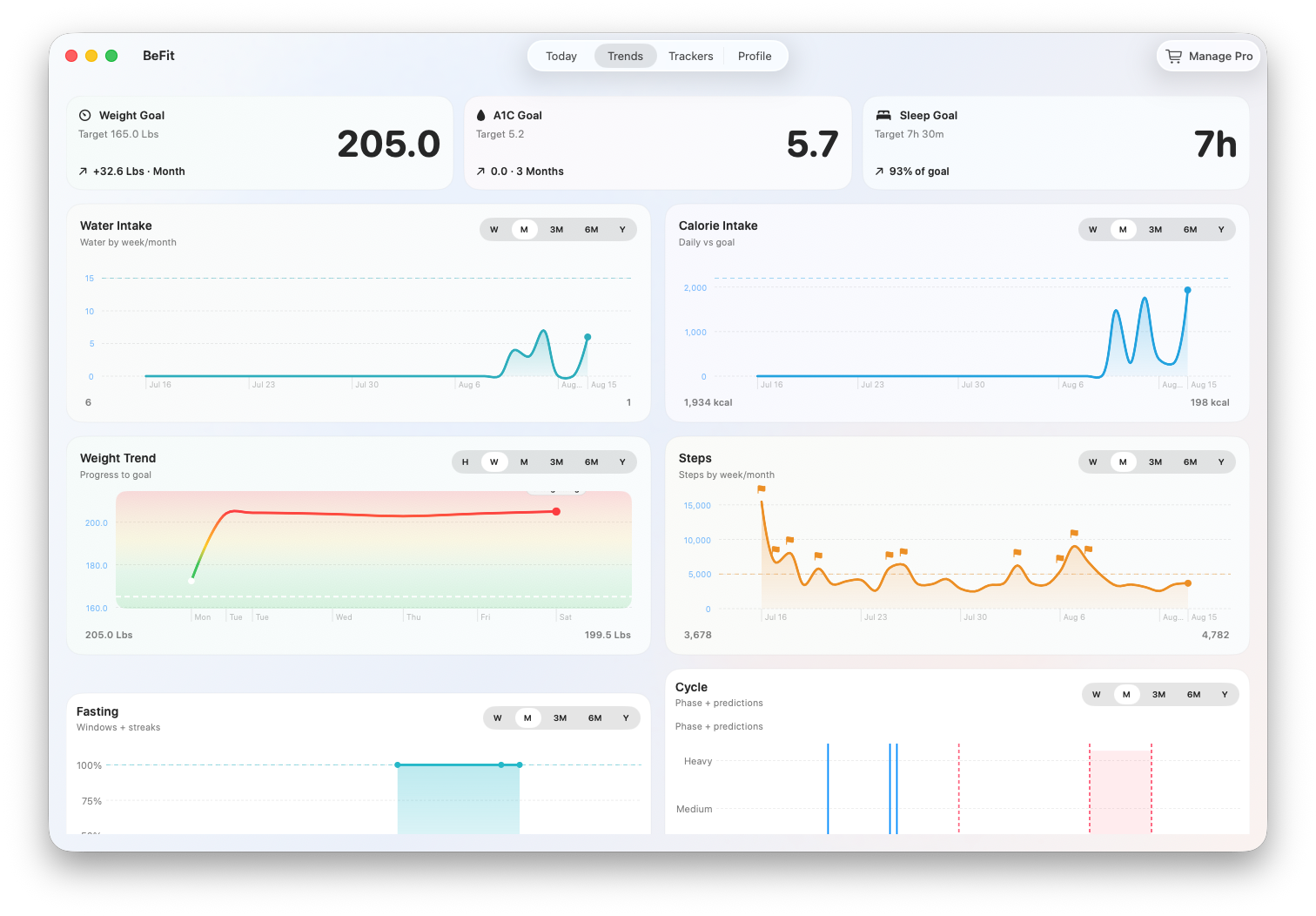
Use Mac trends to find a question, then inspect and correct the dated records behind the chart.
Trends and tracker history answer different questions. Trends show direction across a selected range; each tracker’s History shows the exact saved records that produced that direction. Use the chart to find where to look and the records to understand or correct what happened.
Begin with the Trends dashboard
- Select Trends in the main navigation.
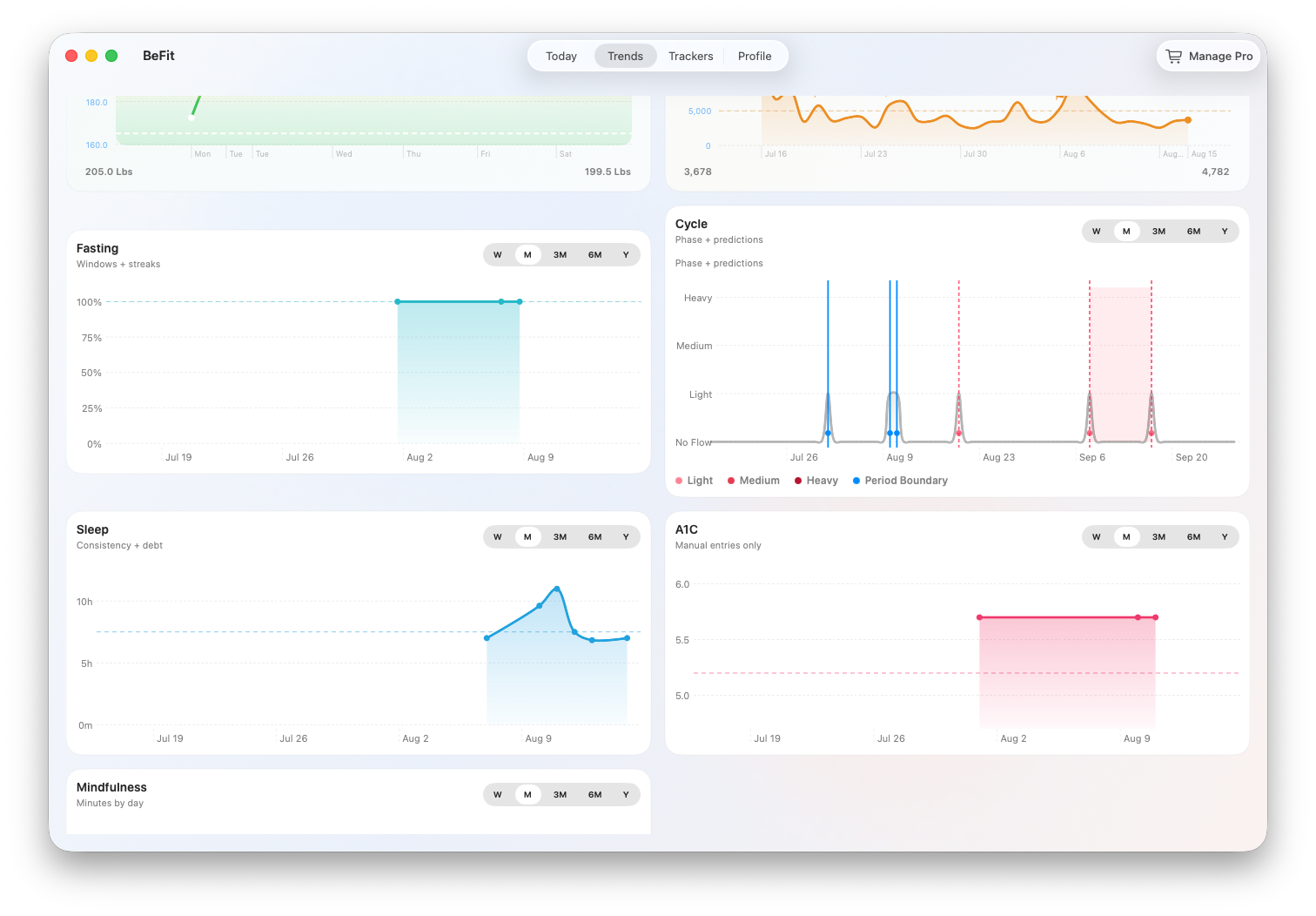
- Find the metric you want to review, such as weight, calories, steps, A1C, sleep, fasting, cycle, or mindfulness.
- Choose Week for recent detail, Month for a broader routine, or 6 Months and Year for longer direction.
- Note the dates around a change or gap, then open that tracker for record-level detail.
Open the records behind a chart
- Select Trackers and choose the tracker.
- Use its calendar, week control, or date selector to move to the period you identified.
- Compare the chart or summary with History.
- Open individual rows to inspect values, times, stages, servings, plans, observations, or methods as supported by that tracker.
Food totals come from logged servings; sleep totals come from stage samples; fasting completion comes from session boundaries and plans; cycle status can combine records and predictions. The dedicated tracker guide explains the relevant calculation.
Use goals as reference lines
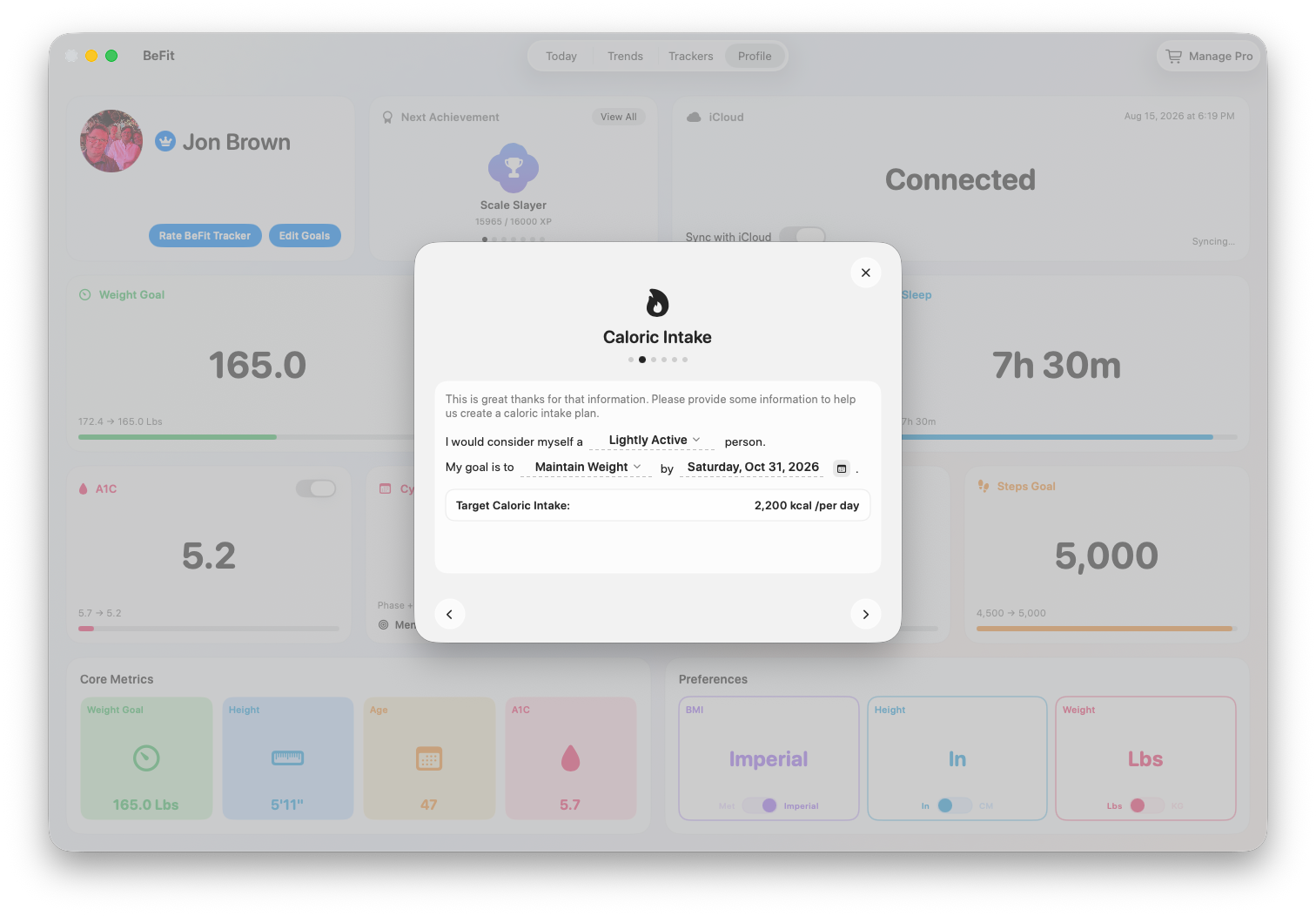
Goals saved in Profile provide comparison points for supported trackers. They do not change historical records, and BeFit Tracker does not prescribe whether a goal is appropriate. If a comparison looks wrong, verify the goal in Profile and the underlying tracker records separately.
Correct the record that produced the result
- Find the exact dated History row.
- Choose Edit and correct the supported fields, or choose Delete and confirm when the record should not exist.
- Return to the tracker summary and Trend. They recalculate from the corrected history.
- If another device still shows the older value, leave both devices online with iCloud synchronization enabled and allow reconciliation to finish.
Interpret patterns without overstating them
Aligning dates across trackers can reveal useful personal context: a period of lower sleep may overlap a change in activity, or meal patterns may differ during travel. This is a way to ask better questions. A chart cannot establish causation, diagnose a condition, or prove that a routine produced a health outcome.
When a chart says No Data
- Confirm the tracker contains saved records.
- Choose a range that includes their dates.
- Remember that some comparisons require at least two points and completed sessions do not include an active session.
- Check iCloud status when the expected record was created on another device.