 BeFit Tracker Help
iPhone & iPad tracker guide
Fasting tracking on iPhone and iPad
Start a live fast, record a completed session, and understand fasting plans, completion, trends, and history.
Fasting is a Beta tracker for recording when a session starts, when it ends, and which plan you intended to follow. It supports a live timer and completed-session entry, then turns those records into a weekly view, completion percentages, plan results, and longer trends.
BeFit Tracker includes 12:12, 14:10, 16:8, 18:6, 20:4, OMAD, 5:2, and ADF tracking targets. Whether fasting or a particular schedule is appropriate depends on your circumstances and qualified guidance.
Start a fast as it happens
- Open Trackers, choose Fasting, then tap Start Fast. The same action can appear on Today when it is enabled as a quick action.
- Choose the plan that matches the session you intend to track.
- Confirm the actual start date and time, then save.
- Use the Active Fast card to monitor elapsed time, remaining time, the recorded start, and the calculated target end.
- When you finish, tap End Fast, confirm the end time, and save the completed session.
Only one fast can be active at a time. BeFit Tracker also rejects overlapping sessions so one period is not counted twice.
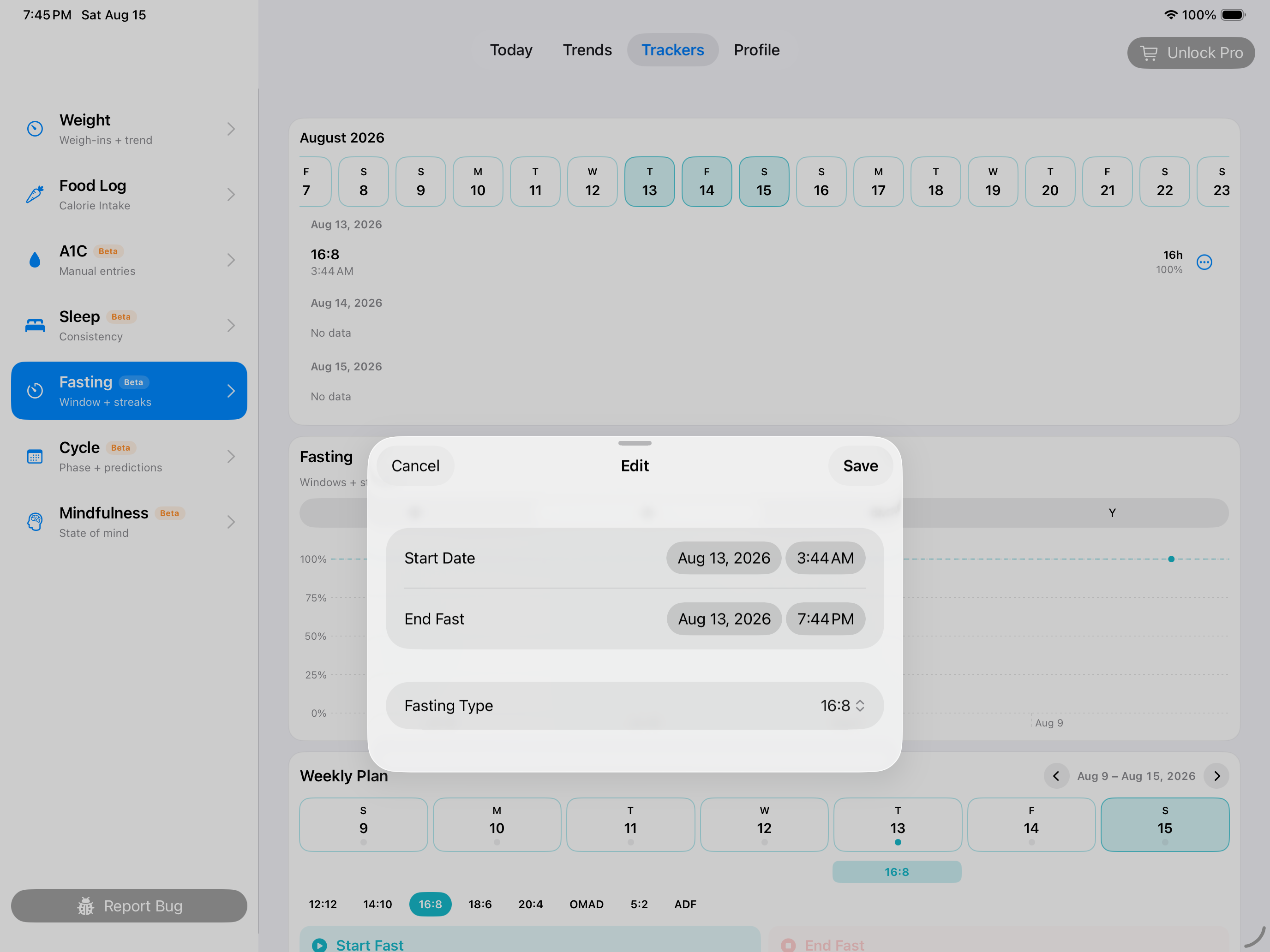 Choose the plan and true start time
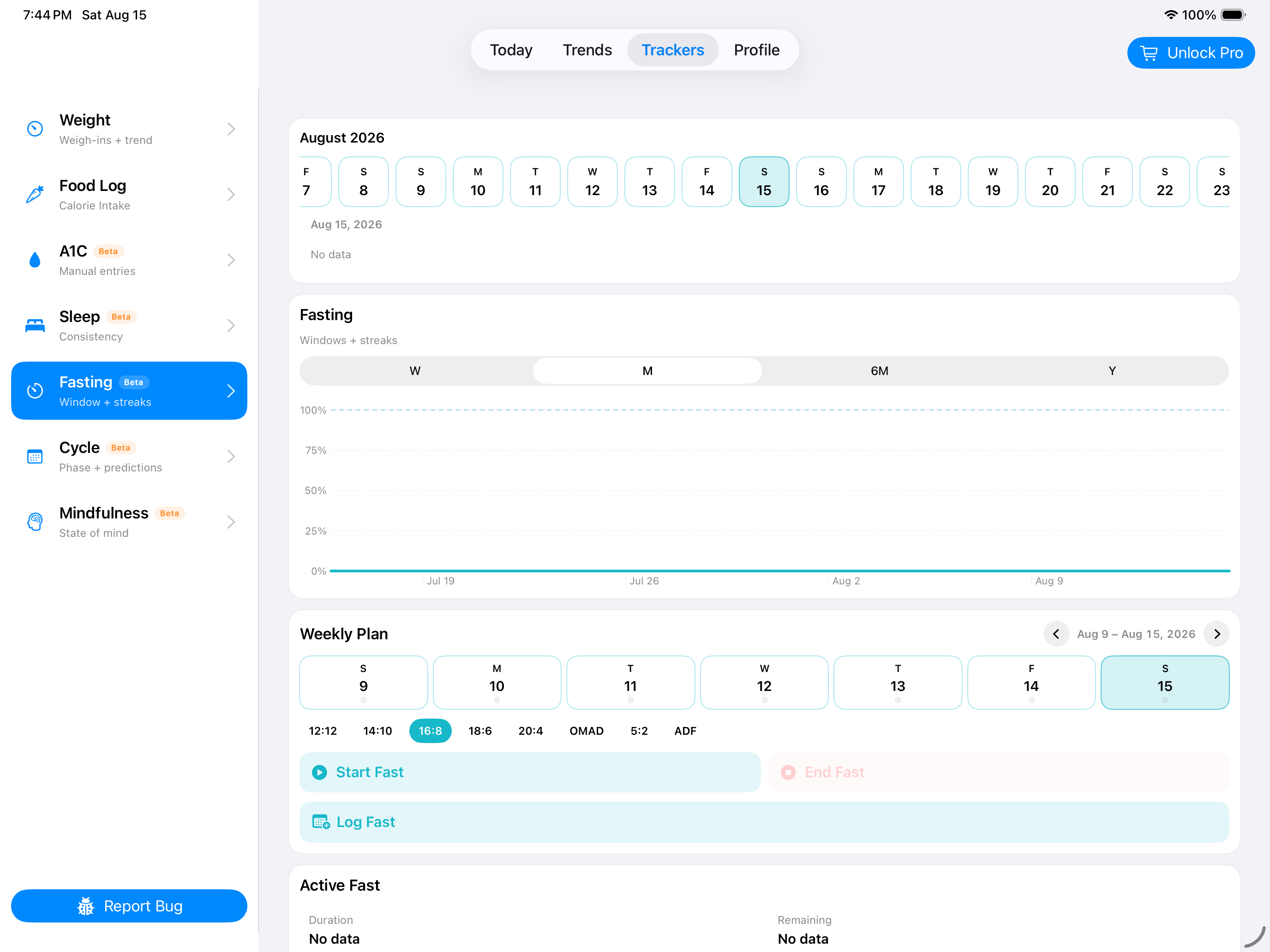 Confirm the completed session in History
Log a fast that already ended
- Tap Log Fast instead of starting a live timer.
- Choose the plan, start date and time, and end date and time.
- Check that the end follows the start and that the session does not overlap another saved fast.
- Save, then verify the duration and completion percentage in History.
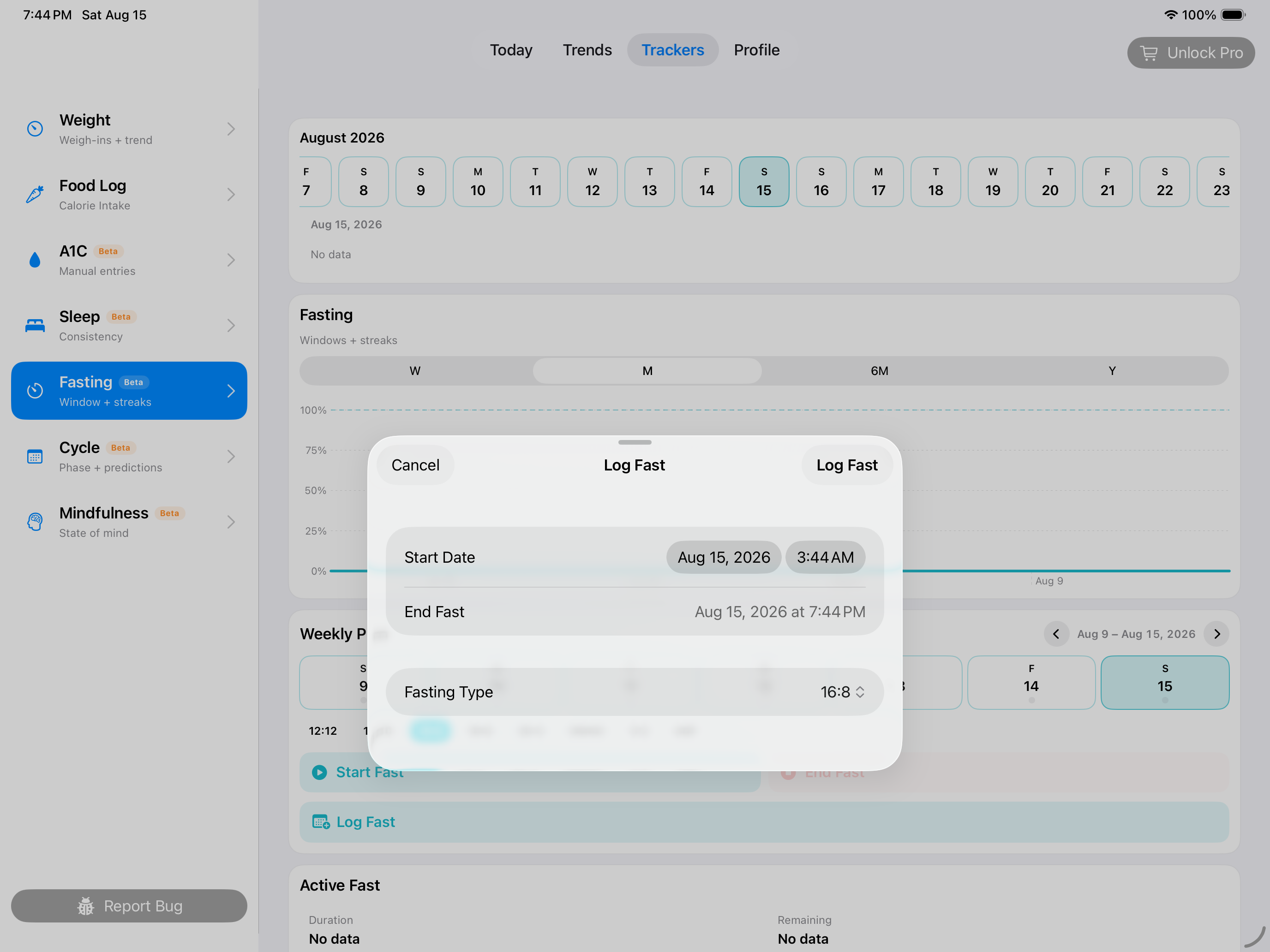
Read the fasting results
- Completion percentage compares the recorded duration with the target duration of the selected plan. It reports timing, not a health outcome.
- Weekly Plan marks days containing completed sessions and lets you move between weeks.
- Fast Type Results groups completed sessions by plan, ranks up to four plan types, and shows average completion with the number of completed sessions.
- Trend uses completed sessions and can be viewed over Week, Month, 6 Months, or Year.
- History preserves the exact plan, start time, end time, duration, and whether a session is still active.
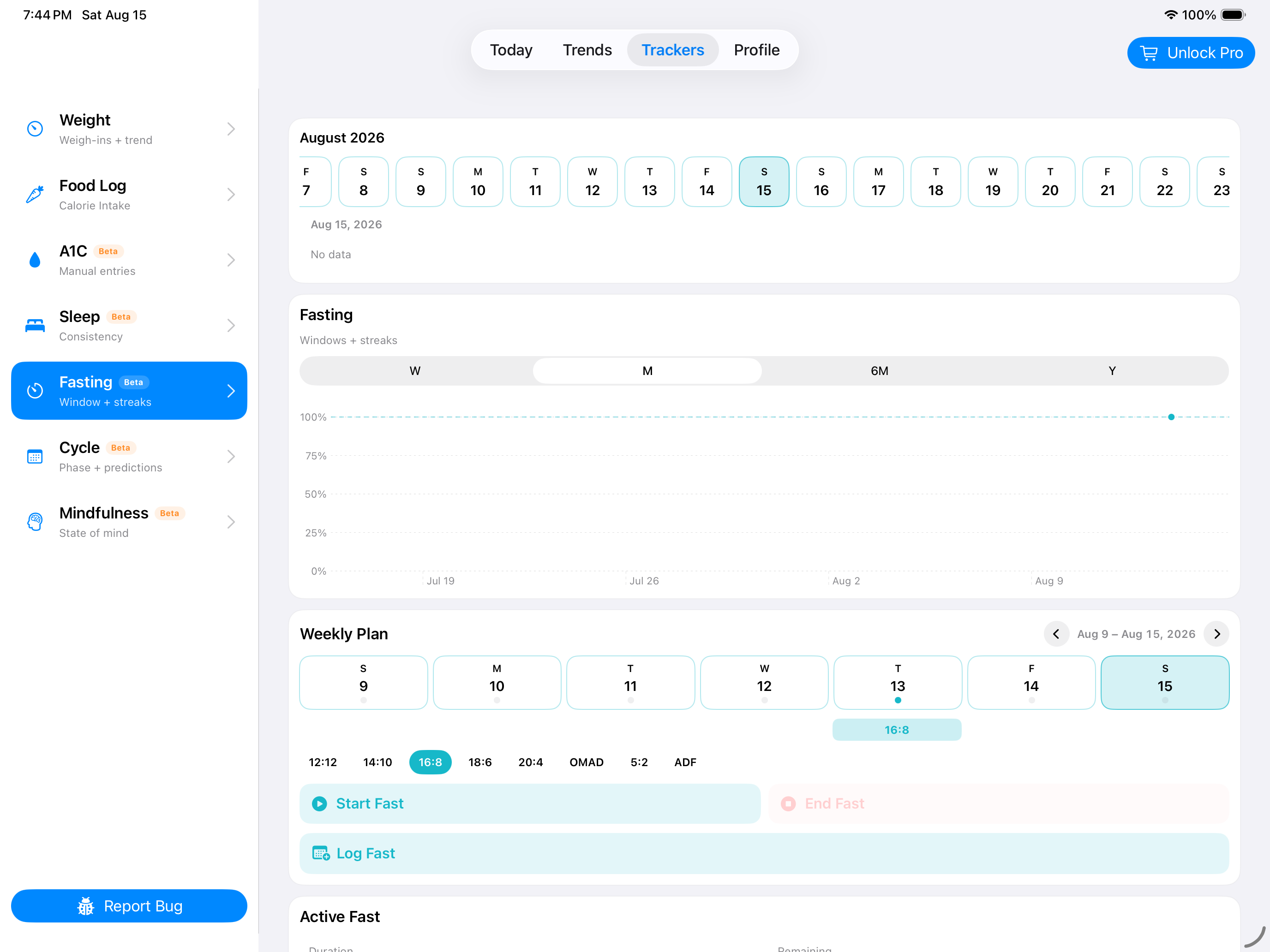
Correct or remove a session
- Find the session in History and choose Edit.
- Correct its plan or start and end times. An active session has no end time until it is finished.
- Save and review the duration, completion percentage, weekly marker, and plan results again.
- Use Delete and confirm when the entire session was recorded by mistake.
Put the trend in context
Longer ranges can show when fasting was part of your routine and how closely completed sessions matched the selected plan. You can compare those dates with food, sleep, weight, mindfulness, or other personal records, but BeFit Tracker does not infer cause, safety, or effectiveness from those visual relationships.
The target end is a calculation from the selected plan. The app cannot determine whether continuing a fast is safe for you and does not provide medical advice.